Iowa Secured Print For Mac
Description
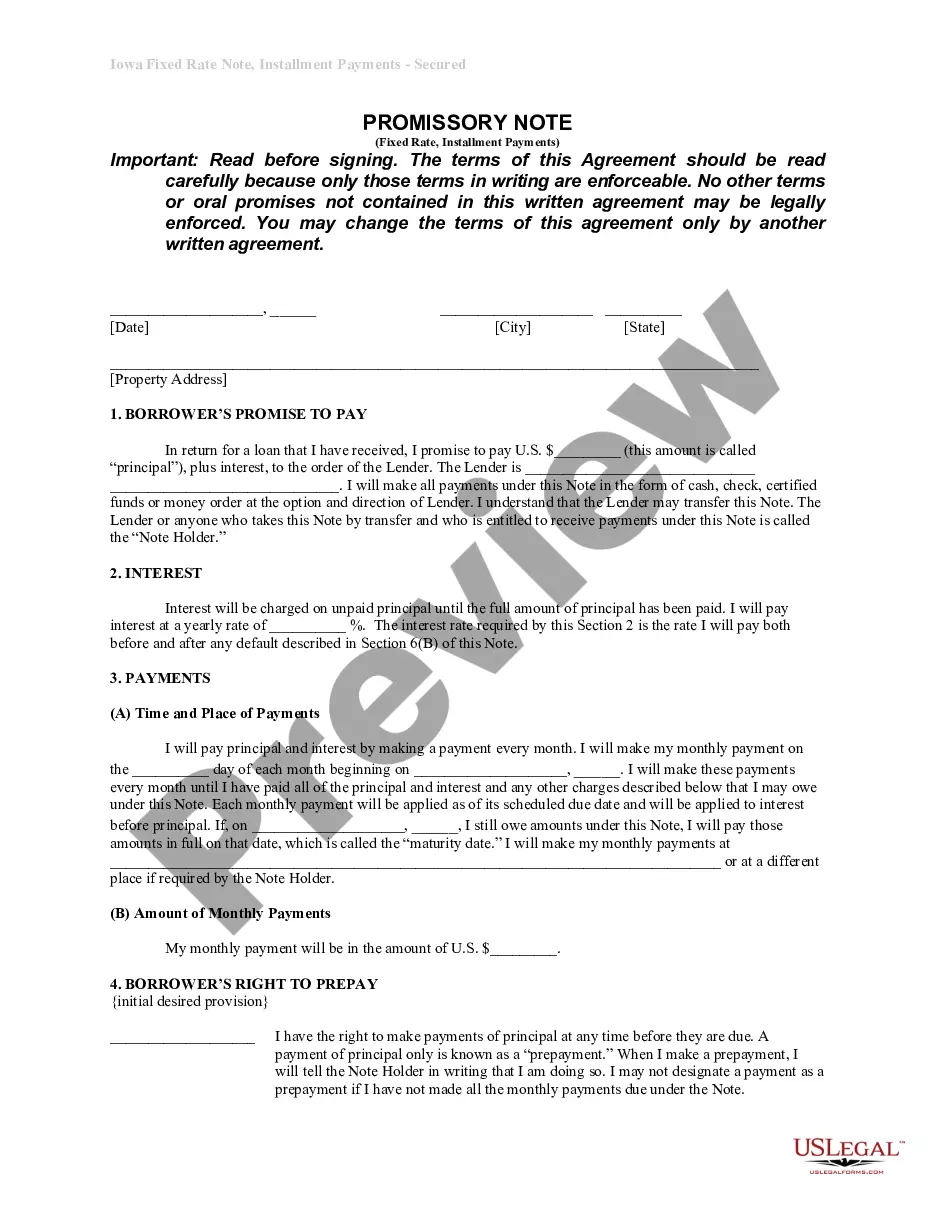
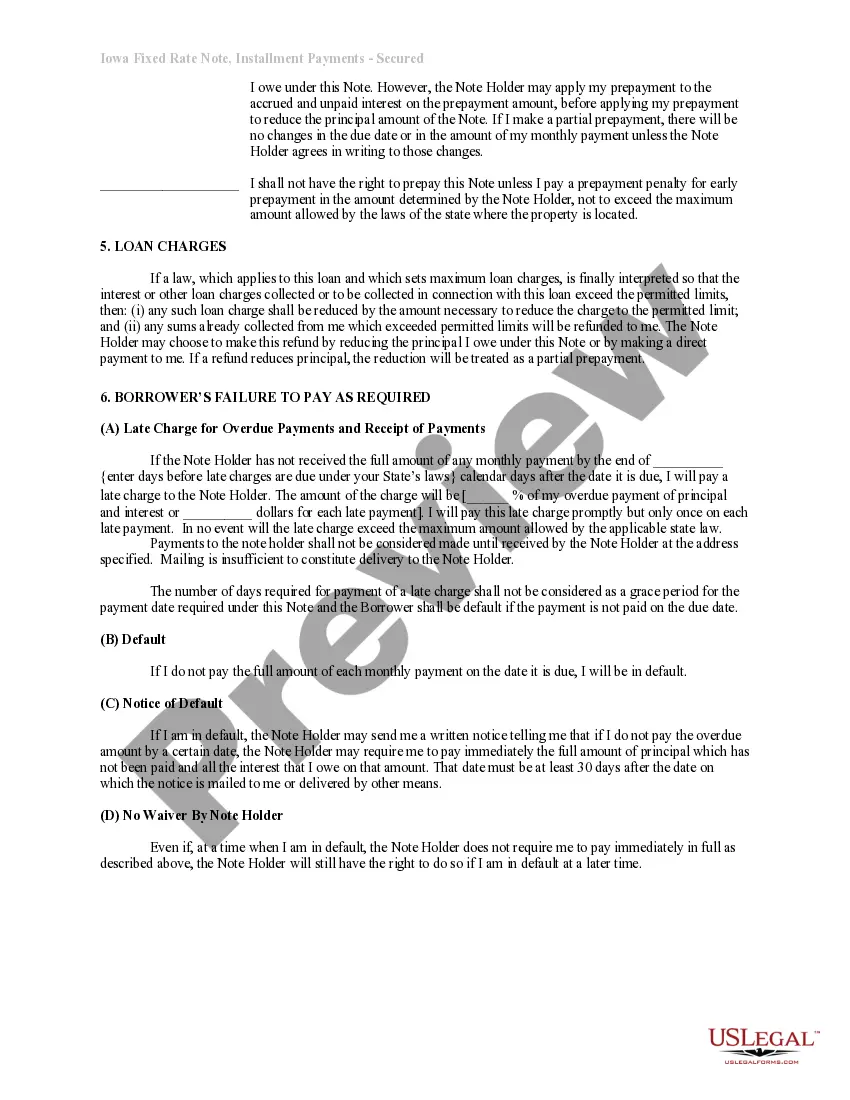
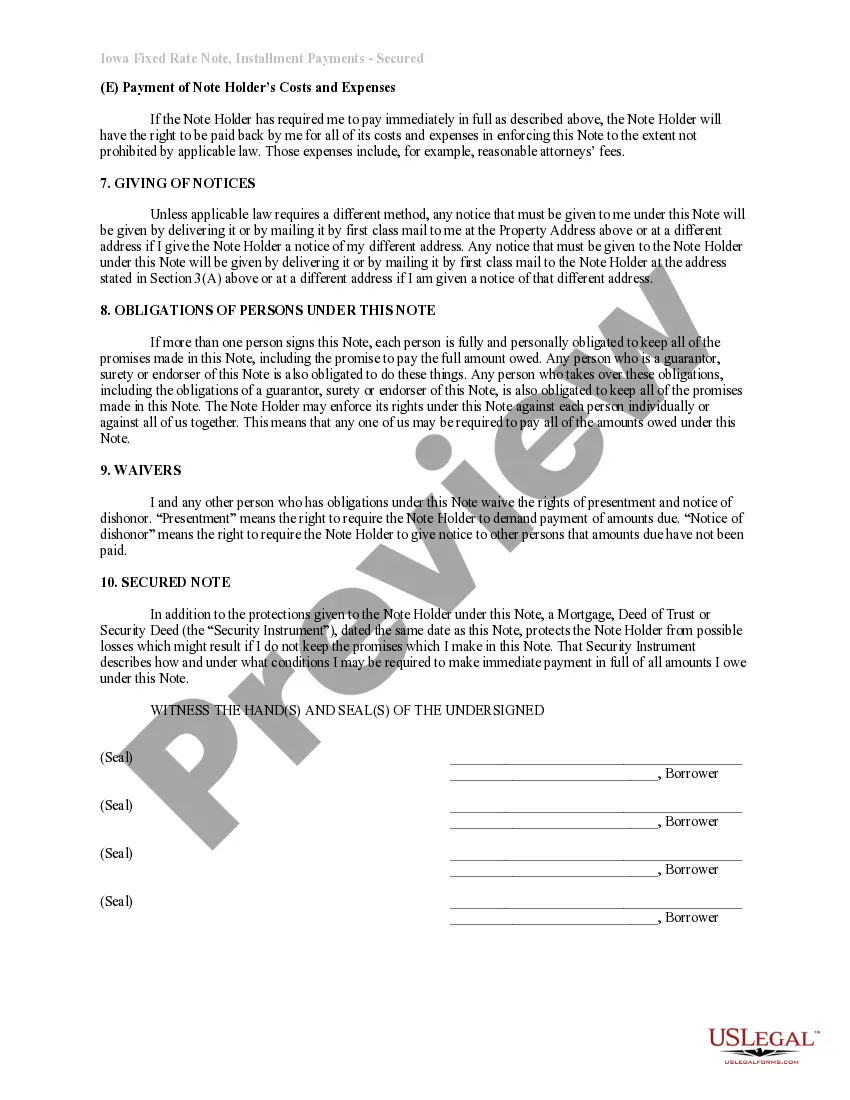
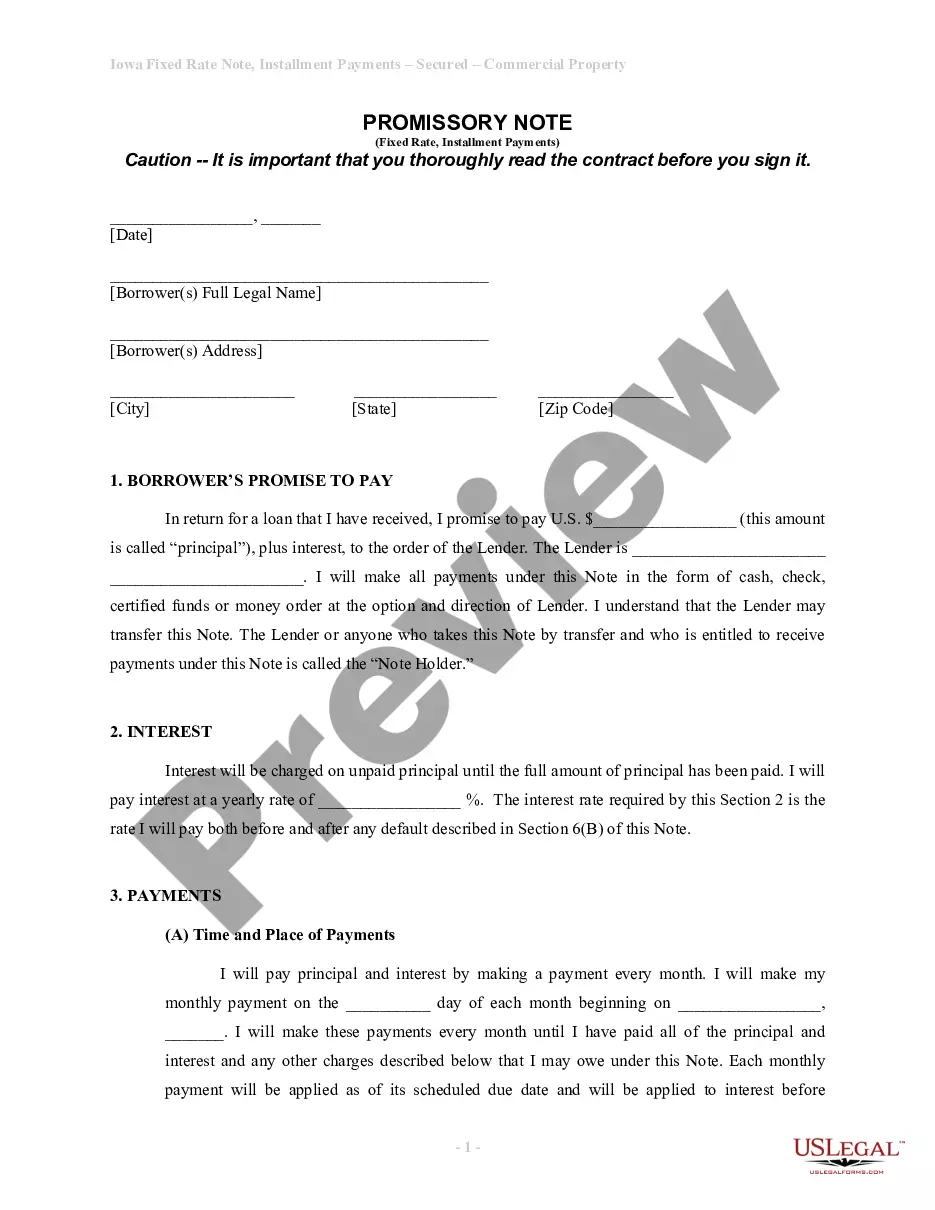
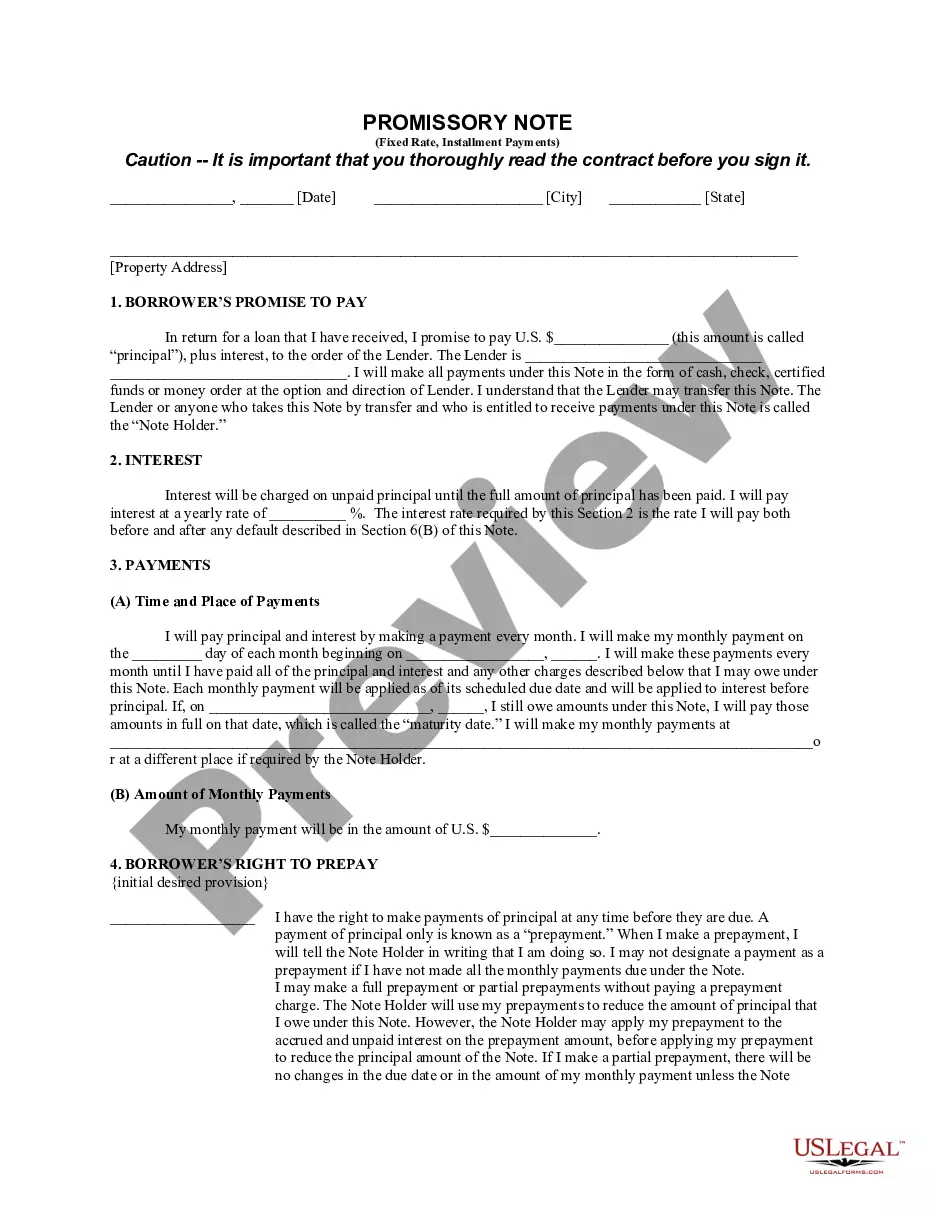
Get your form ready online
Our built-in tools help you complete, sign, share, and store your documents in one place.
Make edits, fill in missing information, and update formatting in US Legal Forms—just like you would in MS Word.
Download a copy, print it, send it by email, or mail it via USPS—whatever works best for your next step.
Sign and collect signatures with our SignNow integration. Send to multiple recipients, set reminders, and more. Go Premium to unlock E-Sign.
If this form requires notarization, complete it online through a secure video call—no need to meet a notary in person or wait for an appointment.
We protect your documents and personal data by following strict security and privacy standards.
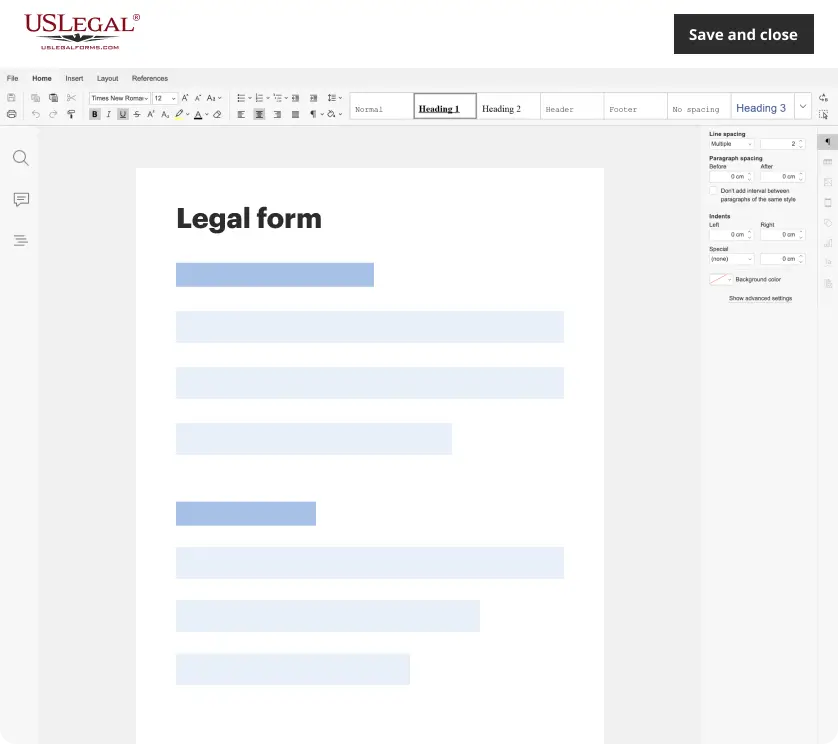
Make edits, fill in missing information, and update formatting in US Legal Forms—just like you would in MS Word.
Download a copy, print it, send it by email, or mail it via USPS—whatever works best for your next step.
Sign and collect signatures with our SignNow integration. Send to multiple recipients, set reminders, and more. Go Premium to unlock E-Sign.

If this form requires notarization, complete it online through a secure video call—no need to meet a notary in person or wait for an appointment.
We protect your documents and personal data by following strict security and privacy standards.
Looking for another form?
How to fill out Iowa Installments Fixed Rate Promissory Note Secured By Residential Real Estate?
- Log in to your account if you're a returning customer. Ensure your subscription is active; if not, renew it.
- For first-time users, start by browsing the extensive library of legal forms. Utilize the Preview mode and form description to confirm you’re selecting the right document for your needs.
- If the needed form isn’t available, use the Search tab to locate the correct template that matches your requirements.
- Once the form is found, click the Buy Now button and select an appropriate subscription plan. Remember to create an account to access additional resources.
- Complete your purchase using your credit card or PayPal. Make sure your payment details are entered accurately.
- Download your selected form. Save it on your device for easy access and completion, and find it again in the My Forms section of your profile.
US Legal Forms offers a robust collection of over 85,000 fillable, editable forms, ensuring users save time and avoid complications. With access to premium experts, you can receive assistance for any legal queries, guaranteeing that your documents will remain accurate and compliant.
Take advantage of the convenience and comprehensive support that US Legal Forms provides. Visit the site today to streamline your legal documentation process!
Form popularity
FAQ
To enable secure print on your Mac, start by selecting your printer in the system preferences. Then, navigate to the printing options and look for the secure print setting, which is part of the Iowa secured print for Mac feature. By enabling this option, you enhance the confidentiality of your documents before sending them to print.
Enabling secure print generally involves accessing your printer's settings and configuring the Iowa secured print for Mac. Look for security options that allow you to set up a print code or authentication requirement. This feature helps protect sensitive documents by ensuring that only authorized users can access printed material.
To fix the hold for authentication on your Mac printer, start by examining the print job settings. Often, this can be addressed by entering the correct credentials for the Iowa secured print for Mac feature within the print dialog. If the issue continues, consider removing the printer from your system, then adding it back to refresh the connection.
When your printer displays 'waiting for authentication,' it typically means that it requires valid user credentials to proceed with the print job. To resolve this, verify your settings and ensure that you are using the Iowa secured print for Mac feature correctly. You may need to enter your credentials or adjust printer settings within system preferences.
If your Mac is not letting you print, there may be several possible causes. Check if your printer is connected correctly and that the Iowa secured print for Mac feature is properly set up. Also, ensure there are no pending print jobs in the queue that might be blocking new requests. Restarting your printer and Mac can often resolve these issues.
To turn off user authentication on your Mac, navigate to your printer settings. Select the printer, and then look for the option to disable user authentication. By doing this, you can often bypass restrictions and utilize the Iowa secured print for Mac feature more smoothly. Keep in mind, though, that disabling authentication may reduce security.
To fix the hold for authentication message when printing on your Mac, start by checking the printer's settings. Ensure that the appropriate credentials are entered for the Iowa secured print for Mac feature. If the issue persists, consider removing and re-adding the printer in your system preferences. This action usually resets the communication and resolves authentication issues.
AirPrint uses a secure connection to transmit print jobs directly from your Mac to the printer. This process keeps your documents safe from unauthorized access. When you incorporate Iowa secured print for mac, you can feel confident in the security of your sensitive information.
You can find AirPrint on your Mac by selecting a printer that supports AirPrint in the print dialog box. When you choose 'Print',look for the AirPrint option in the dropdown list of available printers. This feature enhances your Iowa secured print for mac experience with direct wireless printing options.
To enable secure Print on your Mac, first check if your printer supports this feature. Open the print dialog when you select 'Print', and look for the 'Options' menu where you can select 'Secure Print'. This ensures your documents remain confidential, especially when using Iowa secured print for mac.