Terminate Vba
Description
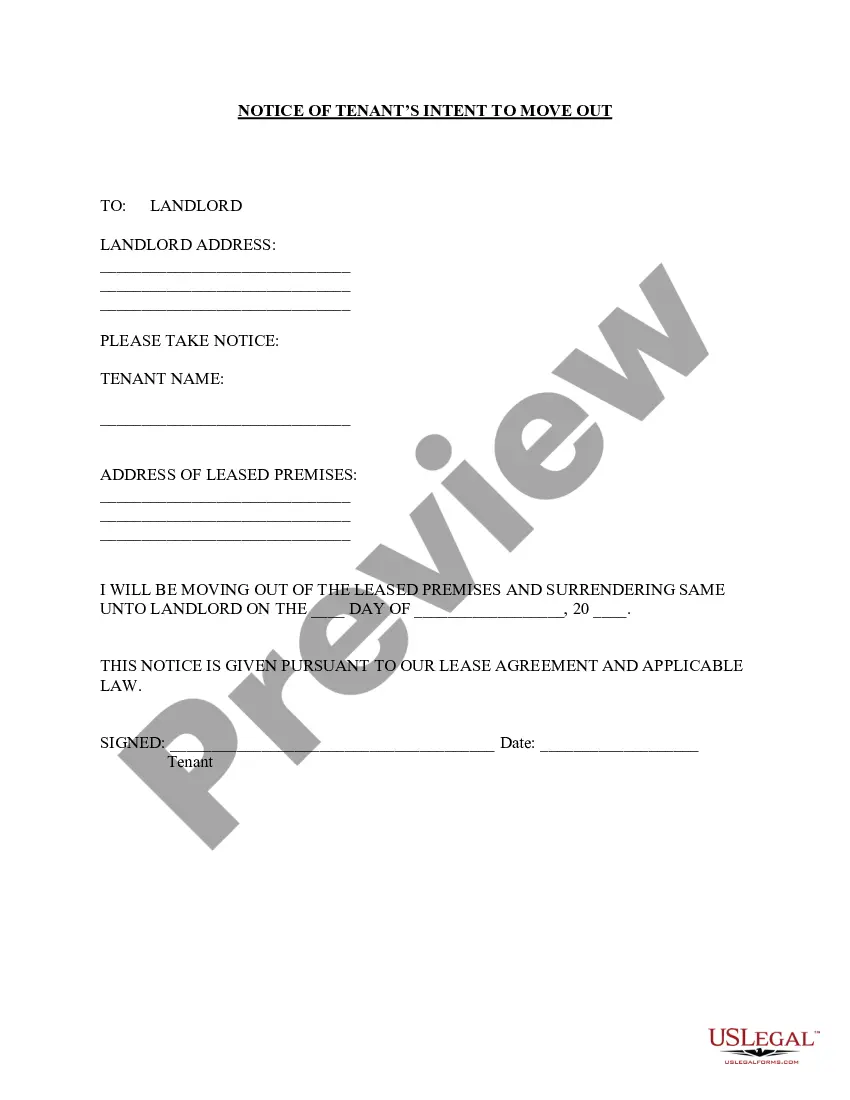
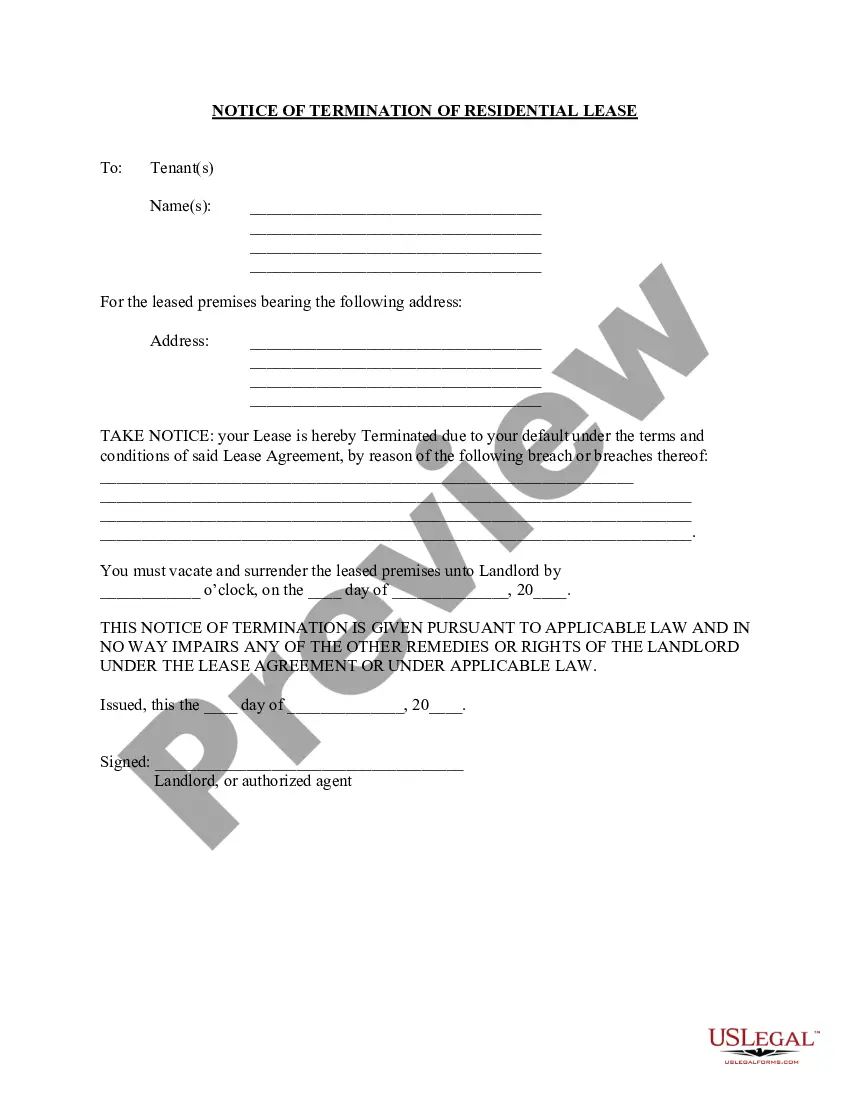
Get your form ready online
Our built-in tools help you complete, sign, share, and store your documents in one place.
Make edits, fill in missing information, and update formatting in US Legal Forms—just like you would in MS Word.
Download a copy, print it, send it by email, or mail it via USPS—whatever works best for your next step.
Sign and collect signatures with our SignNow integration. Send to multiple recipients, set reminders, and more. Go Premium to unlock E-Sign.
If this form requires notarization, complete it online through a secure video call—no need to meet a notary in person or wait for an appointment.
We protect your documents and personal data by following strict security and privacy standards.

Make edits, fill in missing information, and update formatting in US Legal Forms—just like you would in MS Word.

Download a copy, print it, send it by email, or mail it via USPS—whatever works best for your next step.

Sign and collect signatures with our SignNow integration. Send to multiple recipients, set reminders, and more. Go Premium to unlock E-Sign.

If this form requires notarization, complete it online through a secure video call—no need to meet a notary in person or wait for an appointment.

We protect your documents and personal data by following strict security and privacy standards.
Looking for another form?
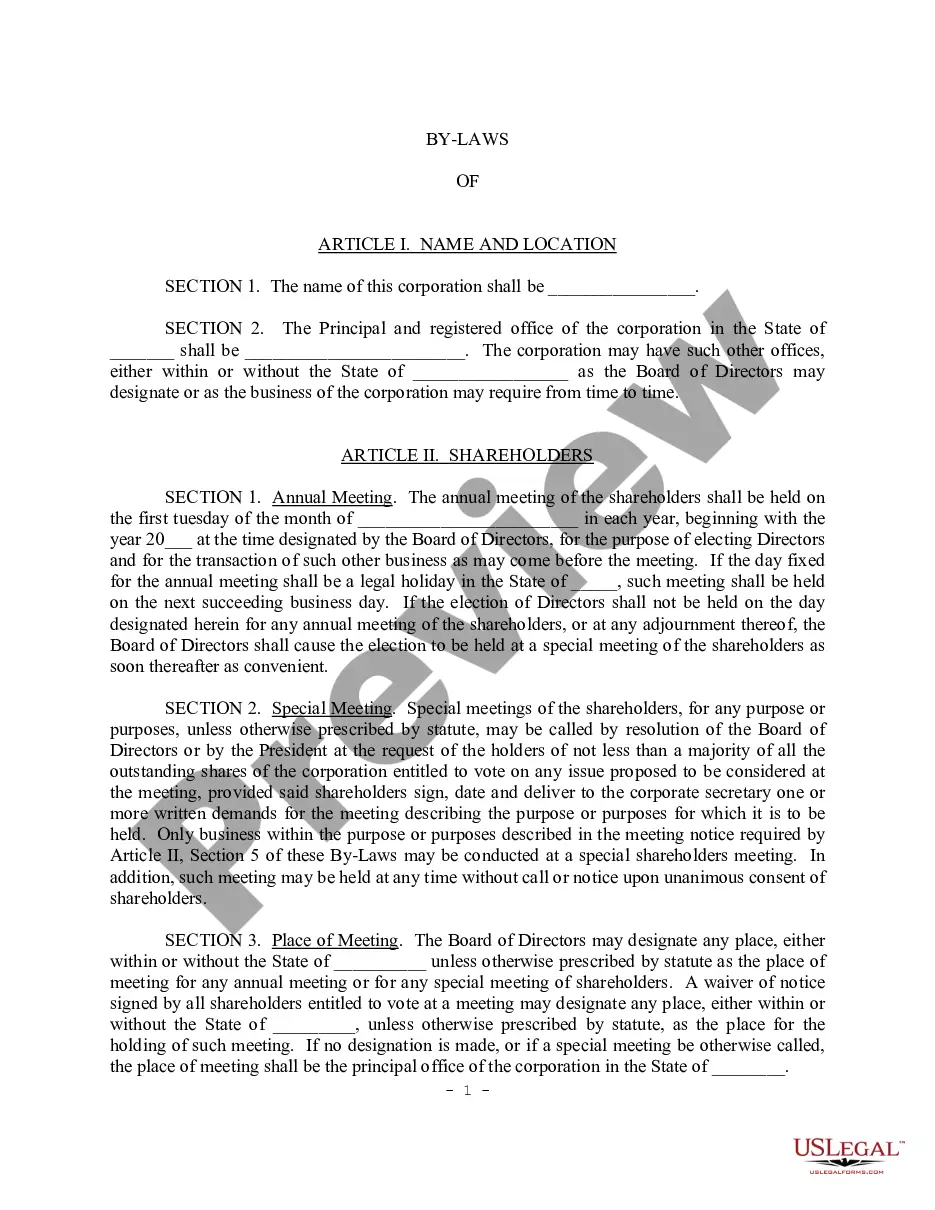
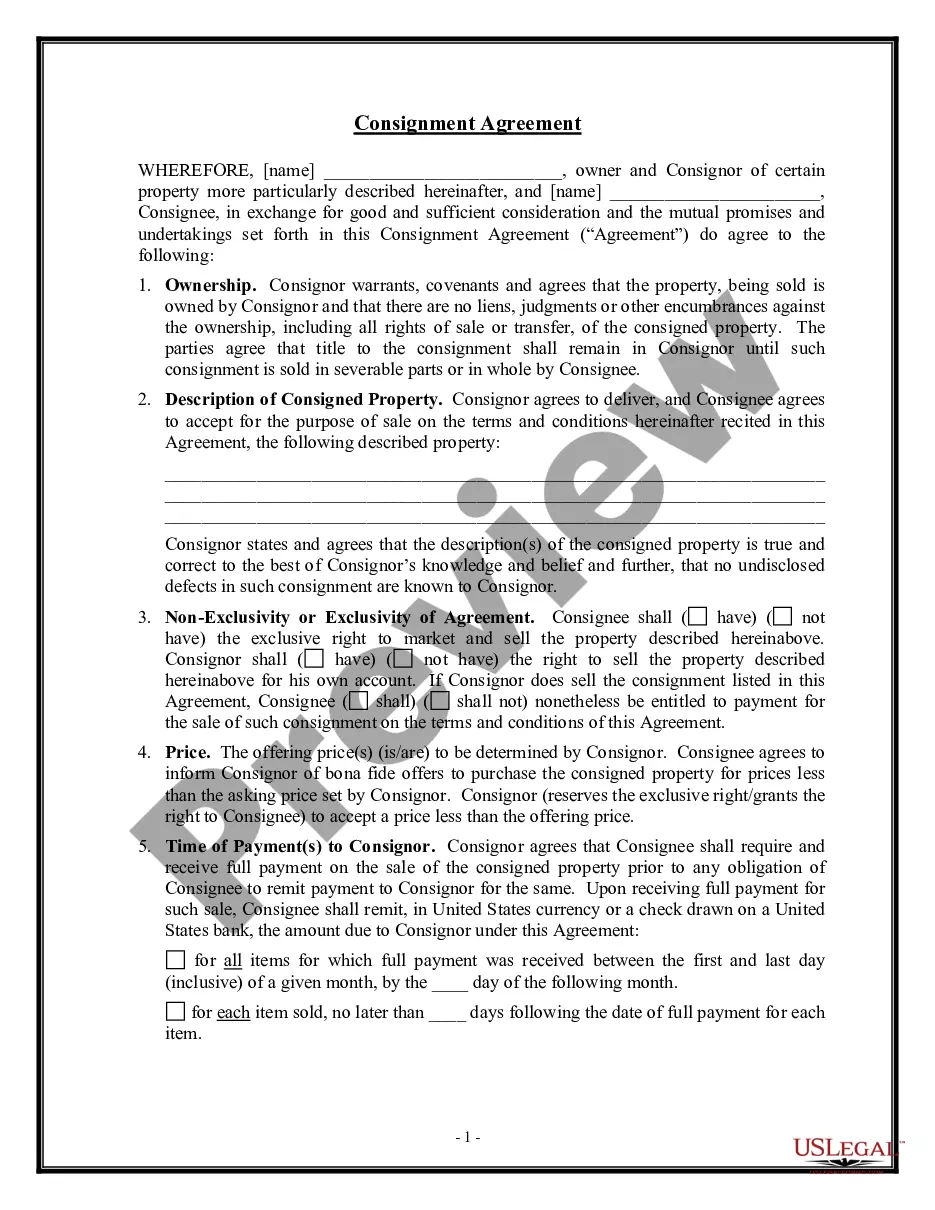

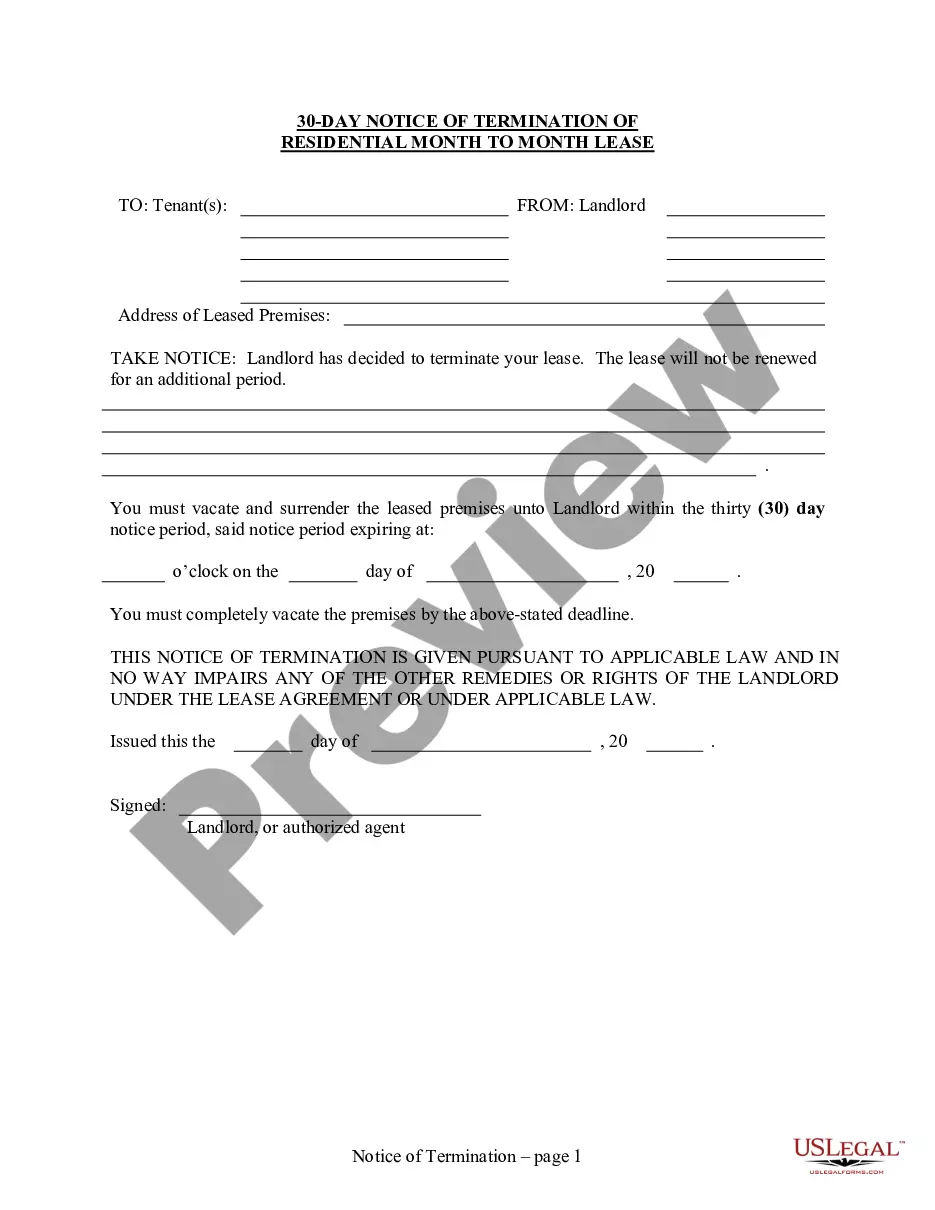
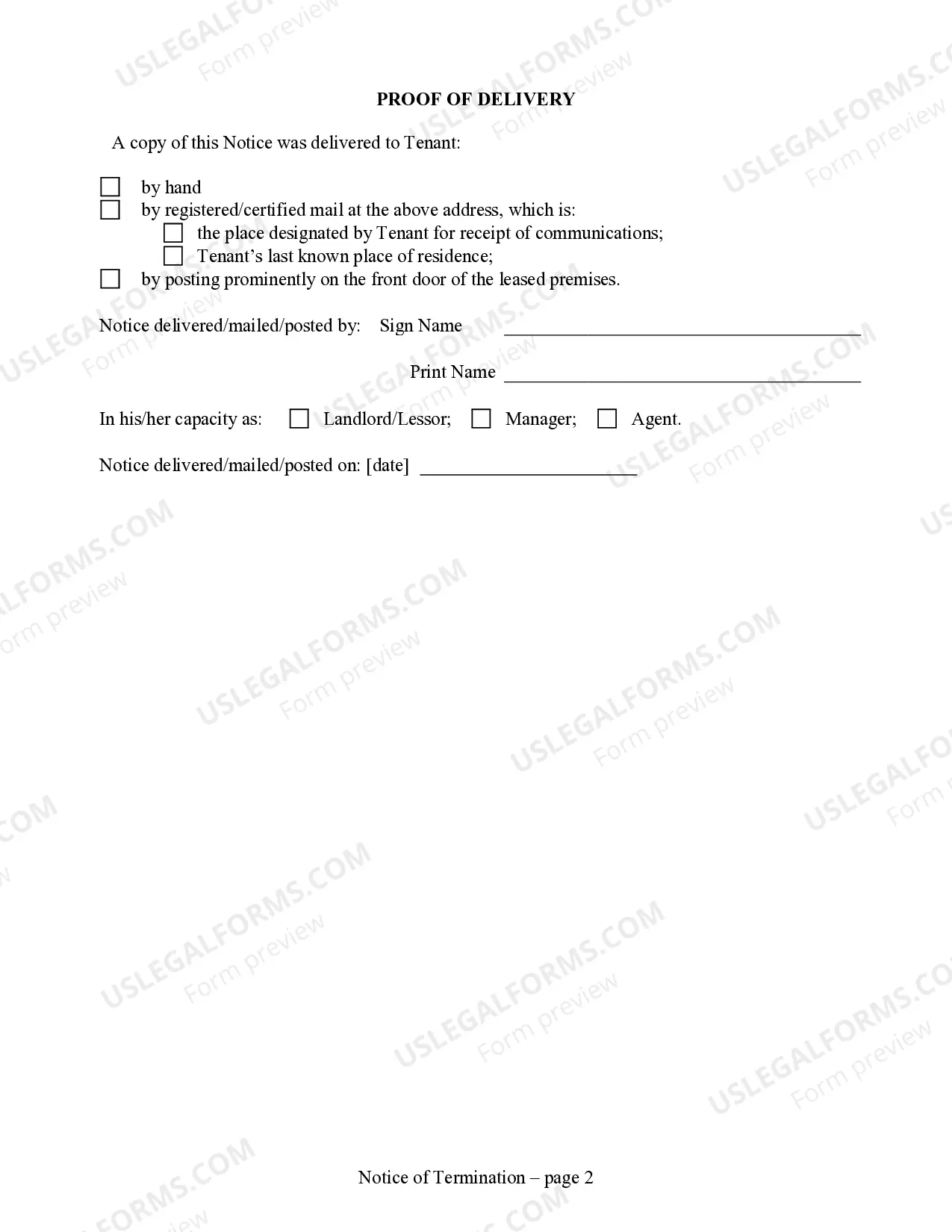
How to fill out Arizona 30 Day Notice To Terminate Month To Month Lease - Residential From Landlord To Tenant?
- If you are a returning user, log in to your account and download the necessary form by clicking the Download button. Ensure your subscription is active; renew if necessary based on your plan.
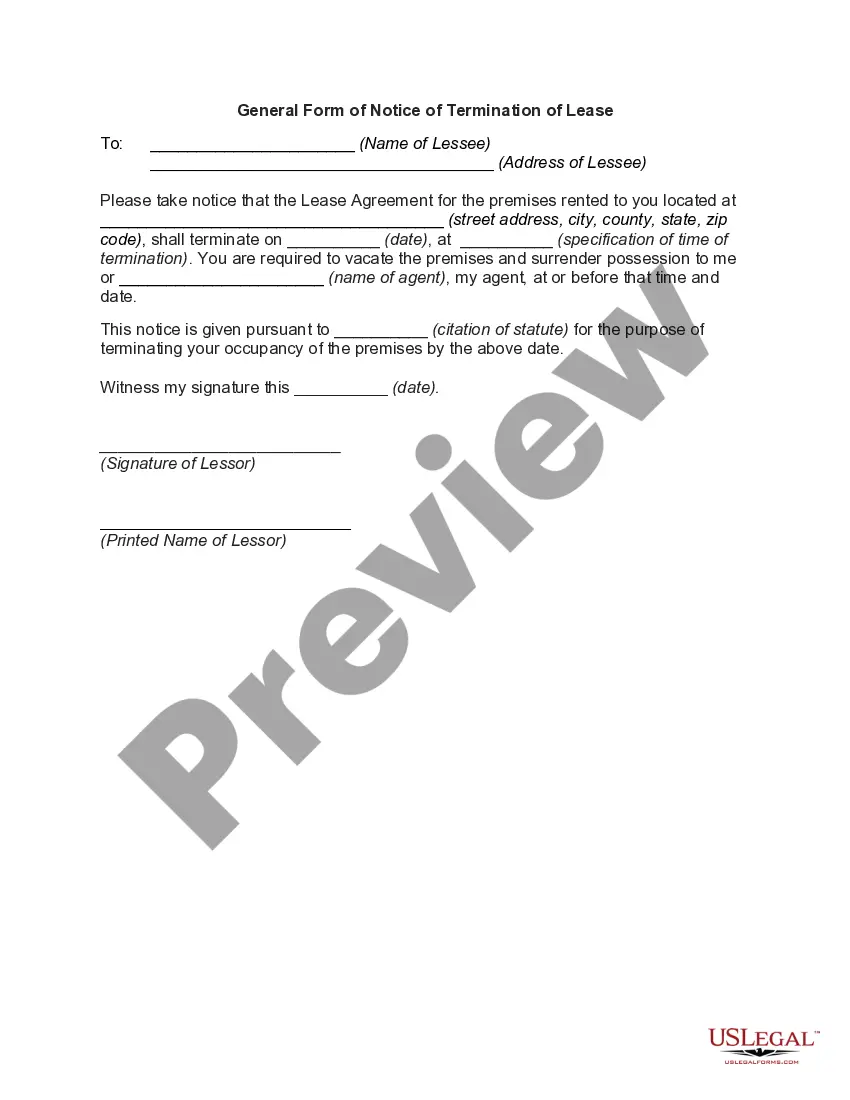
- For first-time users, start by reviewing the Preview mode and form description to choose the right document that fits your local jurisdiction's requirements.
- If you can't find what you need, utilize the Search tab to look for alternative templates that meet your specifications.
- Once you've found the correct document, click on the Buy Now button and select your preferred subscription plan. You'll need to create an account to access the form library.
- Complete your purchase by entering your payment information, either using a credit card or PayPal account.
- Finally, download your chosen form to your device and access it anytime from the My Forms section of your profile.
By following these steps, you can easily navigate through the US Legal Forms platform and terminate your vba with the right legal document.
Take advantage of our extensive offerings and professional assistance for a smooth legal documentation experience. Start today!
Form popularity
FAQ
To end an if statement in VBA, use the 'End If' keyword. This crucial command signals that the if condition has concluded, ensuring your code then proceeds smoothly to the next steps. It's important to remember that every 'If' needs a corresponding 'End If' to maintain clarity in your script. For those seeking to improve their coding efficiency, mastering this structure is a beneficial step.
To terminate in VBA, you can use the 'End' keyword, which signals the end of a block of code or a routine. Additionally, using 'Exit Sub' or 'Exit Function' allows for a graceful exit from any subroutine or function you are executing. These commands help manage how and when your code finishes executing, thus improving your overall coding flow. Learning to effectively terminate VBA code ensures smoother operations in your applications.
To stop a macro in Excel, press 'Esc' or 'Ctrl + Break' during its execution. Either of these keyboard shortcuts provides a quick way to terminate VBA code and regain control of your Excel application. If your Excel freezes, you may need to force-quit the application, but usually, the keyboard shortcuts work effectively for early termination. Always ensure you save your work before running extensive macros to avoid losing changes.
To abort a VBA code, you can press 'Ctrl + Break' while the code is running. This action will instantly stop the execution of your VBA script. If you're using a more recent version of Excel, you can also use 'Esc' in some cases. Remember that terminating VBA this way may leave some processes incomplete, so always save your work before executing complex scripts.
To terminate a process in VBA, you have the option to use the 'Terminate' function within your code. This function enables you to stop the execution of a procedure quickly. It is essential to use this wisely as terminating processes can affect your workbook's state. Consider using platforms like USLegalForms for templates and guidance on managing your VBA tasks more effectively.
To terminate a process in Excel VBA, use the Task Manager to end the Excel application if it becomes unresponsive. Alternatively, within your code, you can implement error handling to ensure processes terminate gracefully. This technique helps safeguard your data and allows for a better user experience. Moreover, efficient process management is essential for maintaining productivity.
To turn off VBA, close the Visual Basic for Applications editor and return to Excel. By doing so, you effectively deactivate any running macros or code. Additionally, ensure you have saved all your changes before exiting, as this can help prevent data loss. This simple step can enhance your overall Excel experience.
To end a VBA loop, you can use the 'Exit For' or 'Exit Do' statement within your loop condition. This action allows you to exit the loop cleanly according to your specified criteria. It is important to manage your loops well to avoid infinite loops that can stall your program. Knowing how to terminate VBA loops efficiently will improve your coding skills.
To deactivate VBA code, you can disable macros in Excel's settings. By navigating to the Trust Center, you can choose to disable all macros or selectively enable certain macros. This action prevents any VBA code from running until you decide to reactivate it. Keeping your macros managed helps maintain control over your workbook.
To terminate a VBA code, you can use 'End' or 'Stop' commands within your code. These commands will halt the current execution immediately. Always ensure you have saved your work before terminating any code, as unsaved changes may be lost. This practice enforces robust programming habits.