Wrongful Count Actions Blank With 0
Description
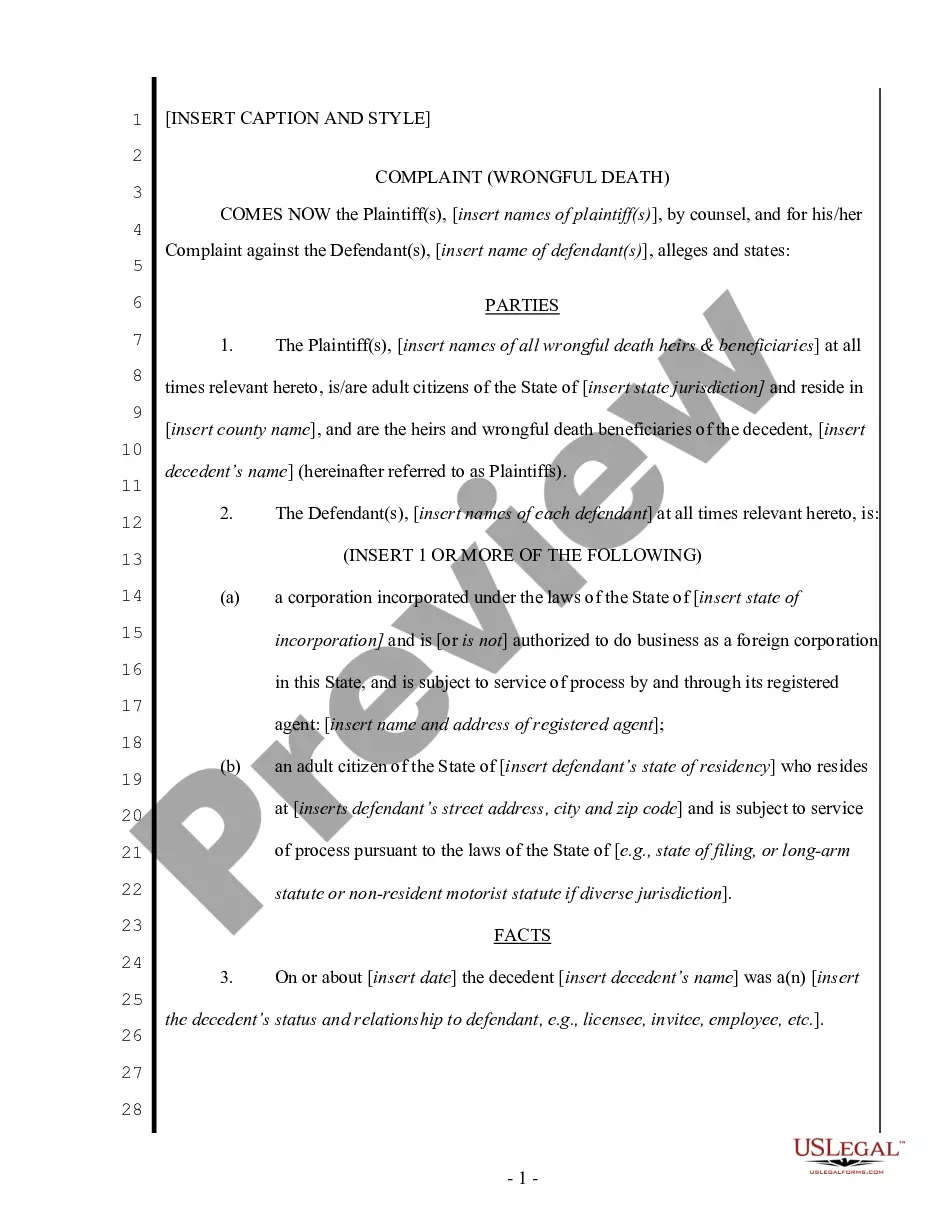
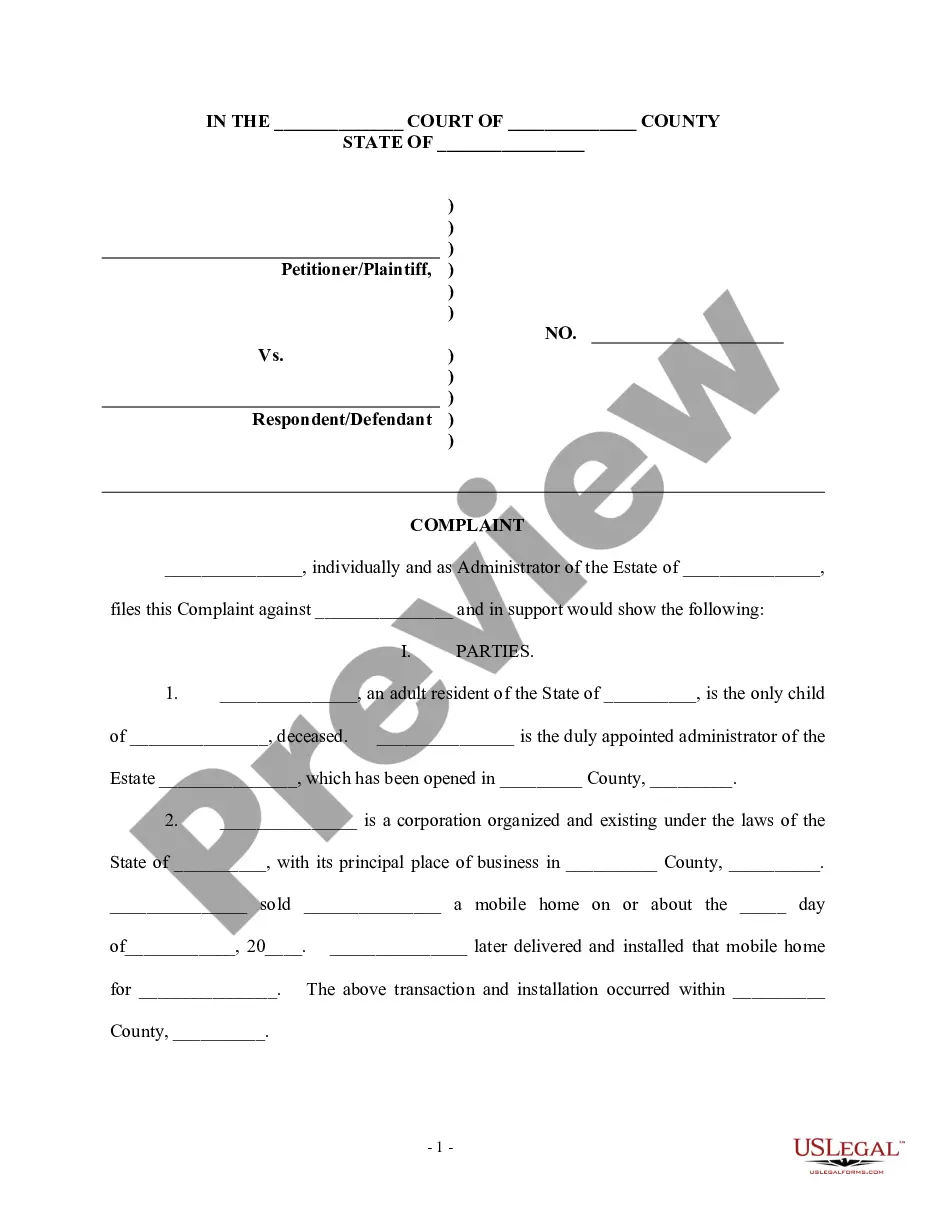
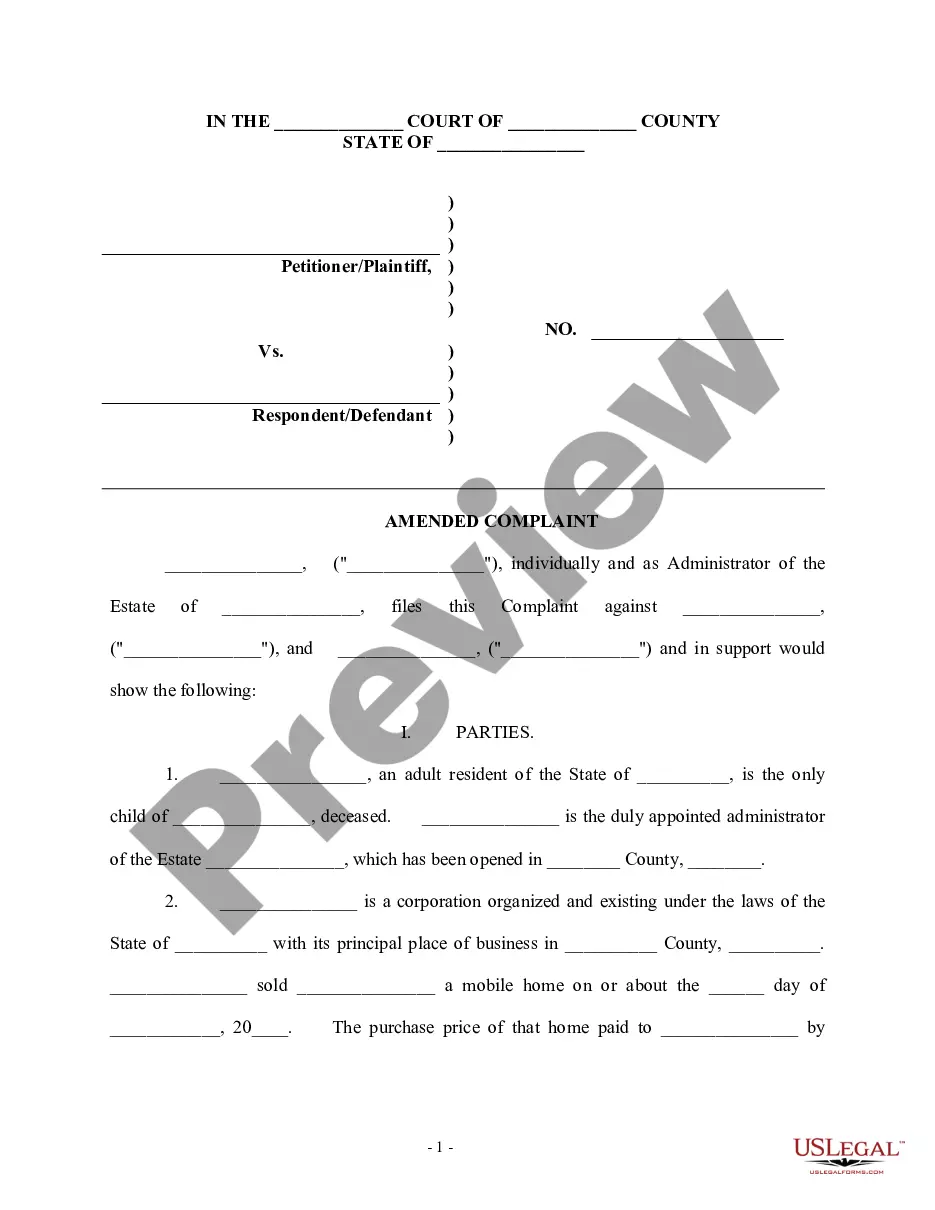
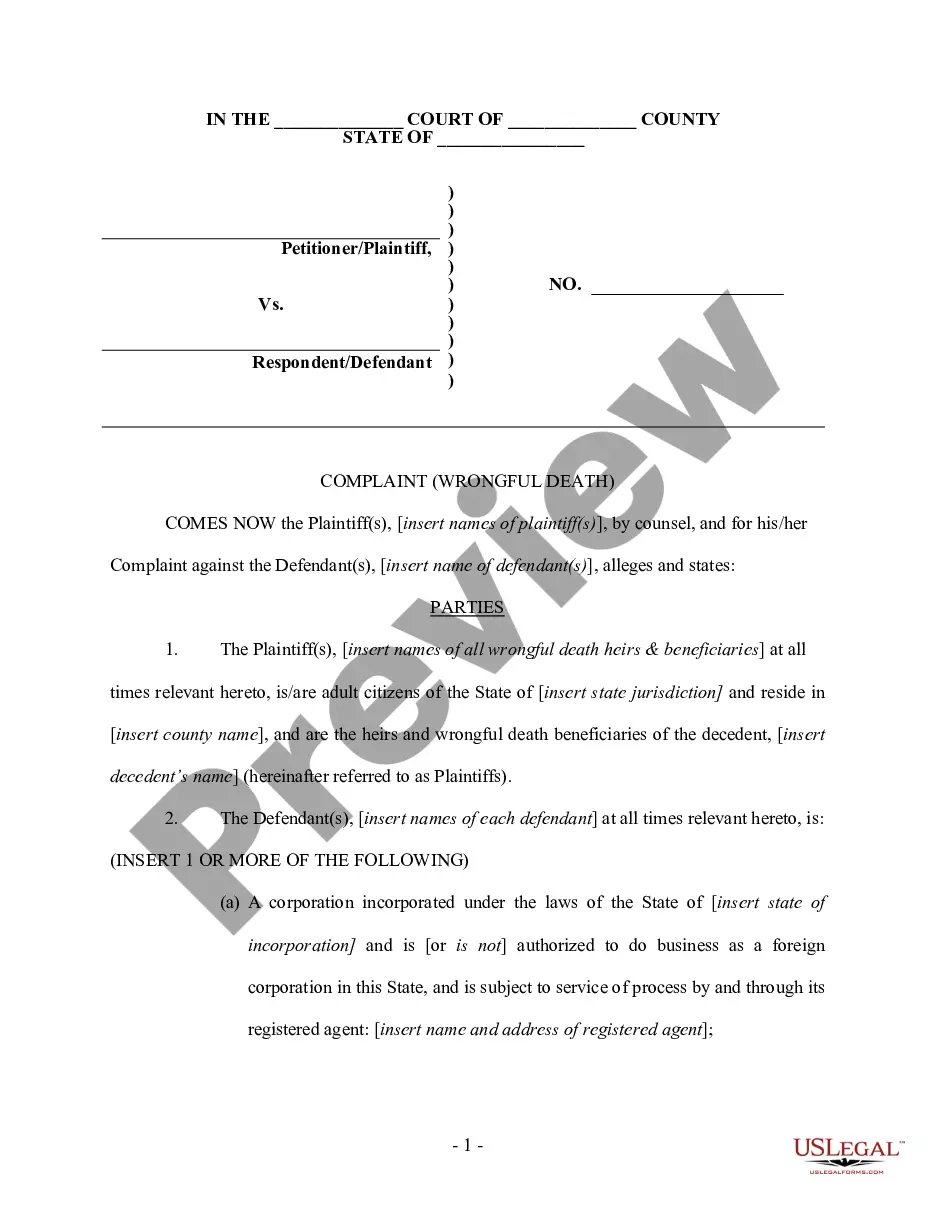
Get your form ready online
Our built-in tools help you complete, sign, share, and store your documents in one place.
Make edits, fill in missing information, and update formatting in US Legal Forms—just like you would in MS Word.
Download a copy, print it, send it by email, or mail it via USPS—whatever works best for your next step.
Sign and collect signatures with our SignNow integration. Send to multiple recipients, set reminders, and more. Go Premium to unlock E-Sign.
If this form requires notarization, complete it online through a secure video call—no need to meet a notary in person or wait for an appointment.
We protect your documents and personal data by following strict security and privacy standards.

Make edits, fill in missing information, and update formatting in US Legal Forms—just like you would in MS Word.

Download a copy, print it, send it by email, or mail it via USPS—whatever works best for your next step.

Sign and collect signatures with our SignNow integration. Send to multiple recipients, set reminders, and more. Go Premium to unlock E-Sign.

If this form requires notarization, complete it online through a secure video call—no need to meet a notary in person or wait for an appointment.

We protect your documents and personal data by following strict security and privacy standards.
Looking for another form?
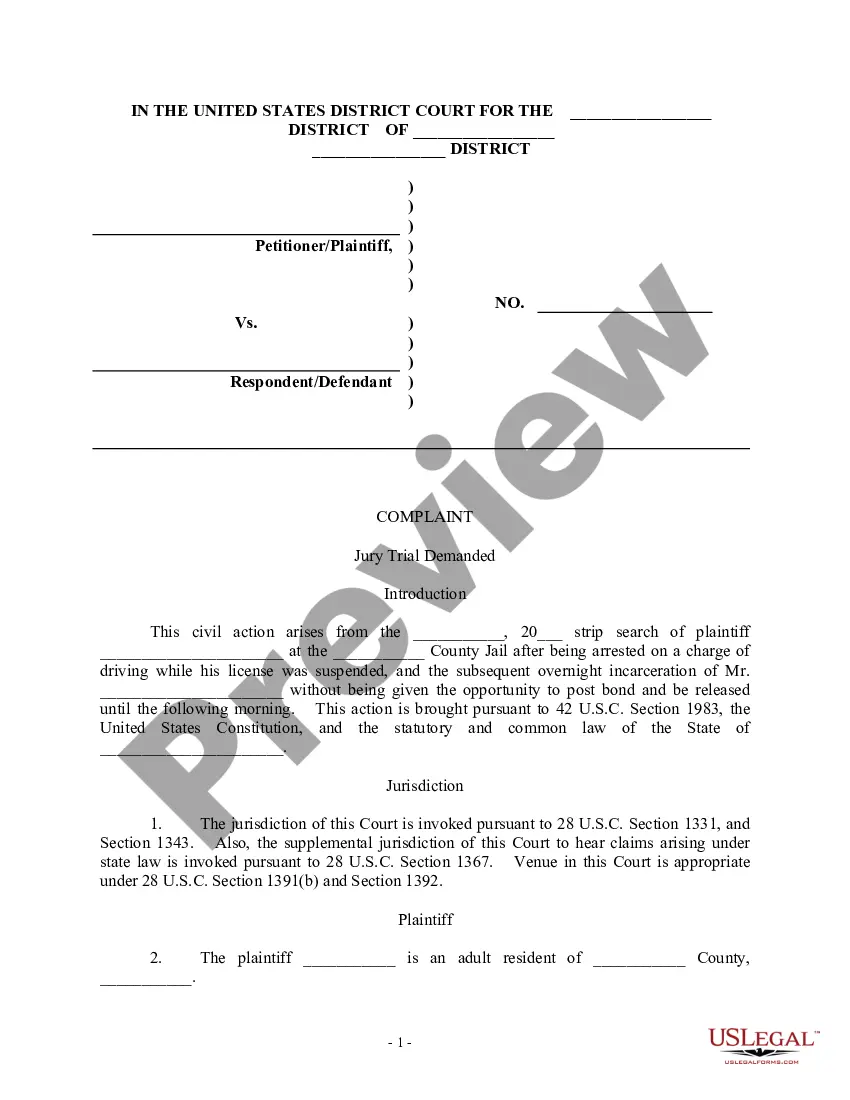
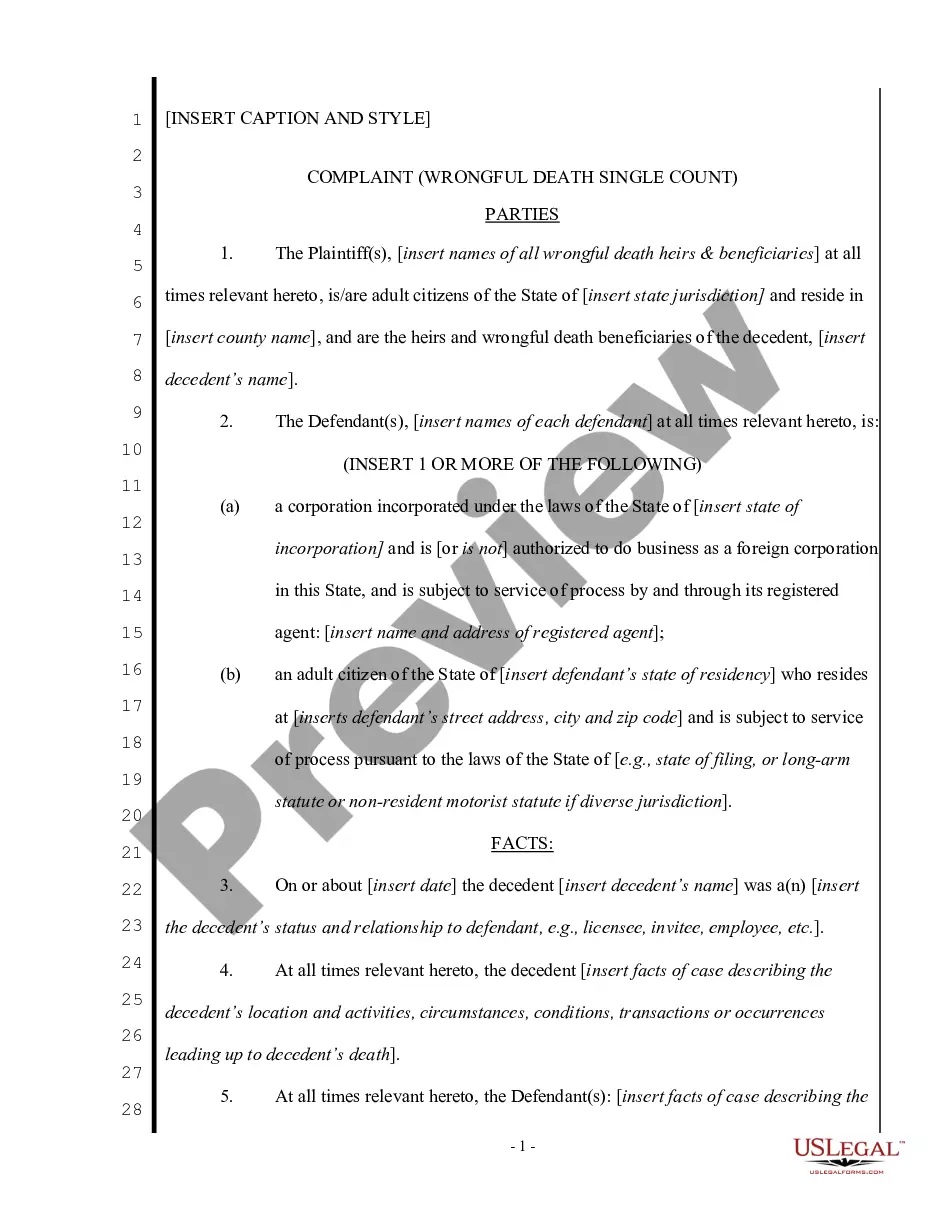
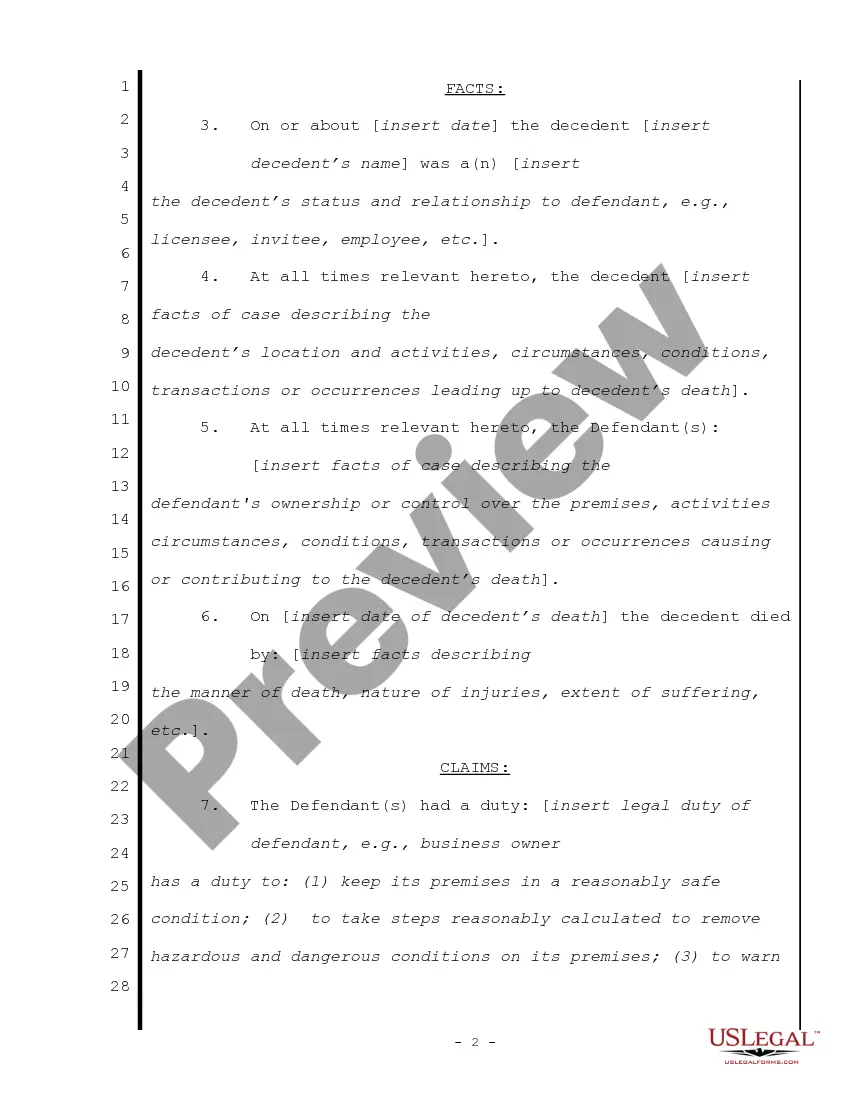
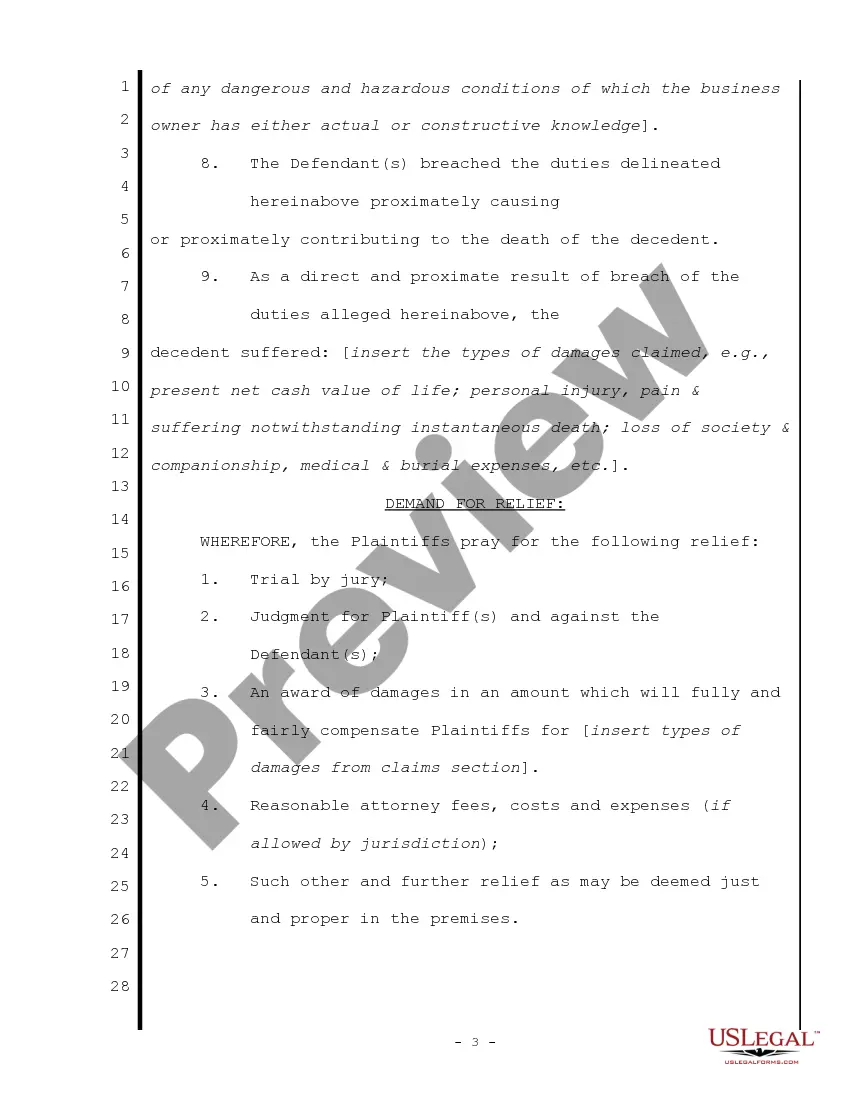
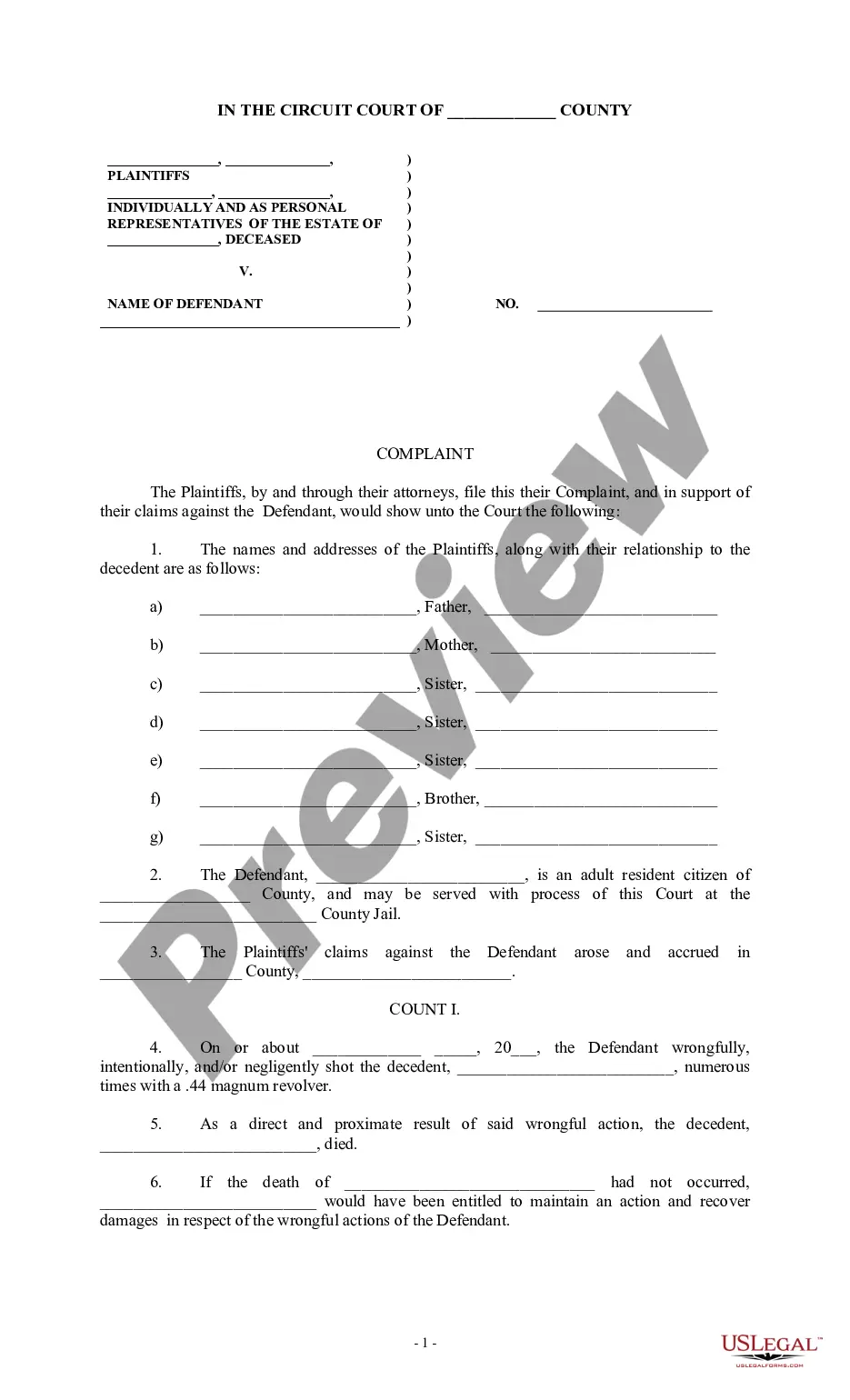
How to fill out Complaint For Wrongful Death - Single Count?
- If you already have an account, log in to access your dashboard and download the required form template. Ensure your subscription is active; if not, renew it based on your chosen payment plan.
- For first-time users, browse the extensive online library. Preview the form description to verify it aligns with your local jurisdiction requirements.
- If the first template doesn't meet your needs, use the search function to find another suitable option.
- Select the document you wish to purchase by clicking on the 'Buy Now' button, then choose your preferred subscription plan and create an account for full access.
- Complete your purchase by entering your payment details through credit card or PayPal.
- Download the form to your device, and you can always revisit it via the My Forms section in your profile.
Using US Legal Forms grants individuals and attorneys the ability to create and manage legal documents effortlessly. With over 85,000 fillable and editable forms, users can rely on this robust system to fulfill their legal needs.
Why wait? Visit US Legal Forms today to streamline your legal document process and ensure accuracy every time you fill out a form.
Form popularity
FAQ
To count blank cells as zero in Excel, you can use the IF function to replace blanks with zeros. This method will ensure that your calculations consider these cells appropriately. Dealing with wrongful count actions blank with 0 can help you achieve more accurate results in data analysis. Using tools like US Legal Forms can provide additional assistance if you need tailored solutions for Excel-related documents.
When you treat a blank cell as zero in Excel, any calculations involving that cell will simplify. This action can prevent errors and ensure accurate totals. Understanding wrongful count actions blank with 0 is essential to avoid misleading data interpretations. It helps maintain data integrity, especially when summing or averaging numbers in a spreadsheet.
To average while counting blank cells as zero, you can use the 'AVERAGEIF' function in Excel. This function enables you to specify criteria, treating blank cells as 0 for the calculation. Utilizing this function can significantly aid in resolving wrongful count actions blank with 0, ensuring your averages correctly reflect your dataset.
To make a cell blank if its value is 0, you can use the 'IF' function in Excel. This function allows you to check each cell; if the value is 0, it returns an empty string. This technique is beneficial when addressing wrongful count actions blank with 0, helping to present your data in a more meaningful way.
You can replace blanks with 0 in Excel using the 'Find and Replace' feature. Simply press 'Ctrl + H' to open the dialogue, leave the 'Find what' field blank, and input 0 in the 'Replace with' field. This approach simplifies handling situations around wrongful count actions blank with 0, ensuring your dataset is clean and accurate.
To set blank cells to 0 in Excel, you can use the 'IF' function. This function checks each cell; if the cell is blank, it returns 0. Implementing this simple formula helps ensure that your data reflects the true count, especially when dealing with wrongful count actions blank with 0.
You can make a cell blank if there is no value by using a basic conditional formula. For instance, =IF(ISBLANK(A1), "", A1) will return a blank cell if A1 is empty. This methodology helps maintain the integrity of your datasets and eliminates unnecessary clutter when analyzing trends or managing wrongful count actions blank with 0.
To leave a cell blank when there is no data available, you can use the IF function to check for empty values. For example, the formula =IF(A1="", "", A1) will result in a blank cell if A1 has no data. This approach enhances the clarity of your reports, ensuring that your analysis remains focused on relevant data, such as wrongful count actions blank with 0.
To force a cell to be blank in Excel, you can use a simple IF statement. For instance, writing =IF(your_condition, "", your_value) will leave the cell blank when the condition is met. This technique is valuable for streamlining your data, especially when addressing inconsistencies like wrongful count actions blank with 0.
Filling blank cells with 0 in Excel can be easily achieved using the Go To Special feature. Select your range, then go to Home, click on Find & Select, and choose Go To Special. From there, select Blanks and hit OK, then type 0 and press Ctrl + Enter to fill all empty cells. This method is particularly useful in preparing datasets, ensuring that any calculations involving wrongful count actions blank with 0 reflect accurately.