Wrongful Counts For Sheets
Description
Get your form ready online
Our built-in tools help you complete, sign, share, and store your documents in one place.
Make edits, fill in missing information, and update formatting in US Legal Forms—just like you would in MS Word.
Download a copy, print it, send it by email, or mail it via USPS—whatever works best for your next step.
Sign and collect signatures with our SignNow integration. Send to multiple recipients, set reminders, and more. Go Premium to unlock E-Sign.
If this form requires notarization, complete it online through a secure video call—no need to meet a notary in person or wait for an appointment.
We protect your documents and personal data by following strict security and privacy standards.

Make edits, fill in missing information, and update formatting in US Legal Forms—just like you would in MS Word.

Download a copy, print it, send it by email, or mail it via USPS—whatever works best for your next step.

Sign and collect signatures with our SignNow integration. Send to multiple recipients, set reminders, and more. Go Premium to unlock E-Sign.

If this form requires notarization, complete it online through a secure video call—no need to meet a notary in person or wait for an appointment.

We protect your documents and personal data by following strict security and privacy standards.
Looking for another form?
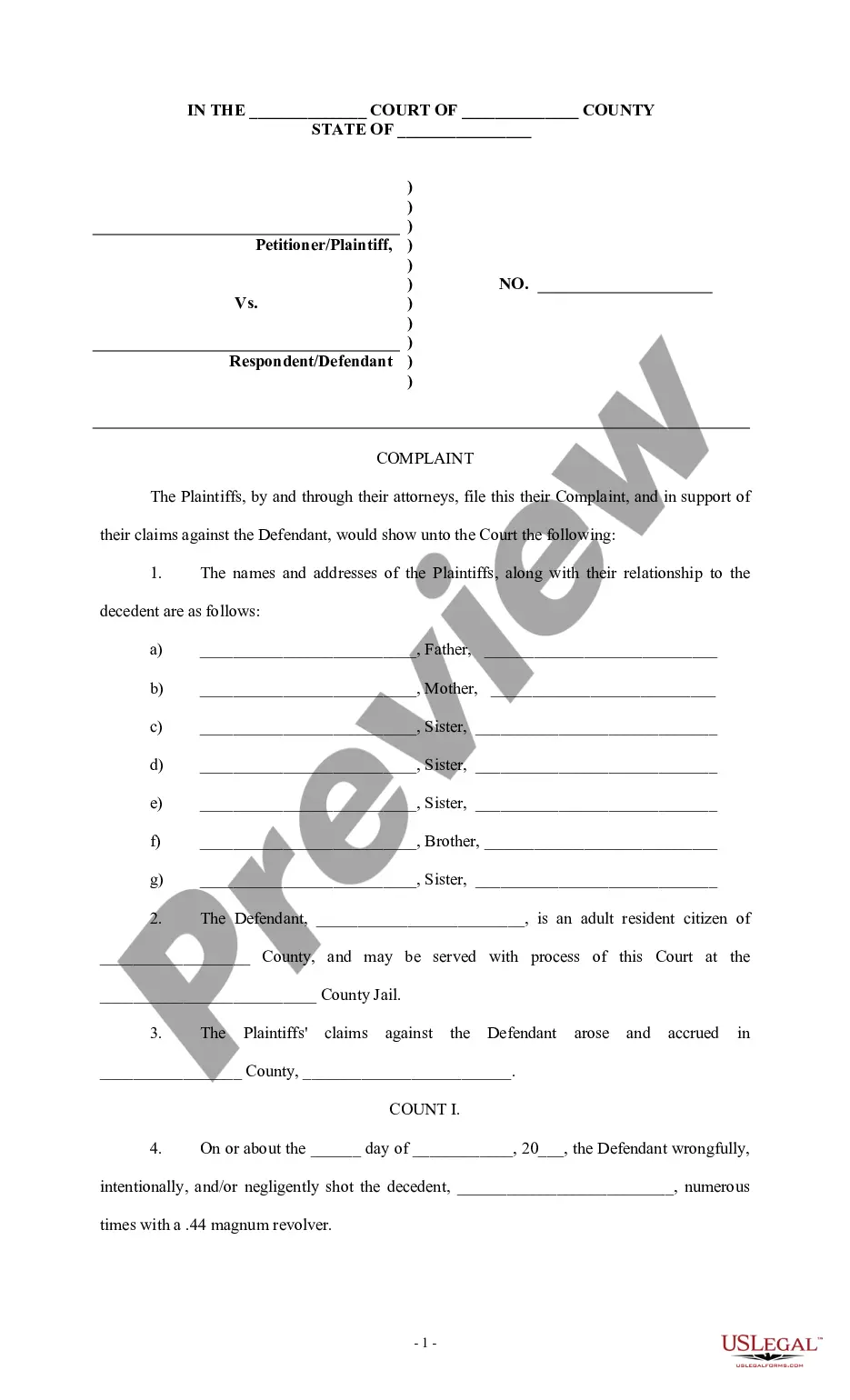
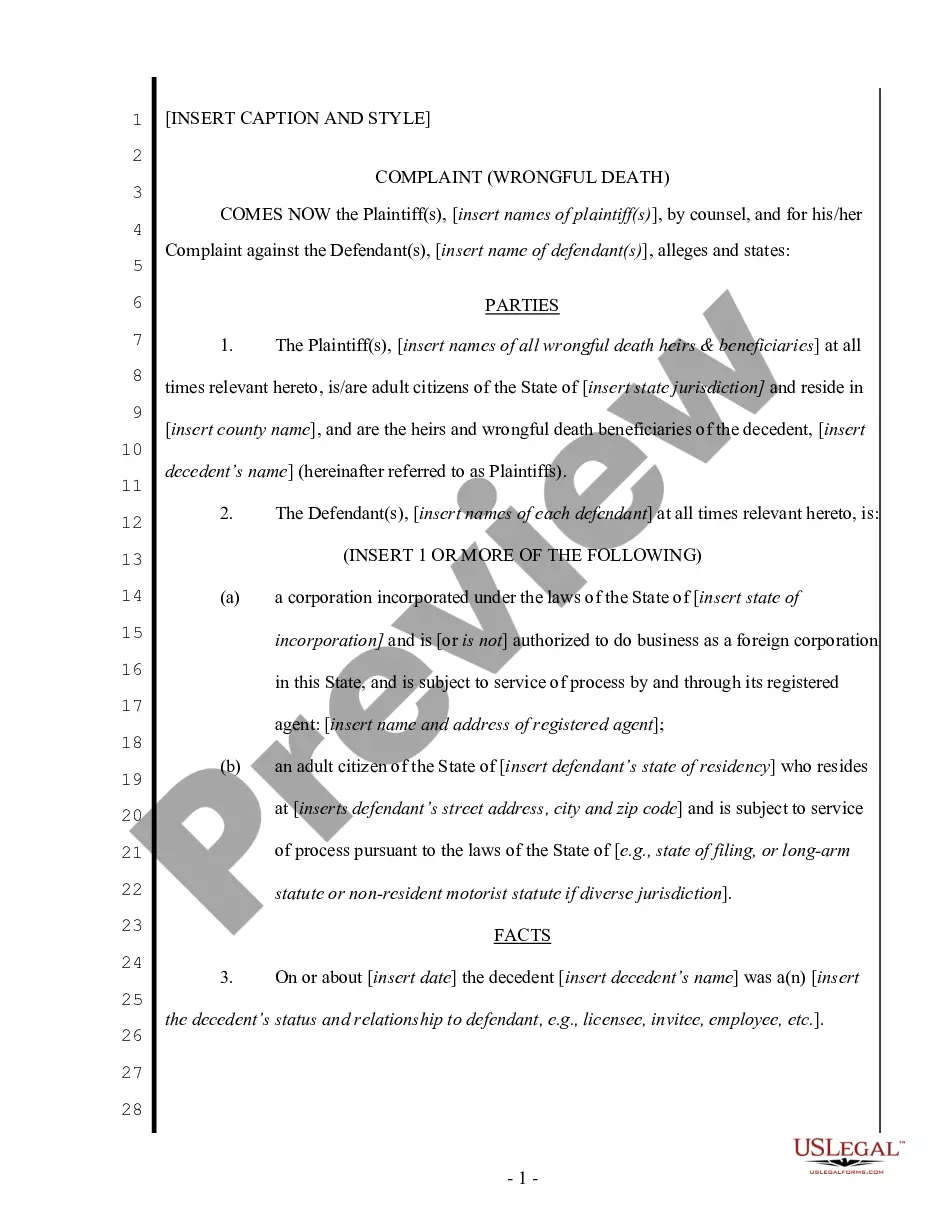
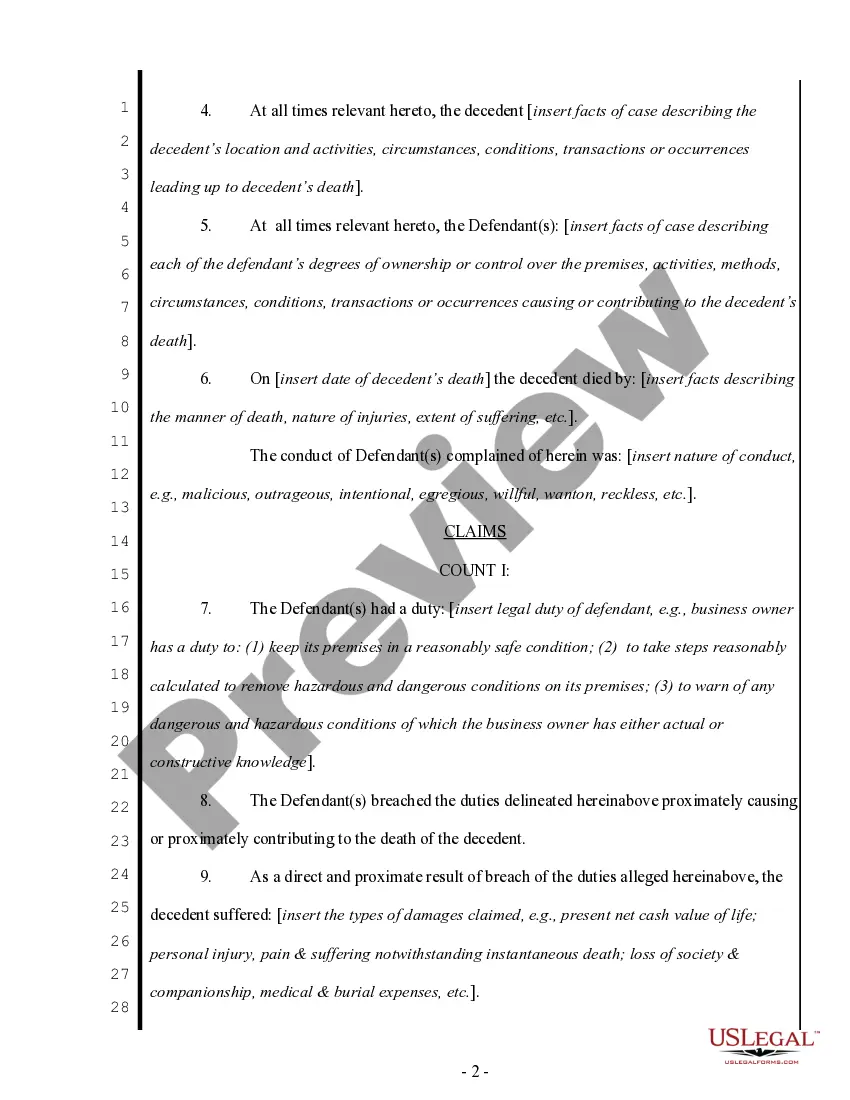
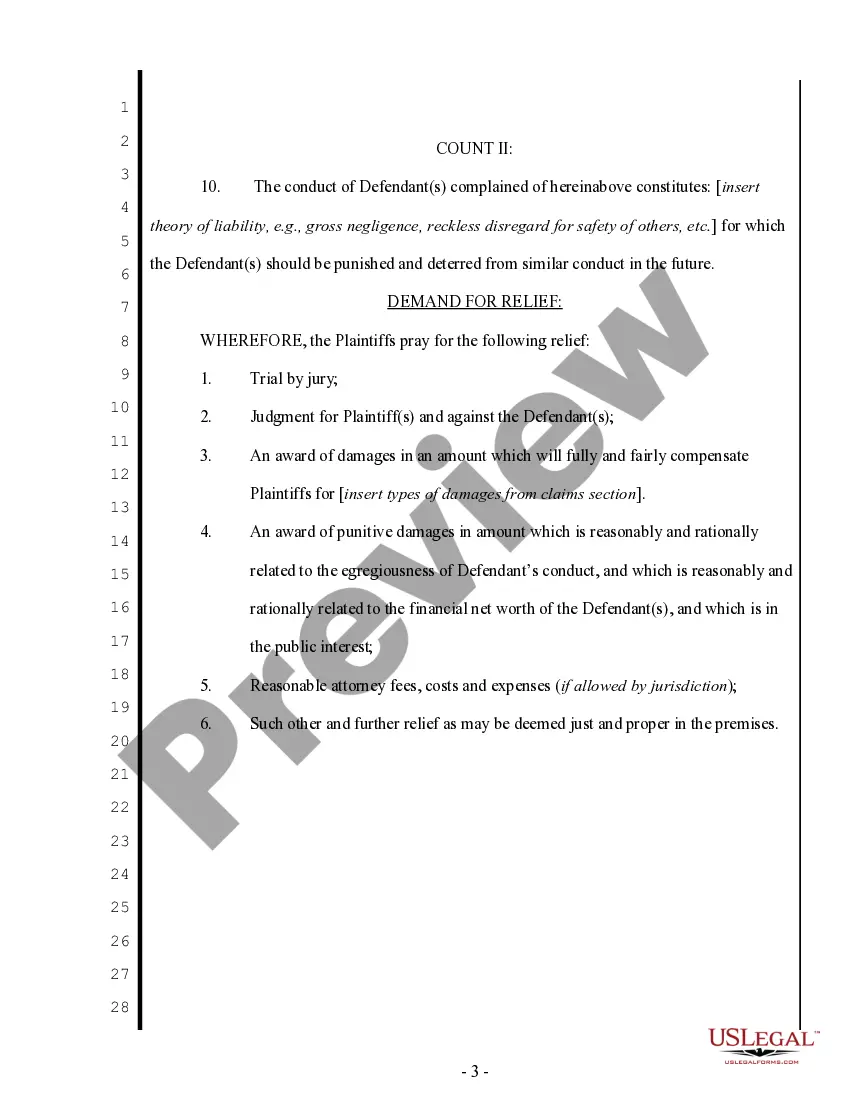
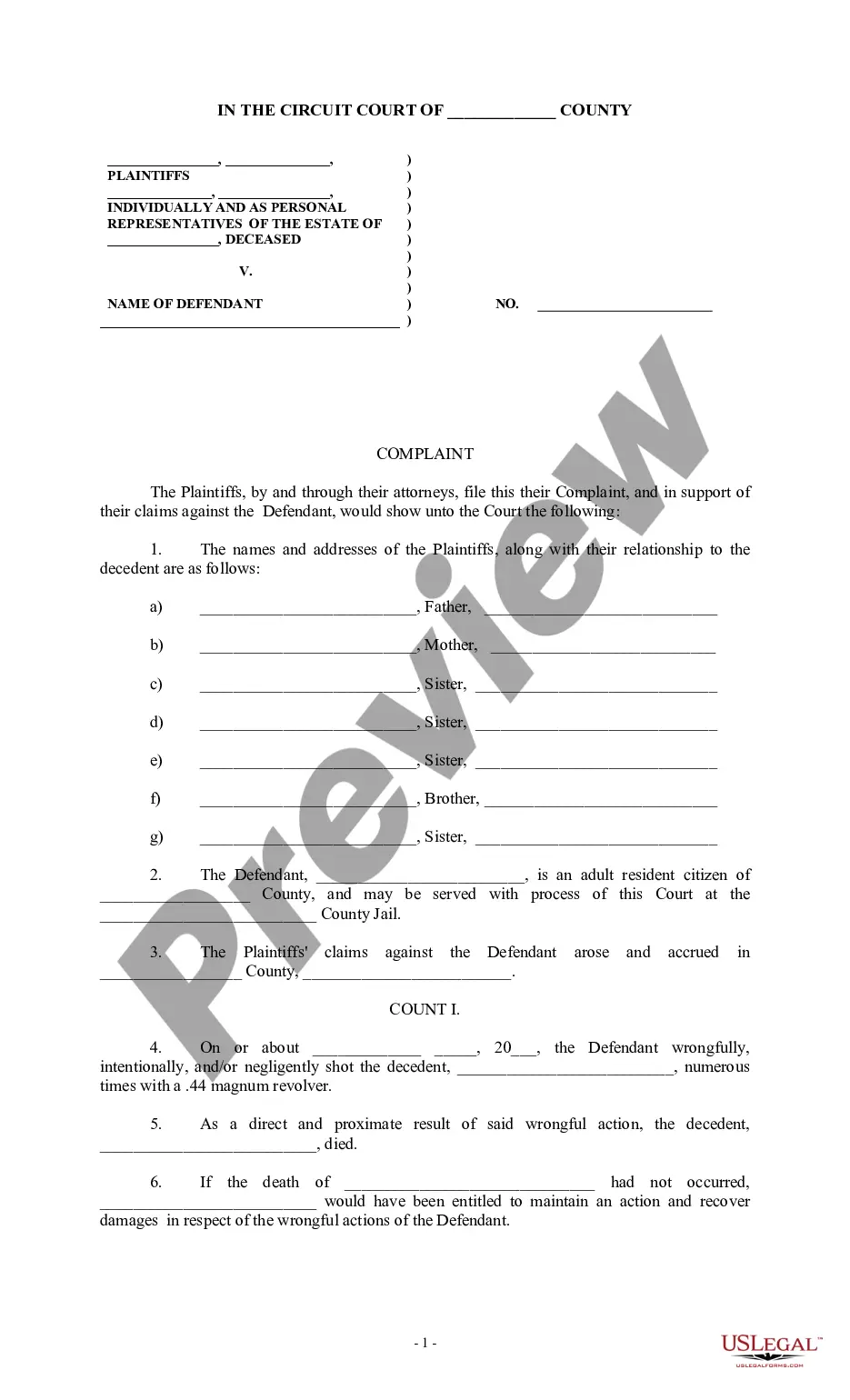
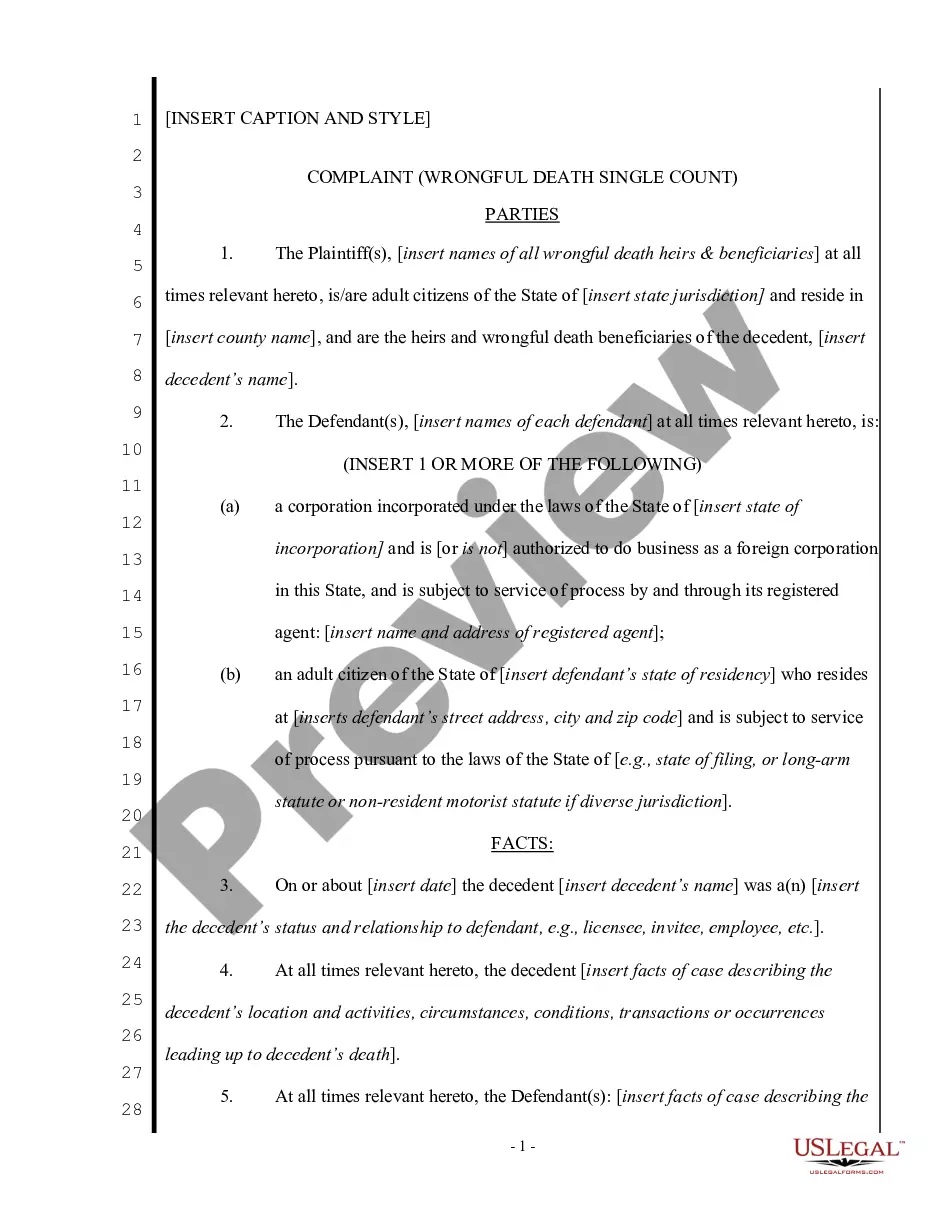
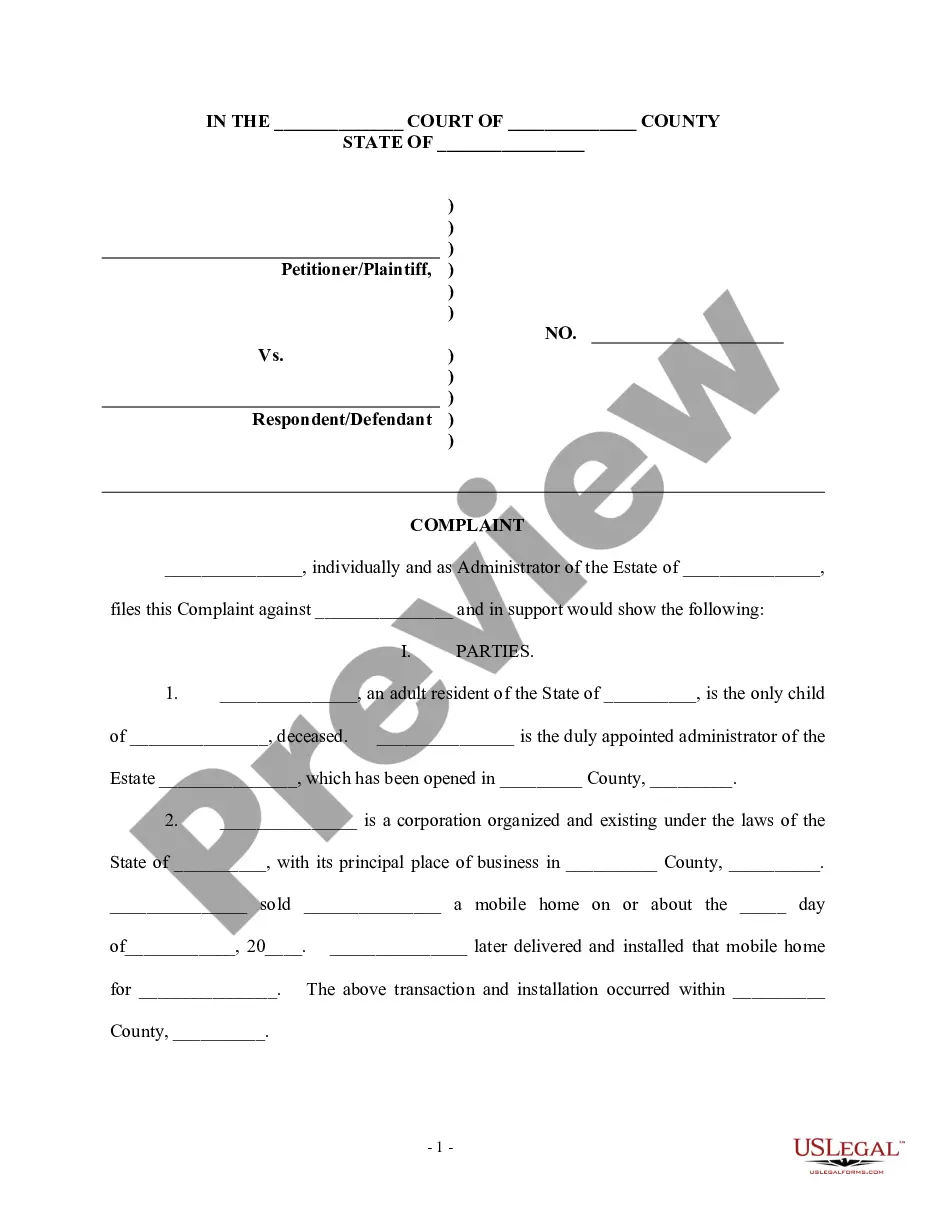
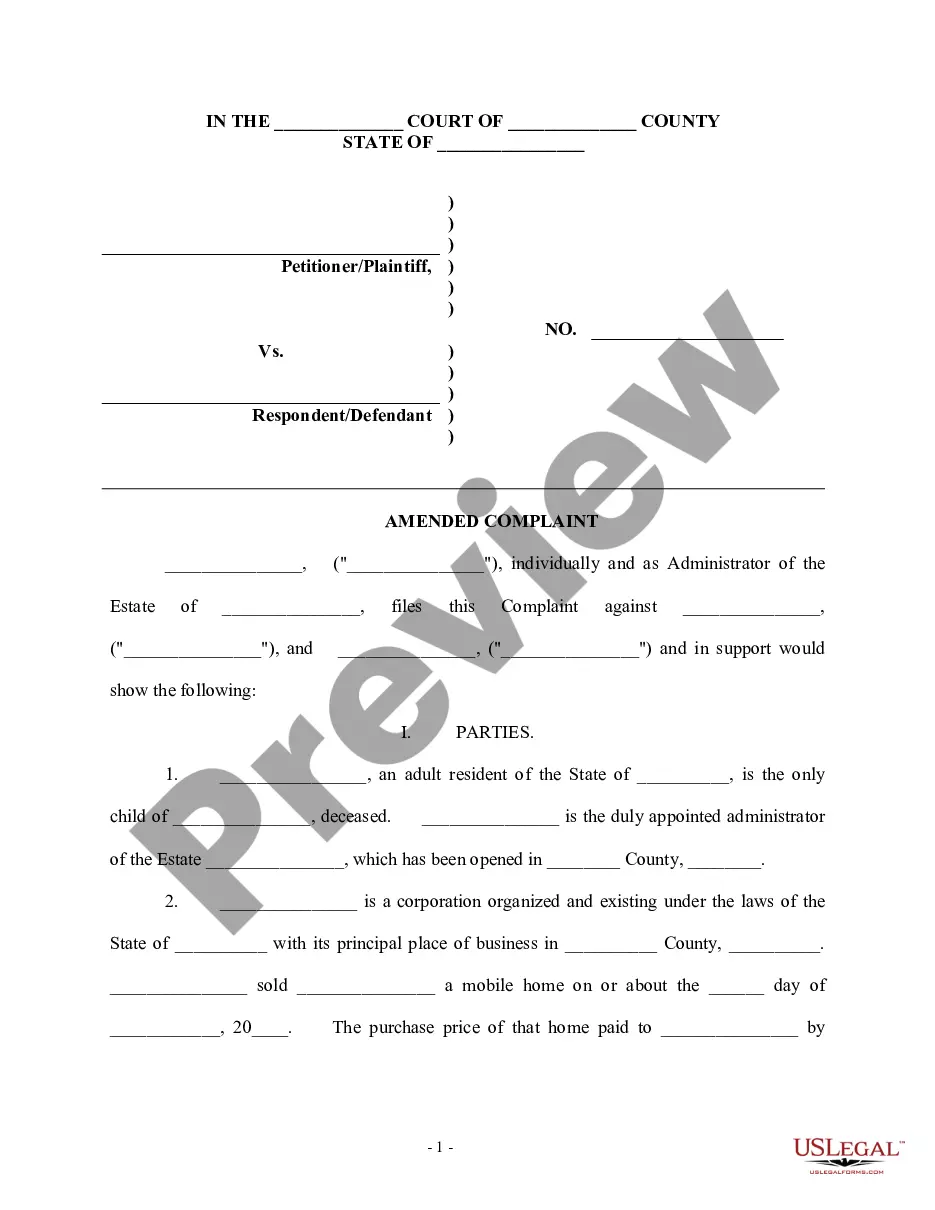
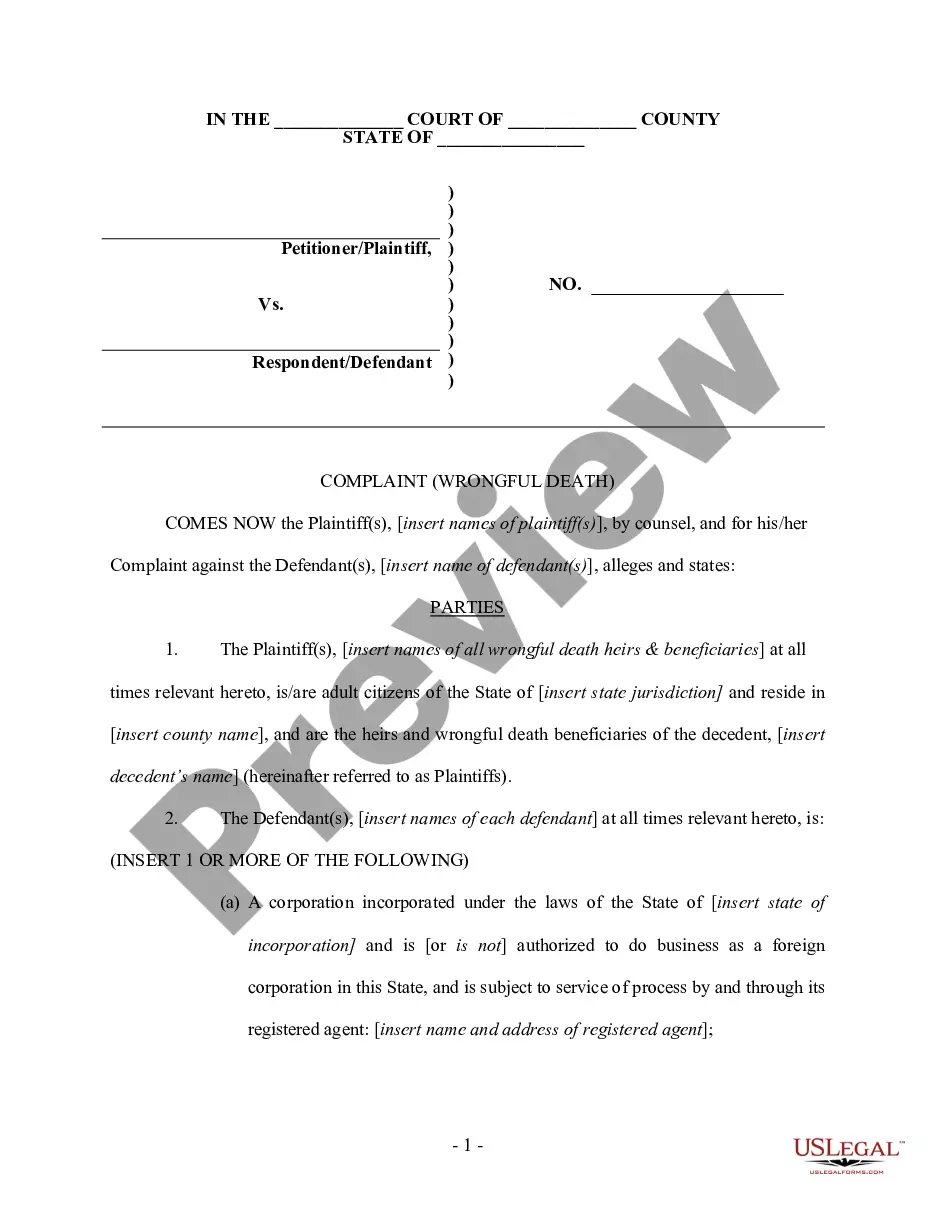
How to fill out Complaint For Wrongful Death - Multiple Counts?
Regardless of whether for corporate aims or for individual issues, everyone eventually encounters legal circumstances in their lifetime.
Filling out legal documents requires meticulous focus, starting with selecting the correct template format.
With an extensive US Legal Forms collection available, you no longer need to waste time searching online for the correct sample. Utilize the library’s user-friendly navigation to find the right form for any circumstance.
- Obtain the template you require by using the search bar or catalog browsing.
- Review the form’s description to ensure it aligns with your circumstances, jurisdiction, and county.
- Click on the form’s preview to inspect it.
- If it is not the correct document, return to the search feature to locate the Wrongful Counts For Sheets sample you need.
- Acquire the template if it fulfills your criteria.
- If you possess a US Legal Forms account, simply click Log in to access documents you have saved in My documents.
- In case you do not have an account yet, you can acquire the form by clicking Buy now.
- Choose the appropriate pricing option.
- Complete the account registration form.
- Select your payment method: a credit card or PayPal account.
- Choose the file format you prefer and download the Wrongful Counts For Sheets.
- Once downloaded, you can fill out the form using editing software or print it out and complete it by hand.
Form popularity
FAQ
To apply the countif formula in Google Sheets, start by selecting the cell where you want the result to appear. Then, input the formula using the syntax 'COUNTIF(range, criterion)'. Replace 'range' with the cells you want to evaluate and 'criterion' with the condition. This method helps you identify wrongful counts for sheets effectively, providing an accurate count based on your specified criteria.
In Google Sheets, you can determine true and false values by using logical functions such as IF or COUNTIF. For example, 'IF(condition, true, false)' will output true or false based on the condition. Using these functions strategically can help you avoid wrongful counts for sheets, providing clearer data insights.
To write a COUNTIF formula in Google Sheets, you need to specify two arguments: the range of cells you want to evaluate and the criteria you want to count. Use the format 'COUNTIF(range, criteria)', for example, 'COUNTIF(A1:A10, "yes")'. Mastering this formula can aid in avoiding wrongful counts for sheets, ensuring accurate data analysis.
Common mistakes when using COUNTIF in Google Sheets include incorrect range selection, improper use of criteria, and confusion between text and numeric values. Make sure to check your quotation marks and ensure that your range is accurate. Recognizing these pitfalls can greatly reduce wrongful counts for sheets and enhance the reliability of your data. It's important to double-check your formulas for best results.
In Google Sheets, pressing the F4 key can help you toggle between absolute and relative cell references within a formula. This functionality lets you adapt your formulas as needed when copying them to other cells. If you frequently encounter wrongful counts for sheets, using F4 can prevent formula errors and ensure consistency in calculations.
To write a count formula in Google Sheets, you can use either the COUNT function or the COUNTIF function, depending on your needs. The basic COUNT formula is 'COUNT(range)', which counts all cells containing numbers. For counting based on specific criteria, use 'COUNTIF(range, criteria)' instead. Understanding the nuances of wrongful counts for sheets can enhance your data management skills.
Counting 'false' values in Google Sheets is straightforward with the COUNTIF function. You can simply use 'COUNTIF(range, "false")' to achieve this. This approach ensures that you capture all instances where a condition is not met, providing clarity in your analysis. A careful approach to wrongful counts for sheets helps in maintaining accurate data.
To count the number of 'yes' responses in Google Sheets, you can use the COUNTIF function. The formula 'COUNTIF(range, "yes")' will count all the instances of 'yes' in the specified range. This method is especially helpful for tracking positive responses and analyzing data efficiently. Utilizing wrongful counts for sheets can streamline this process.
The best thread count for sheets often hovers around 400 to 600. This range strikes the right balance between comfort, durability, and overall quality, reducing the chances of encountering wrongful counts for sheets. Ultimately, your choice should reflect your sleep patterns and preferences. Be sure to read customer reviews and possibly test different sheets to find your ideal fit.
A reasonable thread count for quality sheets typically falls between 300 and 600. This range provides a comfortable balance of softness and durability, without being misleading about the fabric’s quality. When assessing your choices, be cautious of wrongful counts for sheets that inflate numbers without reflecting true quality. Always consider the fabric type, as cotton sheets often require a different approach than other materials.