Folder Antidrogas
Description
Get your form ready online
Our built-in tools help you complete, sign, share, and store your documents in one place.
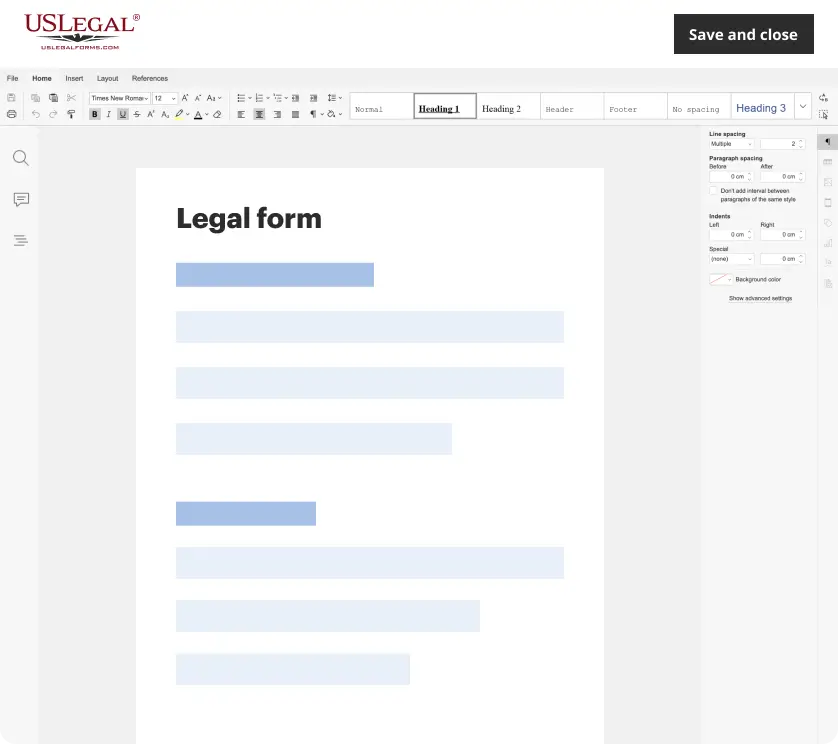
Make edits, fill in missing information, and update formatting in US Legal Forms—just like you would in MS Word.
Download a copy, print it, send it by email, or mail it via USPS—whatever works best for your next step.
Sign and collect signatures with our SignNow integration. Send to multiple recipients, set reminders, and more. Go Premium to unlock E-Sign.
If this form requires notarization, complete it online through a secure video call—no need to meet a notary in person or wait for an appointment.
We protect your documents and personal data by following strict security and privacy standards.
Make edits, fill in missing information, and update formatting in US Legal Forms—just like you would in MS Word.
Download a copy, print it, send it by email, or mail it via USPS—whatever works best for your next step.
Sign and collect signatures with our SignNow integration. Send to multiple recipients, set reminders, and more. Go Premium to unlock E-Sign.
If this form requires notarization, complete it online through a secure video call—no need to meet a notary in person or wait for an appointment.
We protect your documents and personal data by following strict security and privacy standards.
Looking for another form?
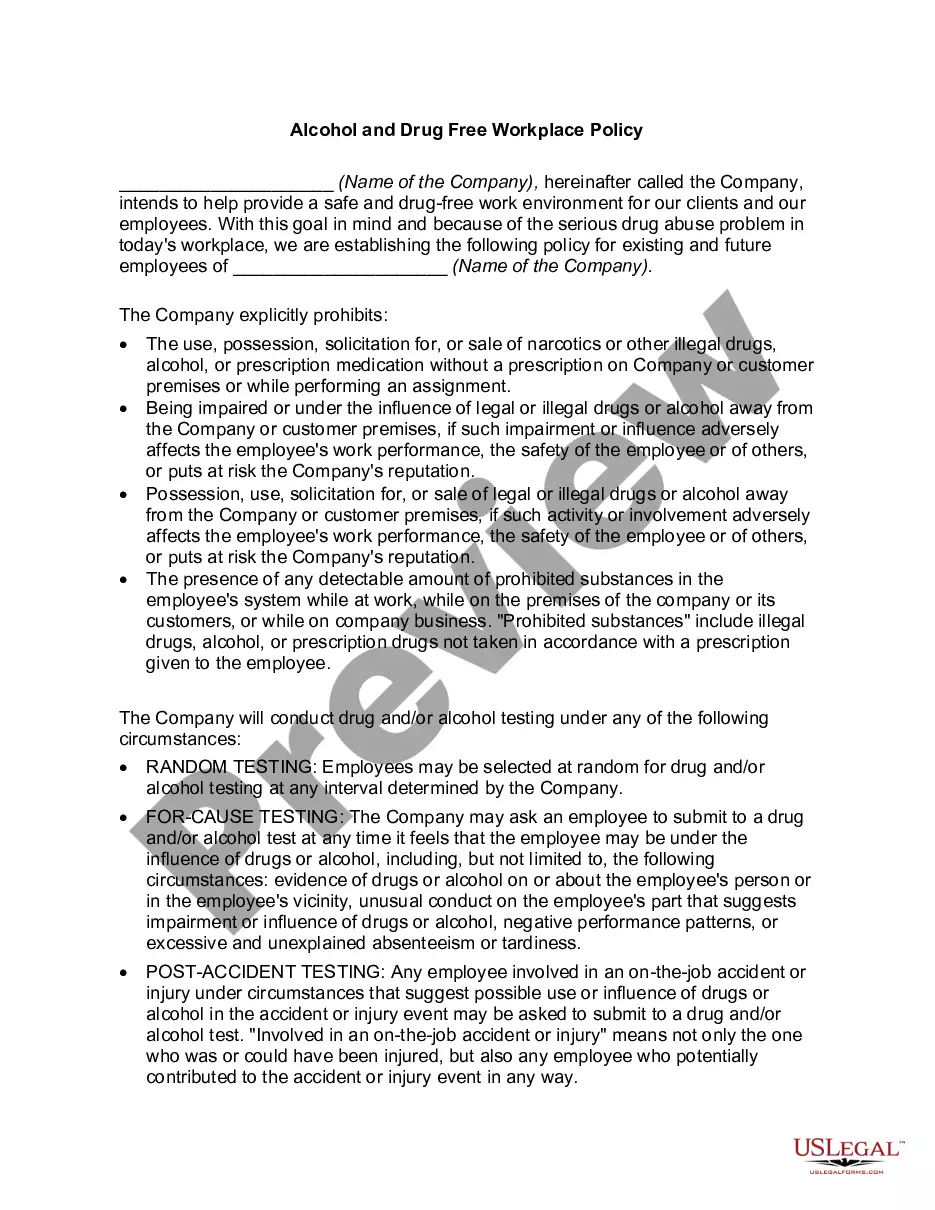
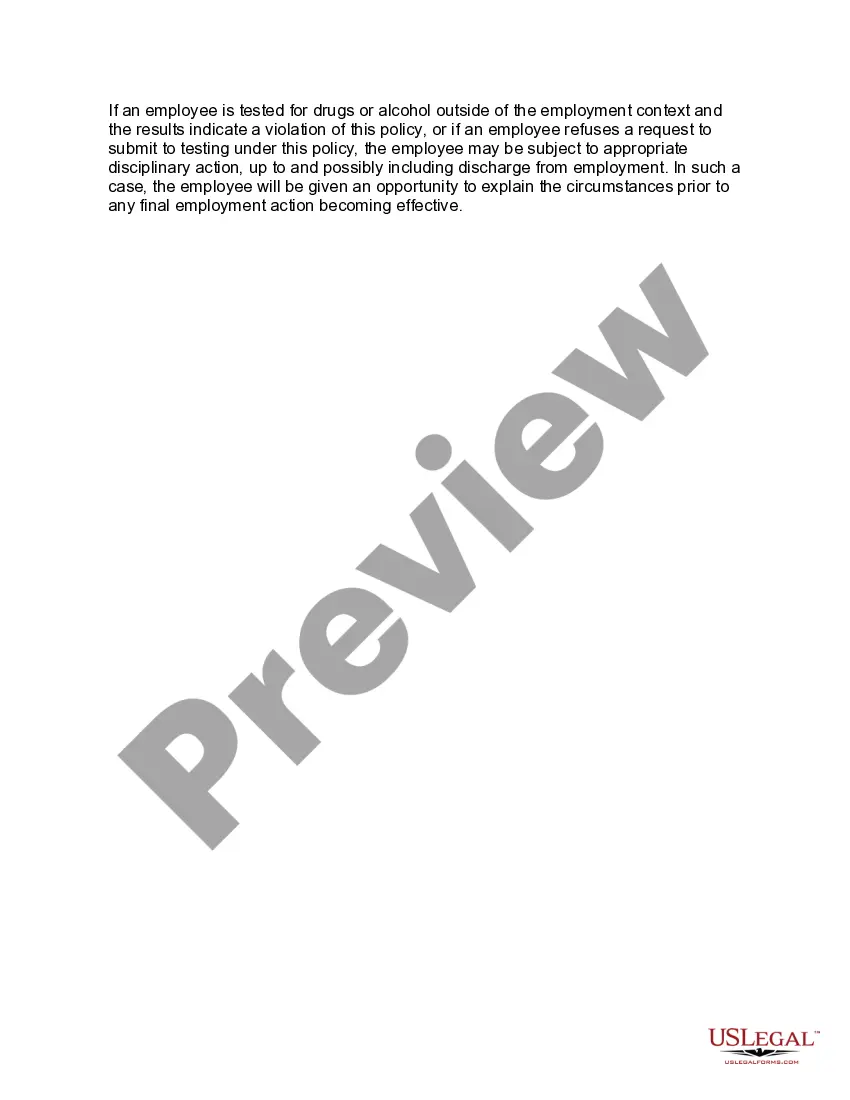
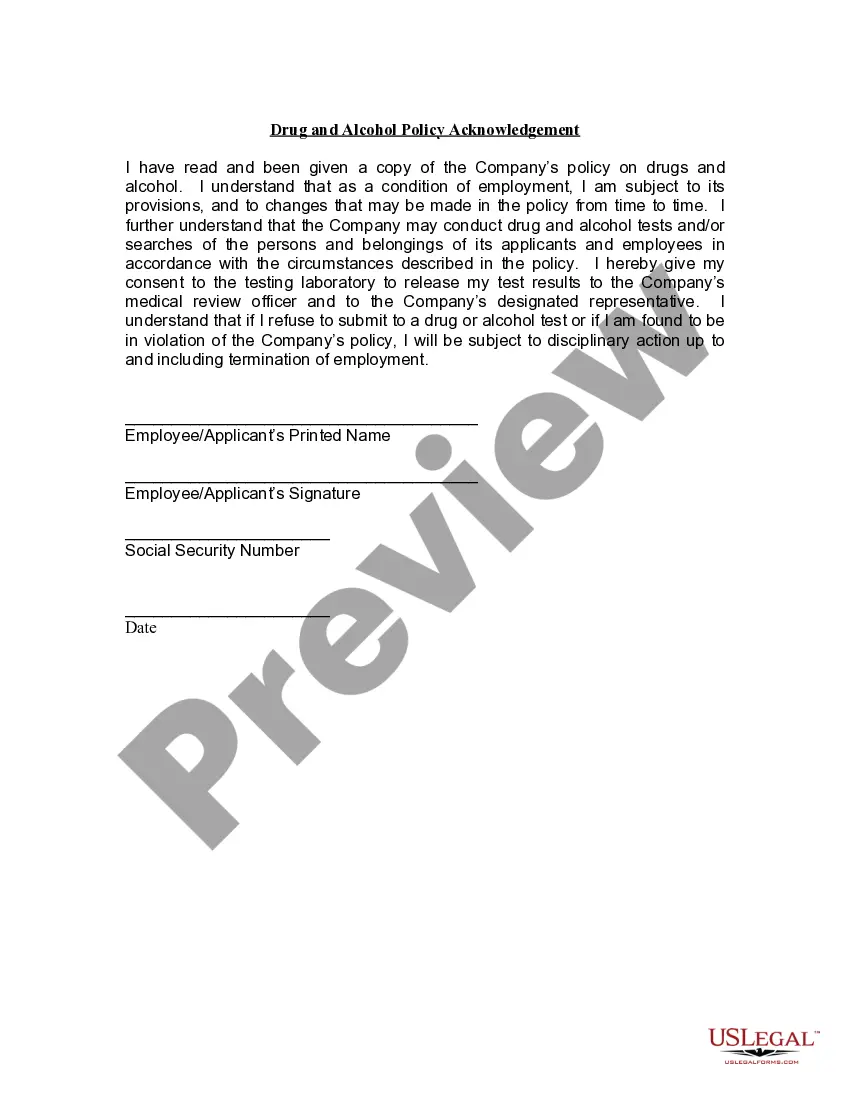
How to fill out Alcohol And Drug Free Workplace Policy?
- If you’re already a user, log in to your account and ensure your subscription is active. Simply click the Download button to retrieve your required form.
- For first-time users, start by browsing the extensive form collection. Review the previews and descriptions to select the template that best aligns with your requirements and local regulations.
- If you need another template, leverage the Search feature to find more options that suit your needs.
- After selecting your form, click the Buy Now button. Choose a subscription plan that works for you and create an account to unlock full access.
- Complete your purchase using your credit card or PayPal for a seamless transaction.
- Once purchased, download the document to your device for easy access and completion later in the My Forms section.
In conclusion, US Legal Forms streamlines the legal document process through up-to-date forms and expert assistance. With their robust collection and user-friendly interface, you can confidently create and manage your legal documents online.
Start your journey today by exploring US Legal Forms and empower yourself with the right legal resources.
Form popularity
FAQ
To exclude folders and subfolders in Windows security, open the Windows Security settings from your Start menu. Go to 'Virus & threat protection' and then click on 'Manage settings.' Scroll down to 'Exclusions' and select 'Add or remove exclusions' to include your Folder antidrogas and its subfolders. This simple process helps protect your critical data from unnecessary scanning.
Whitelisting something on McAfee requires accessing the application settings. In the 'Exclusions' section, you can add a file or folder, including your Folder antidrogas, to the whitelist. This action tells McAfee that the specified items are safe, which prevents any accidental quarantining or blocking.
Excluding folders from McAfee antivirus is straightforward. Open your McAfee software and navigate to the Settings menu. Under the 'Exclusions' options, you can add the path to your Folder antidrogas to ensure that McAfee does not scan it. This allows for seamless workflow and protects your essential files from unintentional scans.
To remove items from McAfee, start by opening the McAfee software on your device. Go to the Quarantine section or Protection History, where you will find the items that have been flagged. You can select the unwanted items and choose to delete or restore them, depending on your need for the contents in your Folder antidrogas. This helps maintain your important files without unnecessary disruption.
Excluding a folder from your antivirus involves accessing the settings of your antivirus program. Locate the 'Exclusions' or 'Exceptions' menu, where you can specify the folder you wish to exclude, such as your Folder antidrogas. This step prevents the antivirus from scanning this folder, allowing for uninterrupted access to your important files.
To add a program to your antivirus exception list, first open your antivirus software settings. Look for a section labeled 'Exceptions' or 'Exclusions.' Here, you can add the path to the program associated with your Folder antidrogas. This allows the antivirus to run without interference, ensuring a smooth experience while you manage your online assets.
Adding to the antivirus exclusion list requires you to open your antivirus application and find the settings related to exclusions. Here, you can typically add files, folders, or paths. Simply choose your folder antidrogas from your directory, and it will be excluded from security scans as you continue to manage your files.
To add a folder to Antivirus Exceptions, open your antivirus software and navigate to the exceptions or exclusions section. From there, you can select the option to add a folder and then browse to your folder antidrogas. This ensures that your antivirus will not interfere with the files located there.
To add a path to a Defender exclusion list, open Windows Security and go to the 'Virus & threat protection' settings. Find the 'Exclusions' section, where you can choose 'Add or remove exclusions.' You can then add the path of your folder antidrogas for it to be excluded from regular scans.
Creating a new folder antidrogas is straightforward. Navigate to the area of your choice, right-click, and select 'New' followed by 'Folder.' Give your new folder a name to help you identify its content easily, making your file management much simpler.