Photo Use Permission With The App
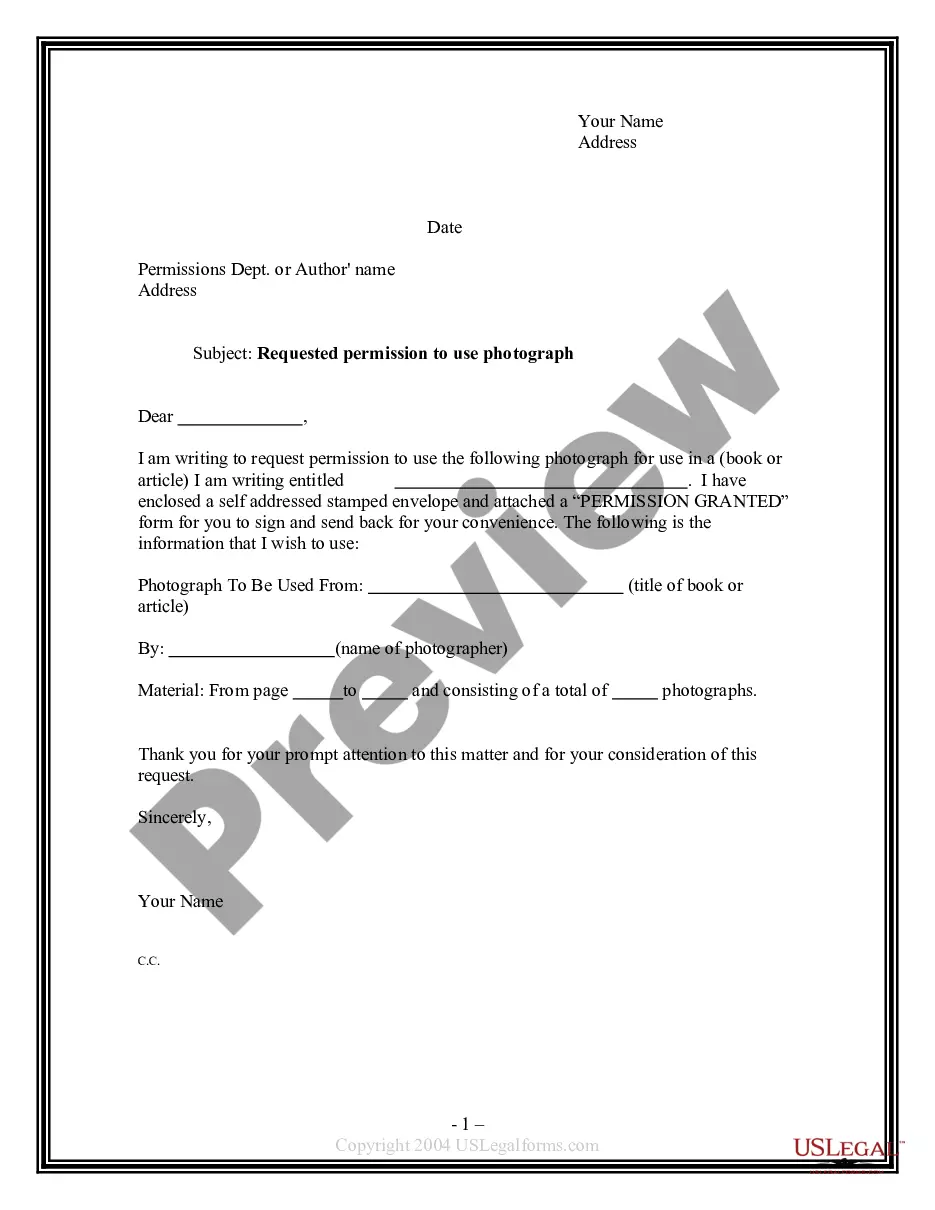
Description
Get your form ready online
Our built-in tools help you complete, sign, share, and store your documents in one place.
Make edits, fill in missing information, and update formatting in US Legal Forms—just like you would in MS Word.
Download a copy, print it, send it by email, or mail it via USPS—whatever works best for your next step.
Sign and collect signatures with our SignNow integration. Send to multiple recipients, set reminders, and more. Go Premium to unlock E-Sign.
If this form requires notarization, complete it online through a secure video call—no need to meet a notary in person or wait for an appointment.
We protect your documents and personal data by following strict security and privacy standards.
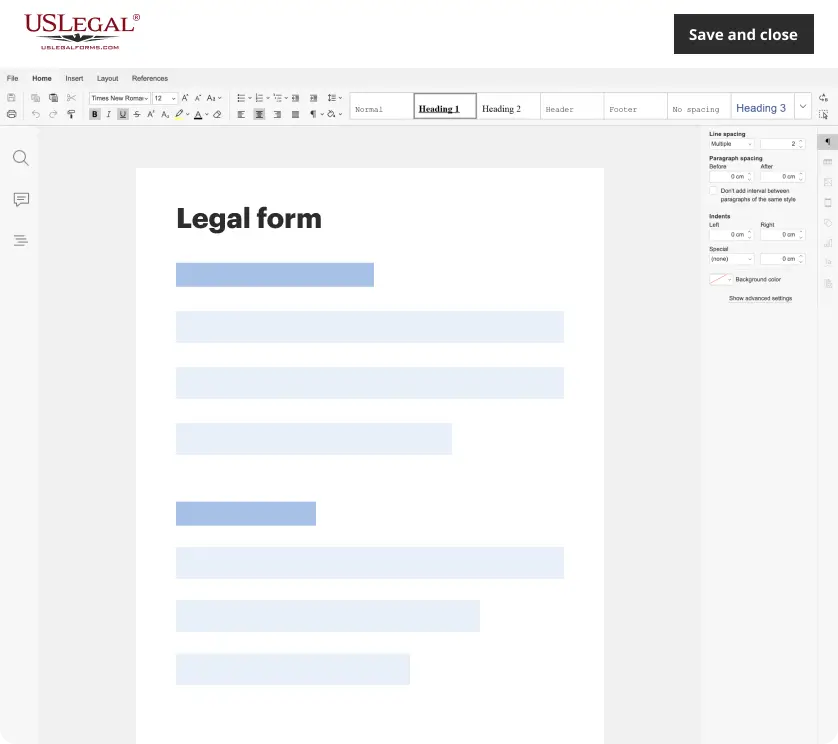
Make edits, fill in missing information, and update formatting in US Legal Forms—just like you would in MS Word.
Download a copy, print it, send it by email, or mail it via USPS—whatever works best for your next step.
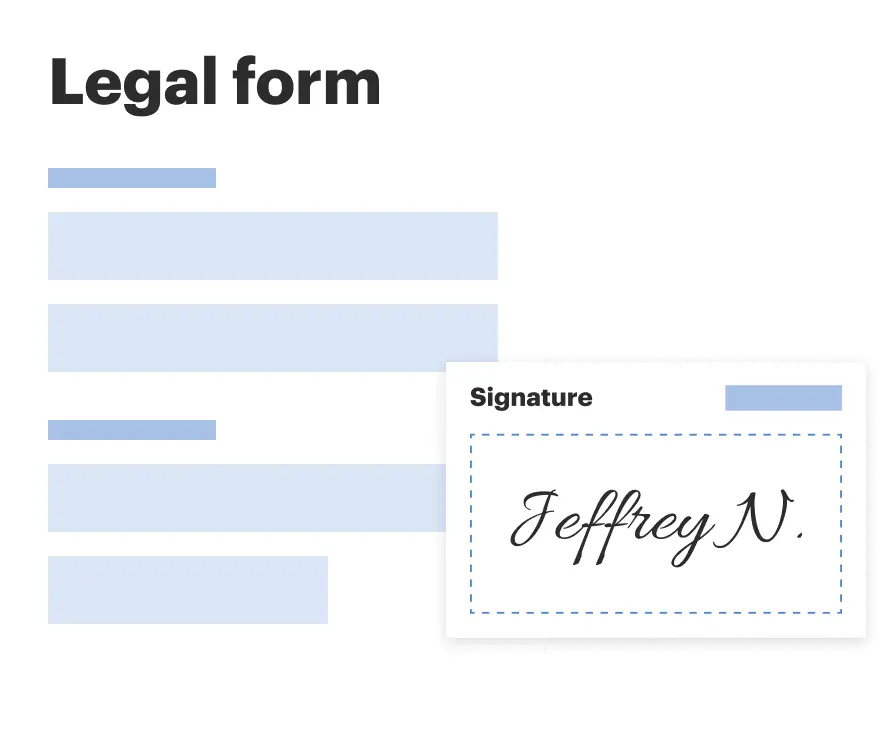
Sign and collect signatures with our SignNow integration. Send to multiple recipients, set reminders, and more. Go Premium to unlock E-Sign.
If this form requires notarization, complete it online through a secure video call—no need to meet a notary in person or wait for an appointment.
We protect your documents and personal data by following strict security and privacy standards.
Looking for another form?
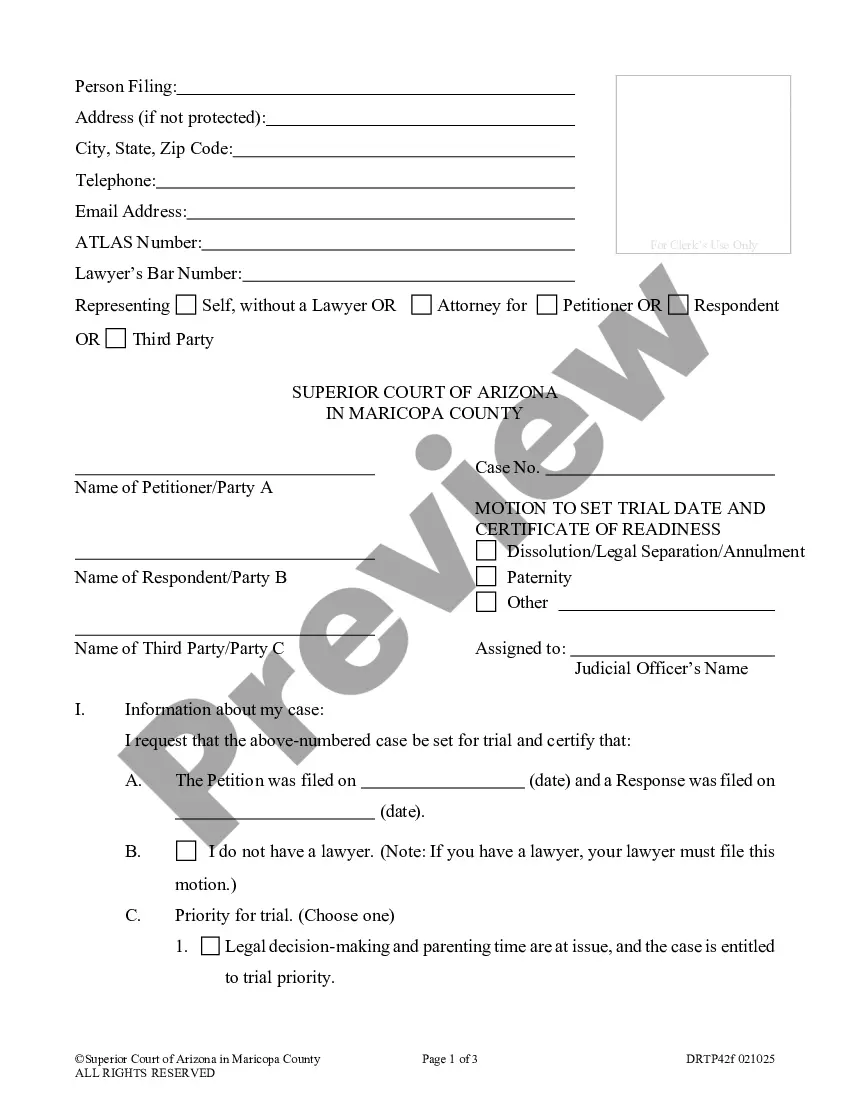
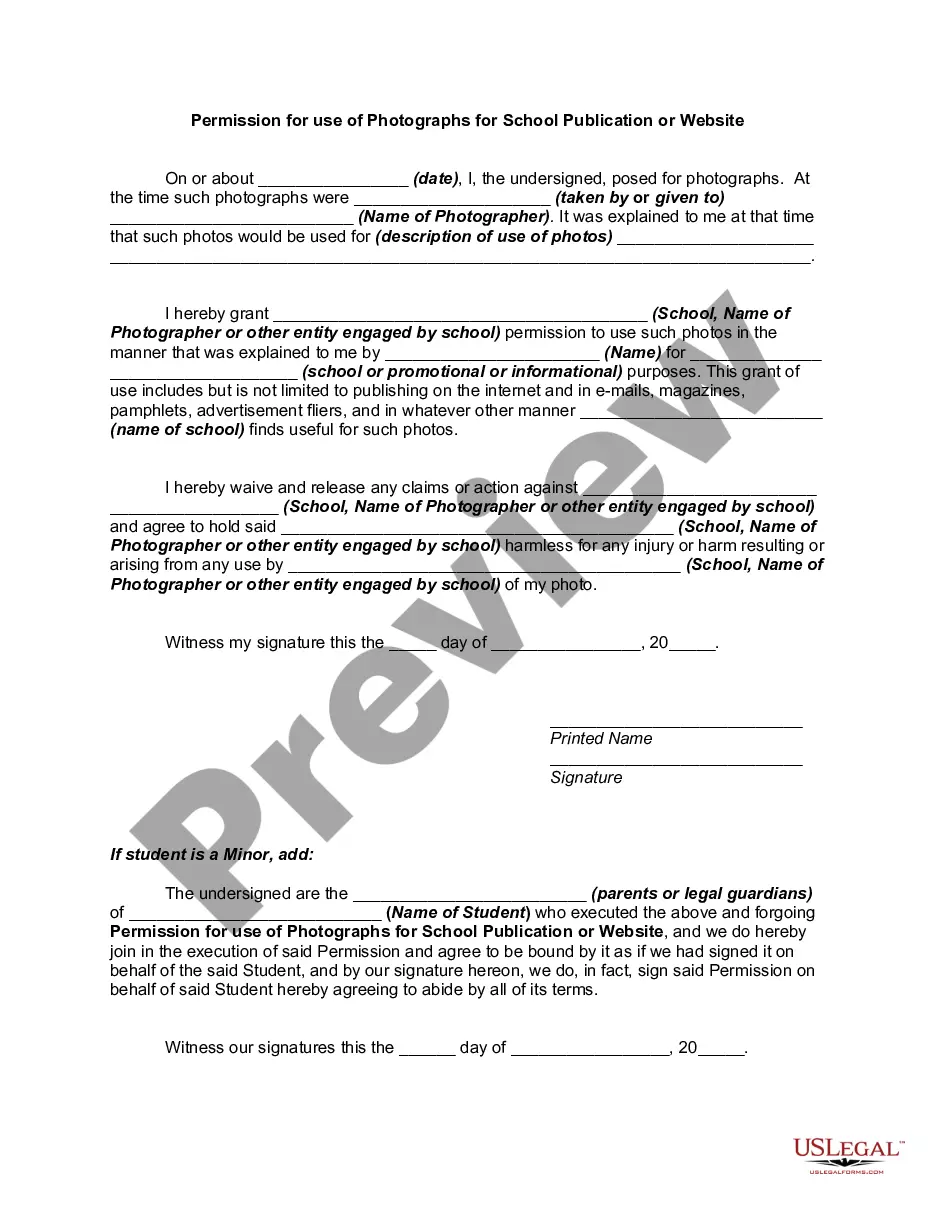
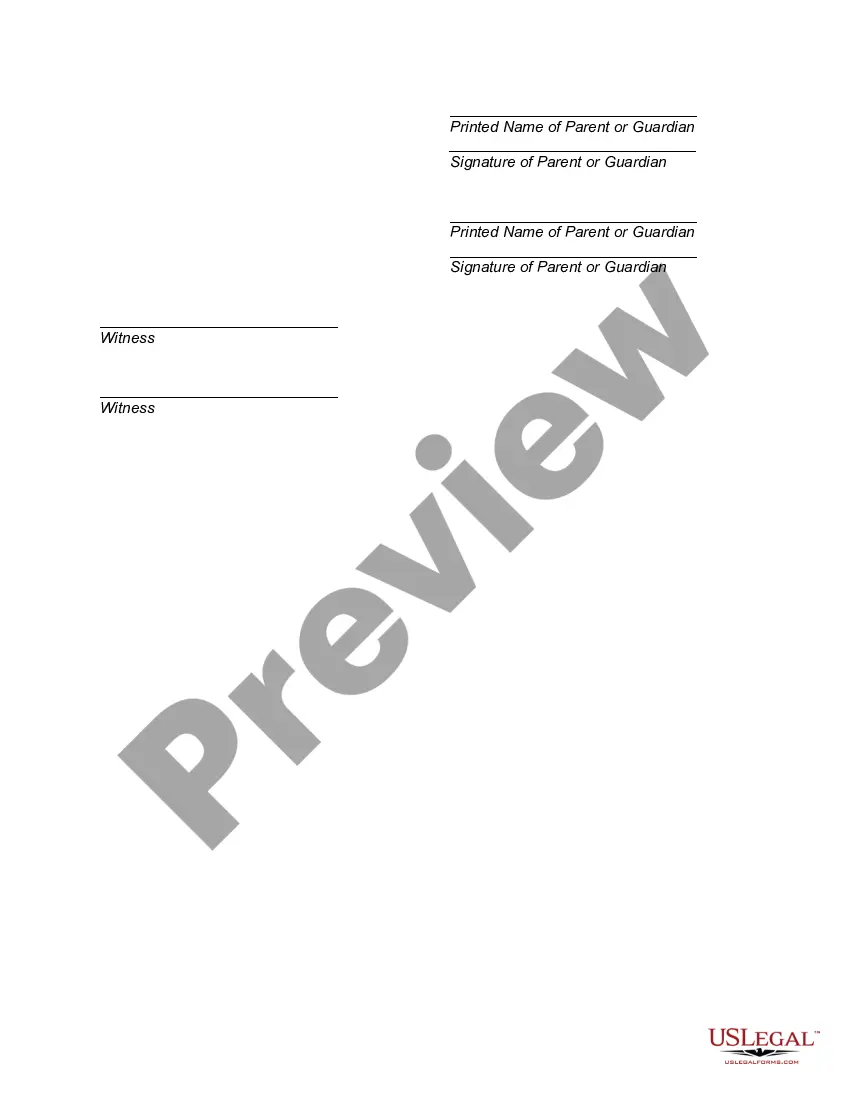
How to fill out Permission For Use Of Photographs For School Publication Or Website?
- Log into your account on US Legal Forms if you're an existing user. Ensure your subscription is active before attempting to download any forms.
- If you're new to the service, start by navigating to the form templates and entering your requirements in the search bar. Preview the options to identify the one that fits your needs.
- Once you've selected the appropriate form, click on the Buy Now button. Choose from various subscription plans tailored to your needs.
- Proceed to make your payment using either a credit card or PayPal. Confirm the transaction to complete your purchase.
- After the purchase, download the selected form directly to your device. It can be accessed anytime through the My Forms section in your account.
Using US Legal Forms helps you access a robust collection of over 85,000 legal documents quickly. By leveraging this resource, you can ensure that your photo use permissions are properly documented.
Don’t hesitate to get started with US Legal Forms today. Ensure your legal documents are correct and professional with just a few clicks!
Form popularity
FAQ
To allow photo use permission with the app, first, go to your device's settings. Locate the app in the list of installed applications and tap on it. You will find a section for permissions; simply enable the permission for photos. This will ensure the app can access your images, enhancing its functionality and providing a better user experience.
To give an app permission, open your device settings and find the app you want to modify. From there, you can manage various permissions, including location, storage, and camera access. By granting the app the necessary permissions, you enhance your ability to utilize features such as photo use permission with the app effectively. If you're unsure about the permissions needed, refer to the app's guidelines for clarity.
To allow apps to access your camera, go to your device settings, find the app in question, and enable camera permissions. This step is crucial if you wish to enhance your photo use permission with the app, as it facilitates direct capturing. Each operating system may have slight variations in steps, so consult the help guides specific to your device if needed. After adjusting the settings, you can use the app seamlessly.
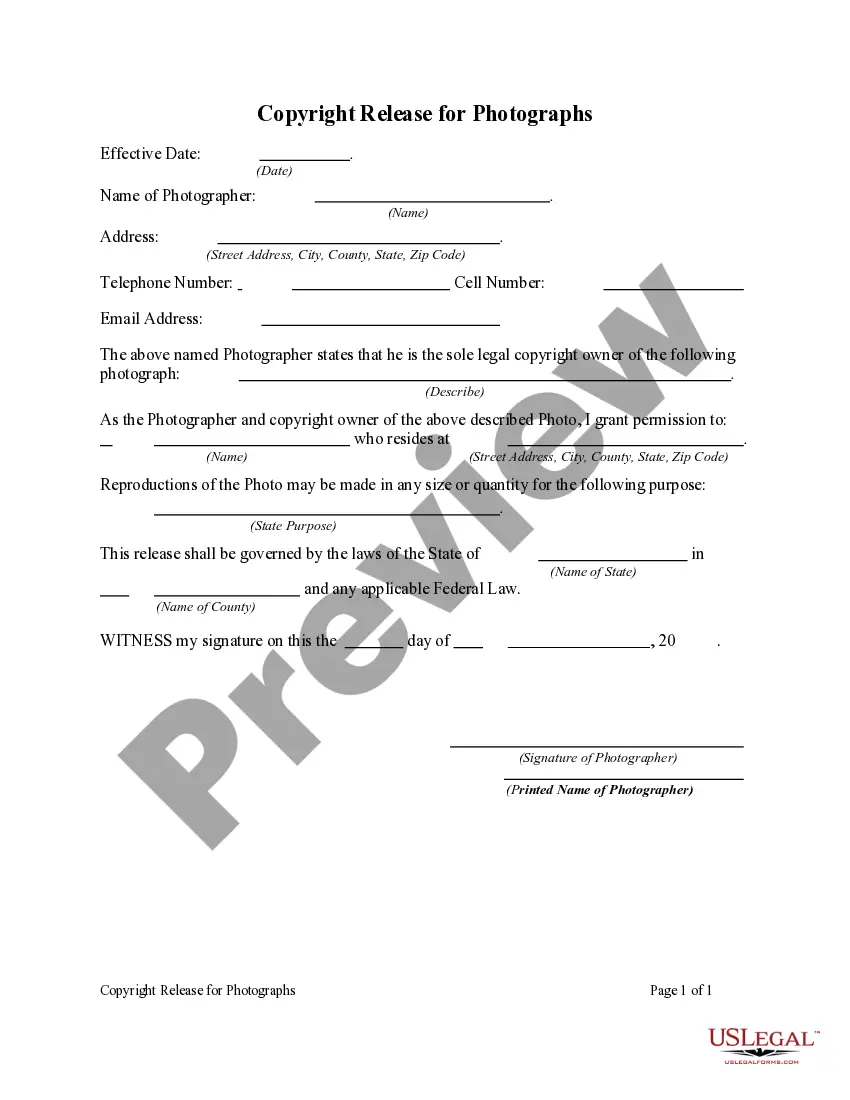
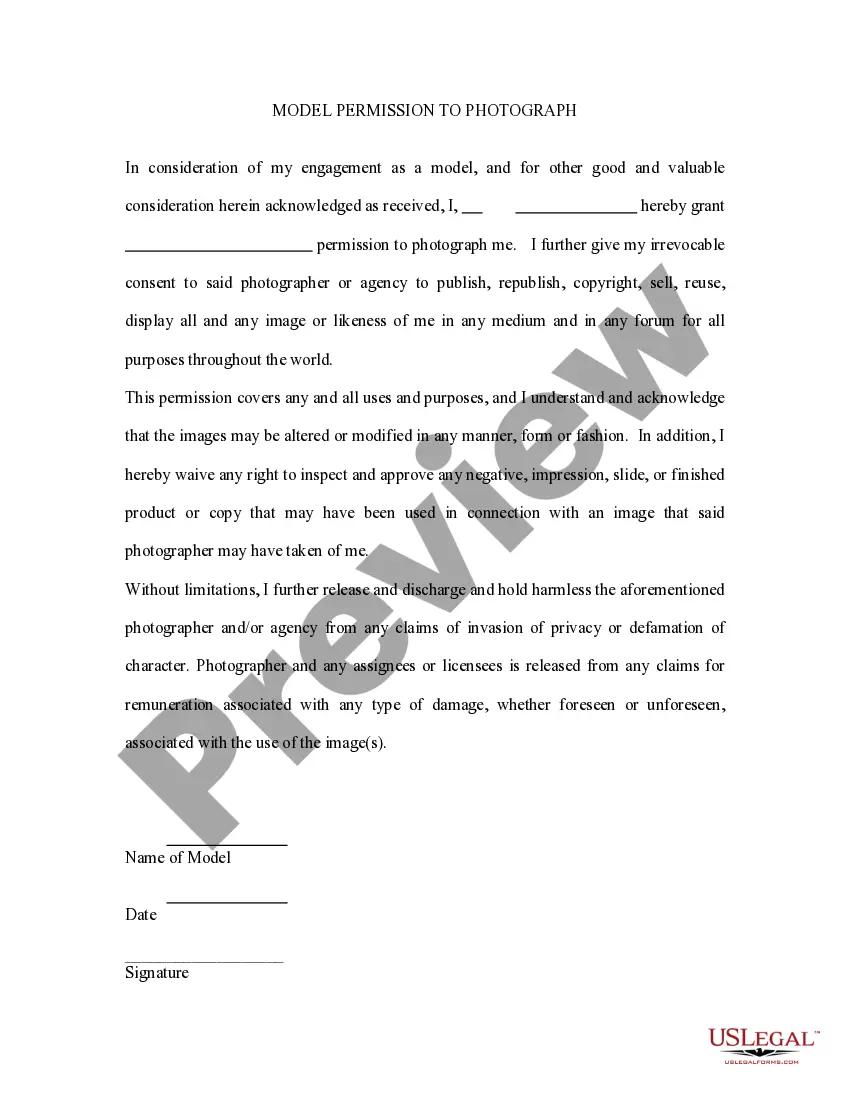
To obtain photo use permission with the app, first, identify the owner of the image. Reach out to them directly via email or social media, explaining how you intend to use their photo. Ensure you document their approval for future reference, as this will protect you from any potential disputes. If you're using photos from a stock library, simply follow their licensing guidelines to secure the necessary permissions.
To allow photo access on iOS, start by opening your device's settings. Scroll down to find the app you want to configure, then tap on it to view its permissions. Ensure that the toggle for photo access is turned on, enabling the app to utilize your images effectively, just like your necessary photo use permission with the app.
To grant camera permission, you need to access the settings on your device. Locate the app you wish to allow and enable camera use permission within the settings menu. This permission is essential for the app to capture images or videos directly, adding to the interactive capabilities, similar to granting photo use permission with the app.
If your iPhone does not allow apps to access your photos, it may be due to restrictions set in your device settings. Check the privacy settings to ensure photo access is enabled for the affected app. If problems persist, consider restarting your device or updating the app to the latest version to ensure it can request photo use permission with the app.
To grant photo use permission with the app, you typically need to go into your device settings. Navigate to the application's settings, find the permissions section, and toggle the option to allow access to your photos. This allows the app to use your images seamlessly while ensuring you retain control over your privacy.
Apps want to access your photos to enhance user interaction and provide tailored experiences. This might include enabling you to upload images, create galleries, or personalize content based on your photos. Understanding photo use permission with the app helps you appreciate how these features can benefit you while maintaining control over your personal media.
To give an app permission to use your camera, navigate to your device's settings and find the app in question. From there, you can enable camera access in the permission section. By managing photo use permission with the app, you can ensure that it has the necessary access to provide its features effectively.