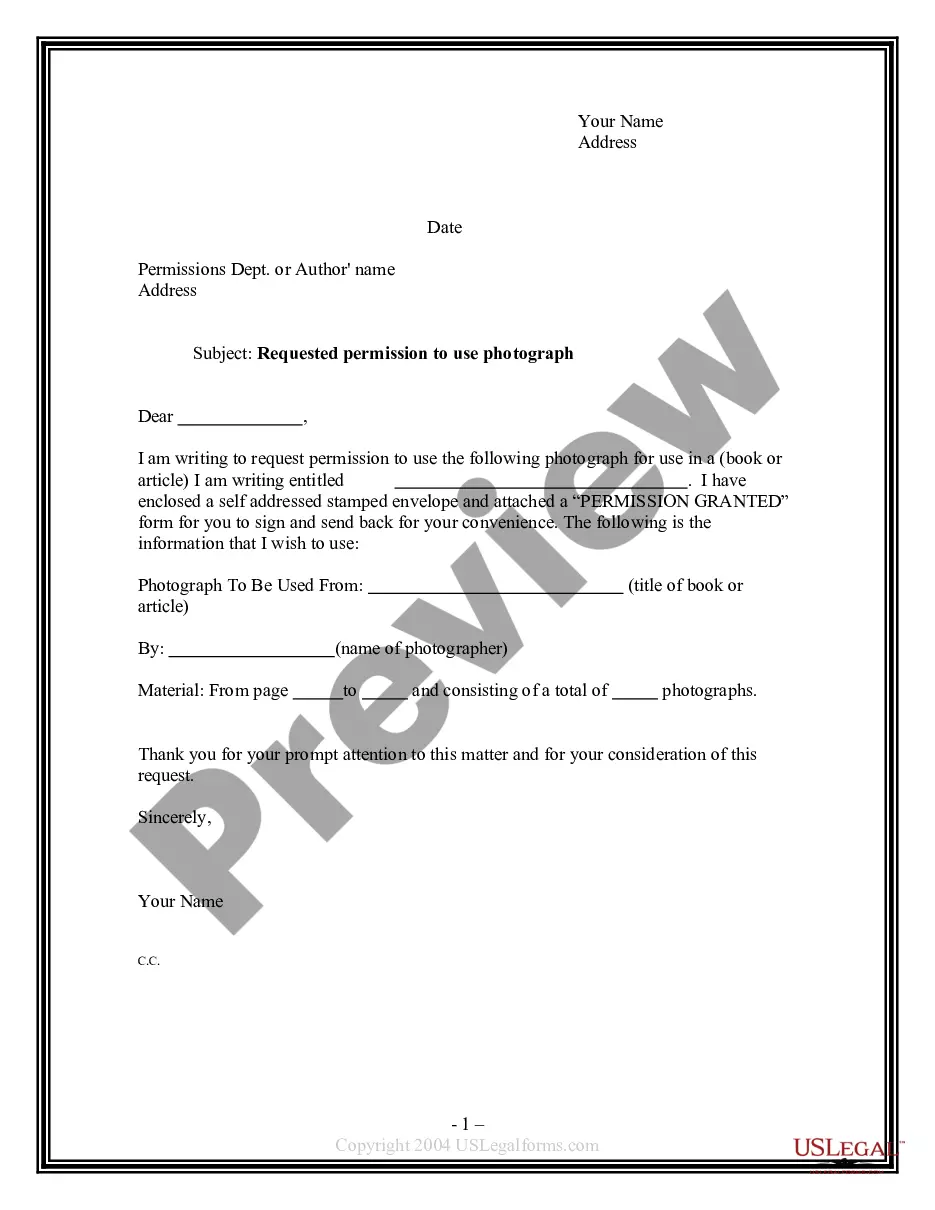
Permission To Use
Description
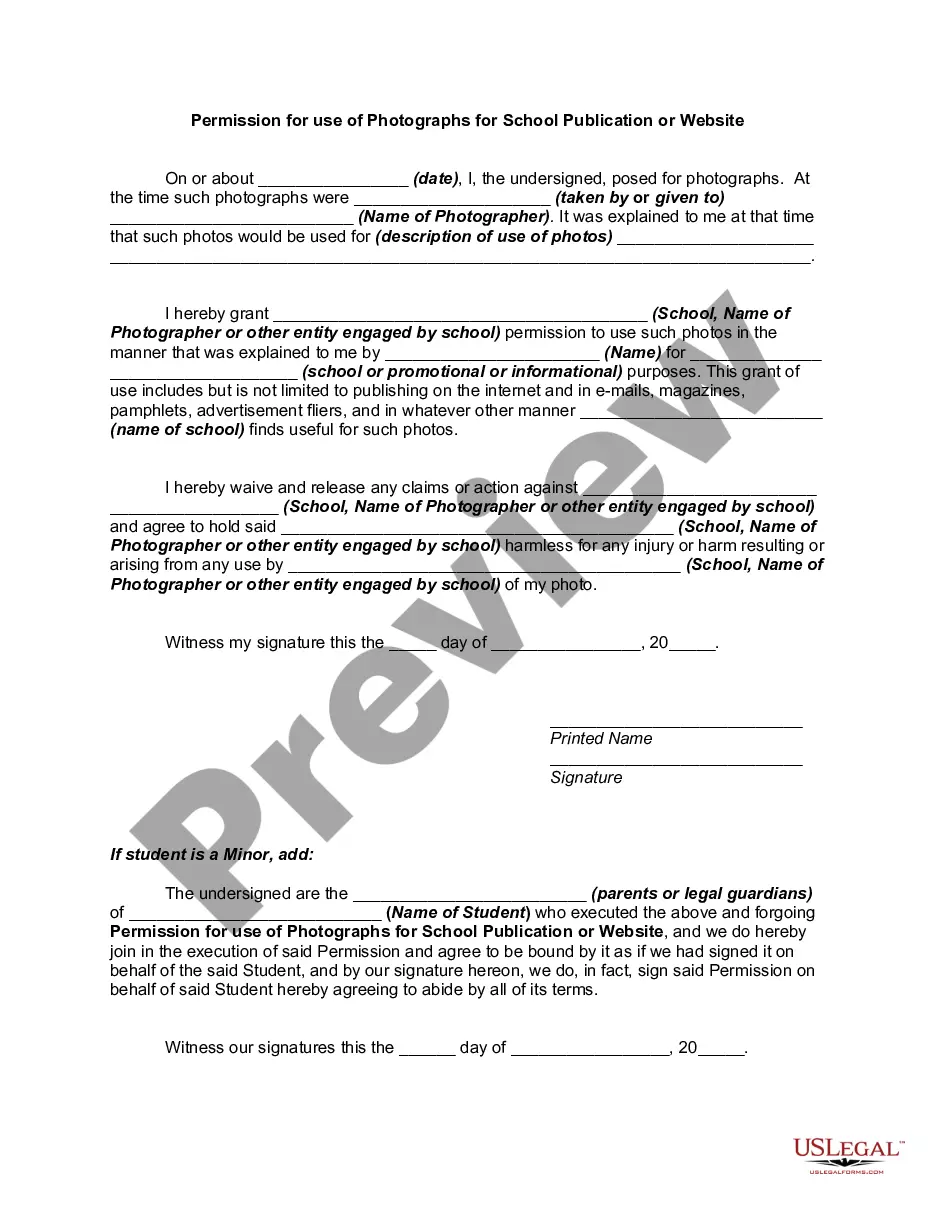
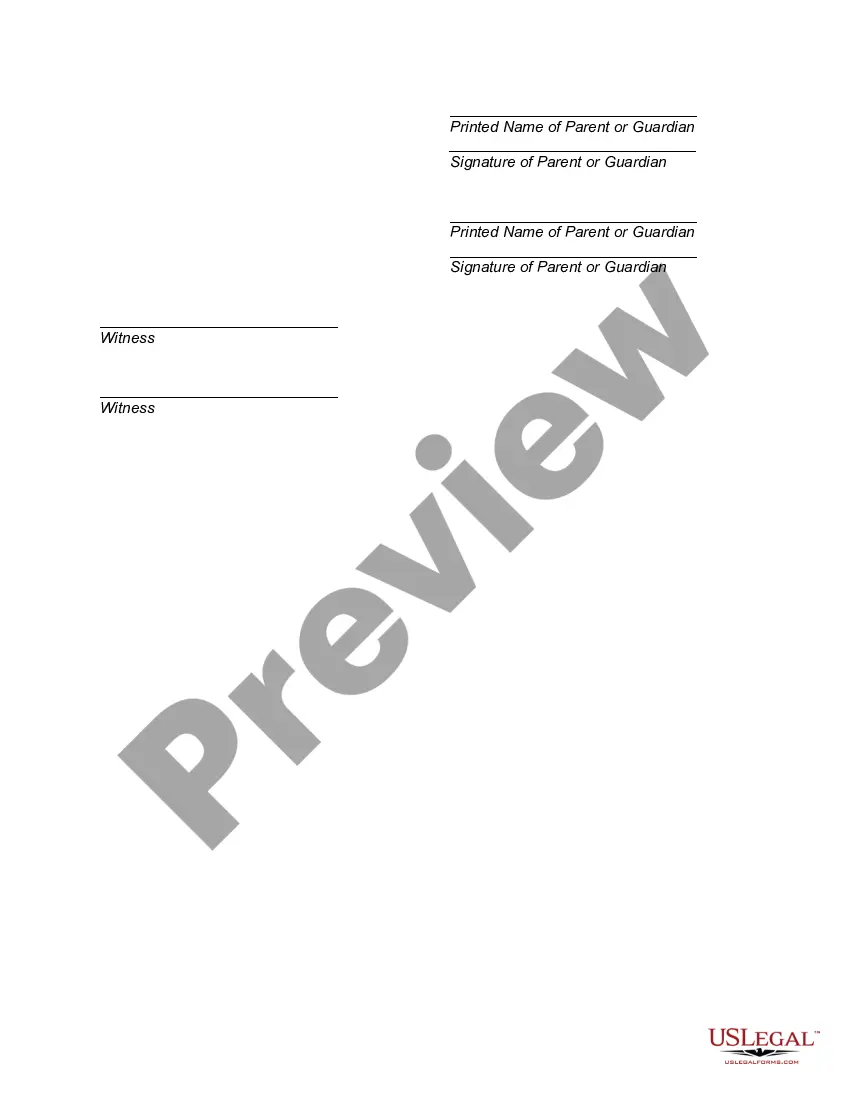
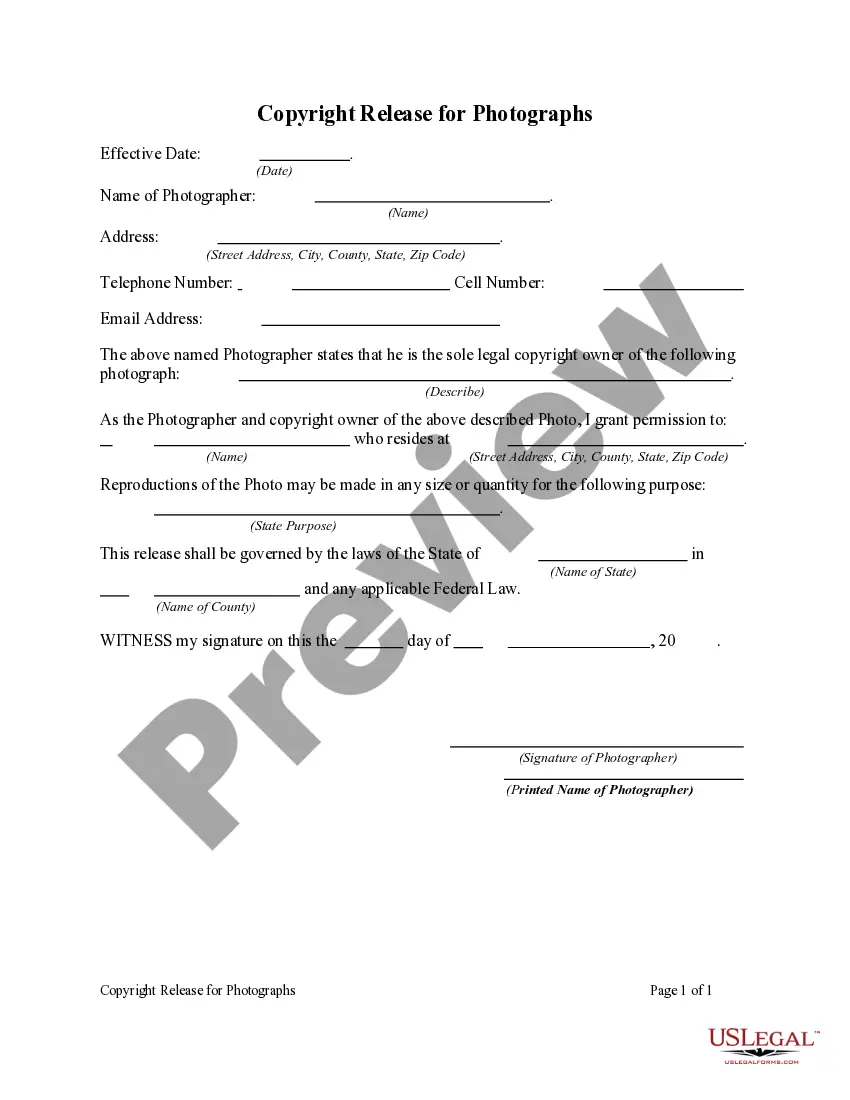
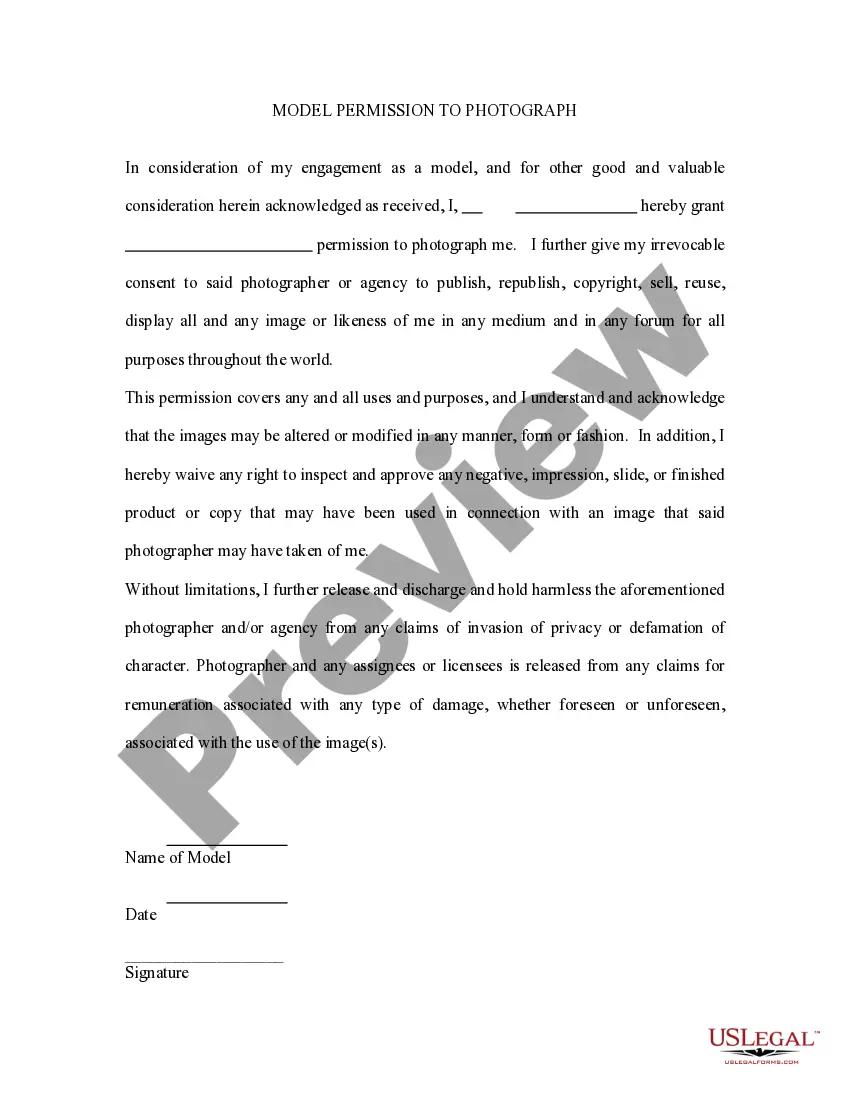
Get your form ready online
Our built-in tools help you complete, sign, share, and store your documents in one place.
Make edits, fill in missing information, and update formatting in US Legal Forms—just like you would in MS Word.
Download a copy, print it, send it by email, or mail it via USPS—whatever works best for your next step.
Sign and collect signatures with our SignNow integration. Send to multiple recipients, set reminders, and more. Go Premium to unlock E-Sign.
If this form requires notarization, complete it online through a secure video call—no need to meet a notary in person or wait for an appointment.
We protect your documents and personal data by following strict security and privacy standards.
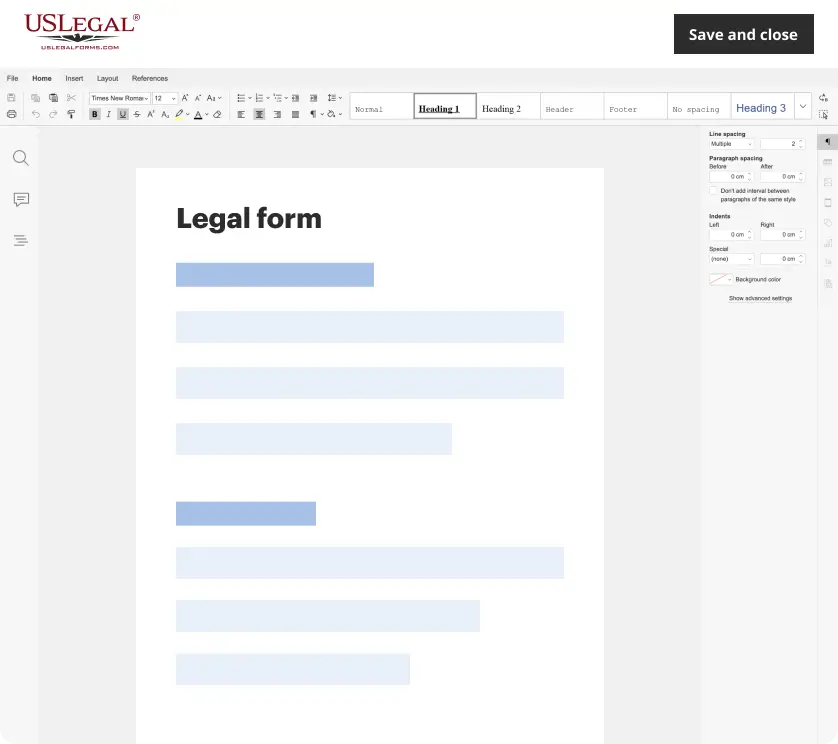
Make edits, fill in missing information, and update formatting in US Legal Forms—just like you would in MS Word.
Download a copy, print it, send it by email, or mail it via USPS—whatever works best for your next step.
Sign and collect signatures with our SignNow integration. Send to multiple recipients, set reminders, and more. Go Premium to unlock E-Sign.
If this form requires notarization, complete it online through a secure video call—no need to meet a notary in person or wait for an appointment.
We protect your documents and personal data by following strict security and privacy standards.
Looking for another form?
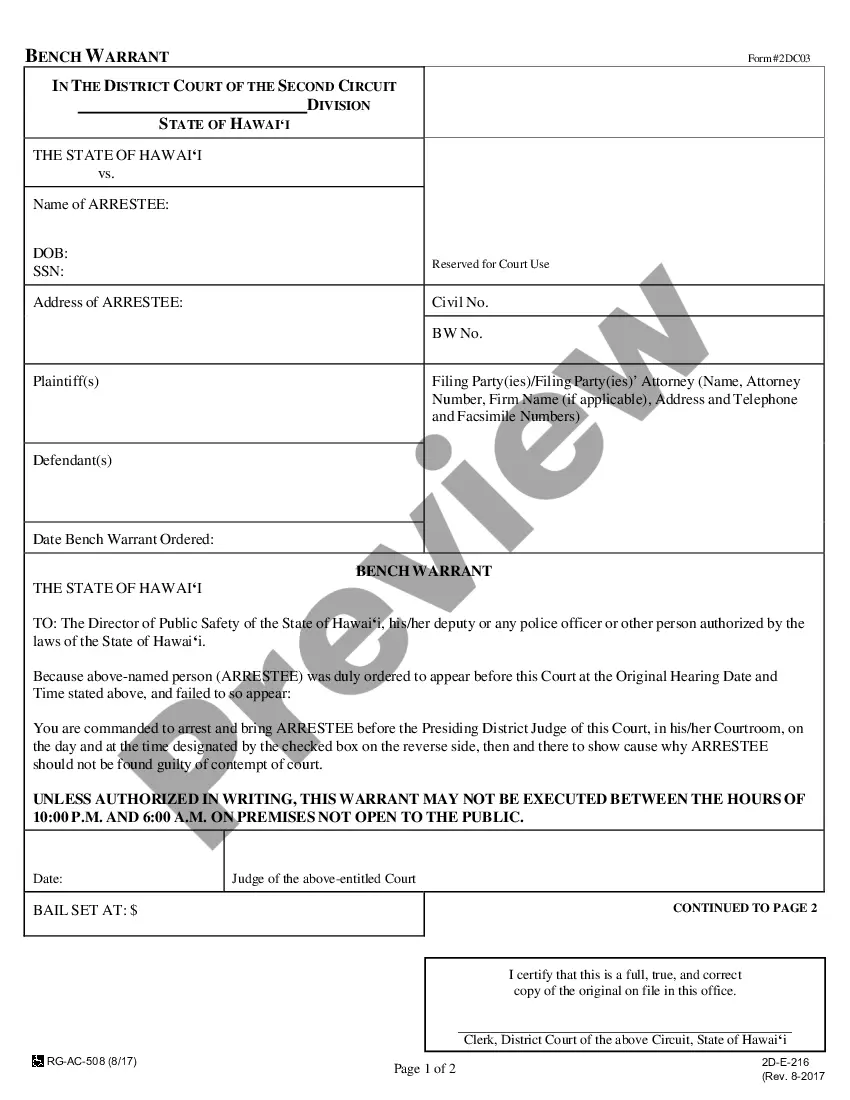
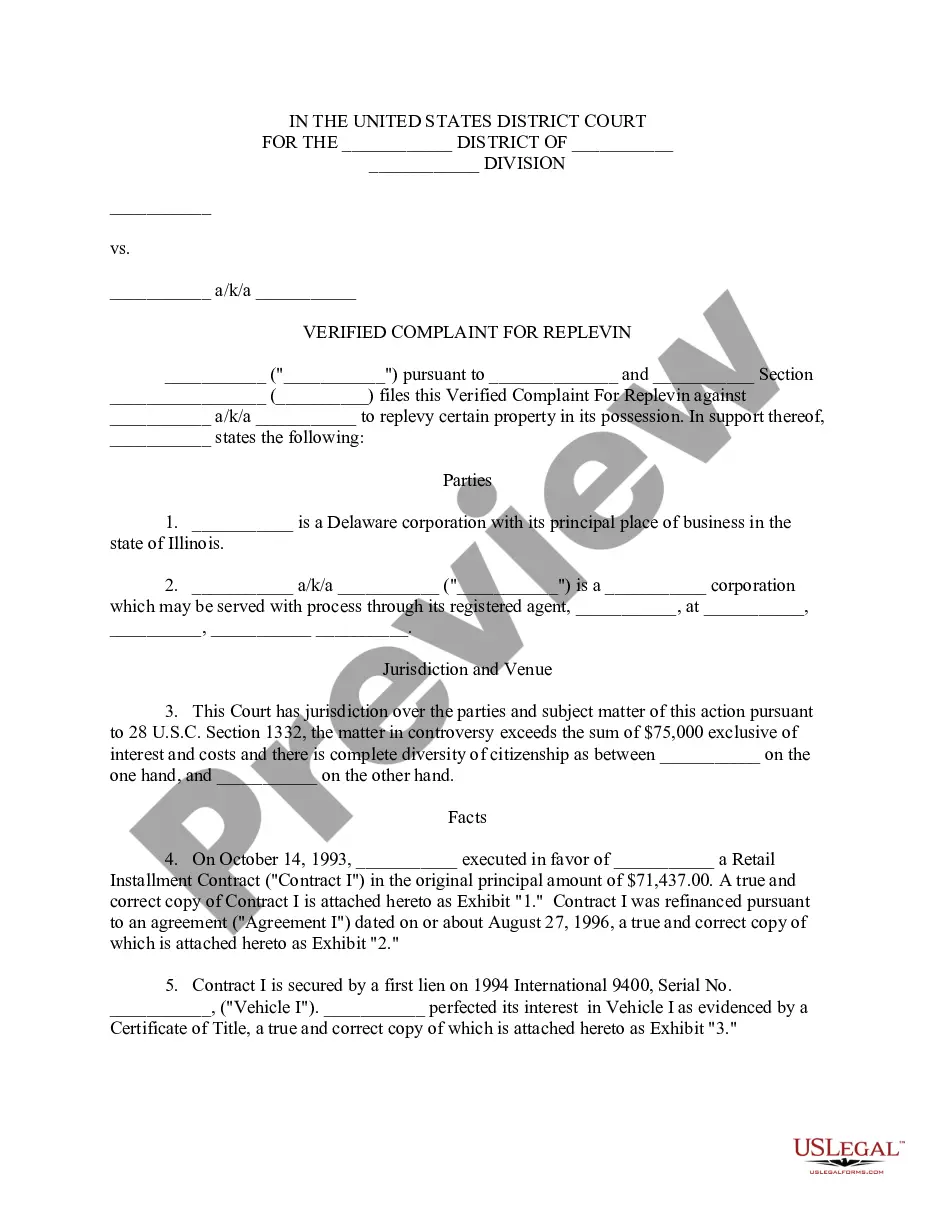
How to fill out Permission For Use Of Photographs For School Publication Or Website?
- Log in to your account if you're a returning user. Make sure your subscription is current to access the document download directly.
- For new users, begin by exploring the Preview mode and reviewing the form descriptions. Confirm that you've selected the appropriate form that matches your jurisdiction's requirements.
- If the chosen template doesn't fit your needs, utilize the Search tab to find a more suitable option.
- Once satisfied, proceed to purchase the document by clicking the Buy Now button, and select a subscription plan that aligns with your needs.
- Complete your payment using a credit card or PayPal. This grants you access to US Legal Forms’ extensive resources.
- Finally, download your form and save it to your device. You can revisit your documents anytime through the My Forms section of your account.
In conclusion, US Legal Forms offers an efficient way to secure legal documents tailored to your needs. With over 85,000 fillable forms and premium expert assistance, obtaining the necessary permissions has never been easier.
Start your journey towards easy legal document management today by visiting US Legal Forms!
Form popularity
FAQ
To grant permission to your computer, start by accessing your system's settings or control panel. Look for user account settings or file permissions and adjust them accordingly. By doing this, you enable the permission to use various functions and resources seamlessly.
Chmod 777 is a command used in Unix-based systems that grants all users full permission to use, read, and write a file or directory. While this setting allows complete access, it can pose security risks. Therefore, it's best to use this command cautiously, ensuring you understand the implications of providing such broad permissions.
The numbers 755 and 644 refer to specific file permission settings commonly used in Unix-like systems. A permission value of 755 allows the owner full permission to use and execute, while allowing others read and execute rights. On the other hand, 644 provides read and write permission to the owner, and only read access to others, ensuring you maintain control over your files.
If your computer displays a message stating you lack permission to access certain files or folders, it may be due to incorrect permission settings. In this case, check the security settings for the affected files. Adjusting the permissions can resolve the issue and ensure you have full permission to use what you need.
To give someone permission to access your computer, you need to create a new user account for them. Once the account is set up, go to the permissions section and grant the necessary rights. This way, they can enjoy the permission to use the resources without issues.
To reach the permission settings on your computer, start by opening the 'Control Panel' or 'Settings' menu. Look for the 'User Accounts' or 'File and Folder Permissions' option. From there, you can manage and adjust settings as needed to establish the permission to use files and folders.
You can provide someone else access to your computer by adding their user account in your system settings. Head to the 'User Accounts' section, choose 'Add a new user', and follow the prompts. Make sure to adjust the permissions so they have the permission to use the features they need.
To grant yourself full permissions on your computer, navigate to the file or folder you want to modify. Right-click on it, select 'Properties', then go to the 'Security' tab. From there, you can edit permissions to ensure you have the permission to use and access everything without restrictions.
To politely ask for permission, use courteous language throughout your request. Begin with a friendly greeting, followed by an introduction of yourself and your purpose. Clearly outline what you are asking to use and the context of its use. Lastly, thank them for considering your request, reinforcing your respectful approach and friendliness.
When requesting permission to use a work, your sentences should be clear and respectful. For instance, 'I am writing to request permission to use your artwork in my project.' Another example is, 'I appreciate the opportunity to feature your content and would like to discuss how we can collaborate.' 'Your work aligns perfectly with my vision, and I believe it can add significant value.' Make the request straightforward while expressing gratitude for their consideration.