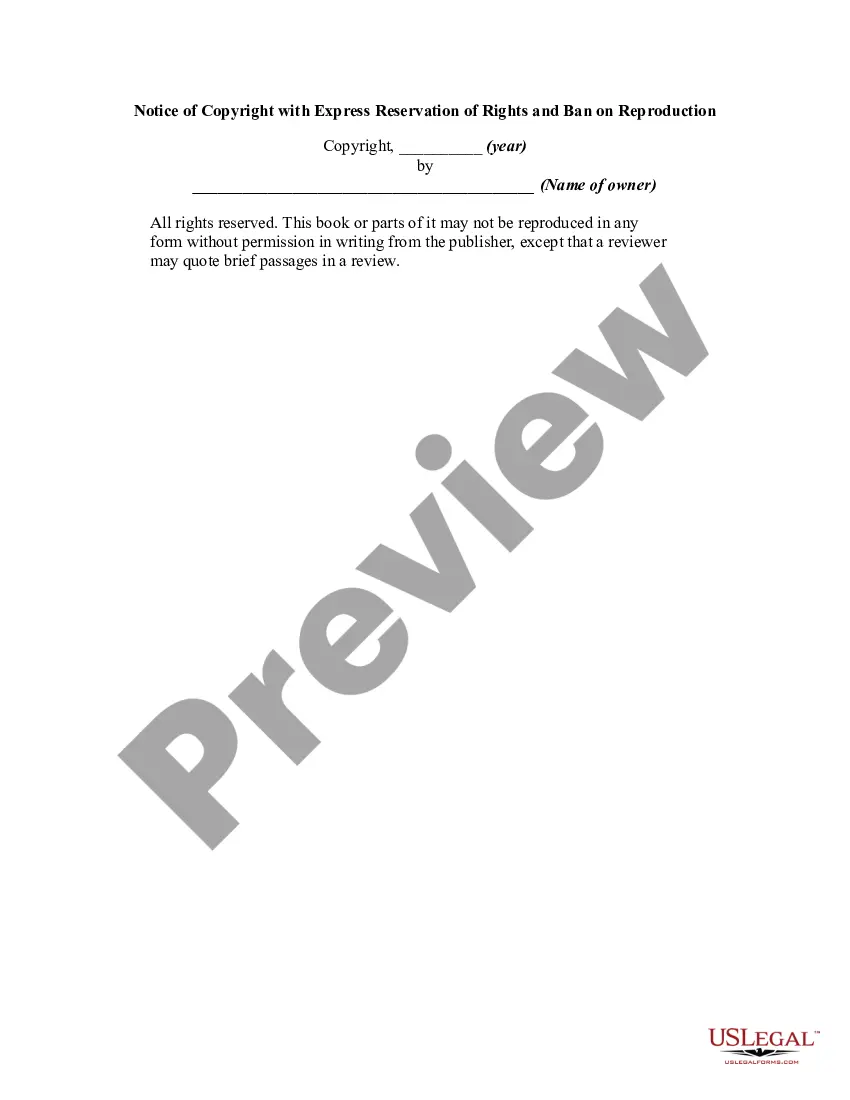
Reservation Rights Download Without Email
Description
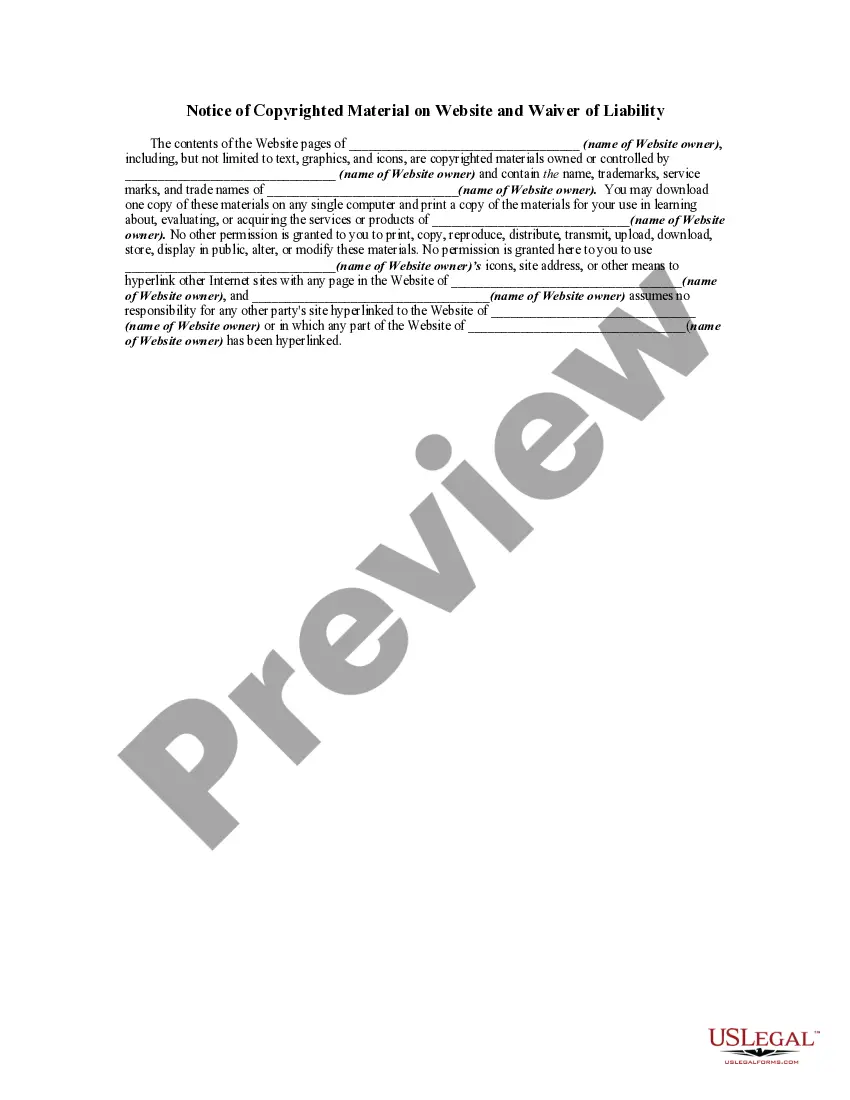
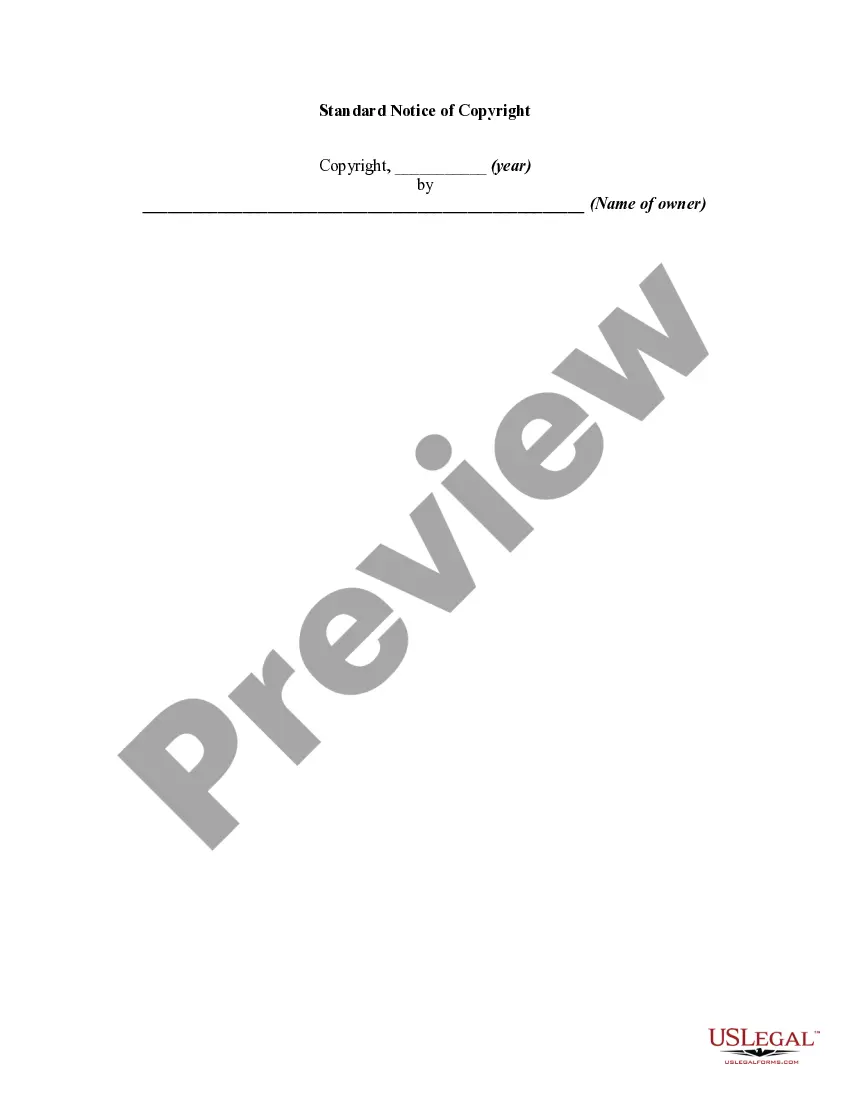
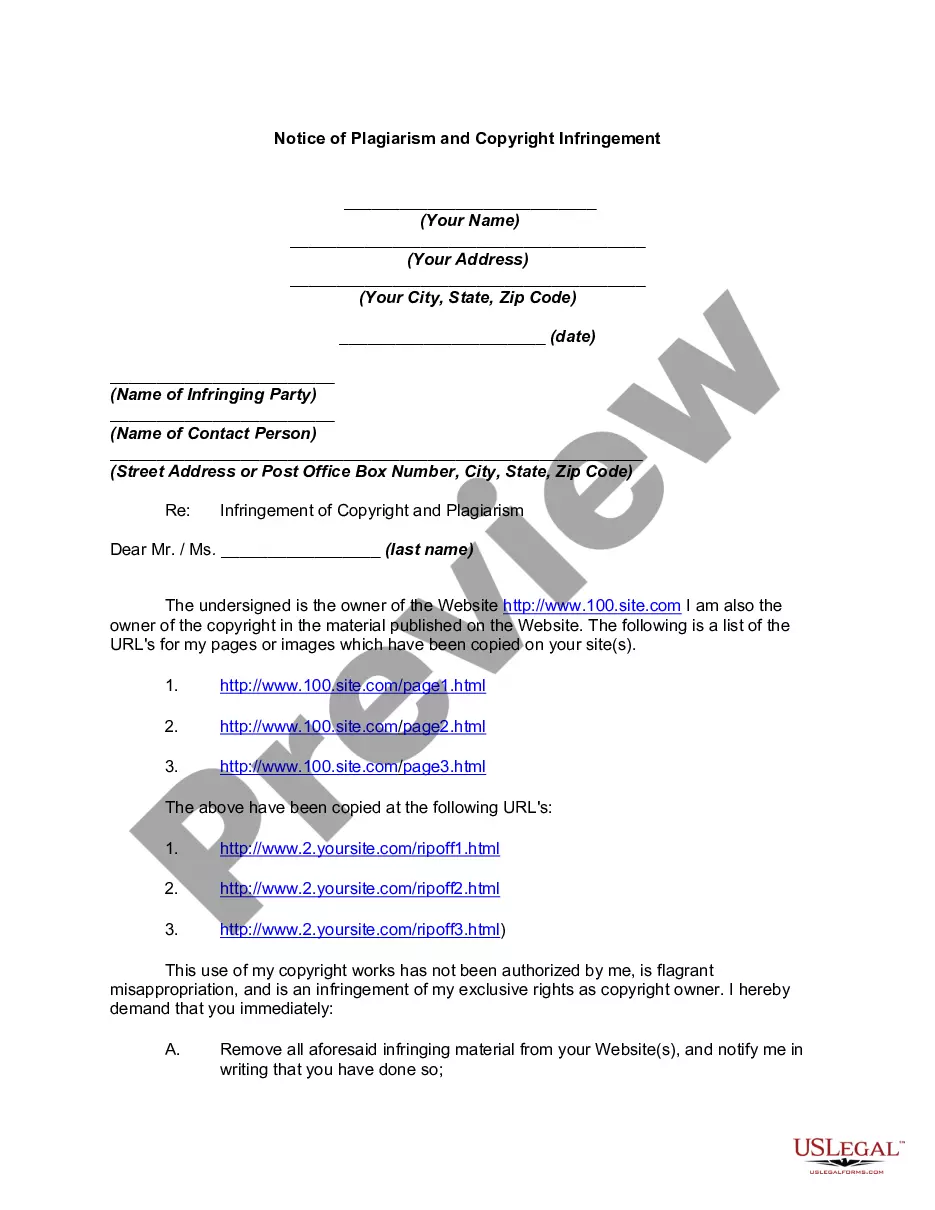
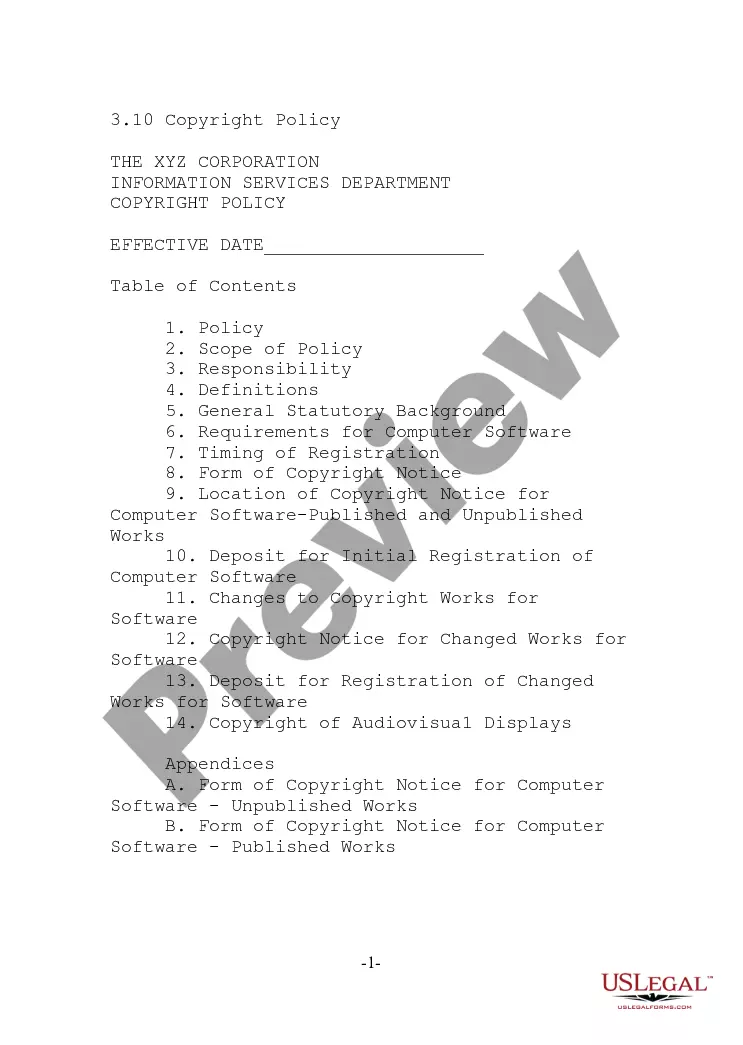
Get your form ready online
Our built-in tools help you complete, sign, share, and store your documents in one place.
Make edits, fill in missing information, and update formatting in US Legal Forms—just like you would in MS Word.
Download a copy, print it, send it by email, or mail it via USPS—whatever works best for your next step.
Sign and collect signatures with our SignNow integration. Send to multiple recipients, set reminders, and more. Go Premium to unlock E-Sign.
If this form requires notarization, complete it online through a secure video call—no need to meet a notary in person or wait for an appointment.
We protect your documents and personal data by following strict security and privacy standards.
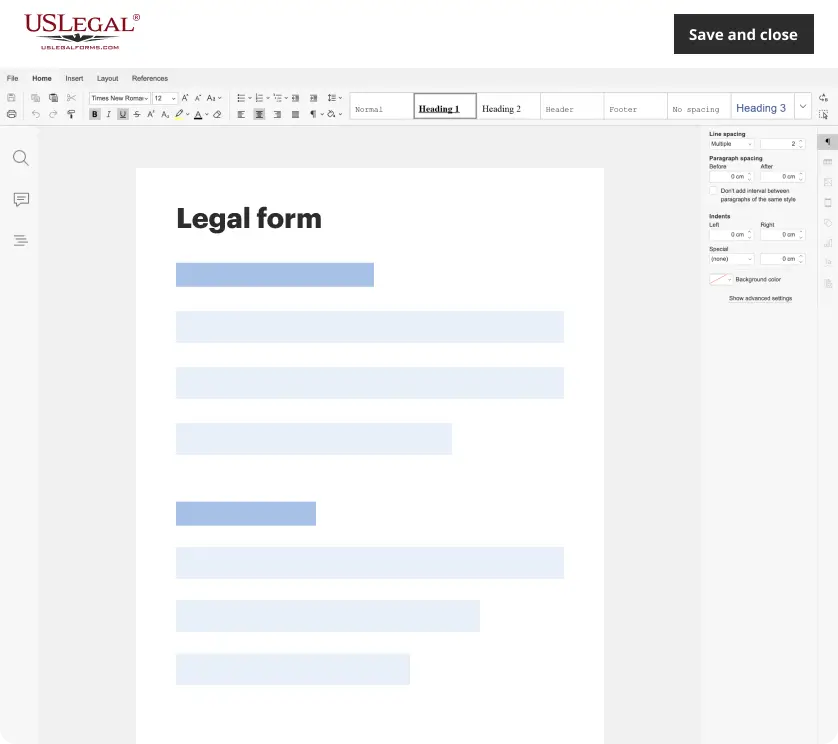
Make edits, fill in missing information, and update formatting in US Legal Forms—just like you would in MS Word.
Download a copy, print it, send it by email, or mail it via USPS—whatever works best for your next step.
Sign and collect signatures with our SignNow integration. Send to multiple recipients, set reminders, and more. Go Premium to unlock E-Sign.
If this form requires notarization, complete it online through a secure video call—no need to meet a notary in person or wait for an appointment.
We protect your documents and personal data by following strict security and privacy standards.
Looking for another form?

How to fill out Notice Of Copyright With Express Reservation Of Rights And Ban On Reproduction?
The Reservation Rights Download Without Email visible on this site is a versatile legal template crafted by expert attorneys in accordance with federal and local laws.
For over 25 years, US Legal Forms has supplied individuals, organizations, and legal experts with more than 85,000 authenticated, state-specific forms for a wide range of business and personal situations. It represents the fastest, easiest, and most trustworthy method to acquire the documentation you require, as the service ensures bank-level data protection and anti-malware security.
Subscribe to US Legal Forms to have authenticated legal templates for all of life’s situations at your fingertips.
- Search for the document you require and review it.
- Browse through the file you searched and preview it or examine the form description to confirm it meets your requirements. If it does not, utilize the search feature to find the accurate one. Click Buy Now after you have found the template you need.
- Subscribe and Log In.
- Choose the payment plan that suits you and create an account. Use PayPal or a credit card to complete the payment promptly. If you already possess an account, Log In and review your subscription to continue.
- Acquire the editable template.
- Select the format you wish for your Reservation Rights Download Without Email (PDF, Word, RTF) and download the example to your device.
- Fill out and sign the document.
- Print the template to complete it manually. Alternatively, use an online multifunctional PDF editor to quickly and accurately fill out and sign your form with a valid signature.
- Download your documents again.
- Access the same document again whenever needed. Go to the My documents tab in your profile to redownload any previously purchased forms.
Form popularity
FAQ
Go to the VM section in the Azure management portal, click on a VM and get the VM size information. Provide this size in the reserved instance purchase. The reserved instance discount is automatically applied to VMs matching the attributes and quantity of the Azure Reserved VM Instance.
View reservations with Azure RBAC access If you purchased the reservation or you're added to a reservation, use the following steps to view and manage reservations in the Azure portal. Sign in to the Azure portal. Select All Services > Reservations to list reservations that you have access to.
On the customer-specific menu, select Subscriptions. Review the transfer request. Select the requested Azure subscriptions, reservations, and/or savings plans (Azure plan) to transfer.
All you have to do is to go to Azure Portal >> Navigate to All Services >> Reservations >> Click Add >> Define a scope and create. And here's how you pay for it: For Enterprise Agreement (EA) customers, Azure Monetary Commitment can be used to purchase Azure Reserved VM Instances.
View reservations with Azure RBAC access If you purchased the reservation or you're added to a reservation, use the following steps to view and manage reservations in the Azure portal. Sign in to the Azure portal. Select All Services > Reservations to list reservations that you have access to.