Property State Any Format
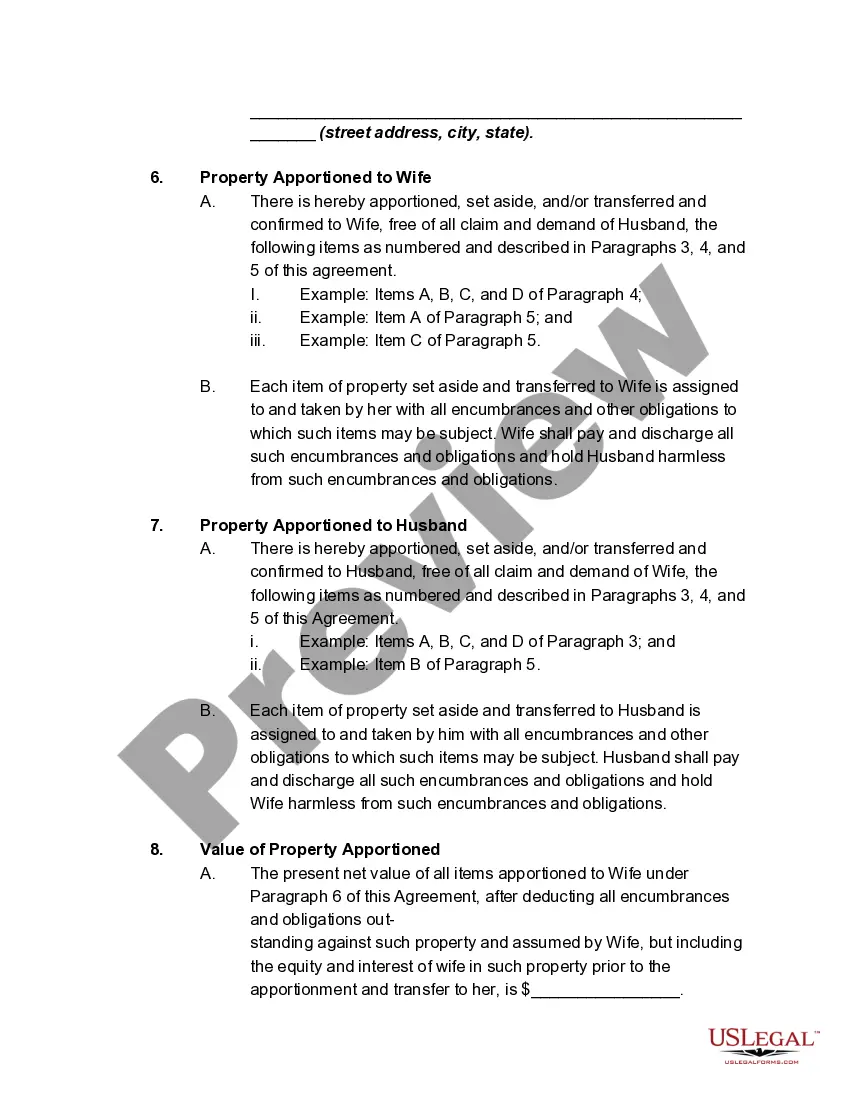
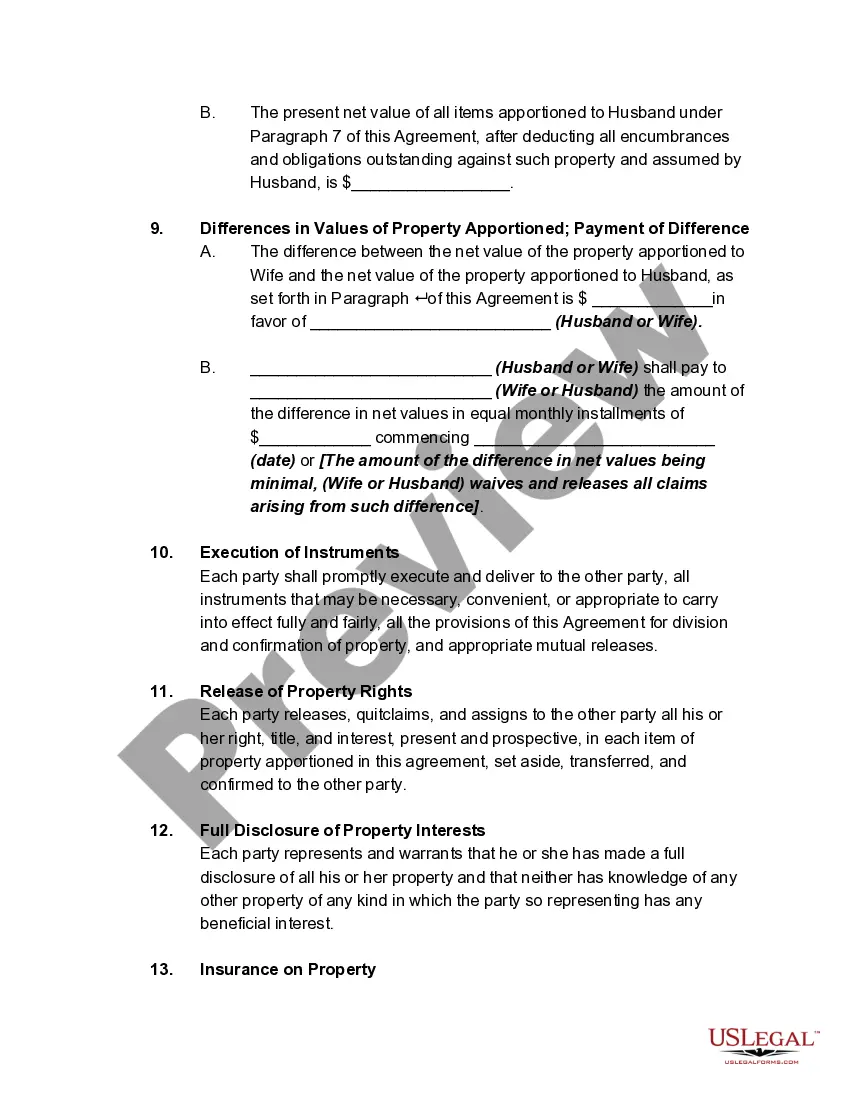
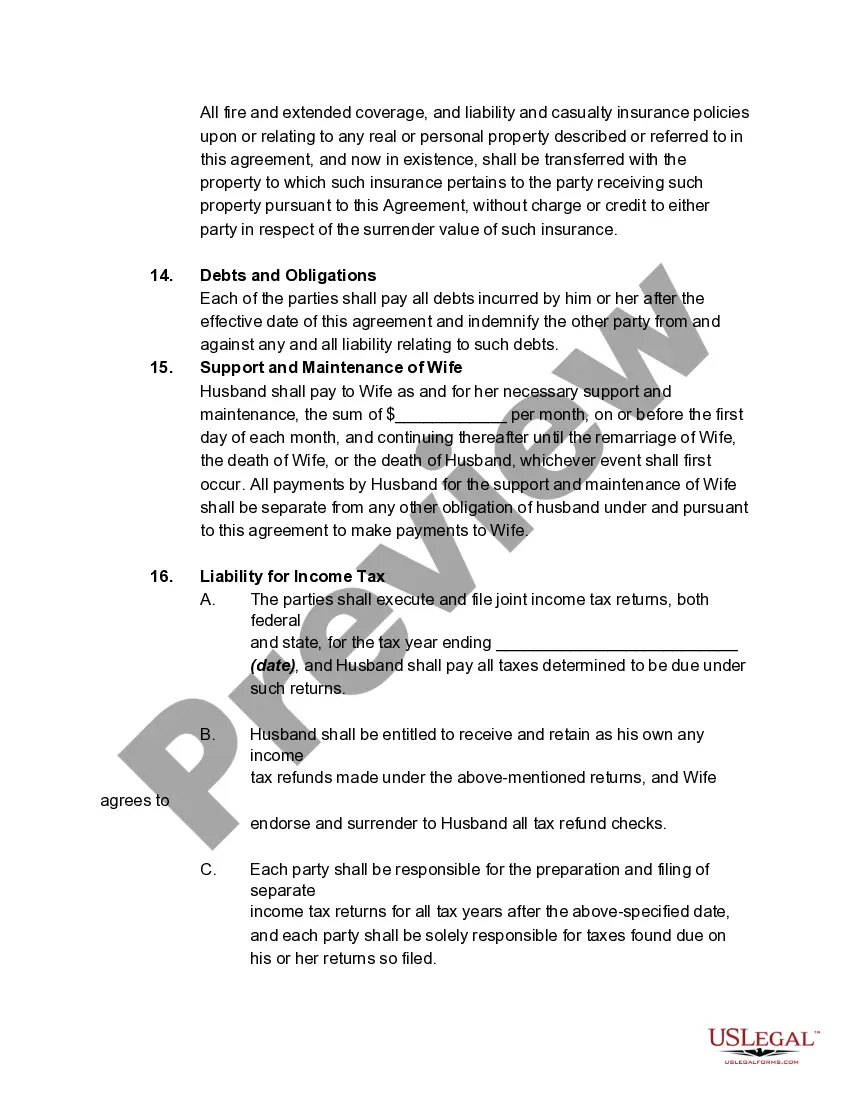
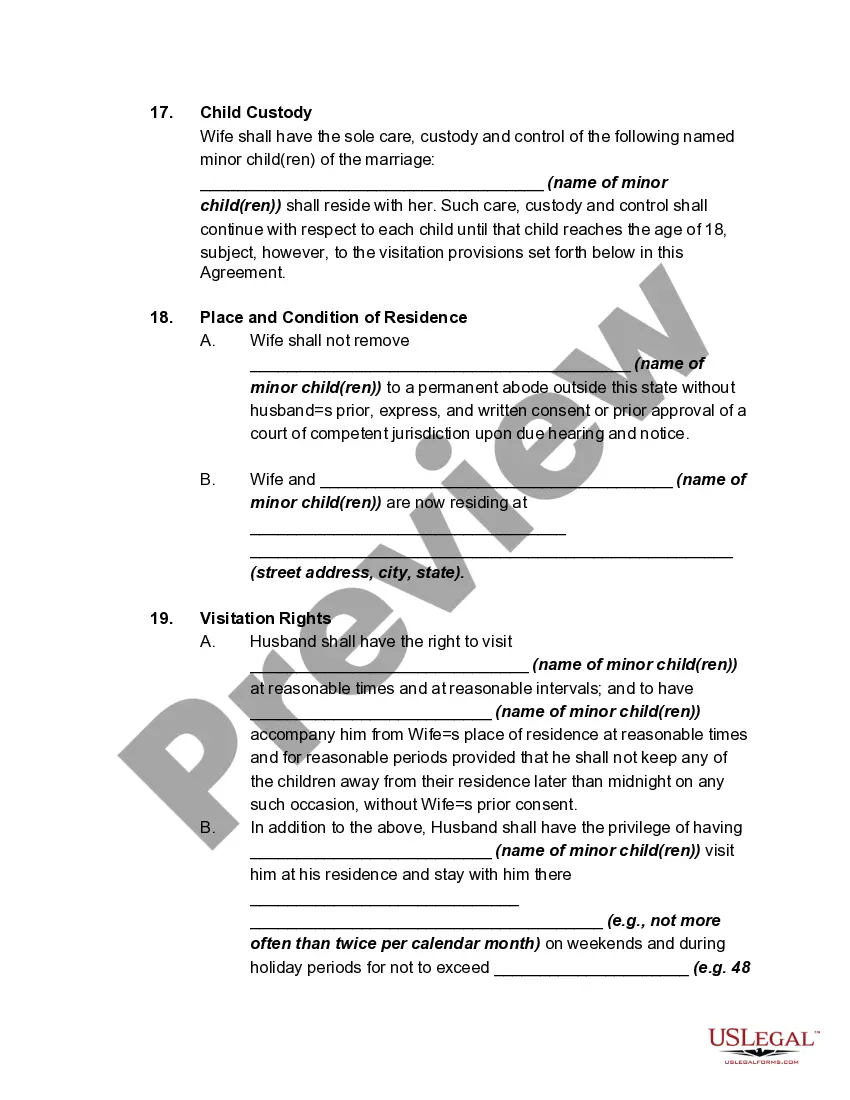
Description
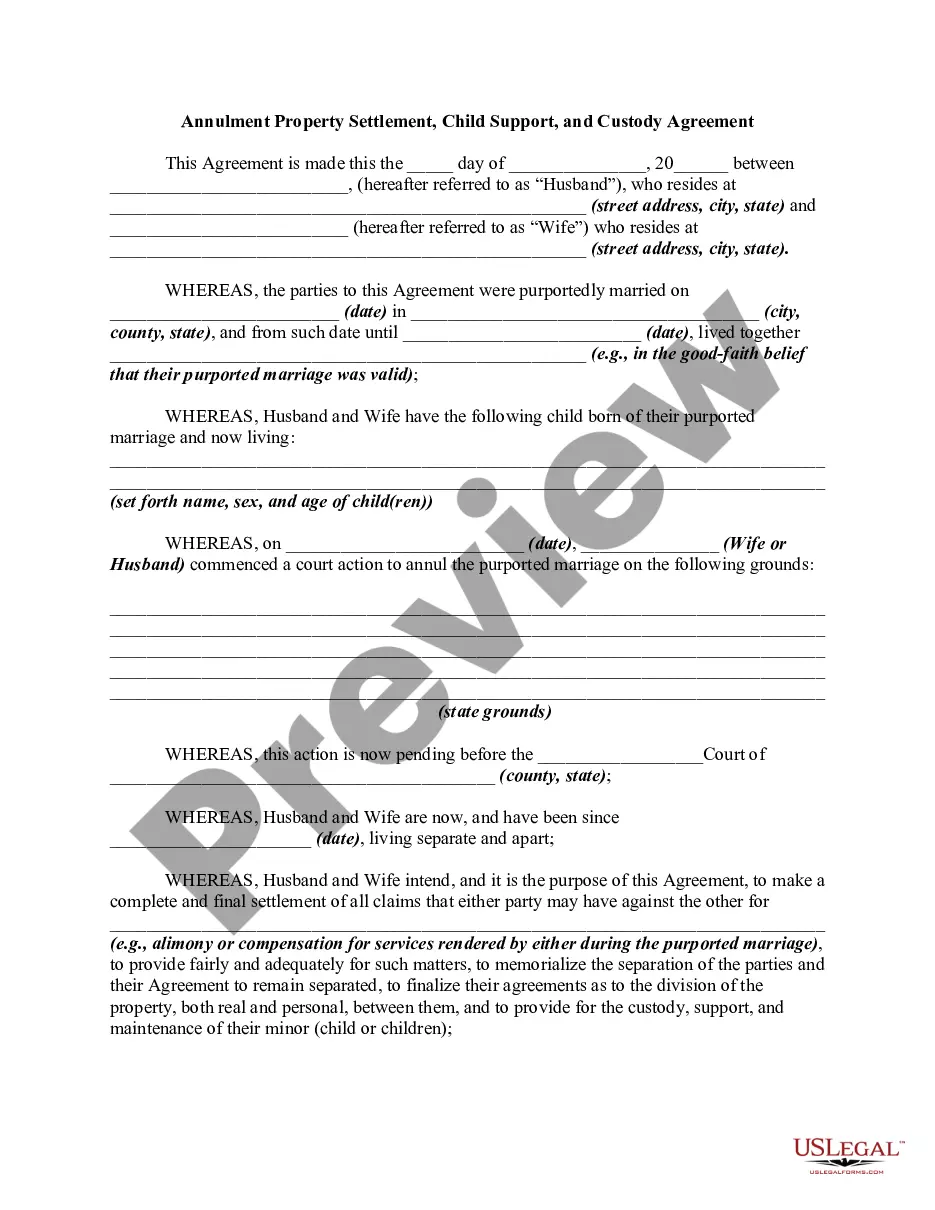
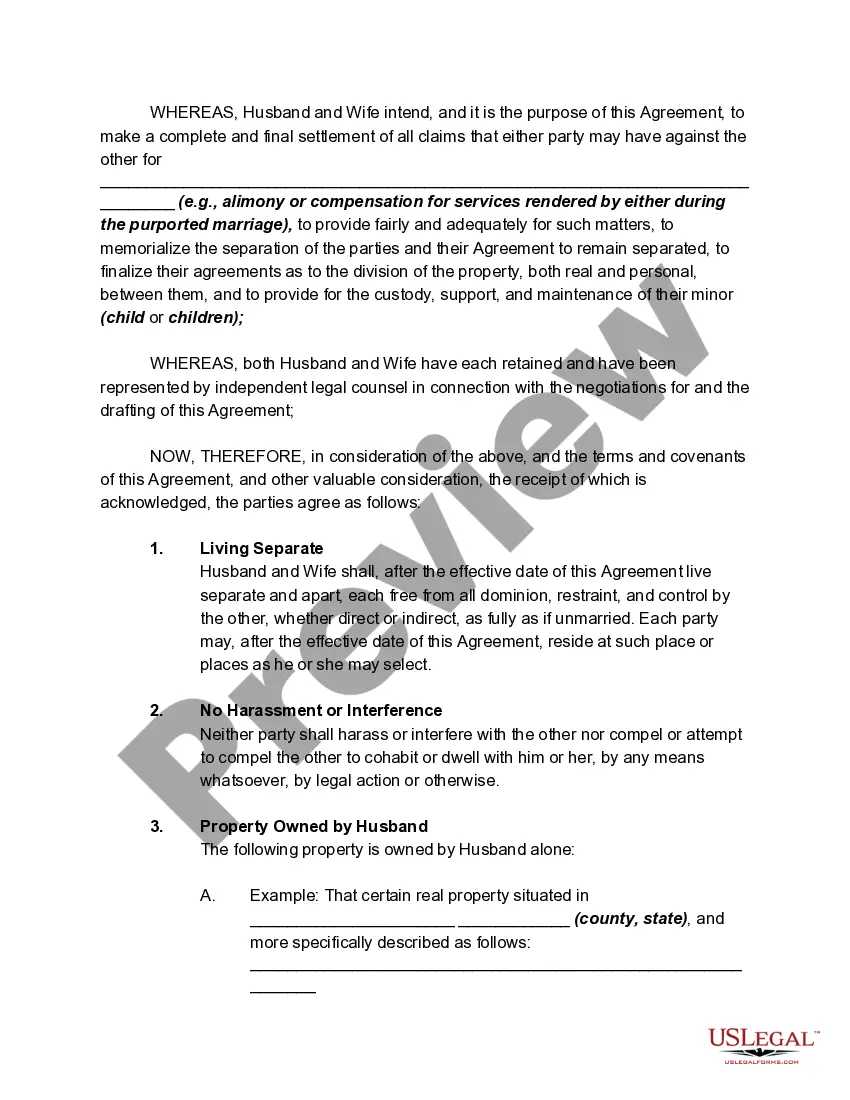
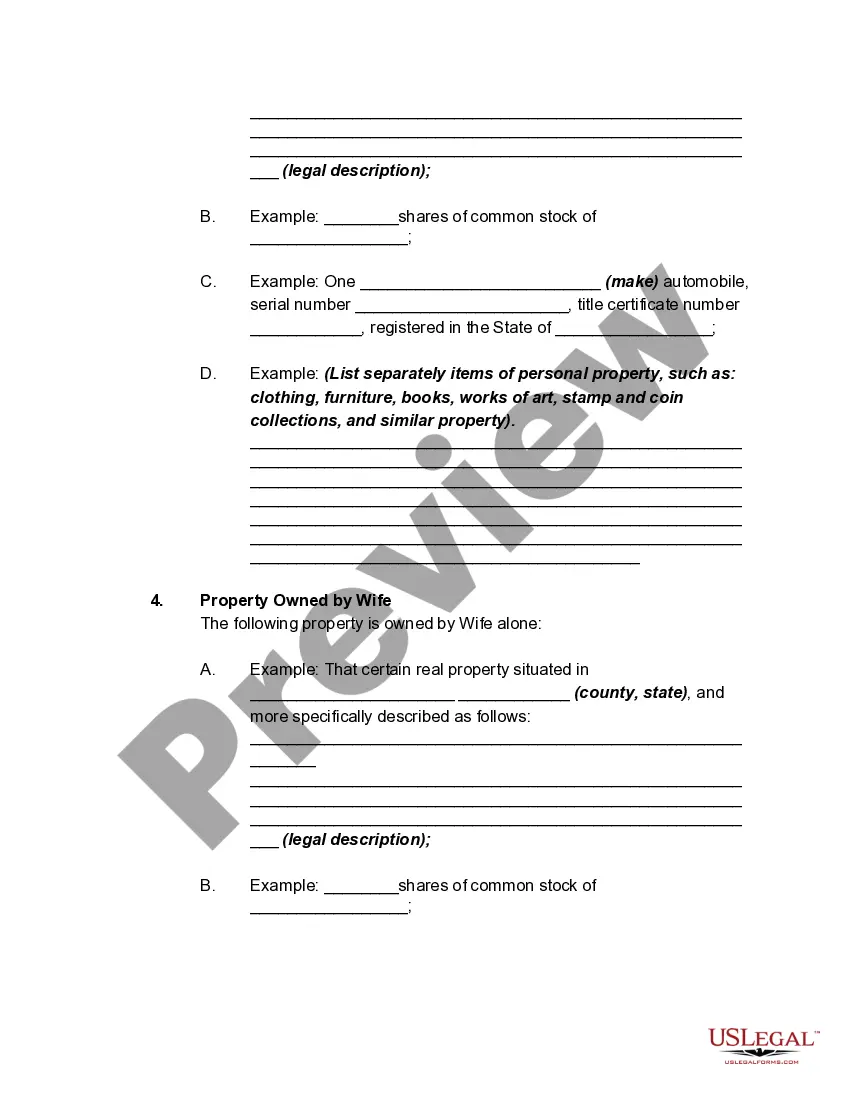
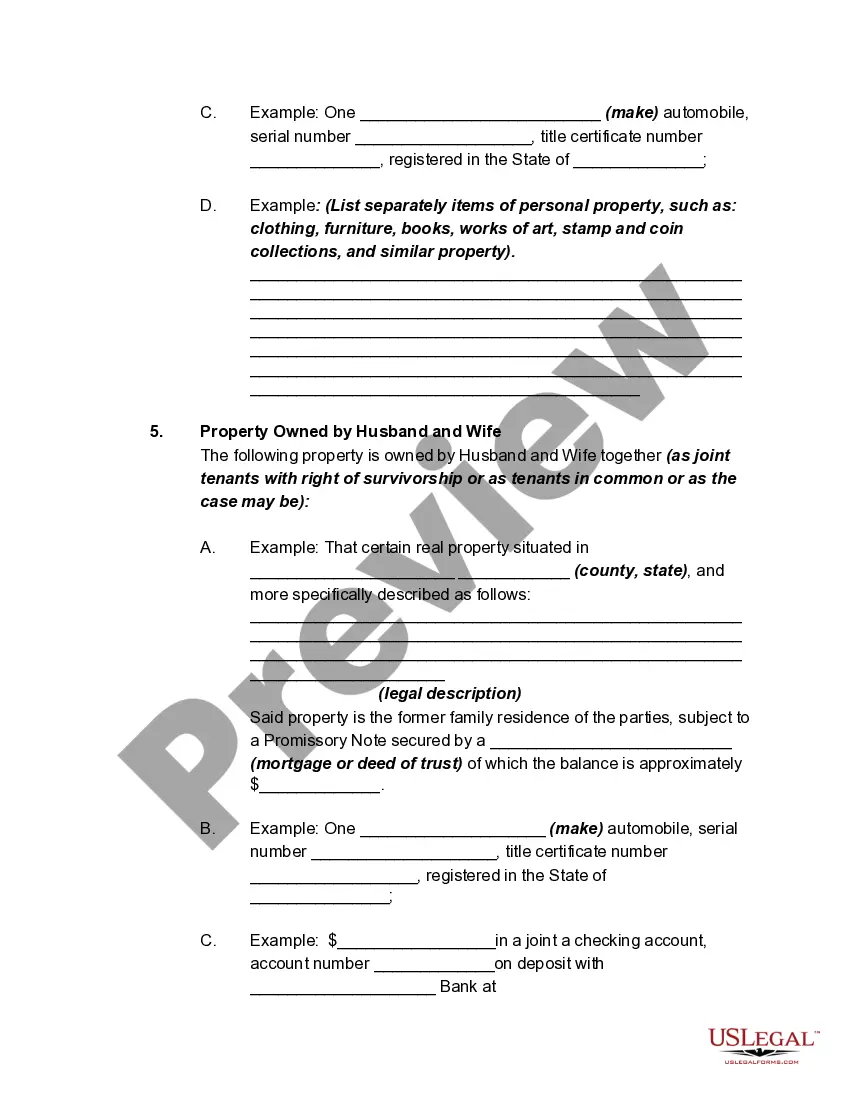

Get your form ready online
Our built-in tools help you complete, sign, share, and store your documents in one place.
Make edits, fill in missing information, and update formatting in US Legal Forms—just like you would in MS Word.
Download a copy, print it, send it by email, or mail it via USPS—whatever works best for your next step.
Sign and collect signatures with our SignNow integration. Send to multiple recipients, set reminders, and more. Go Premium to unlock E-Sign.
If this form requires notarization, complete it online through a secure video call—no need to meet a notary in person or wait for an appointment.
We protect your documents and personal data by following strict security and privacy standards.

Make edits, fill in missing information, and update formatting in US Legal Forms—just like you would in MS Word.

Download a copy, print it, send it by email, or mail it via USPS—whatever works best for your next step.

Sign and collect signatures with our SignNow integration. Send to multiple recipients, set reminders, and more. Go Premium to unlock E-Sign.

If this form requires notarization, complete it online through a secure video call—no need to meet a notary in person or wait for an appointment.

We protect your documents and personal data by following strict security and privacy standards.
Looking for another form?
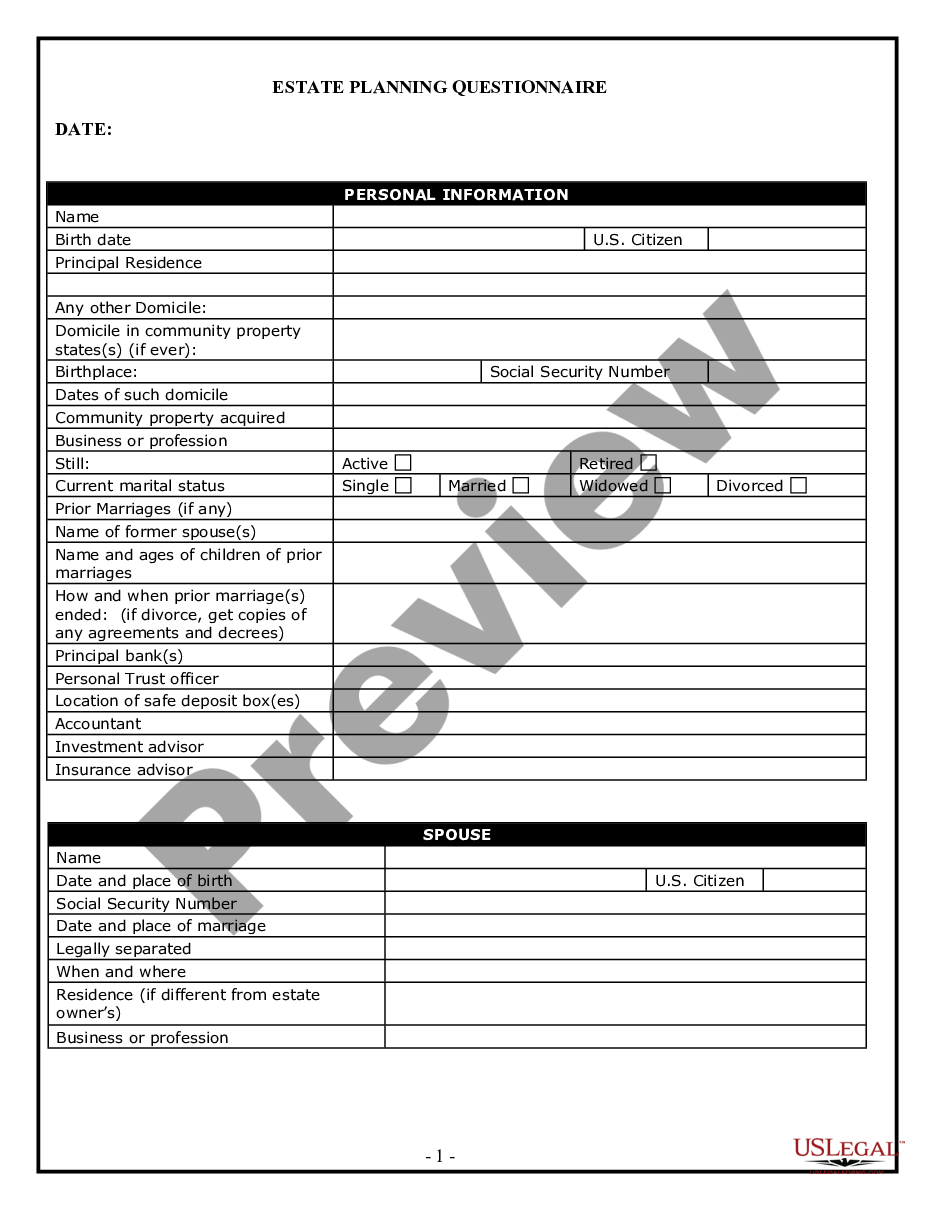
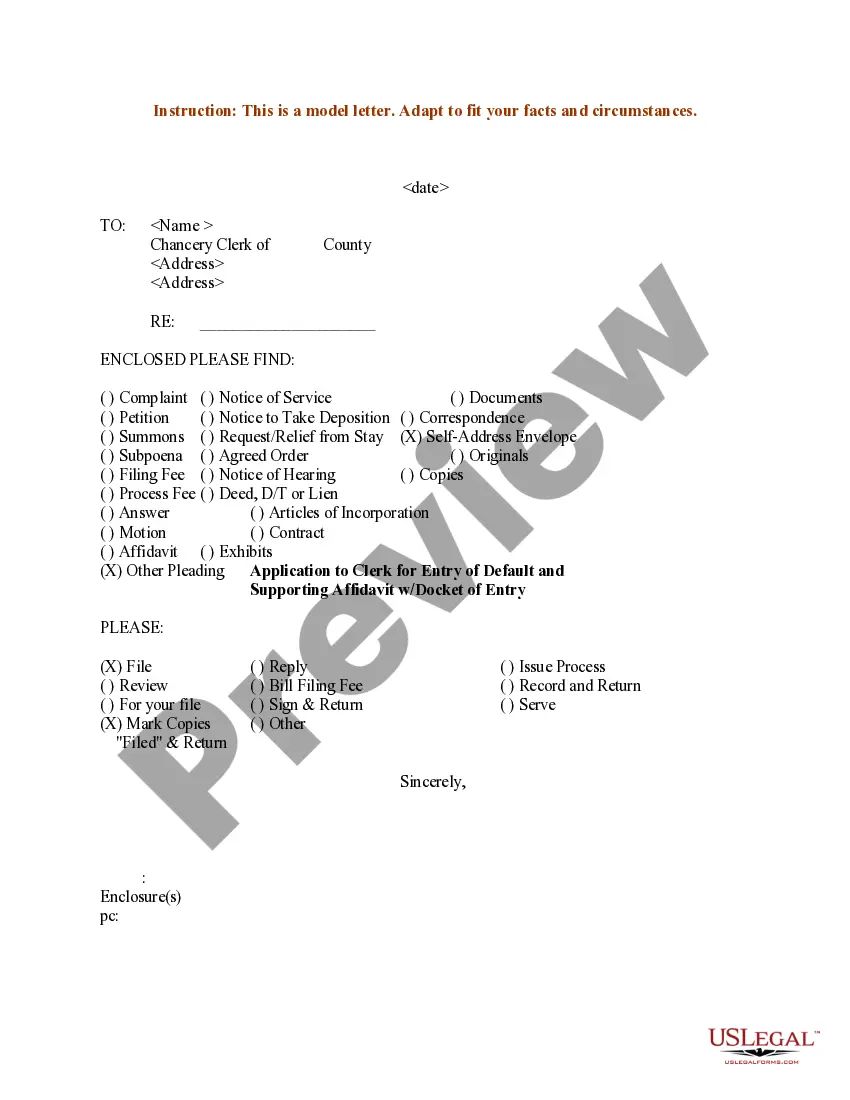
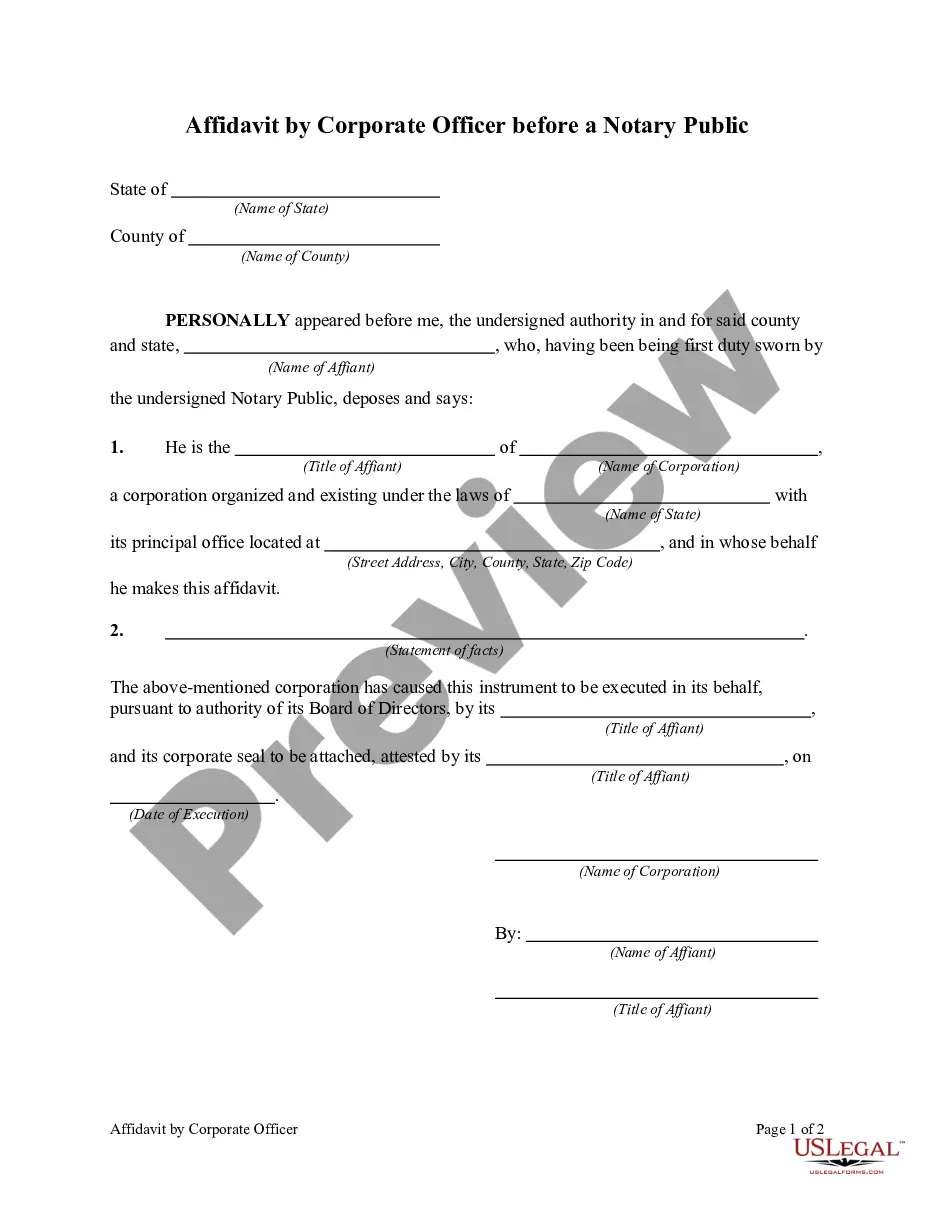
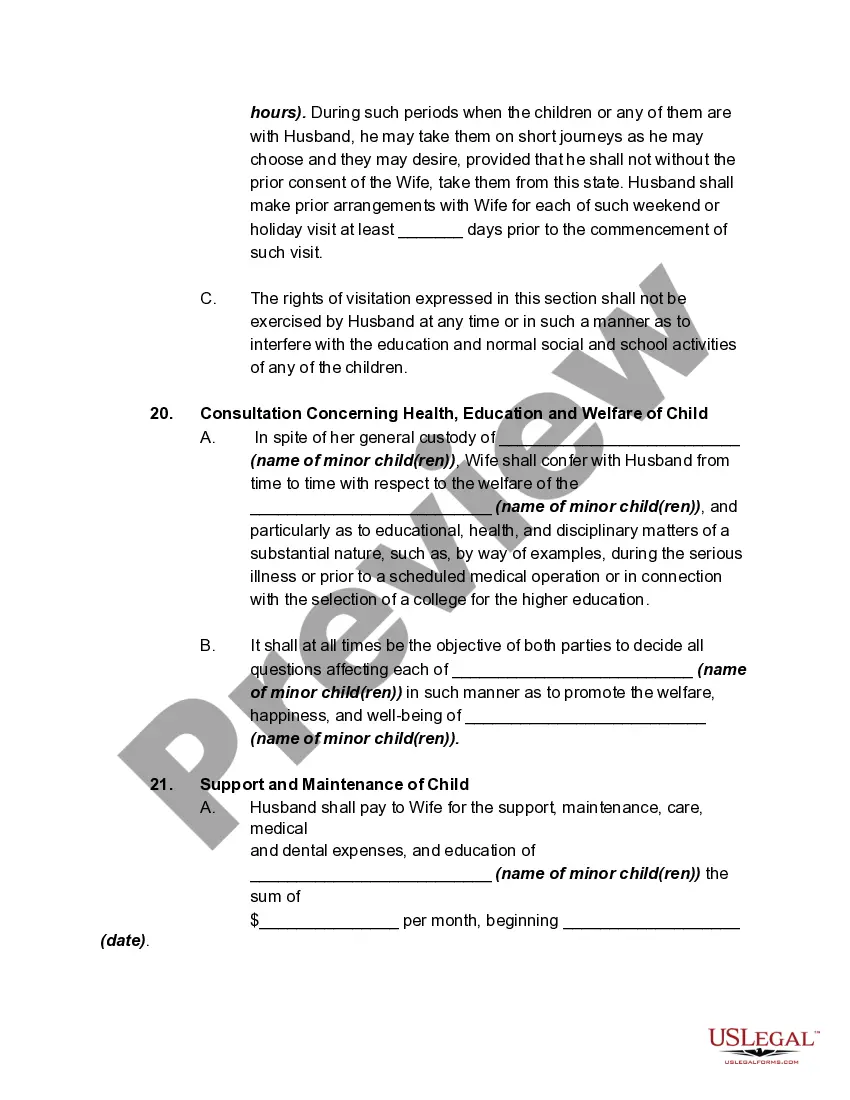
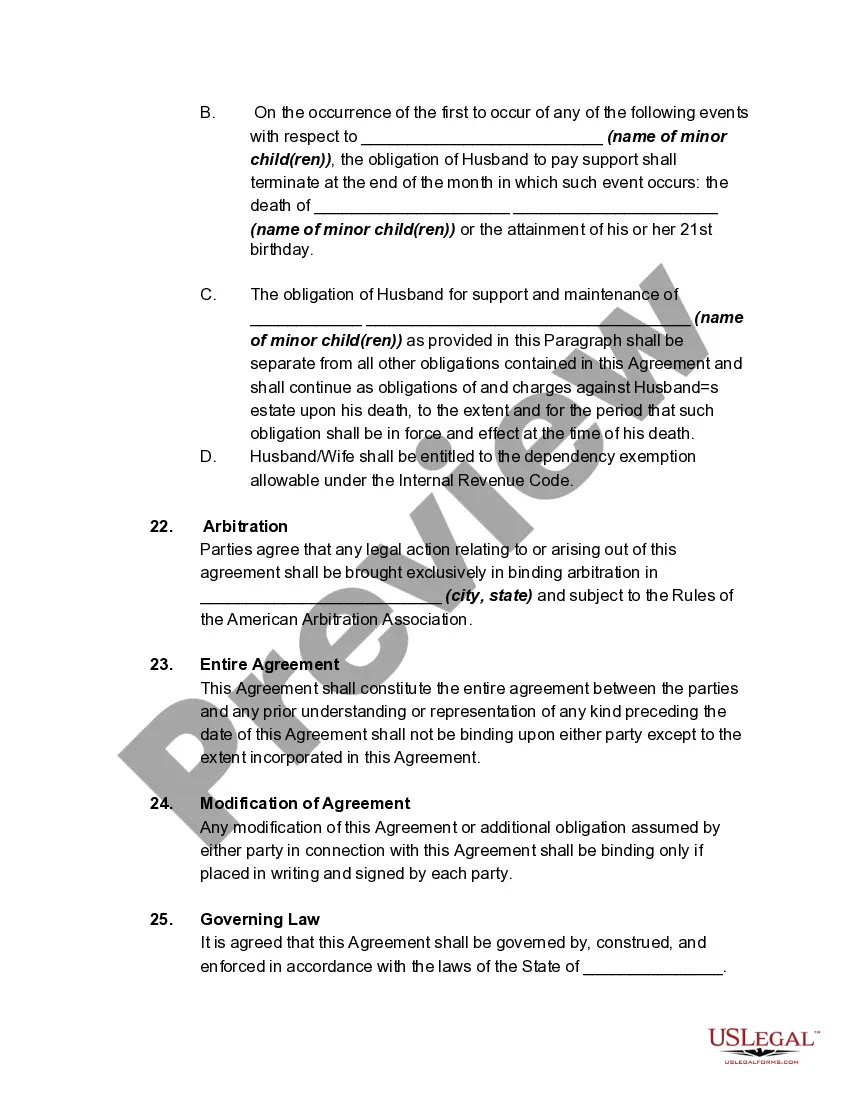
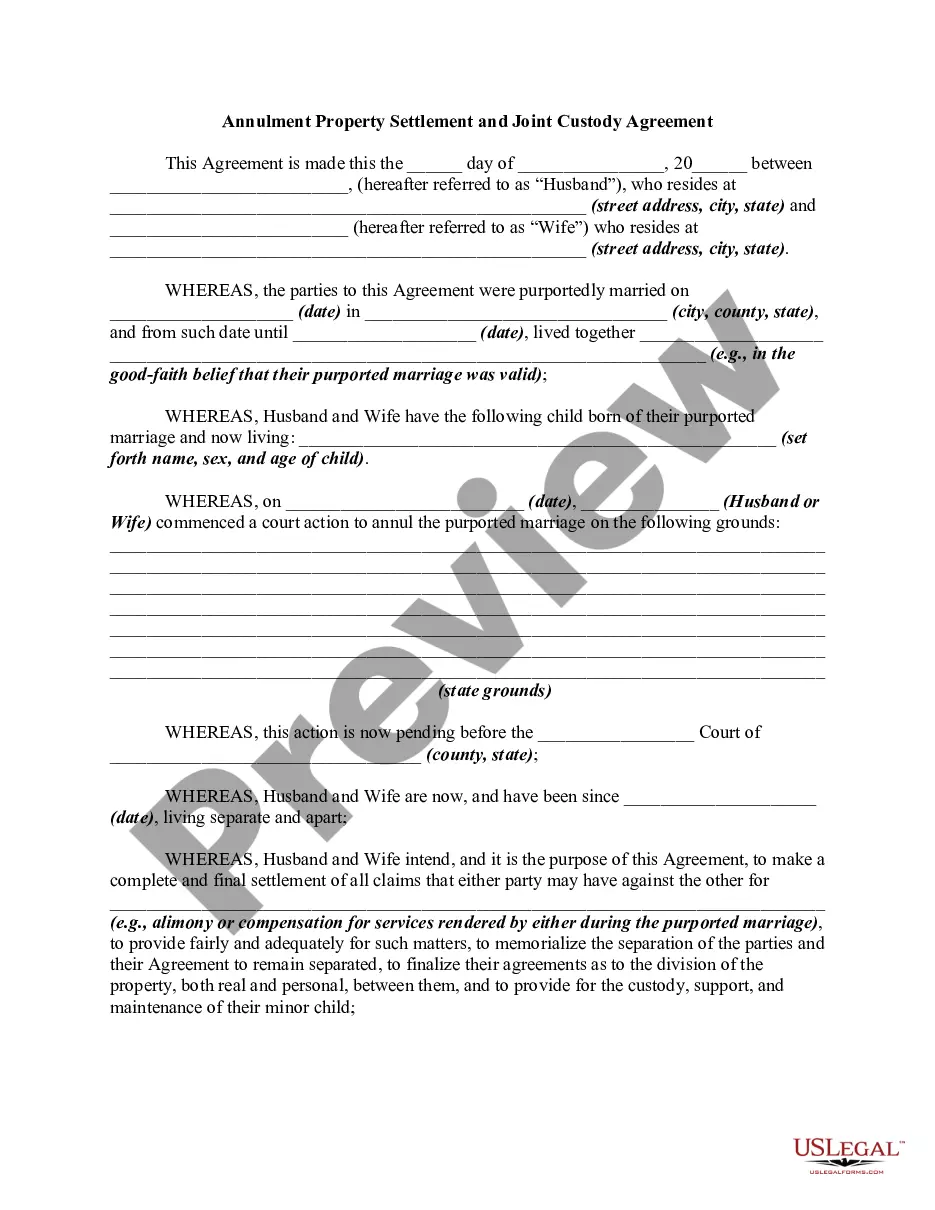
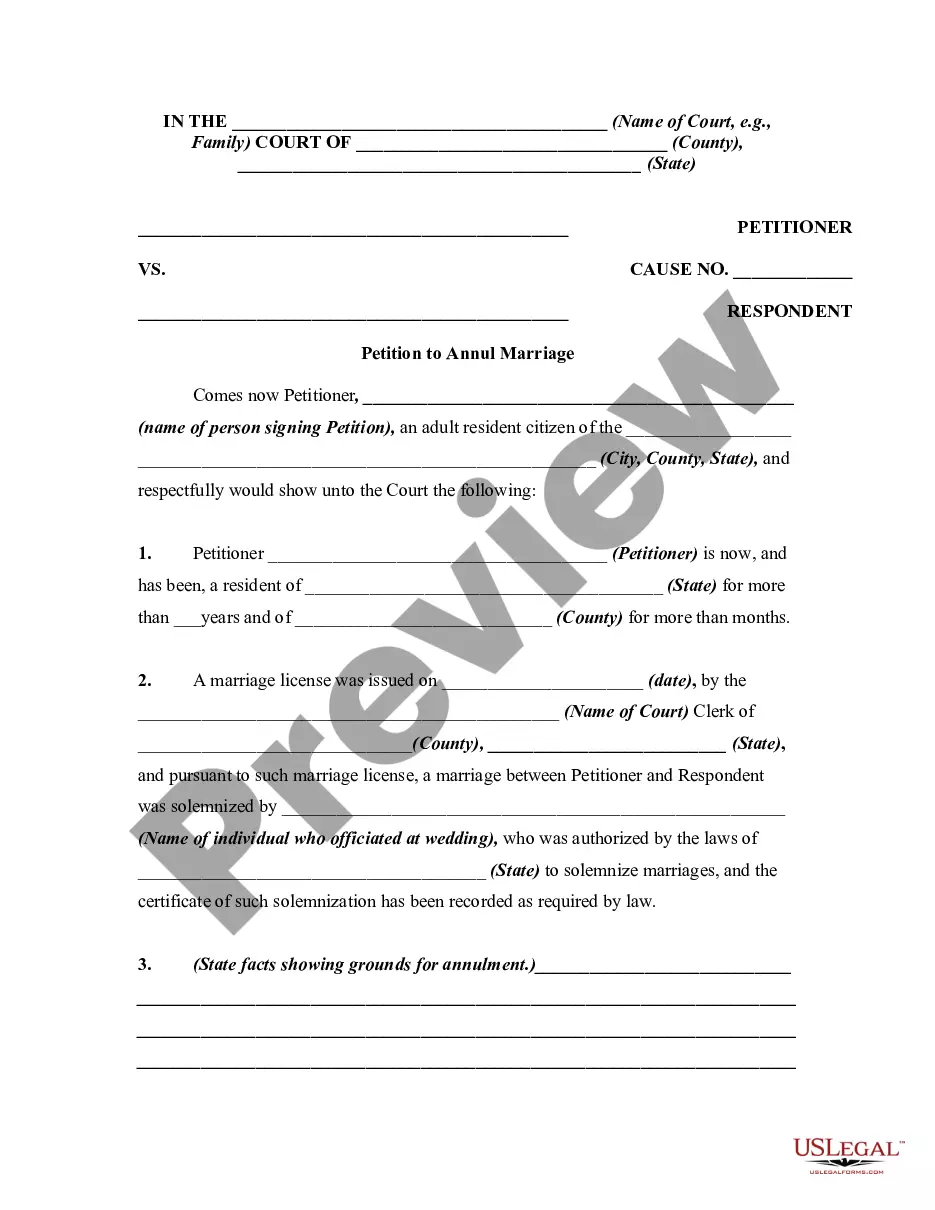
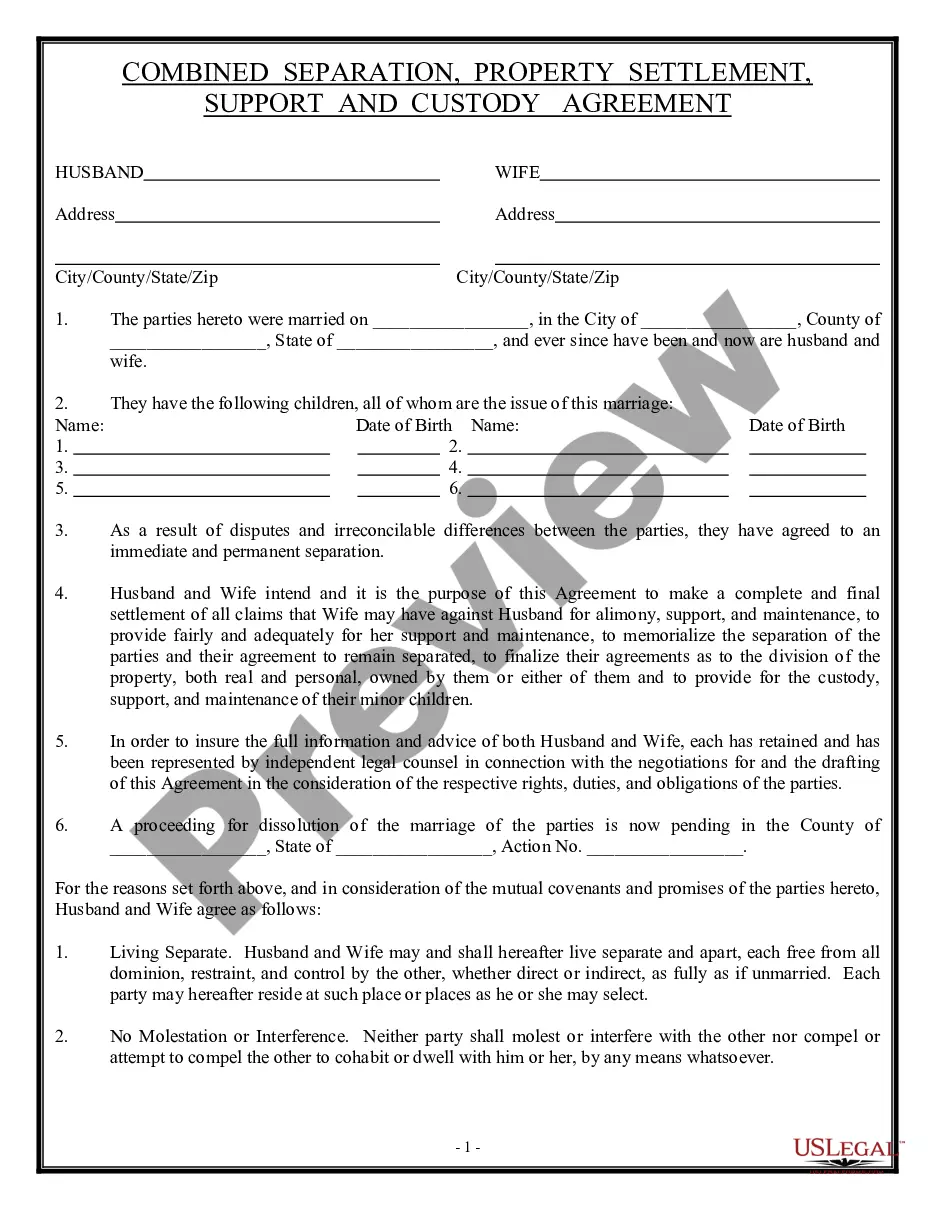
How to fill out Annulment Property Settlement, Child Support, And Custody Agreement?
Acquiring legal documents that comply with federal and local regulations is crucial, and the web provides countless choices to select from.
However, what's the advantage of spending time searching for the suitable Property State Any Format example online when the US Legal Forms digital library already contains such documents collected in one location.
US Legal Forms is the largest online legal repository with more than 85,000 editable templates created by attorneys for any professional and personal situation. They are user-friendly to navigate with all documents categorized by state and intended use. Our experts keep pace with legal changes, ensuring your paperwork is always current and compliant when procuring a Property State Any Format from our site.
Click Buy Now once you’ve found the appropriate form and select a subscription plan. Create an account or Log In and complete the payment using PayPal or a credit card. Choose the format for your Property State Any Format and download it. All templates available through US Legal Forms are reusable. To re-download and complete previously purchased forms, access the My documents section in your account. Take advantage of the most comprehensive and user-friendly legal document service!
- Acquiring a Property State Any Format is quick and straightforward for both existing and new users.
- If you already possess an account with an active subscription, Log In and save the document template you require in your desired format.
- If you're new to our website, follow the steps outlined below.
- Review the template using the Preview feature or through the text description to ensure it satisfies your requirements.
- Search for an alternative sample using the search tool at the top of the page if needed.
Form popularity
FAQ
To set a Format property in Access, start by opening your table in Design View. Select the field for which you want to set the format, and find the Format property in the Property Sheet. You can then enter the format you desire, which allows you to customize how the data appears, ensuring that it meets the property state any format requirements you have.
The Format property box in Access is located within the Field Properties area when you have your table or query open in Design View. After selecting a field, the Property Sheet will show various properties, including the Format property. This is where you can define how you want your data displayed, enabling your data to reflect the property state any format you prefer.
To change the Format property of a field in Access, open the table in Design View and select the field you want to alter. In the Field Properties pane, you will see the Format property where you can input your desired format. Adjusting this ensures that your field displays data in the property state any format you choose.
To view the properties of a form in Access, you first need to open the form in Design View. Once the form is open, look for the Property Sheet on the right side of your screen. If it's not visible, you can enable it from the View menu. This step will give you access to all the properties, allowing you to customize your form's property state any format.
To change the date format in Access from mm dd yyyy to dd mm yyyy, open your table or query in Design View. Locate the field you wish to modify, and in the Field Properties section, find the Format property. You can enter 'dd/mm/yyyy' into this box. This adjustment allows you to present your date data in the desired property state any format.
A property file typically consists of key-value pairs that define specific settings or configurations for software applications. Each line in the file represents a property where the key is the setting name, and the value is the corresponding data. Understanding the Format of a property file is crucial for developers and users alike, particularly when dealing with the Property state any format for application settings. For comprehensive resources and templates, consider exploring uslegalforms, which can provide guidance tailored to your needs.
To set the Format property to currency in Access, first select the field you want to format. Then, in the properties pane, find the Format property and enter 'Currency'. This will display your numbers as monetary values, complete with a currency symbol, enhancing the clarity of financial data. By utilizing this feature, you maintain consistency in how you present the Property state any format effectively.
To set the Format property, begin by selecting the field or control that you want to modify. In your design view, navigate to the properties panel and locate the Format property option. Here, you can specify the desired format for your data, such as date, text, or numerical formats. This ensures your data is displayed correctly, aligning with the Property state any format you need.
A property description typically includes details about the location, size, and features of the property. For example, you might say, 'This charming three-bedroom home is located in Springfield, IL, with a spacious backyard and updated kitchen.' Including the property state in the description, like 'in Illinois,' adds clarity for potential buyers or renters. Utilizing US Legal Forms can help you craft professional property descriptions effortlessly.
Filling out an address format involves several key components. Start with the recipient's name, followed by the street address, then the city, state, and ZIP code. Make sure to separate each part with commas and include the state in its correct abbreviation. This straightforward approach helps ensure your property state information is accurate and complete, making it easier for mail delivery.