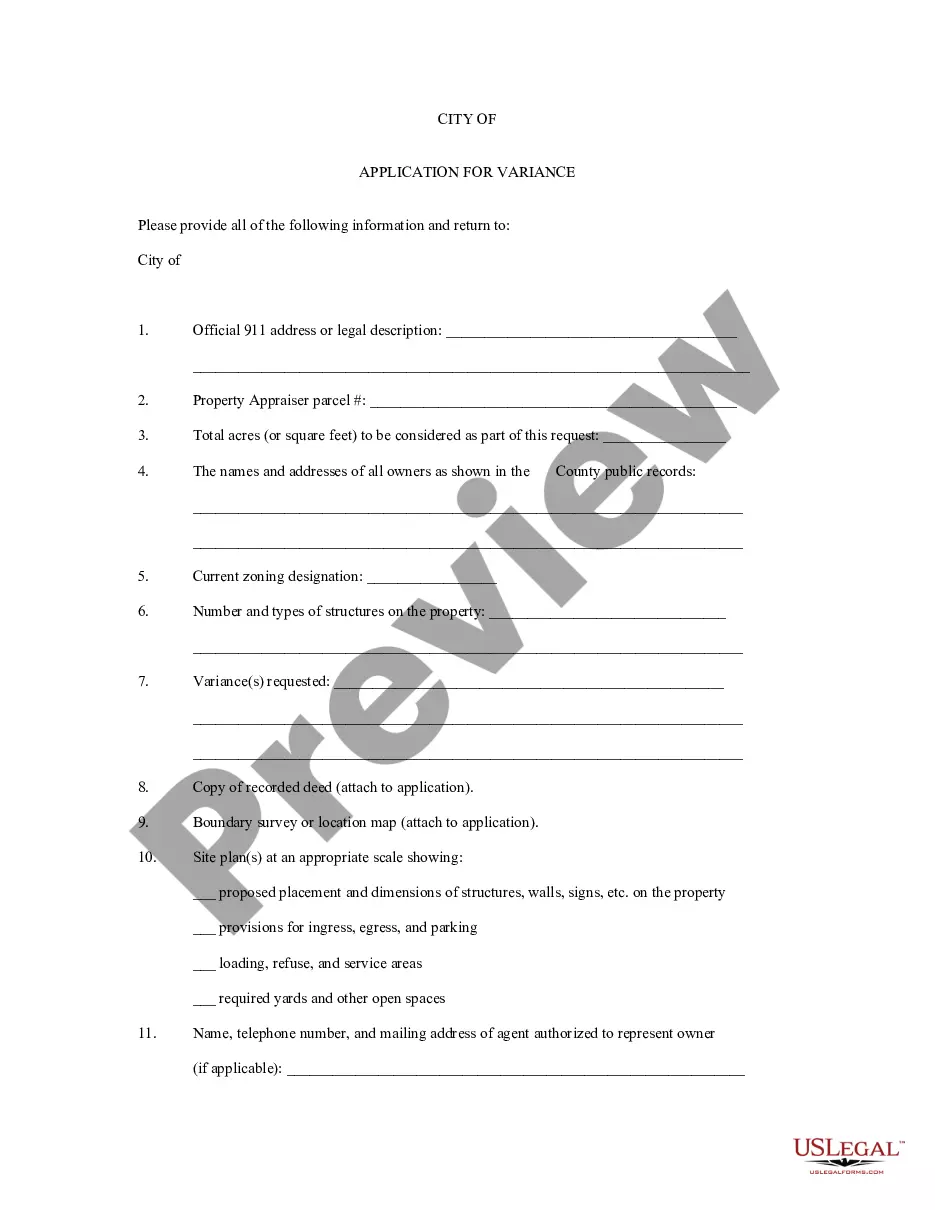
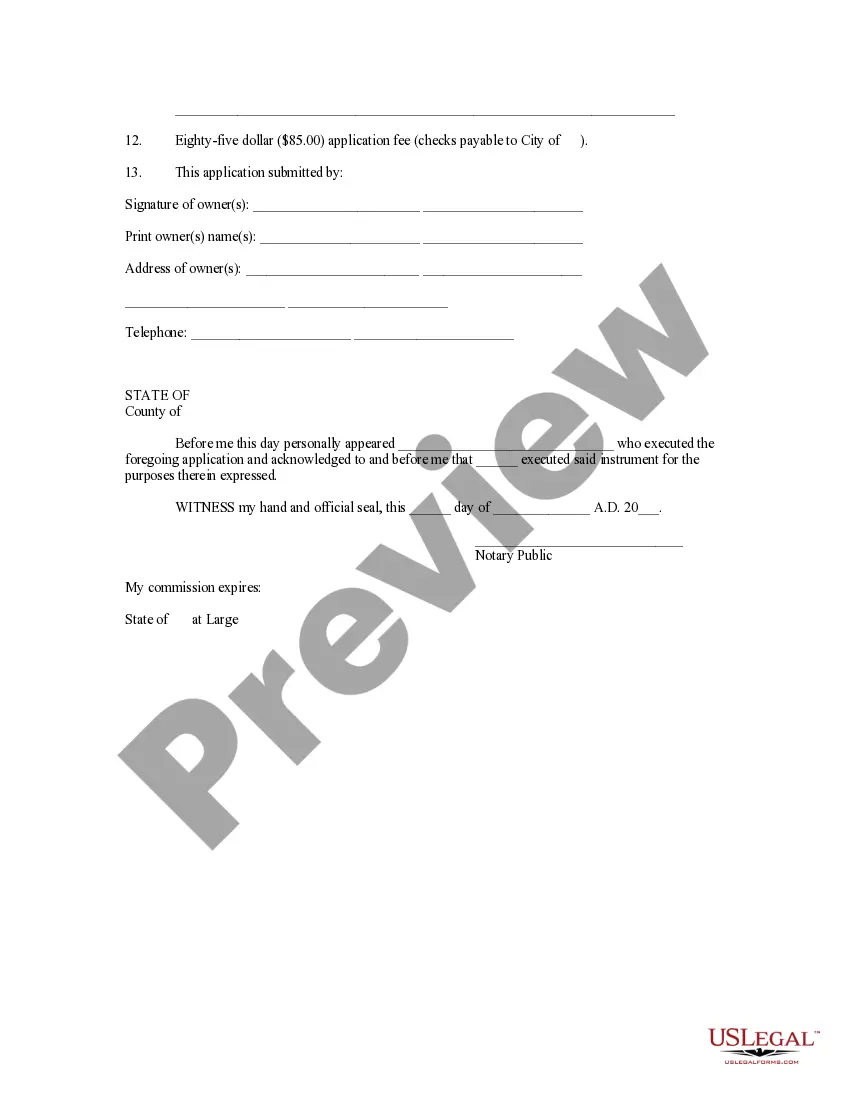
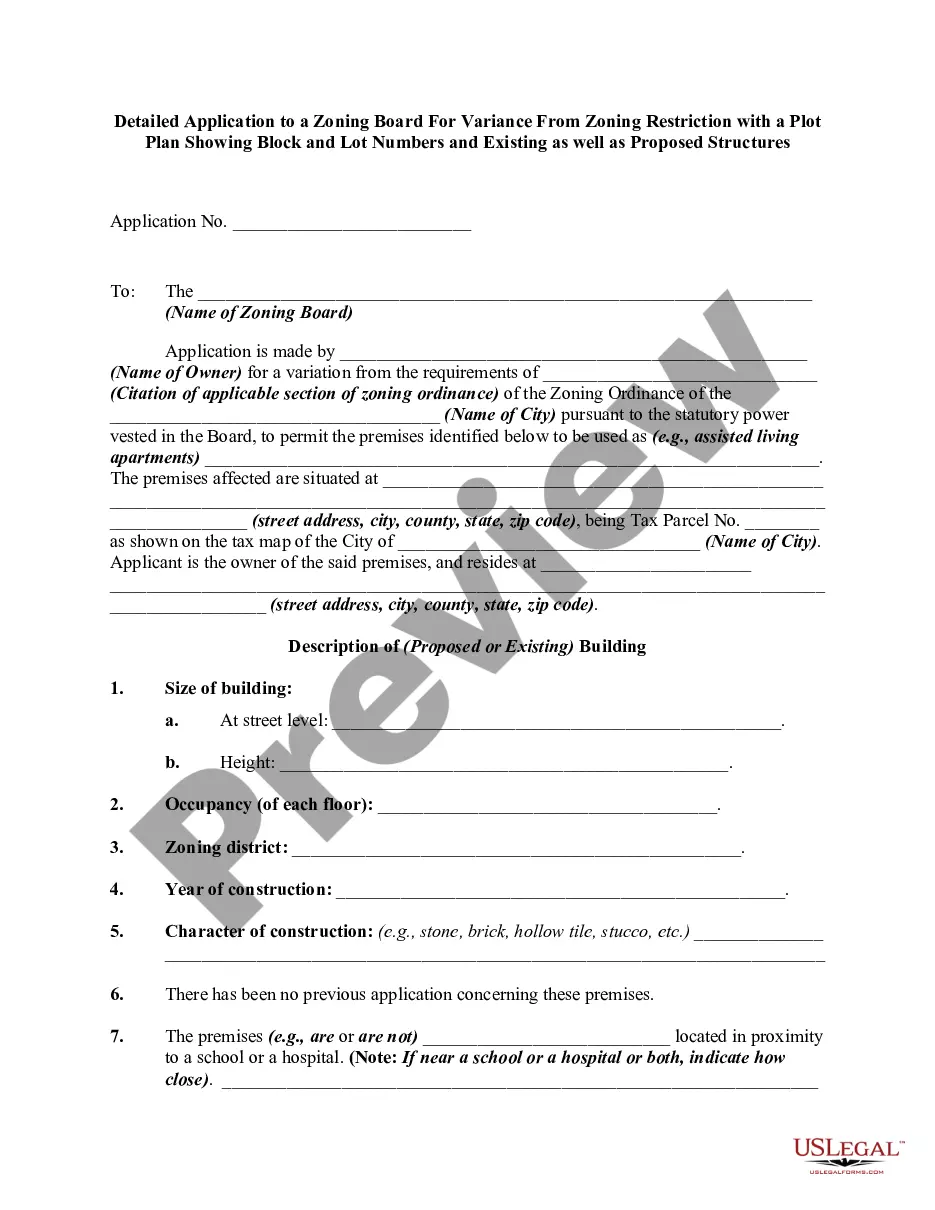
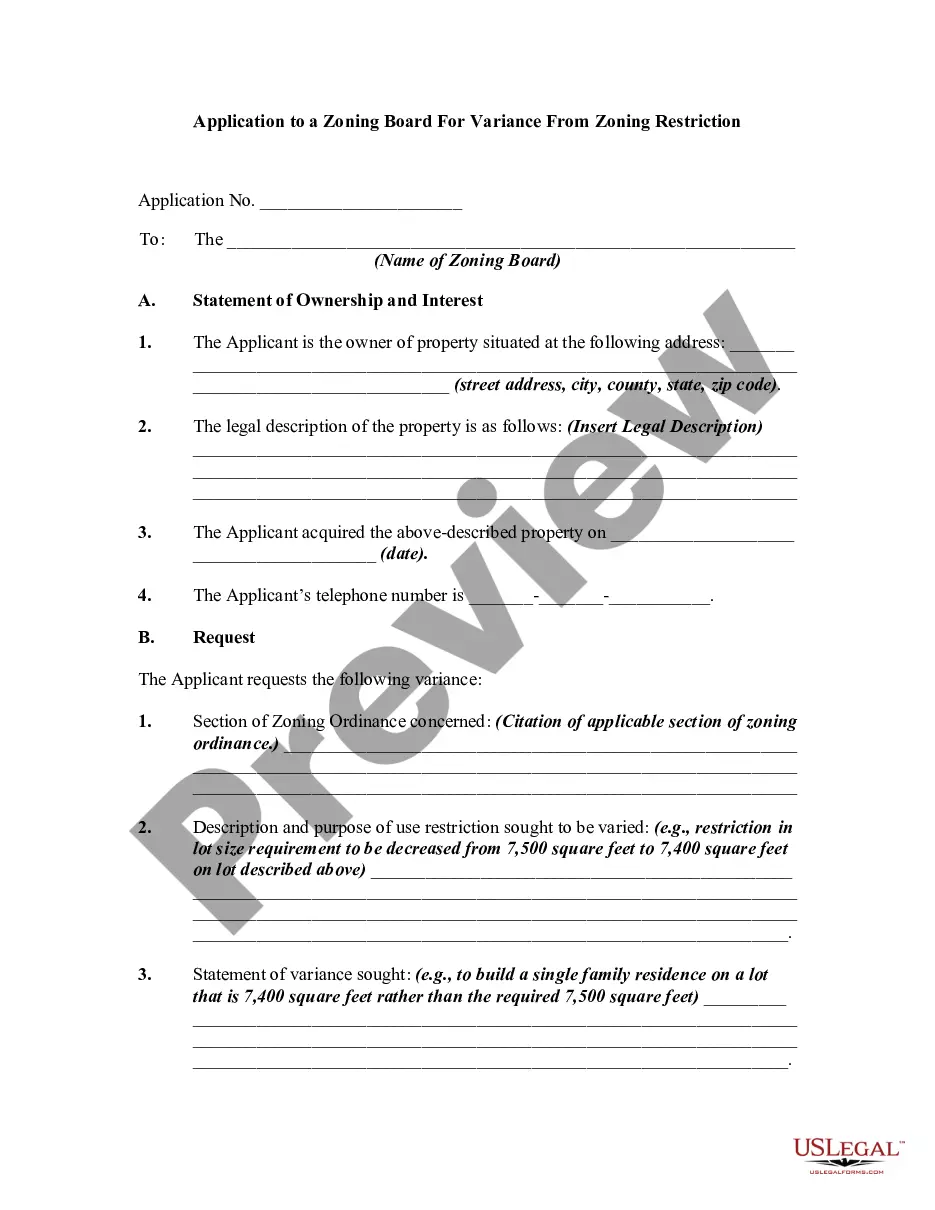
Application Variance Document With Iphone
Description
Get your form ready online
Our built-in tools help you complete, sign, share, and store your documents in one place.
Make edits, fill in missing information, and update formatting in US Legal Forms—just like you would in MS Word.
Download a copy, print it, send it by email, or mail it via USPS—whatever works best for your next step.
Sign and collect signatures with our SignNow integration. Send to multiple recipients, set reminders, and more. Go Premium to unlock E-Sign.
If this form requires notarization, complete it online through a secure video call—no need to meet a notary in person or wait for an appointment.
We protect your documents and personal data by following strict security and privacy standards.

Make edits, fill in missing information, and update formatting in US Legal Forms—just like you would in MS Word.

Download a copy, print it, send it by email, or mail it via USPS—whatever works best for your next step.

Sign and collect signatures with our SignNow integration. Send to multiple recipients, set reminders, and more. Go Premium to unlock E-Sign.

If this form requires notarization, complete it online through a secure video call—no need to meet a notary in person or wait for an appointment.

We protect your documents and personal data by following strict security and privacy standards.
Looking for another form?
How to fill out Application For Variance?
It’s clear that you can’t become a legal authority instantly, nor can you learn how to swiftly prepare Application Variance Document With iPhone without the necessity of a specialized skill set.
Assembling legal documents is a lengthy endeavor necessitating specific training and expertise. So why not entrust the preparation of the Application Variance Document With iPhone to the experts.
With US Legal Forms, one of the most extensive legal document repositories, you can discover anything from court filings to templates for internal business communication. We recognize how crucial compliance and adherence to federal and state regulations are.
Establish a free account and select a subscription option to buy the form.
Select Buy now. Once the transaction is finalized, you can download the Application Variance Document With iPhone, complete it, print it, and send it by mail to the designated individuals or organizations.
- That’s why, on our website, all templates are location-specific and current.
- Here’s how to begin with our website and obtain the document you require in just a few moments.
- Locate the document you need by utilizing the search bar at the top of the page.
- Preview it (if this option is available) and review the accompanying description to ascertain whether Application Variance Document With iPhone is what you’re looking for.
- Initiate your search again if you require a different form.
Form popularity
FAQ
To scan a document with your iPhone, open the Notes app and create a new note. Tap the camera icon and select 'Scan Documents' to begin. Position your document within the frame, and the app will automatically capture it. This simple process enables you to create an application variance document with iPhone quickly and efficiently.
You can scan a document with your iPhone and easily email it. After scanning, simply select the option to share or send the document via email. This method is particularly useful when you need to send an application variance document with iPhone directly to clients or colleagues without any hassle.
Yes, your iPhone can function as a scanner for documents with its built-in scanning tools or third-party apps. This feature enables you to scan various types of documents, including application variance documents, directly from your device. With a few taps, you can create, save, and share high-quality scans.
Absolutely, you can scan a document using your phone. Many smartphone apps offer scanning capabilities, allowing you to capture and digitize documents quickly. Using your iPhone for an application variance document simplifies the process, making it easier to organize and manage your important paperwork.
Yes, you can easily scan a document with your iPhone and convert it to a PDF. The Notes app on your iPhone provides a built-in scanning feature that allows you to capture documents and save them as PDFs. This makes it easy to create an application variance document with iPhone, ensuring you have a digital copy ready for sharing or filing.
Filling an application variance document with iPhone is straightforward. First, open your preferred document app on your device, such as Notes or a PDF viewer. Next, locate the application form you want to fill out, then tap on the fields to enter your information. Finally, review your entries for accuracy, save the document, and share it as needed. If you need templates or guidance, USLegalForms offers a range of resources to assist you.
Fill out forms and add signatures to documents on iPhone Tap the file to open the document. ... Tap. ... To fill out another line, tap it, then enter text. To add additional text or to add your signature to the form, tap. ... When you're done, tap. ... Tap Done to close the form.
Fill out forms and add signatures to documents on iPhone Tap the file to open the document. ... Tap. ... To fill out another line, tap it, then enter text. To add additional text or to add your signature to the form, tap. ... When you're done, tap. ... Tap Done to close the form.
How To Edit Word Documents On iPhone - YouTube YouTube Start of suggested clip End of suggested clip And then now it'll allow me to open it up again. I can read it. And I can hit that little editMoreAnd then now it'll allow me to open it up again. I can read it. And I can hit that little edit button at the bottom right here. I can um I can edit it I can make things bold.
Learn how to scan with an iPhone using the native Notes app: Open a note in the app. Tap Camera > Scan Documents. Capture an image of your document, just like you would take a picture. Tap Keep Scan > Save.