License Assignment To Users
Description
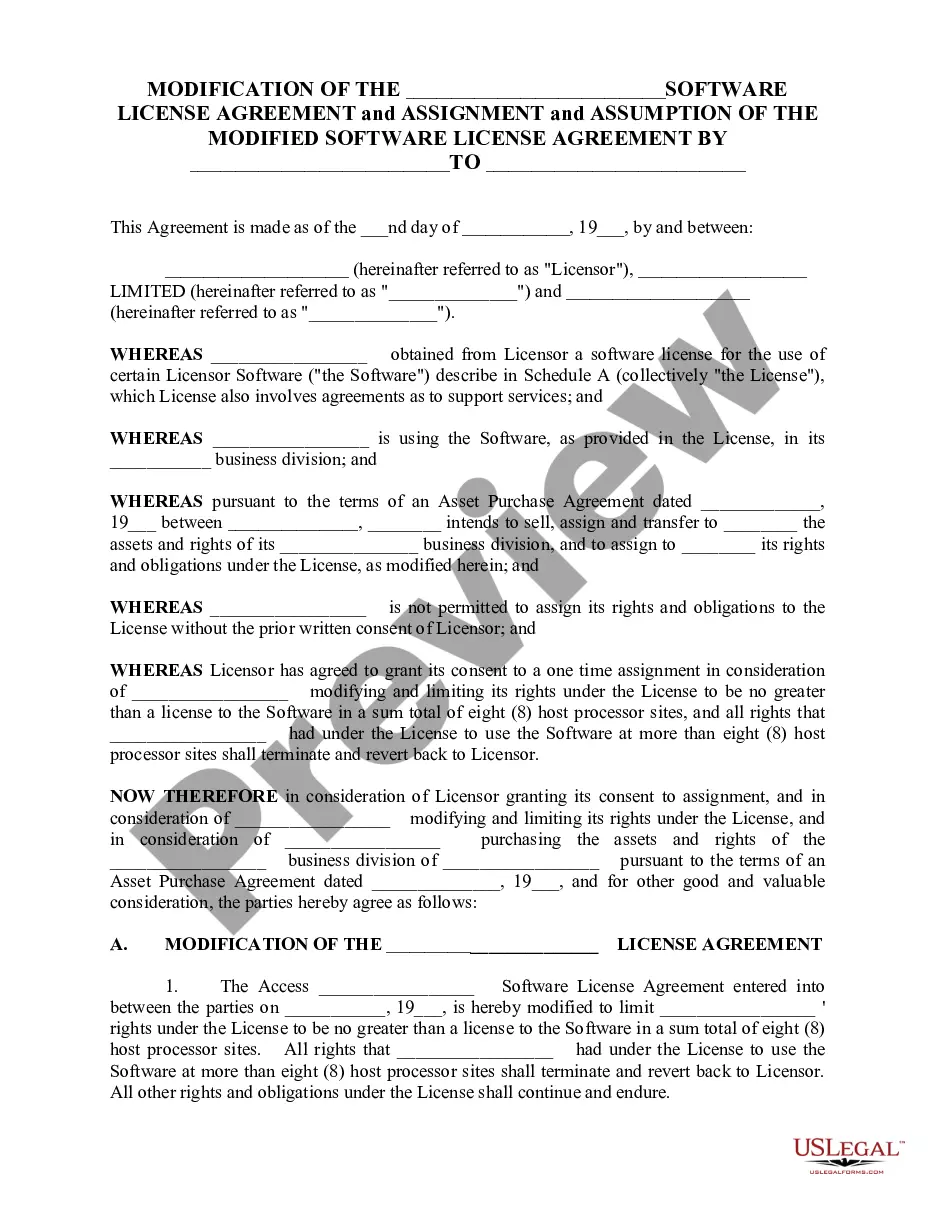
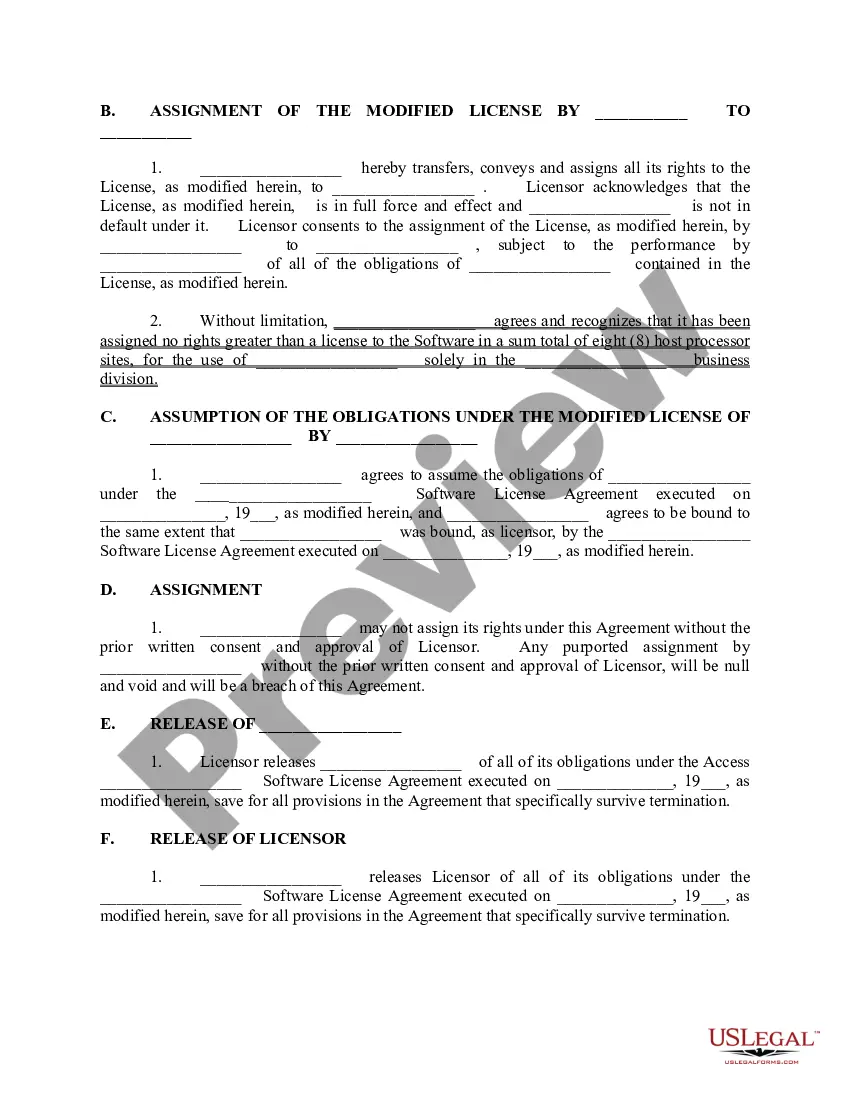
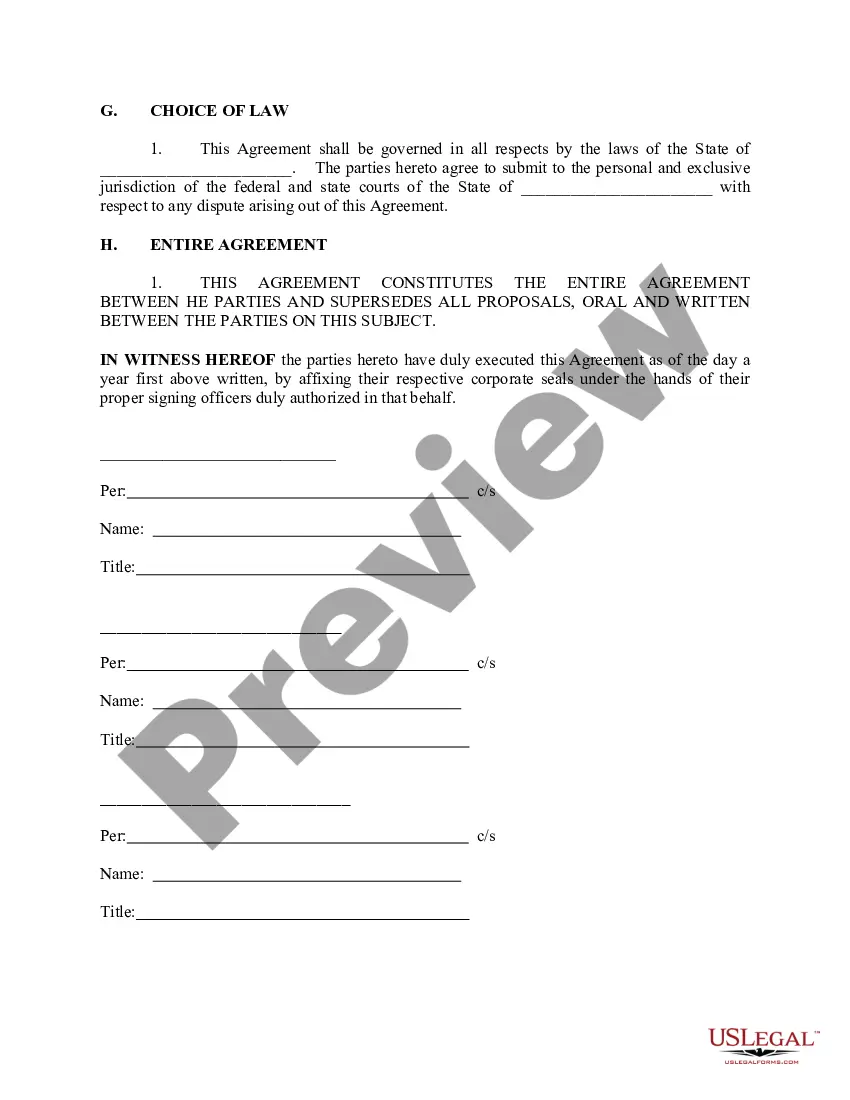
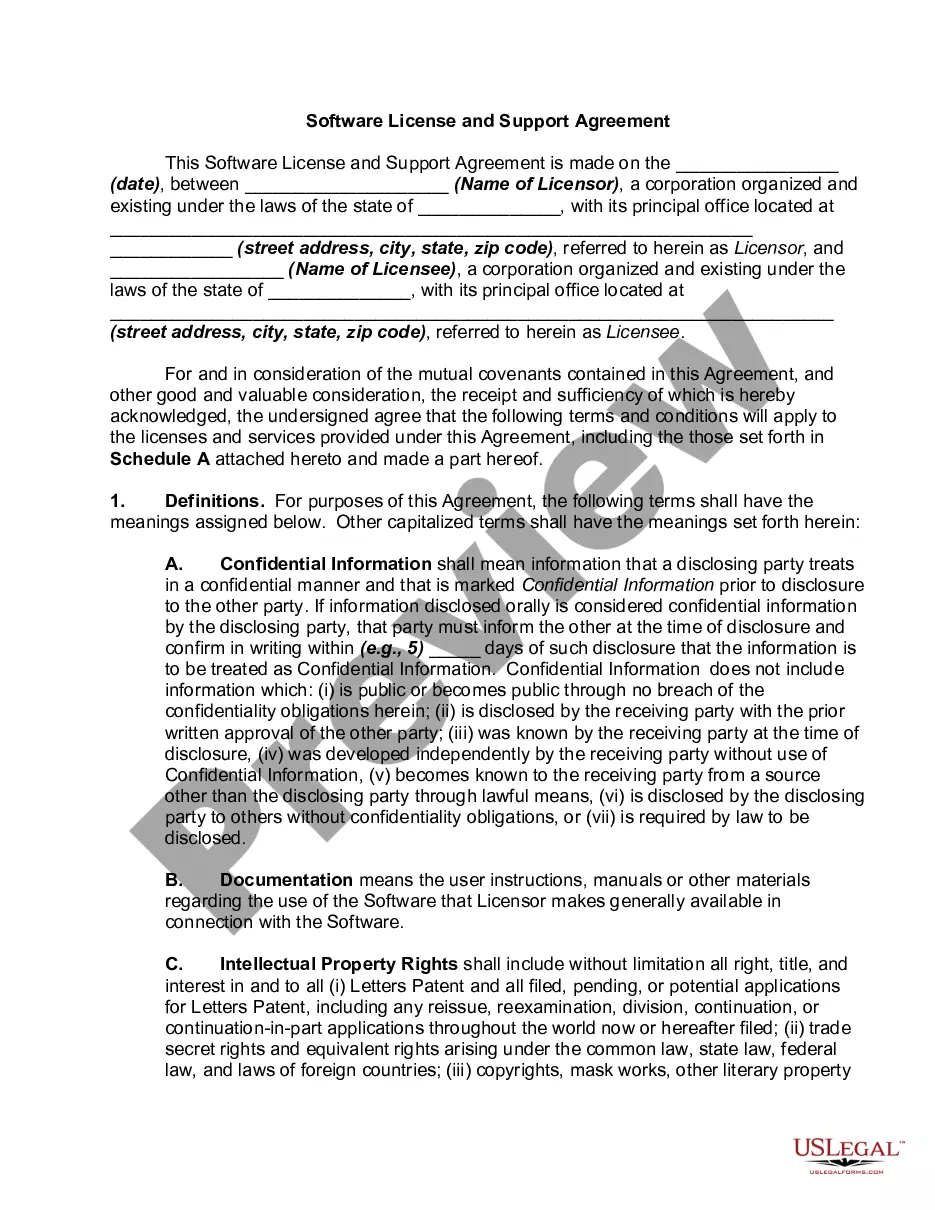
Get your form ready online
Our built-in tools help you complete, sign, share, and store your documents in one place.
Make edits, fill in missing information, and update formatting in US Legal Forms—just like you would in MS Word.
Download a copy, print it, send it by email, or mail it via USPS—whatever works best for your next step.
Sign and collect signatures with our SignNow integration. Send to multiple recipients, set reminders, and more. Go Premium to unlock E-Sign.
If this form requires notarization, complete it online through a secure video call—no need to meet a notary in person or wait for an appointment.
We protect your documents and personal data by following strict security and privacy standards.
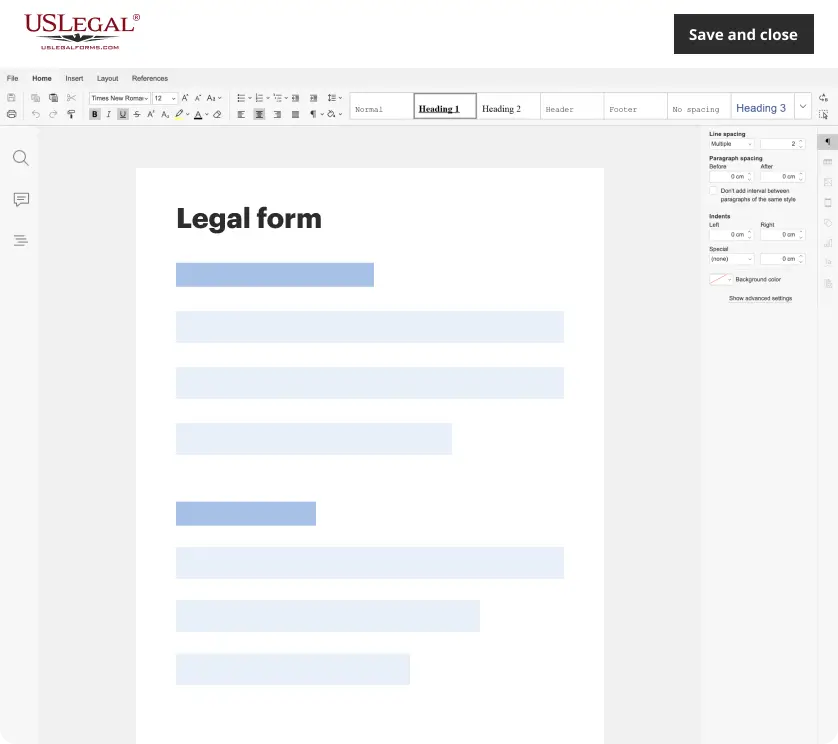
Make edits, fill in missing information, and update formatting in US Legal Forms—just like you would in MS Word.
Download a copy, print it, send it by email, or mail it via USPS—whatever works best for your next step.
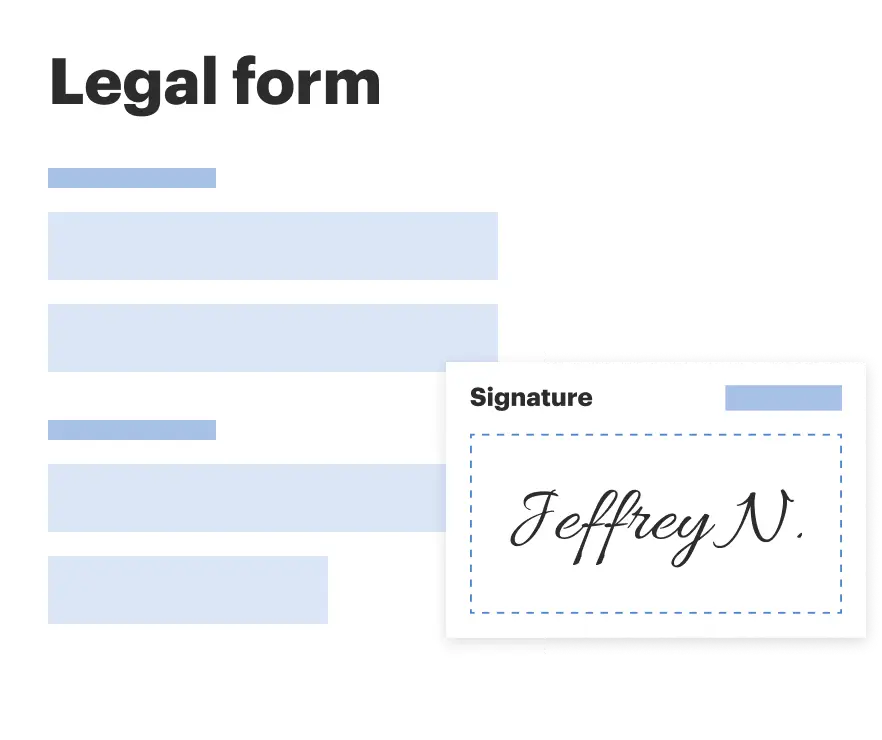
Sign and collect signatures with our SignNow integration. Send to multiple recipients, set reminders, and more. Go Premium to unlock E-Sign.
If this form requires notarization, complete it online through a secure video call—no need to meet a notary in person or wait for an appointment.
We protect your documents and personal data by following strict security and privacy standards.
Looking for another form?
How to fill out Assignment And Assumption Of Software License Agreement?
Handling legal paperwork can be exasperating, even for the most seasoned professionals.
If you are in search of a License Assignment To Users and lack the time to invest in finding the right and updated version, the processes could be stressful.
With US Legal Forms, you can.
Access a helpful collection of articles, guides, manuals, and resources related to your circumstances and requirements.
Ensure it is the correct document by previewing it and reviewing its details.
- Save time and effort in searching for the documents you require, and use US Legal Forms’ advanced search and Review feature to find License Assignment To Users and obtain it.
- If you possess a membership, Log In to your US Legal Forms account, search for the form, and obtain it.
- Visit My documents tab to view the documents you previously downloaded and to manage your folders as needed.
- If it's your first experience with US Legal Forms, create an account and gain unlimited access to all the features of the platform.
- Below are the actions to take after you have downloaded the required form.
- Leverage a potent web form repository could transform the experience for anyone aiming to navigate these challenges efficiently.
- US Legal Forms stands out as a frontrunner in online legal documents, offering more than 85,000 state-specific legal forms at any given moment.
- Utilize inventive tools to complete and oversee your License Assignment To Users.
Form popularity
FAQ
Assign a license to a user Browse to the Office 365 admin center and sign in as a global admin. Click Users > Active users. Select multiple users, and then click Edit product licenses. Click Replace existing product license assignments, and then click Next. Turn on the license for your Dynamics 365 plan.
Here are the steps you can follow: Sign in to the Microsoft 365 admin center. Go to the Users > Active users page. Select the user you want to assign the Teams Room Pro license to. Click on the Licenses and Apps tab. Click on Add a license. Select the Teams Room Pro license from the list of available licenses.
You assign licenses to users ing to the work each user will do in Business Central. You can assign licenses in several ways: Your company's Microsoft 365 administrator can do it in the Microsoft 365 Admin Center. For more information, see Add users individually or in bulk to Microsoft 365.
It is possible within the Office admin center and the AAD admin portal to assign a 'guest' a license.
Assign a Dynamics 365 Guides license to an existing user Open the Microsoft 365 admin center. In the left pane, select Users, and then select Active users. Select the More actions (...) ... In the dialog box that appears, on the Licenses and Apps tab, select the Dynamics 365 Guides check box. ... Select Save changes.