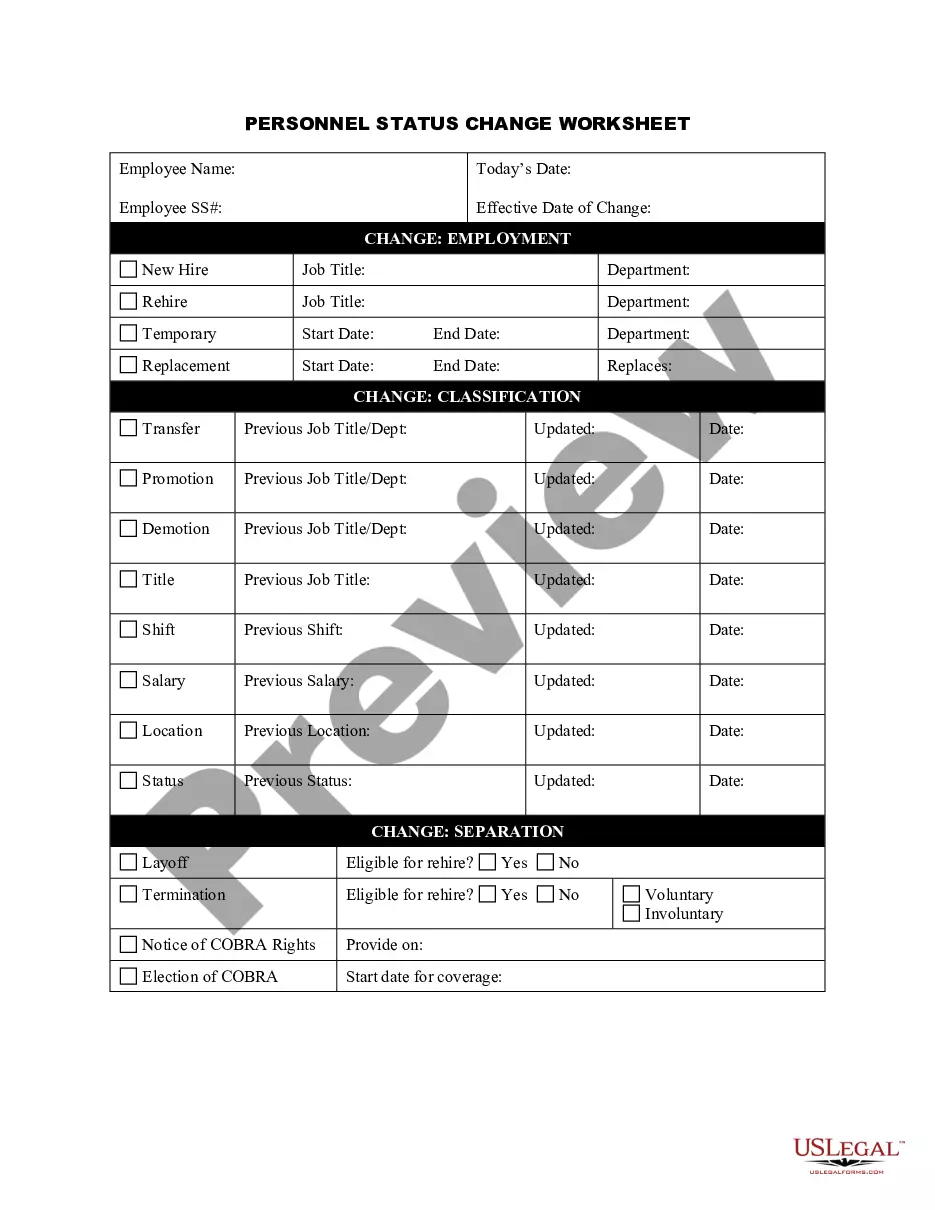
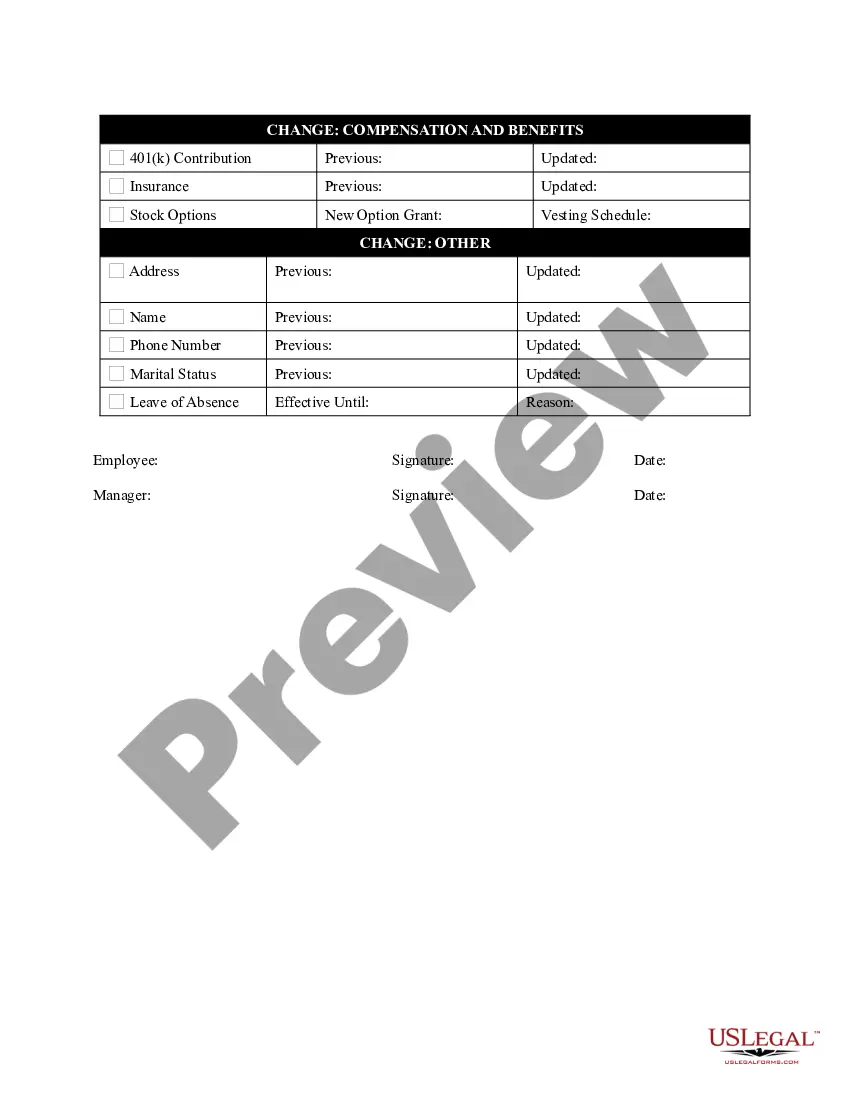
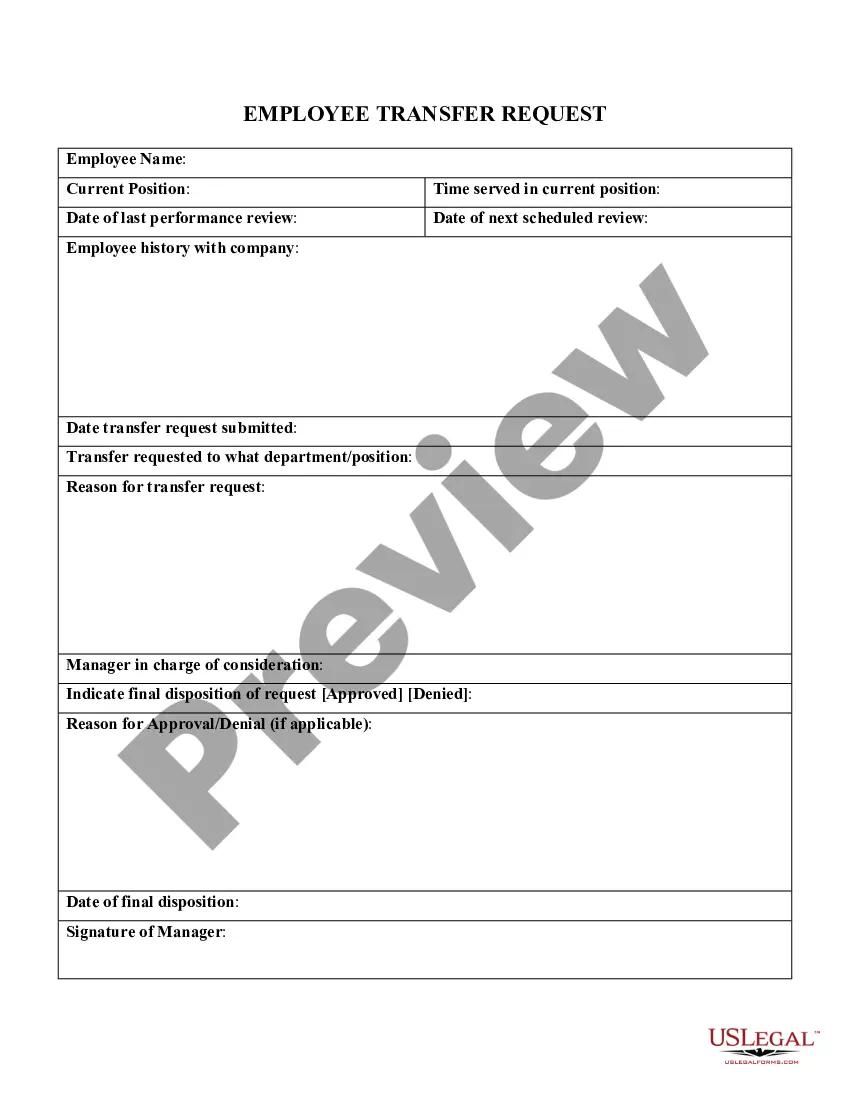
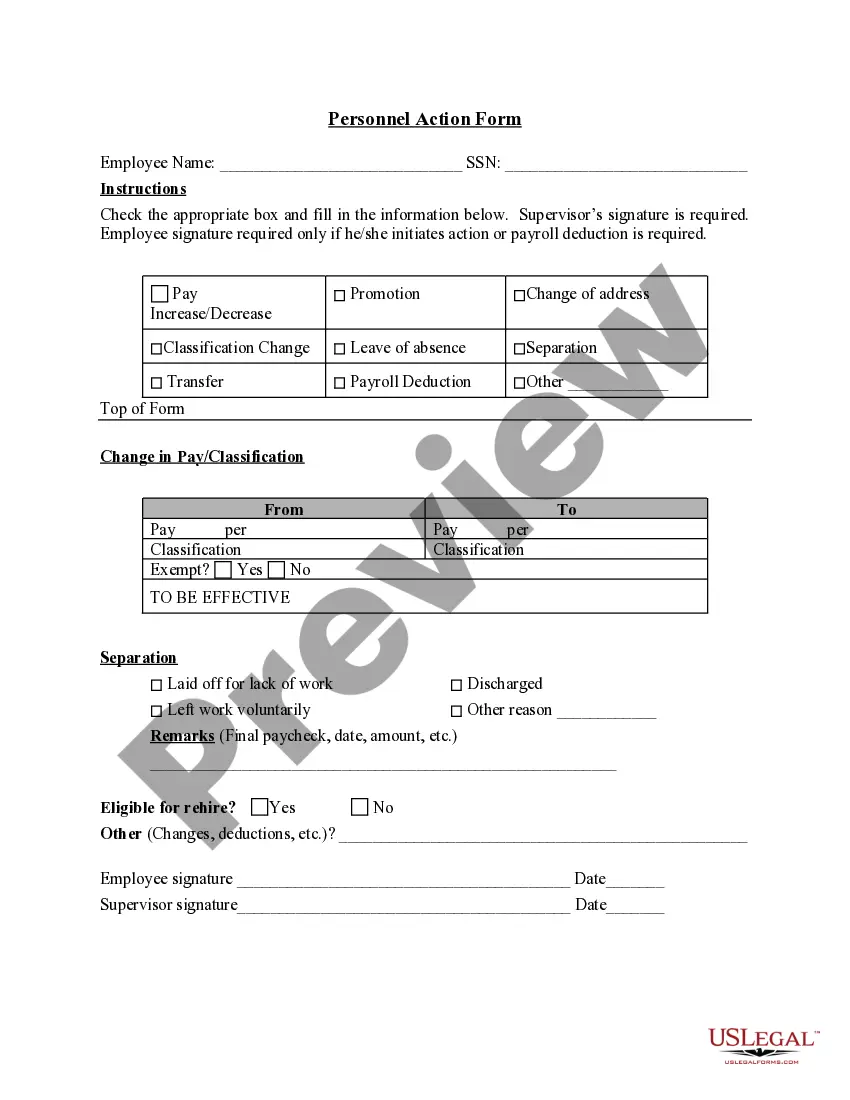
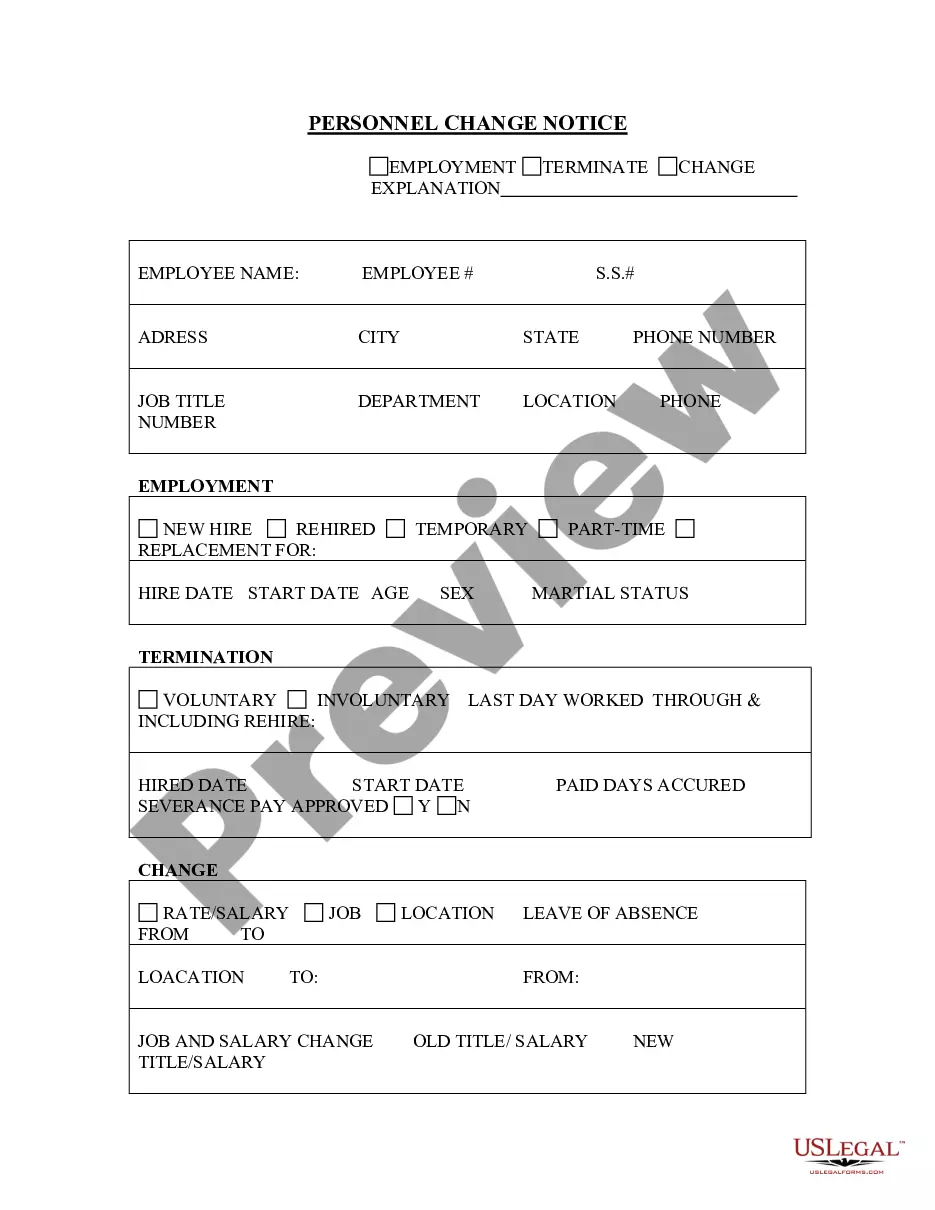
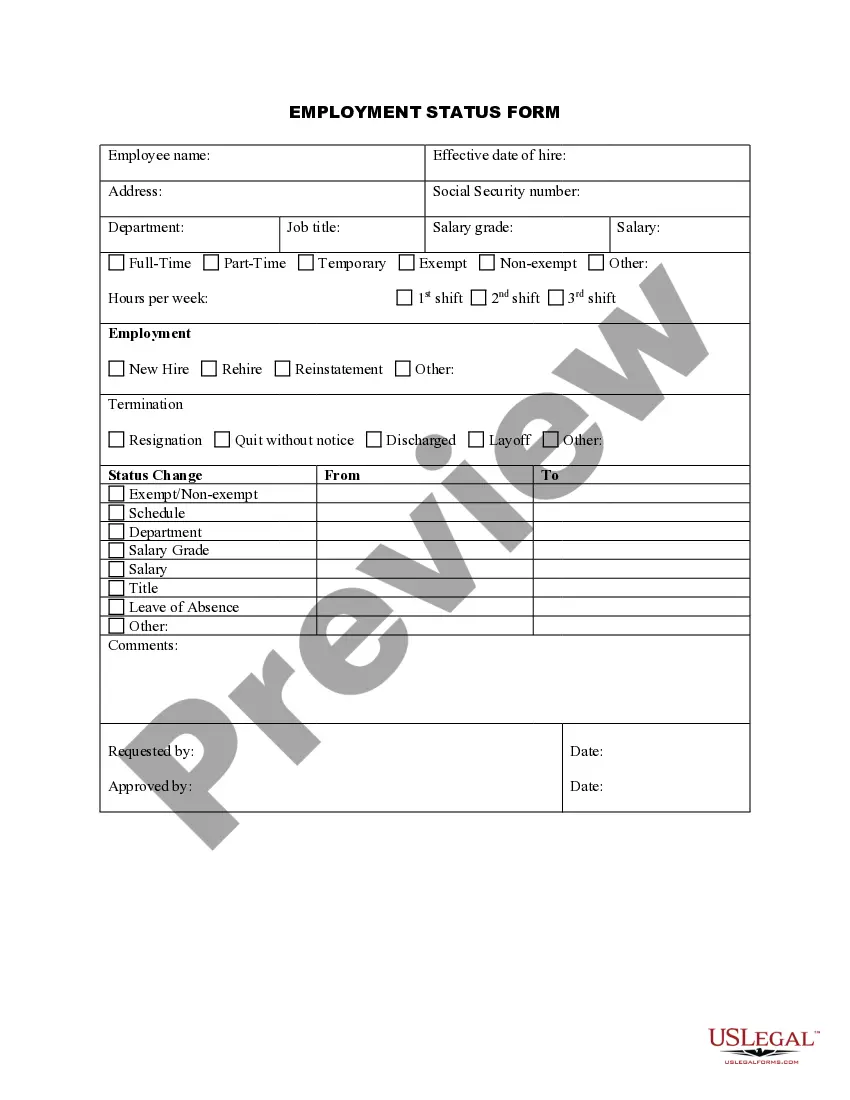
Personnel Change Statement With Text
Description
Get your form ready online
Our built-in tools help you complete, sign, share, and store your documents in one place.
Make edits, fill in missing information, and update formatting in US Legal Forms—just like you would in MS Word.
Download a copy, print it, send it by email, or mail it via USPS—whatever works best for your next step.
Sign and collect signatures with our SignNow integration. Send to multiple recipients, set reminders, and more. Go Premium to unlock E-Sign.
If this form requires notarization, complete it online through a secure video call—no need to meet a notary in person or wait for an appointment.
We protect your documents and personal data by following strict security and privacy standards.

Make edits, fill in missing information, and update formatting in US Legal Forms—just like you would in MS Word.

Download a copy, print it, send it by email, or mail it via USPS—whatever works best for your next step.

Sign and collect signatures with our SignNow integration. Send to multiple recipients, set reminders, and more. Go Premium to unlock E-Sign.

If this form requires notarization, complete it online through a secure video call—no need to meet a notary in person or wait for an appointment.

We protect your documents and personal data by following strict security and privacy standards.
Looking for another form?



How to fill out Personnel Status Change Worksheet?
Drafting legal paperwork from scratch can often be daunting. Some cases might involve hours of research and hundreds of dollars invested. If you’re looking for a a simpler and more cost-effective way of preparing Personnel Change Statement With Text or any other paperwork without jumping through hoops, US Legal Forms is always at your disposal.
Our virtual library of over 85,000 up-to-date legal forms addresses almost every element of your financial, legal, and personal affairs. With just a few clicks, you can instantly access state- and county-specific templates carefully put together for you by our legal specialists.
Use our website whenever you need a trusted and reliable services through which you can easily locate and download the Personnel Change Statement With Text. If you’re not new to our website and have previously set up an account with us, simply log in to your account, locate the template and download it away or re-download it at any time in the My Forms tab.
Don’t have an account? No problem. It takes minutes to register it and navigate the catalog. But before jumping directly to downloading Personnel Change Statement With Text, follow these tips:
- Check the document preview and descriptions to ensure that you have found the form you are searching for.
- Check if form you choose conforms with the requirements of your state and county.
- Choose the right subscription option to buy the Personnel Change Statement With Text.
- Download the file. Then complete, sign, and print it out.
US Legal Forms has a spotless reputation and over 25 years of experience. Join us today and transform document completion into something easy and streamlined!
Form popularity
FAQ
The TEXT function lets you change the way a number appears by applying formatting to it with format codes. It's useful in situations where you want to display numbers in a more readable format, or you want to combine numbers with text or symbols.
In the formula, =CONCAT(A2,? ?,TEXT(B2, ?dd/mm/yyyy?)), A2 and B2 are the cell references of the elements. The second parameter ? ? represents a space since we want to join both the elements separated by a space.
To combine numbers, use the CONCATENATE or CONCAT, TEXT or TEXTJOIN functions, and the ampersand (&) operator. Notes: In Excel 2016, Excel Mobile, and Excel for the web, CONCATENATE has been replaced with the CONCAT function.
Insert CONCATENATE function in a cell and right after starting the TEXT function. Select the cell that contains the date and choose the date we want to keep in inverted commas. Then after choosing the cell with which we want to concatenate.
In this example, the formula in cell D2 says: IF(C2 = 1, then return Yes, otherwise return No)As you see, the IF function can be used to evaluate both text and values. It can also be used to evaluate errors.