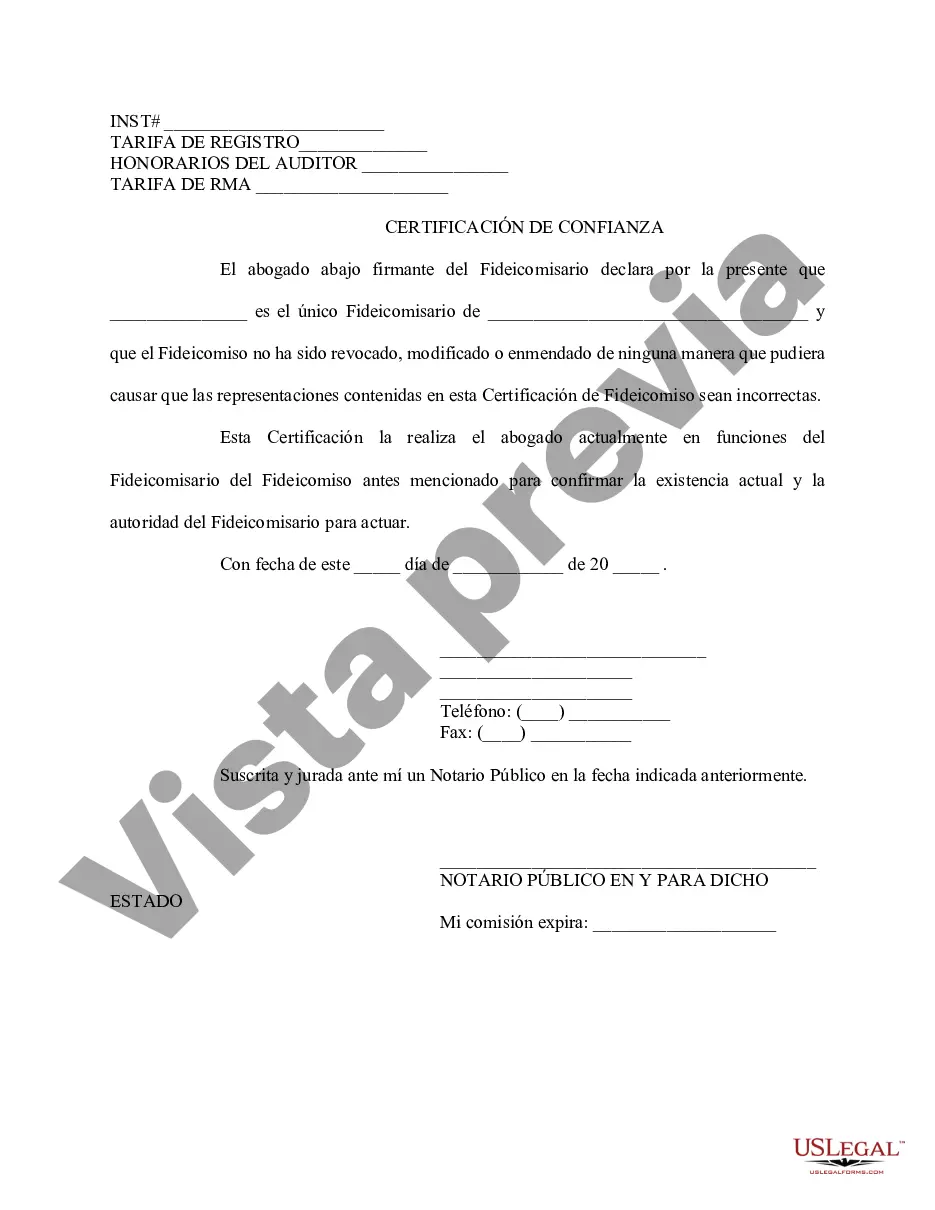
Certificación de Confianza - Iowa Certification of Trust
Description
Get your form ready online
Our built-in tools help you complete, sign, share, and store your documents in one place.
Make edits, fill in missing information, and update formatting in US Legal Forms—just like you would in MS Word.
Download a copy, print it, send it by email, or mail it via USPS—whatever works best for your next step.
Sign and collect signatures with our SignNow integration. Send to multiple recipients, set reminders, and more. Go Premium to unlock E-Sign.
If this form requires notarization, complete it online through a secure video call—no need to meet a notary in person or wait for an appointment.
We protect your documents and personal data by following strict security and privacy standards.
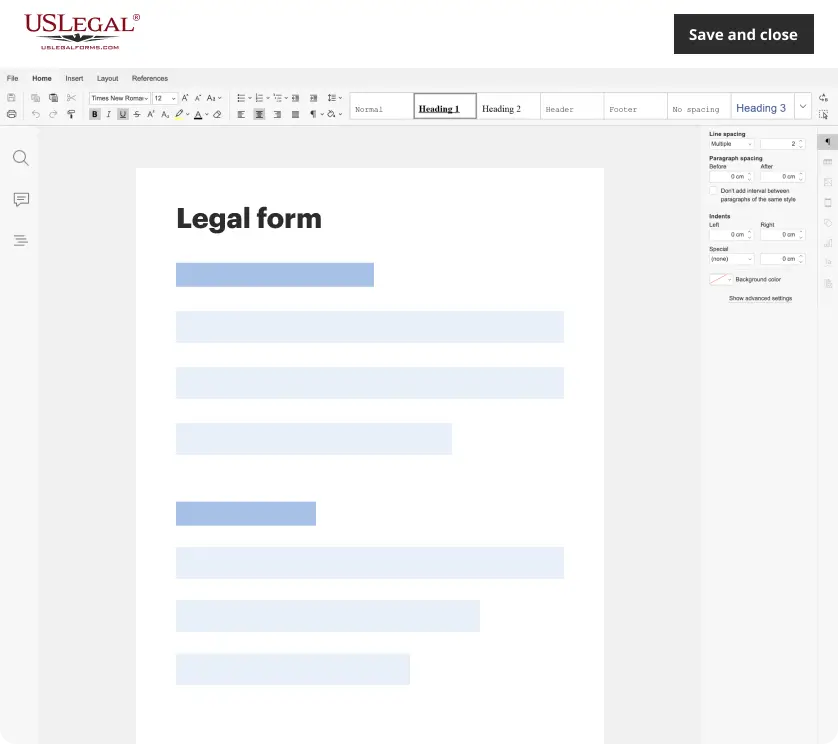
Make edits, fill in missing information, and update formatting in US Legal Forms—just like you would in MS Word.
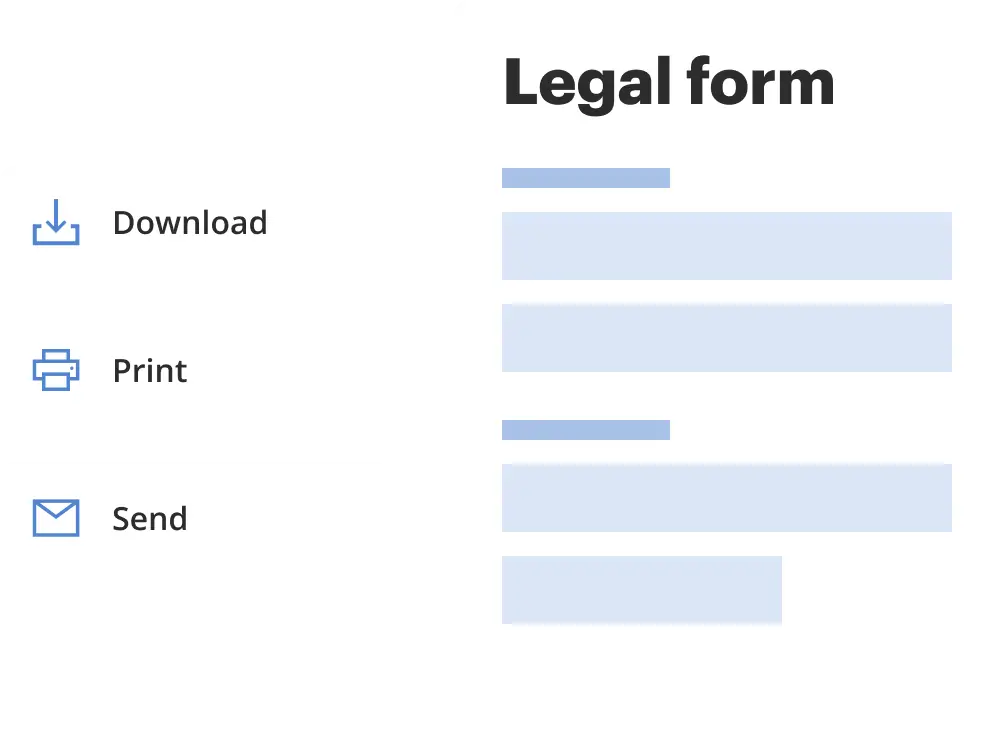
Download a copy, print it, send it by email, or mail it via USPS—whatever works best for your next step.
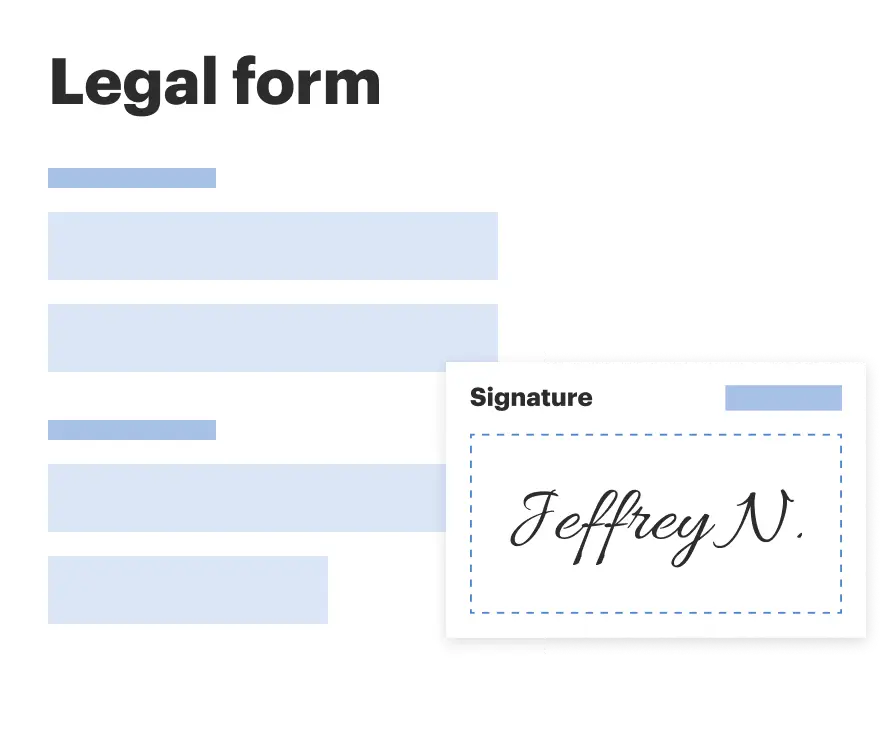
Sign and collect signatures with our SignNow integration. Send to multiple recipients, set reminders, and more. Go Premium to unlock E-Sign.

If this form requires notarization, complete it online through a secure video call—no need to meet a notary in person or wait for an appointment.
We protect your documents and personal data by following strict security and privacy standards.
Looking for another form?
How to fill out Iowa Certificación De Confianza?
Utilize US Legal Forms to secure a printable Iowa Certification of Trust.
Our court-acceptable documents are crafted and frequently refreshed by qualified attorneys.
Ours is the most comprehensive Forms repository available online and provides economical and precise samples for consumers, legal professionals, and small to medium-sized businesses.
Review the document via its description and utilize the Preview option. Click Buy Now if it’s the form you seek. Create your account and make payment using PayPal or a credit card. Download the form to your device and reuse it multiple times. Use the Search bar if you wish to find another document template. US Legal Forms offers a wide variety of legal and tax templates and packages catering to business and personal requirements, including the Iowa Certification of Trust. Over three million users have successfully utilized our service. Select your subscription plan and acquire high-quality forms in just a few clicks.
- The templates are organized into state-specific categories.
- Many of them can be previewed before being downloaded.
- To download samples, users must possess a subscription and Log In to their account.
- Click Download next to any form you desire and locate it in My documents.
- For those lacking a subscription, follow the instructions below to effortlessly locate and download the Iowa Certification of Trust.
- Ensure you have the correct form corresponding to the required state.
Form popularity
FAQ
Inicie Chrome. En el menu de control, que se encuentra cerca del lado derecho de la barra de direcciones, pulse ConfiguraciA³n > Mostrar opciones avanzadas. En la secciA³n HTTPS/SSL, pulse Administrar certificados. En la pestaA±a Entidades emisoras raAz de confianza, pulse Importar > Siguiente.
Para importar un certificado con Google Chrome dirijase a "Personalizar y Configurar Google Chrome" / ConfiguraciA³n. En Opciones Avanzadas / HTPPS/SSL pulsamos "Administrar certificados".
Sobre la firma, pulsar el boton derecho del ratA³n y elegir la opciA³n "Mostrar propiedades de la firma" del menAº que se despliega. Pulsar botA³n "Mostrar certificado del firmante". Se abrirA¡ la ventana visor de certificados. En la pestaA±a Confianza pulsar el botA³n "Agregar a certificados de confianza".
Credenciales confiables. Esta configuracion enumera las empresas de la autoridad de certificaciA³n (CA) que este dispositivo considera de confianza a los efectos de verificar la identidad de un servidor y le permite marcar una o mA¡s autoridades como no confiables.
Para ello, siga estos pasos:En Windows Internet Explorer, haga clic en Continuar a este sitio web (no recomendado).Haga clic en el boton Error de certificado para abrir la ventana de informaciA³n.Haga clic en Ver certificadosy, a continuaciA³n, haga clic en Instalar certificado.More items...
En Windows, Google Chrome utiliza el almacen de certificados de Internet Explorer. Descargue los siguientes certificados en su disco duro. Haga doble clic sobre el certificado descargado, se abrirA¡ la informaciA³n del certificado. Pulse "Instalar certificado", se abrirA¡ el asistente para ImportaciA³n de Certificados.
Permite que los servidores publicos trabajen junto con la ciudadanAa y sirvan en un ambiente confiable, honesto apegado a los principios y valores de la administraciA³n pAºblica del Estado de MA©xico.
Permitir las cookies y la SSL en el navegadorAbra Chrome en el ordenador.En la parte superior derecha, haga clic en Mas ConfiguraciA³n.Haga clic en Seguridad y privacidad Cookies y otros datos de sitios.Seleccione Permitir todas las cookies.
Sobre la firma, pulsar el boton derecho del ratA³n y elegir la opciA³n "Mostrar propiedades de la firma" del menAº que se despliega. Pulsar botA³n "Mostrar certificado del firmante". Se abrirA¡ la ventana visor de certificados. En la pestaA±a Confianza pulsar el botA³n "Agregar a certificados de confianza".