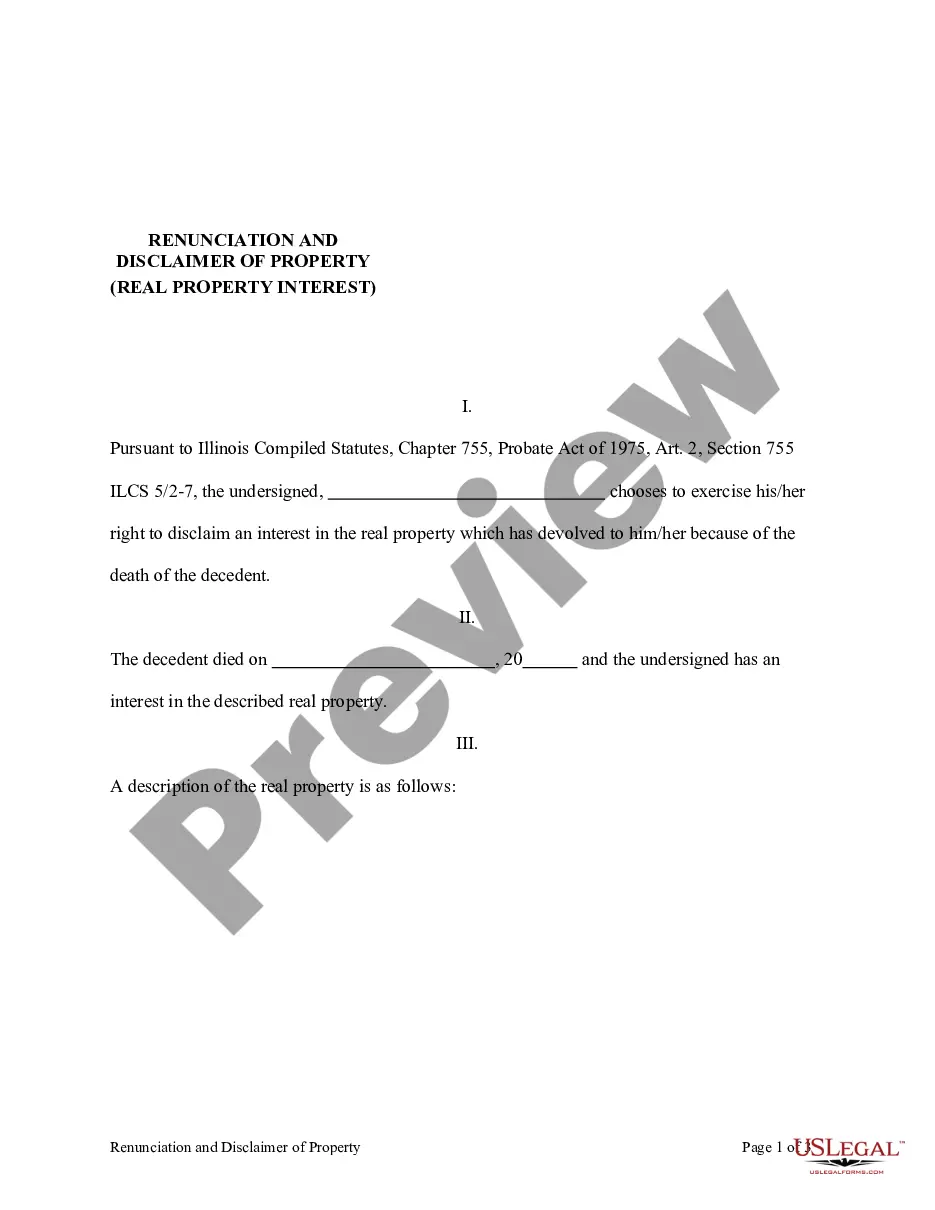
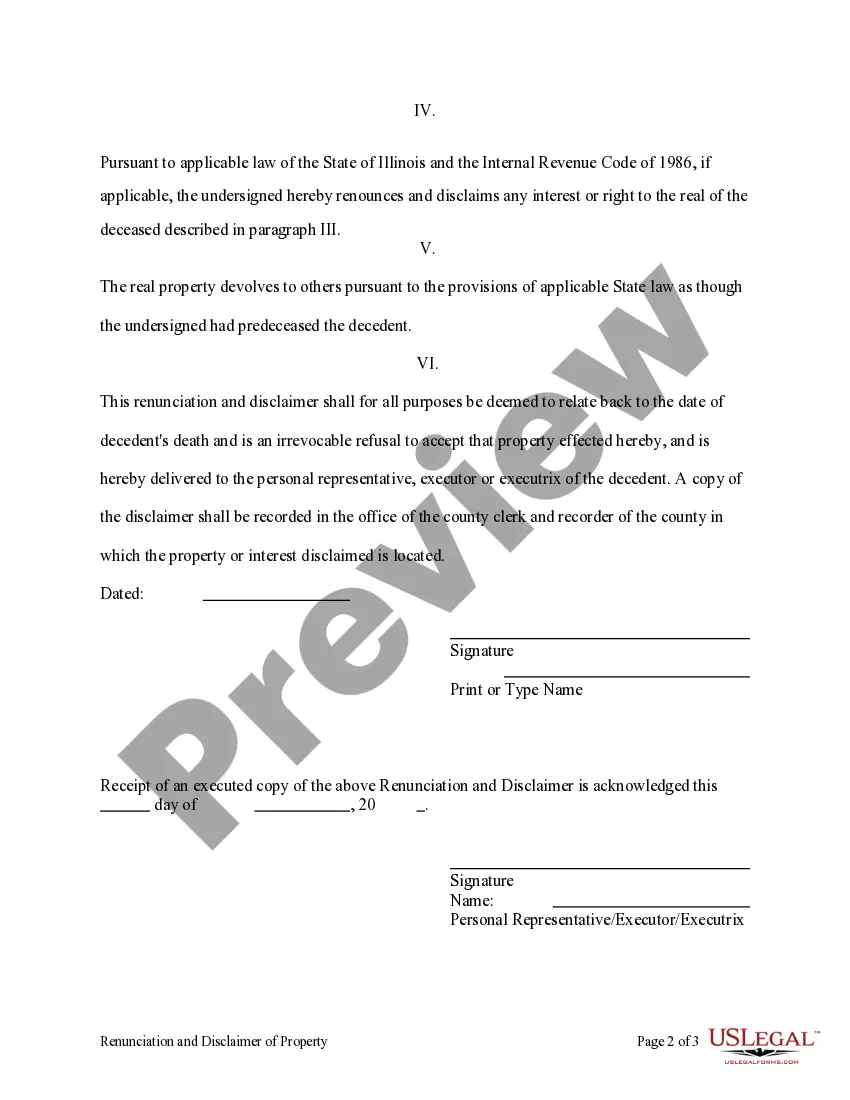
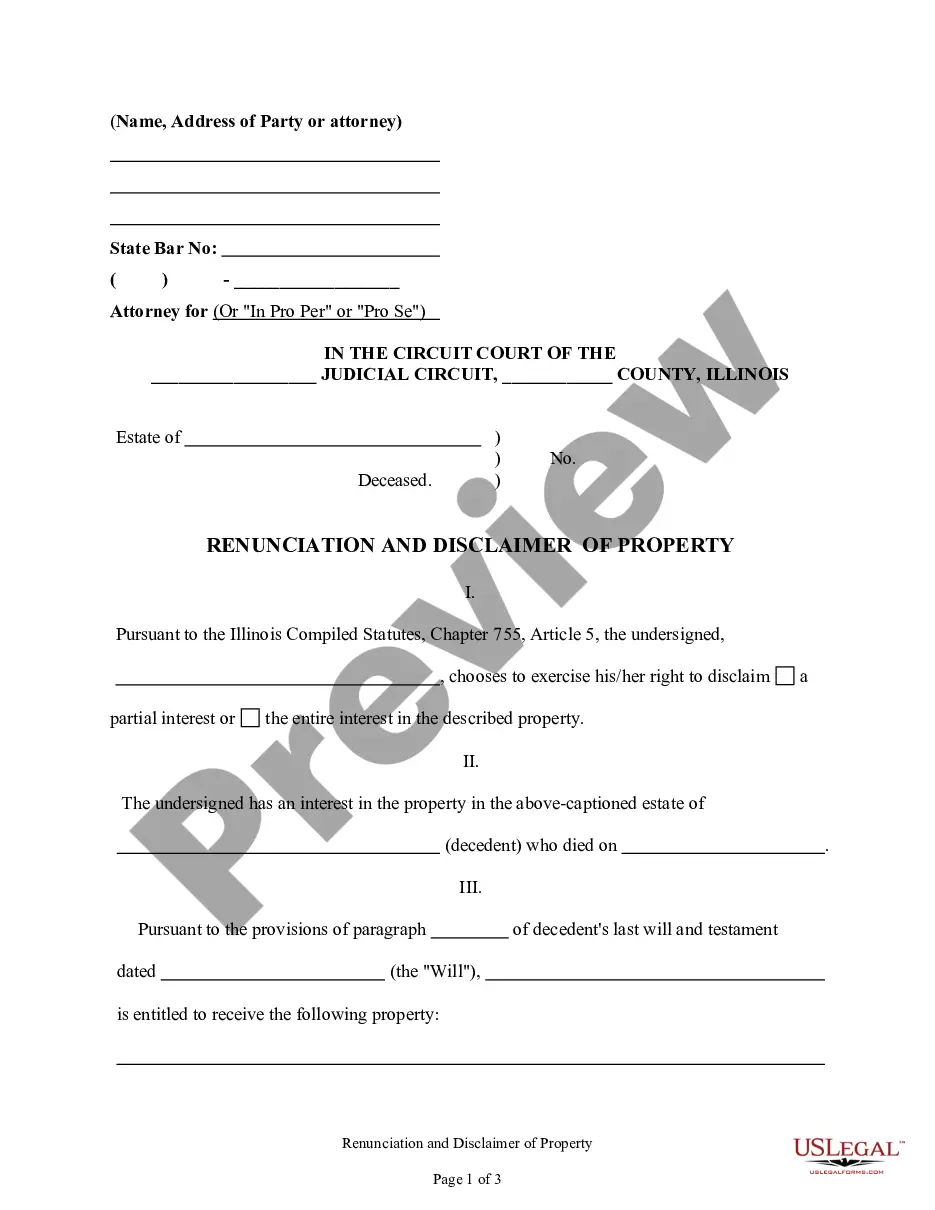
This form is a Renunciation and Disclaimer of a Real Property Interest by the beneficiary. The beneficiary has gained an interest in the described real property due to the death of the decedent. Pursuant to the Illinois Compiled Statutes, Chapter 75, Article 2, the beneficiary has chosen to disclaim his/her interest in the real property. The real property will devolve to others as though the beneficiary predeceased the decedent. The form also contains a state specific acknowledgment and a certificate to verify delivery.
755 X 6
68 downloads
Description
Free preview


Get your form ready online
Our built-in tools help you complete, sign, share, and store your documents in one place.
Built-in online Word editor
Make edits, fill in missing information, and update formatting in US Legal Forms—just like you would in MS Word.
Export easily
Download a copy, print it, send it by email, or mail it via USPS—whatever works best for your next step.
E-sign your document
Sign and collect signatures with our SignNow integration. Send to multiple recipients, set reminders, and more. Go Premium to unlock E-Sign.
Notarize online 24/7
If this form requires notarization, complete it online through a secure video call—no need to meet a notary in person or wait for an appointment.
Store your document securely
We protect your documents and personal data by following strict security and privacy standards.
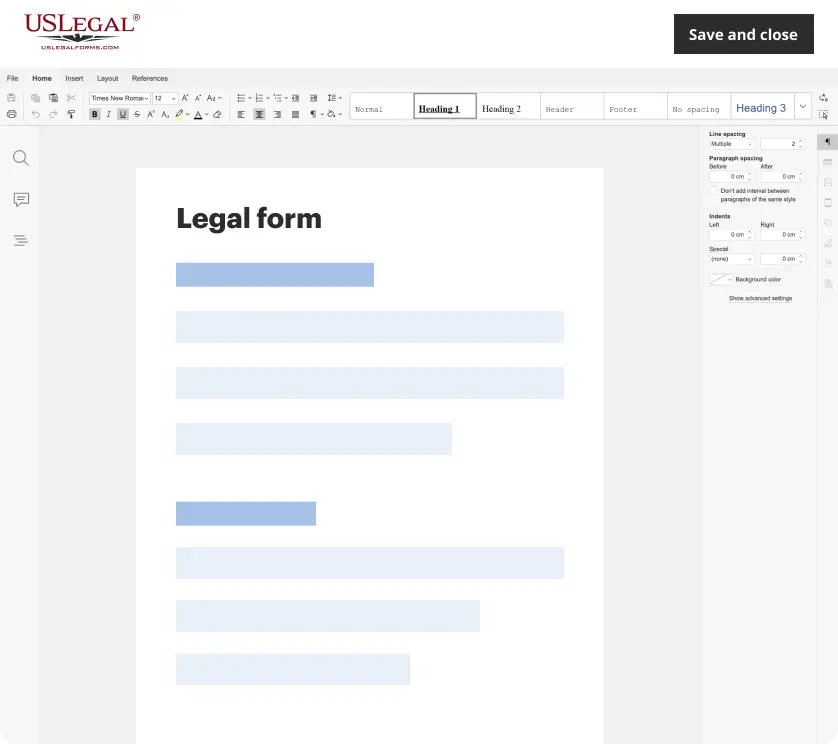
Make edits, fill in missing information, and update formatting in US Legal Forms—just like you would in MS Word.
Download a copy, print it, send it by email, or mail it via USPS—whatever works best for your next step.
Sign and collect signatures with our SignNow integration. Send to multiple recipients, set reminders, and more. Go Premium to unlock E-Sign.

If this form requires notarization, complete it online through a secure video call—no need to meet a notary in person or wait for an appointment.
We protect your documents and personal data by following strict security and privacy standards.
Looking for another form?



How to fill out Illinois Renunciation And Disclaimer Of Real Property Interest?
- If you're a returning user, log in to your account and download the necessary form template. Ensure your subscription is active, and renew if needed.
- For first-time users, start by examining the form descriptions and previews to select the document that aligns with your local jurisdiction's needs.
- Should you require a different template, use the Search feature above to find a suitable alternative.
- Once satisfied, click on the Buy Now button and select your desired subscription plan - account registration is required for access.
- Complete your purchase by entering your payment details via credit card or PayPal.
- After purchasing, download your form directly to your device. You can later access it anytime in the My Forms section of your profile.
In conclusion, US Legal Forms empowers users with a robust collection of legal documents, backed by premium support for completing forms correctly. The 755 x 6 approach significantly streamlines your experience.
Discover the benefits of US Legal Forms today and transform your legal documentation process!
Form popularity
FAQ
Using chmod 775 is straightforward. Open your terminal and enter 'chmod 775 filename'. This will set the permissions so that the file can be read, written, and executed by the owner and the group, while others can only read and execute. This is particularly useful in team environments where multiple users need to access the same file, ensuring security while facilitating collaboration.
Chmod 777, 775, and 755 are different permission settings for files in Unix-based systems. Chmod 777 gives all permissions to everyone, while 775 allows the owner and group to read, write, and execute, but limits others to read and execute. Chmod 755 is similar, providing execution rights broadly, while securing write access for the owner. Understanding these distinctions is crucial for managing file security effectively, particularly when dealing with important operations like 755 x 6.
To run the chmod 775 command, you'll follow a similar process as with 755. Simply open your terminal and type 'chmod 775 filename'. This sets the permissions to allow the owner and group members to read, write, and execute the file, while others can only read and execute. This command strikes a balance of accessibility and control, especially in collaborative environments.
To memorize multiplication by 6, practicing with patterns helps a lot. Create a table that visualizes the results, like 6 times 1 equals 6, 6 times 2 equals 12, and so on. You may also group numbers together, like 6 times 5 equals 30, to find familiar patterns that aid your memory. Regular practice helps solidify these facts within your mind, making tasks like calculating 755 x 6 a breeze.
Using chmod 755 involves setting the appropriate file permissions for your script or application. You initiate this by typing 'chmod 755 filename' in your terminal. This command ensures that the file is executable by everyone, but only the owner can modify it. It's a straightforward way to enhance your file security while allowing public access where needed.
To multiply and get 6, you can use several combinations. One common way is to multiply 2 by 3, since 2 x 3 equals 6. You can also achieve this by multiplying 1.5 by 4, which also results in 6. Understanding these relationships can enhance your multiplication skills and help you grasp concepts like 755 x 6 more effectively.
To use the chmod 755 command, open your terminal. This command sets the permissions for a file or directory to be readable and executable by everyone, while allowing the owner to write. Simply enter 'chmod 755 filename' and replace 'filename' with the actual file name. This is especially useful for scripts that you want to make accessible to all.
When multiplying 7 x 6, you will arrive at 42. Breaking down the multiplication into smaller chunks can help simplify the process. As you practice, you will gain speed and accuracy, making problems like 7 x 6 less intimidating.
To find what number multiplied by 6 equals 72, you should divide 72 by 6. This calculation shows that the answer is 12. Mastering these operations enhances your understanding of multiplication, making you more efficient in solving problems.
To remember 6 x 7, you can rely on the concept that it equals 42. Using visual aids, diagrams, or mnemonics can also solidify this knowledge in your mind. Reinforcing these multiplication facts will benefit you in various areas of math.