Tenantid Advpl
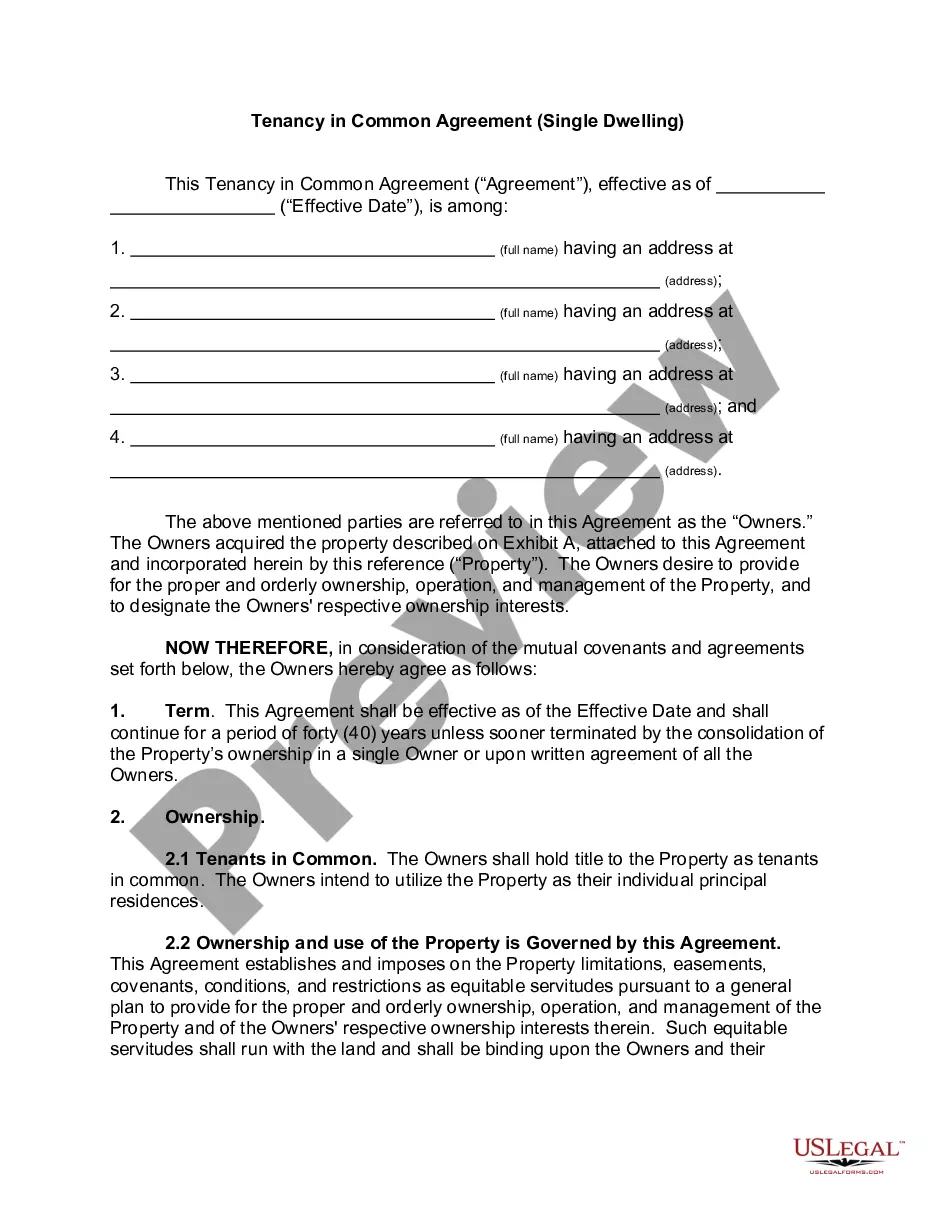
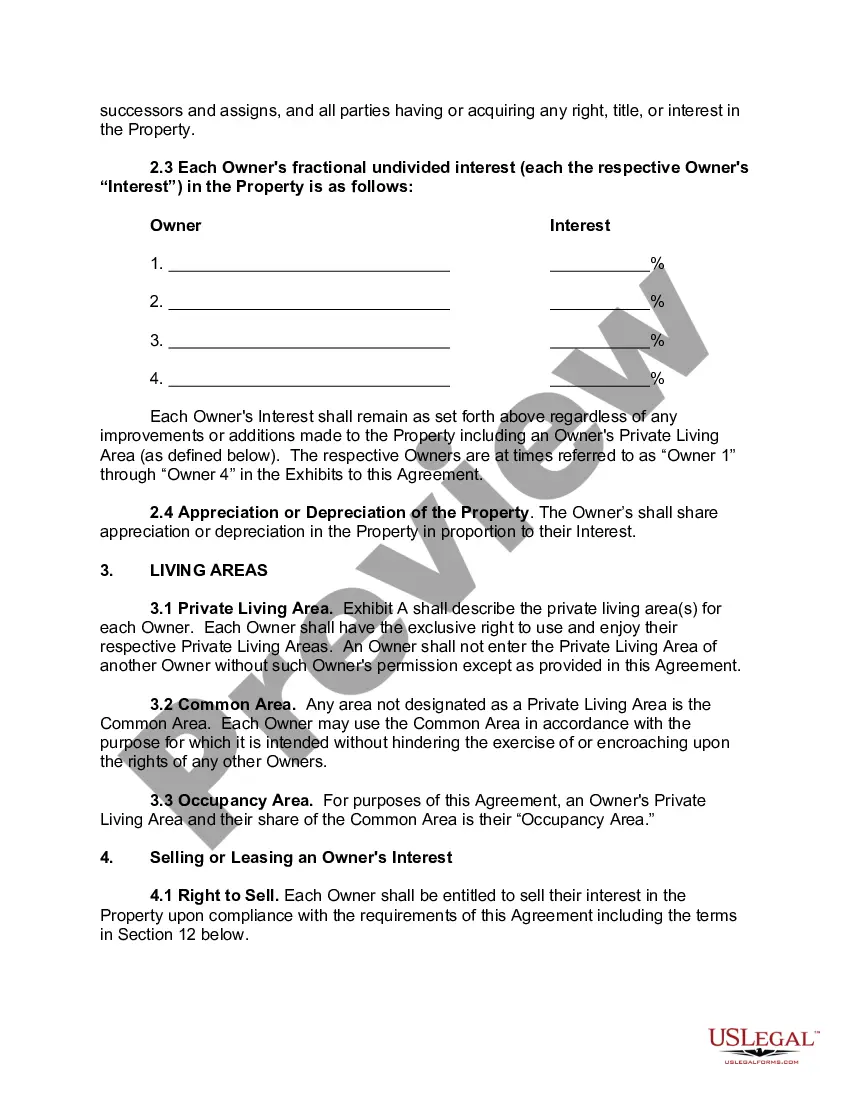
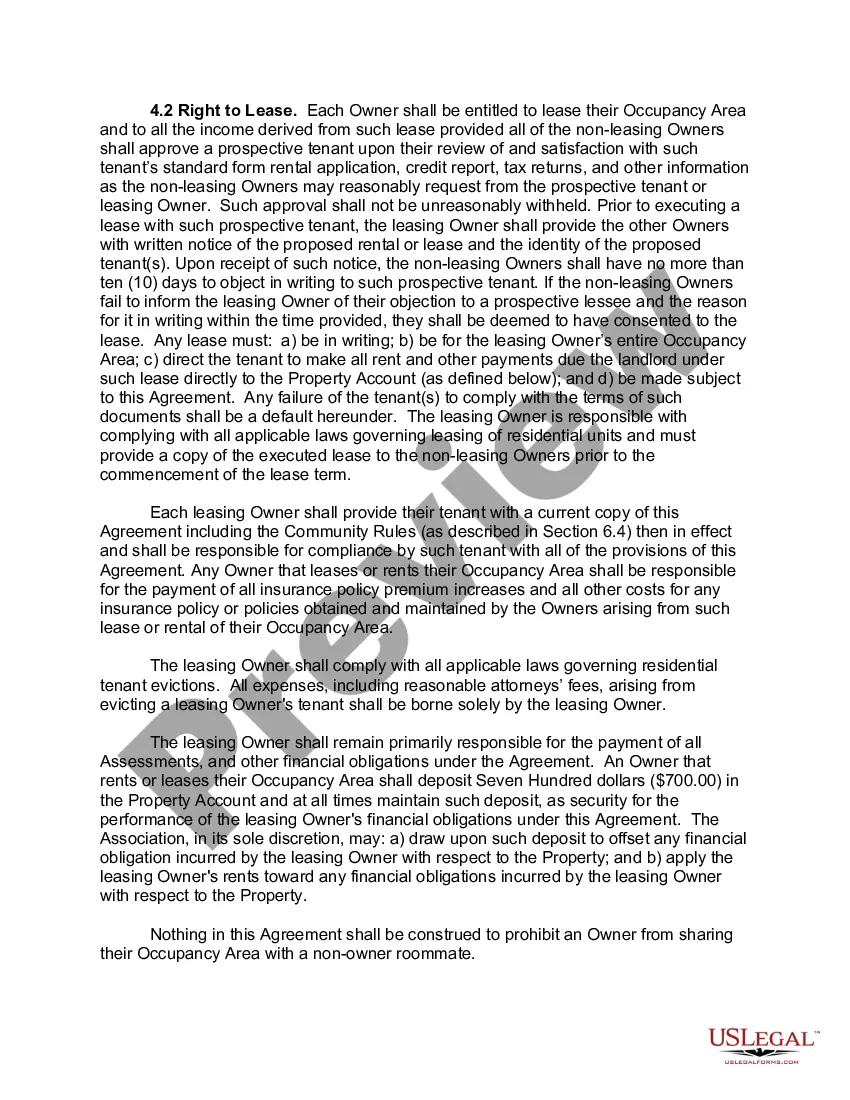
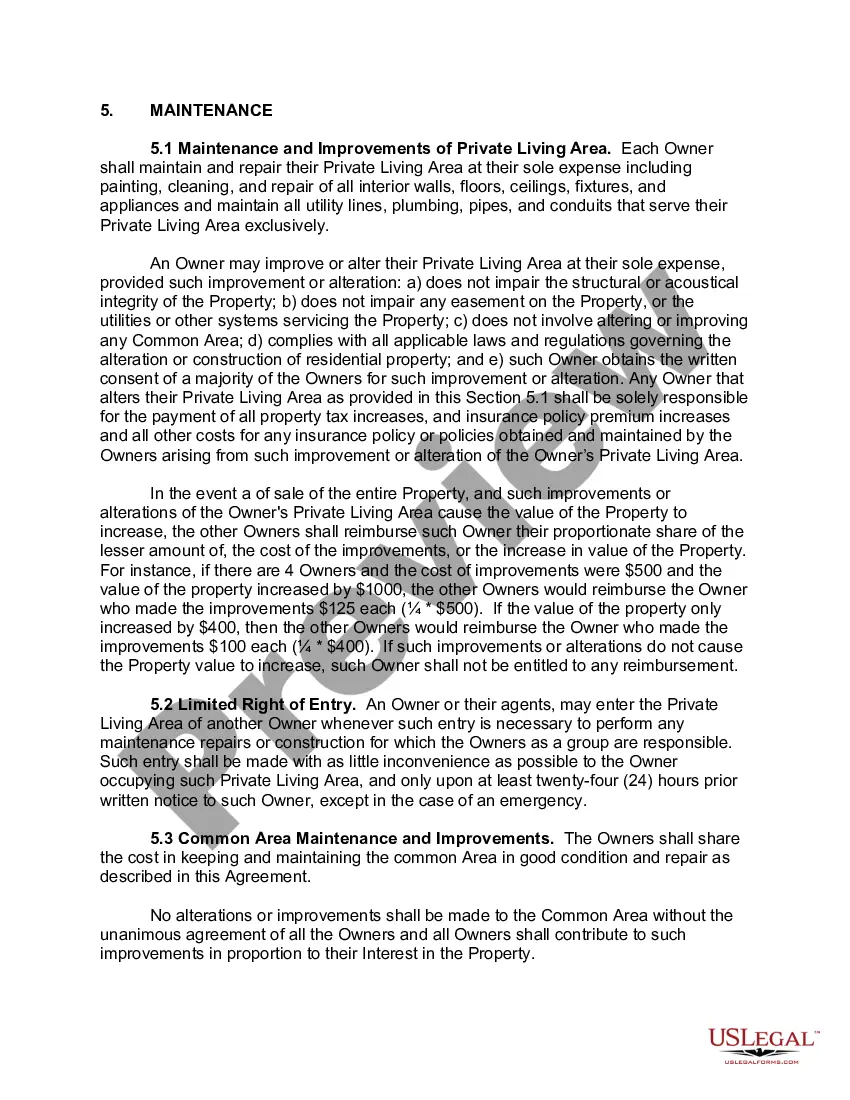
Description


Get your form ready online
Our built-in tools help you complete, sign, share, and store your documents in one place.
Make edits, fill in missing information, and update formatting in US Legal Forms—just like you would in MS Word.
Download a copy, print it, send it by email, or mail it via USPS—whatever works best for your next step.
Sign and collect signatures with our SignNow integration. Send to multiple recipients, set reminders, and more. Go Premium to unlock E-Sign.
If this form requires notarization, complete it online through a secure video call—no need to meet a notary in person or wait for an appointment.
We protect your documents and personal data by following strict security and privacy standards.
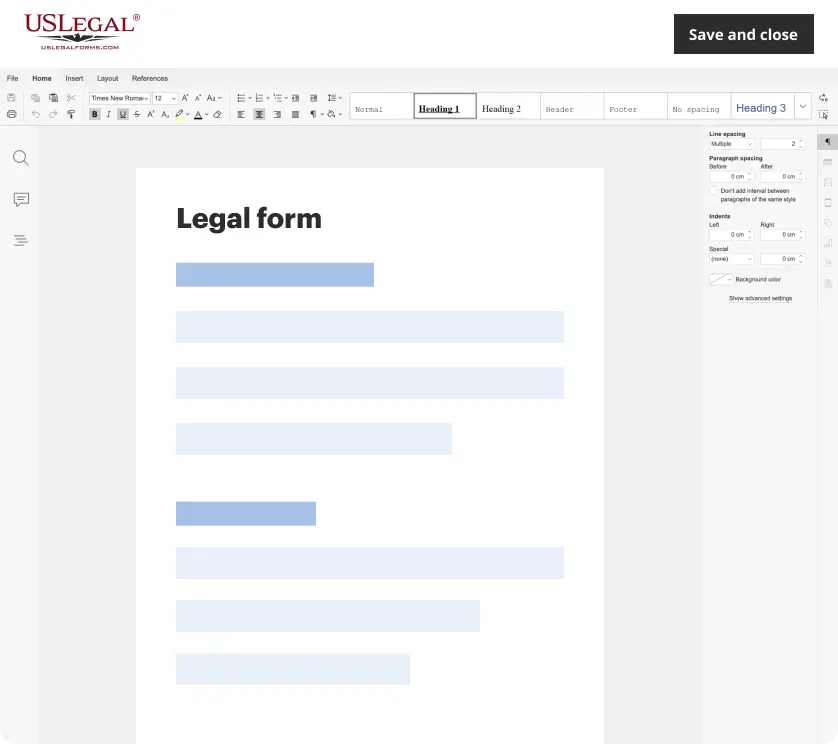
Make edits, fill in missing information, and update formatting in US Legal Forms—just like you would in MS Word.
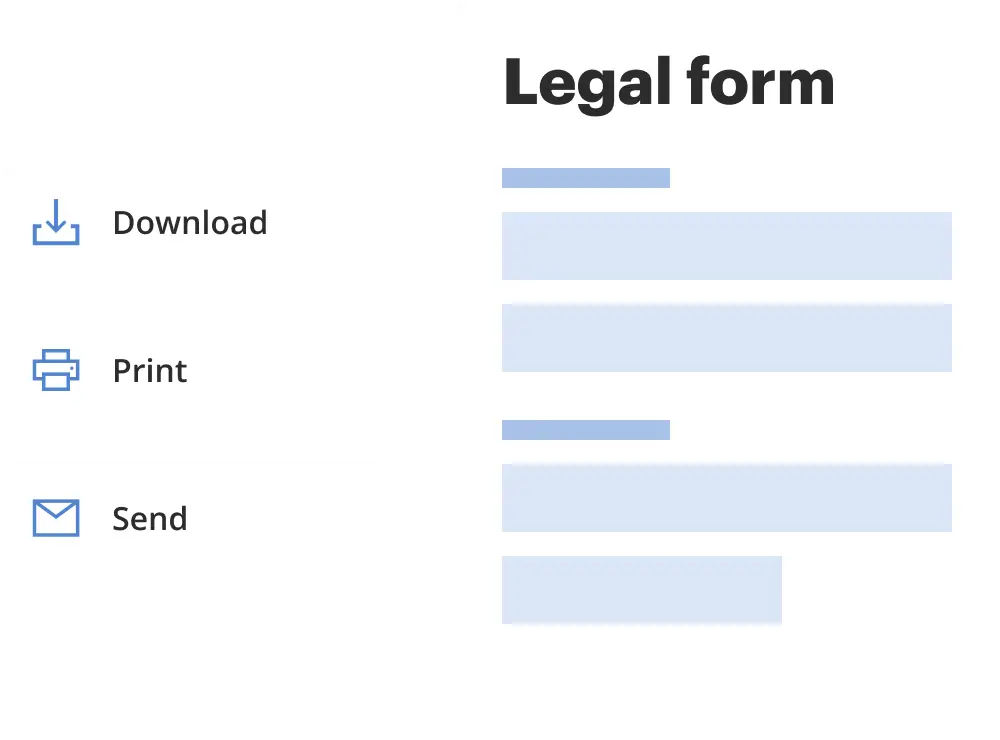
Download a copy, print it, send it by email, or mail it via USPS—whatever works best for your next step.
Sign and collect signatures with our SignNow integration. Send to multiple recipients, set reminders, and more. Go Premium to unlock E-Sign.
If this form requires notarization, complete it online through a secure video call—no need to meet a notary in person or wait for an appointment.
We protect your documents and personal data by following strict security and privacy standards.
Looking for another form?
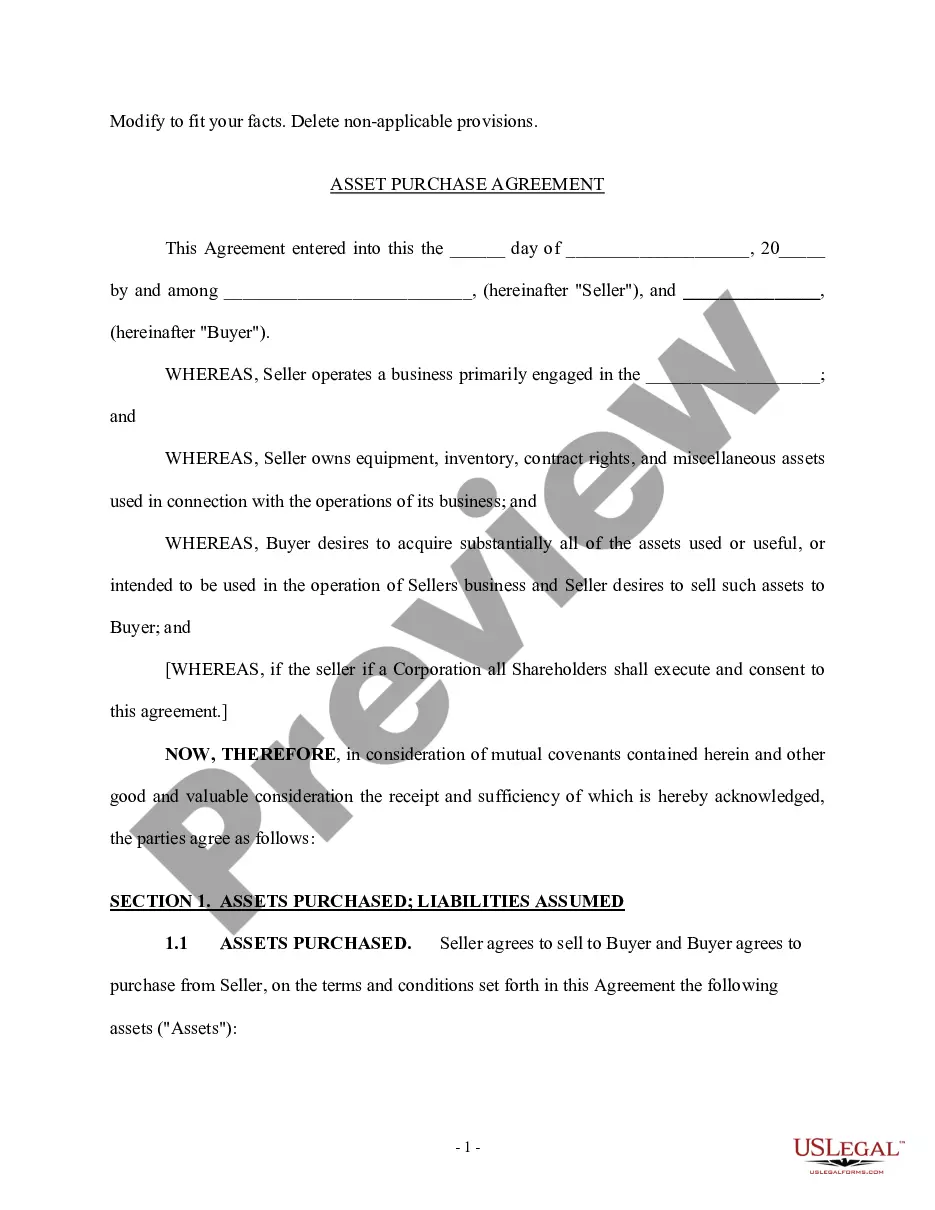
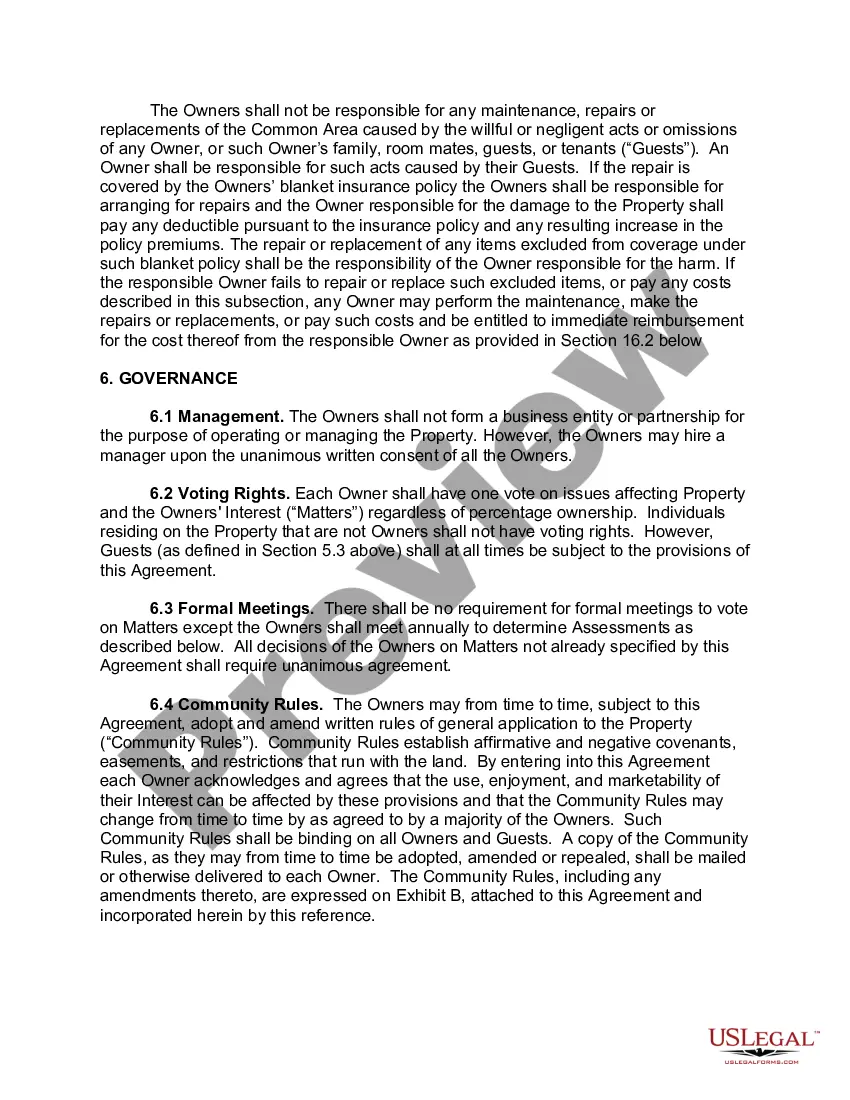
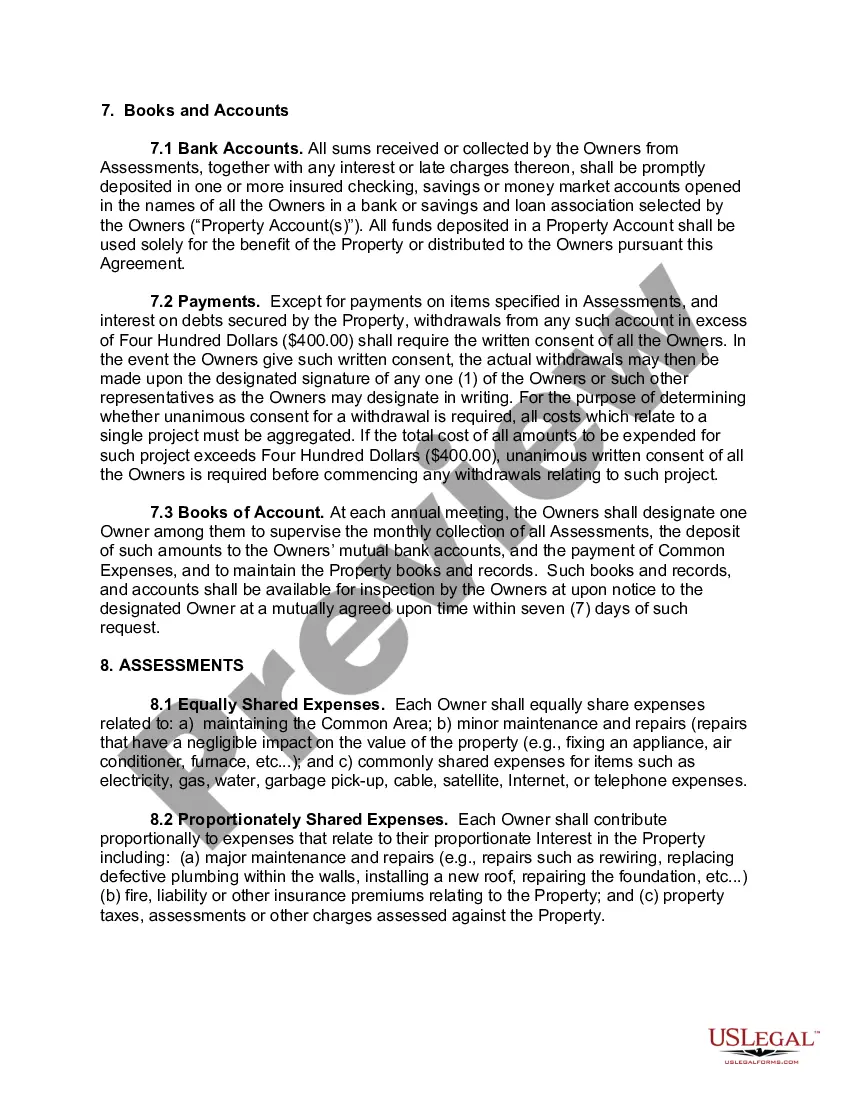
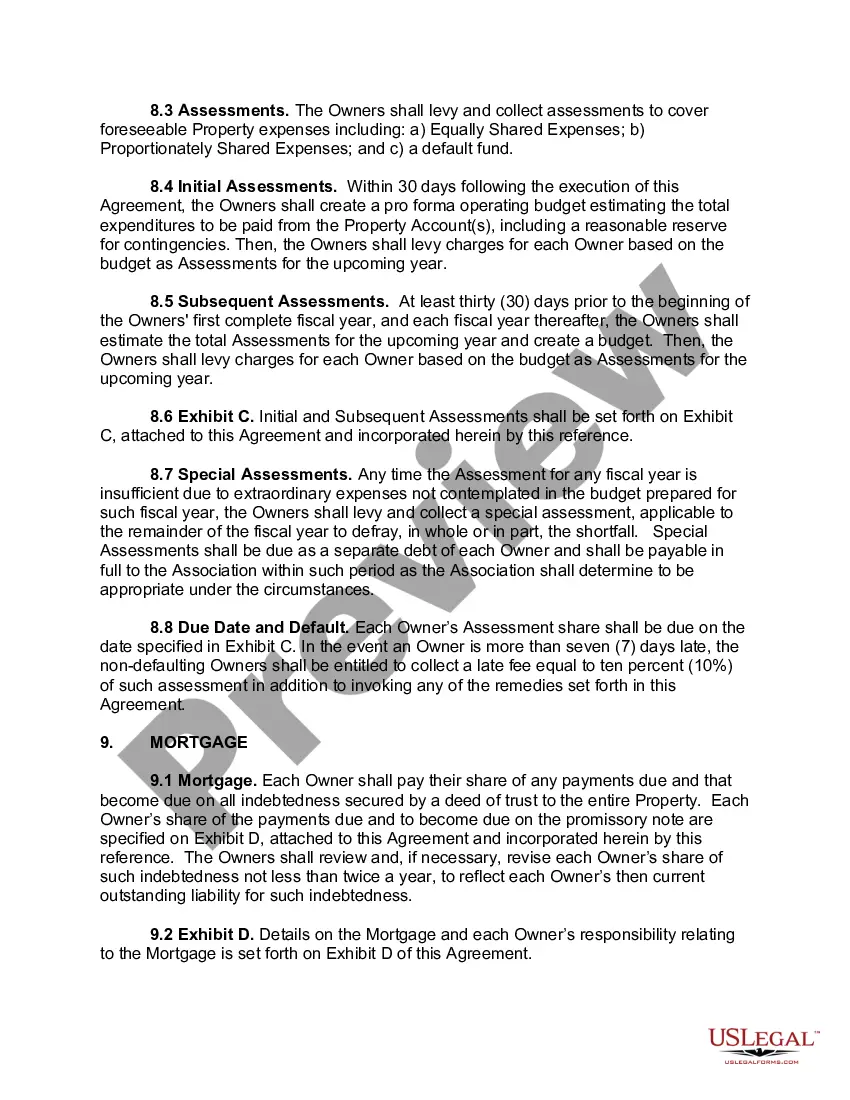
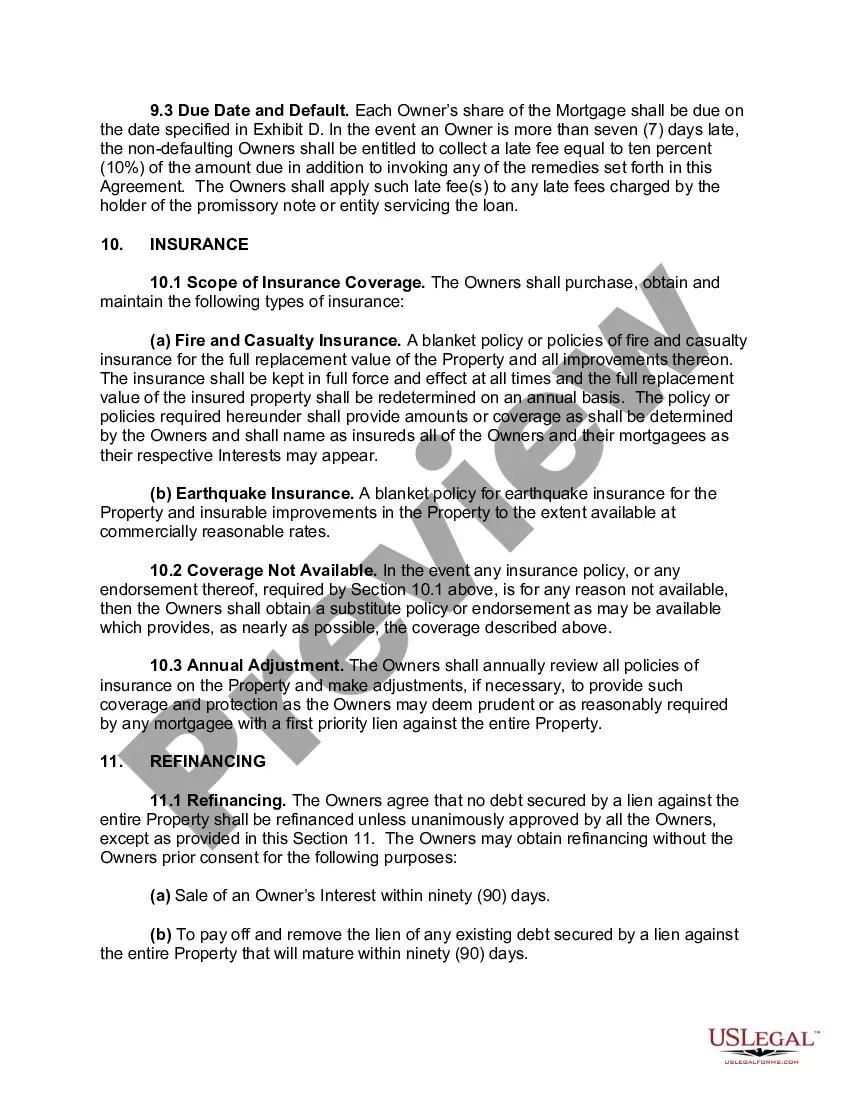
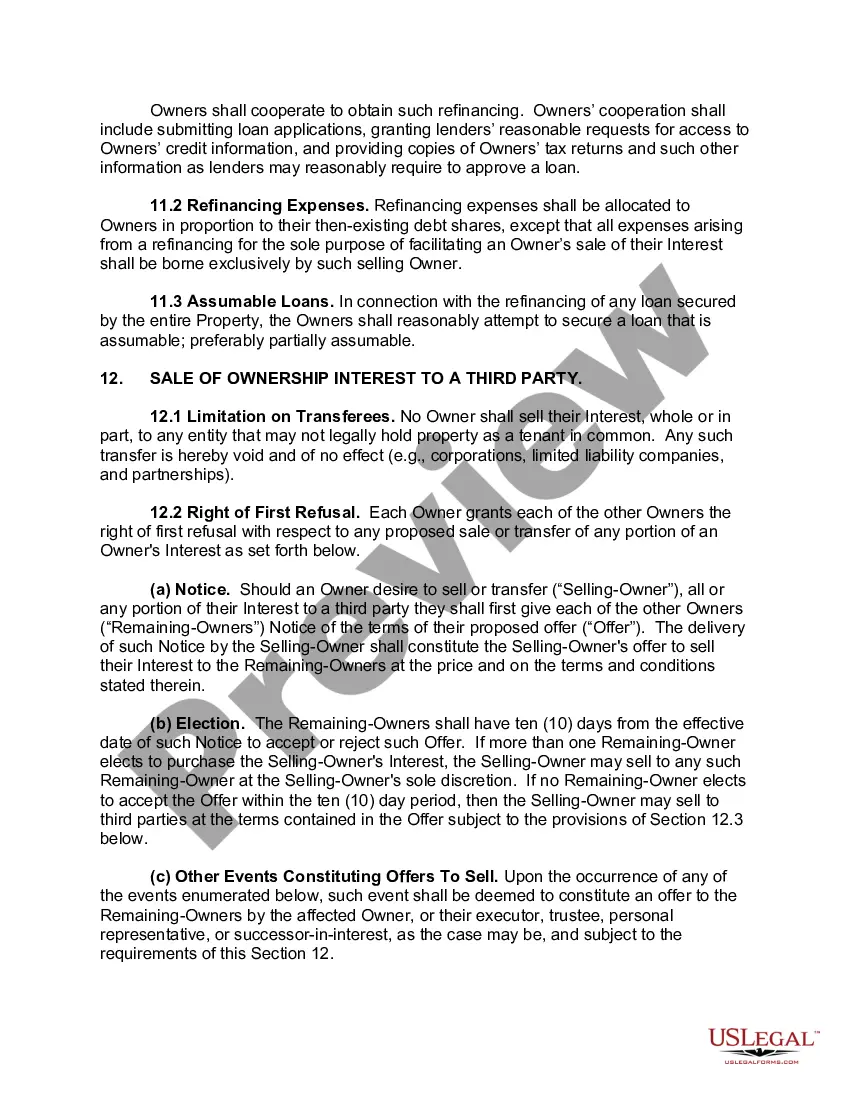
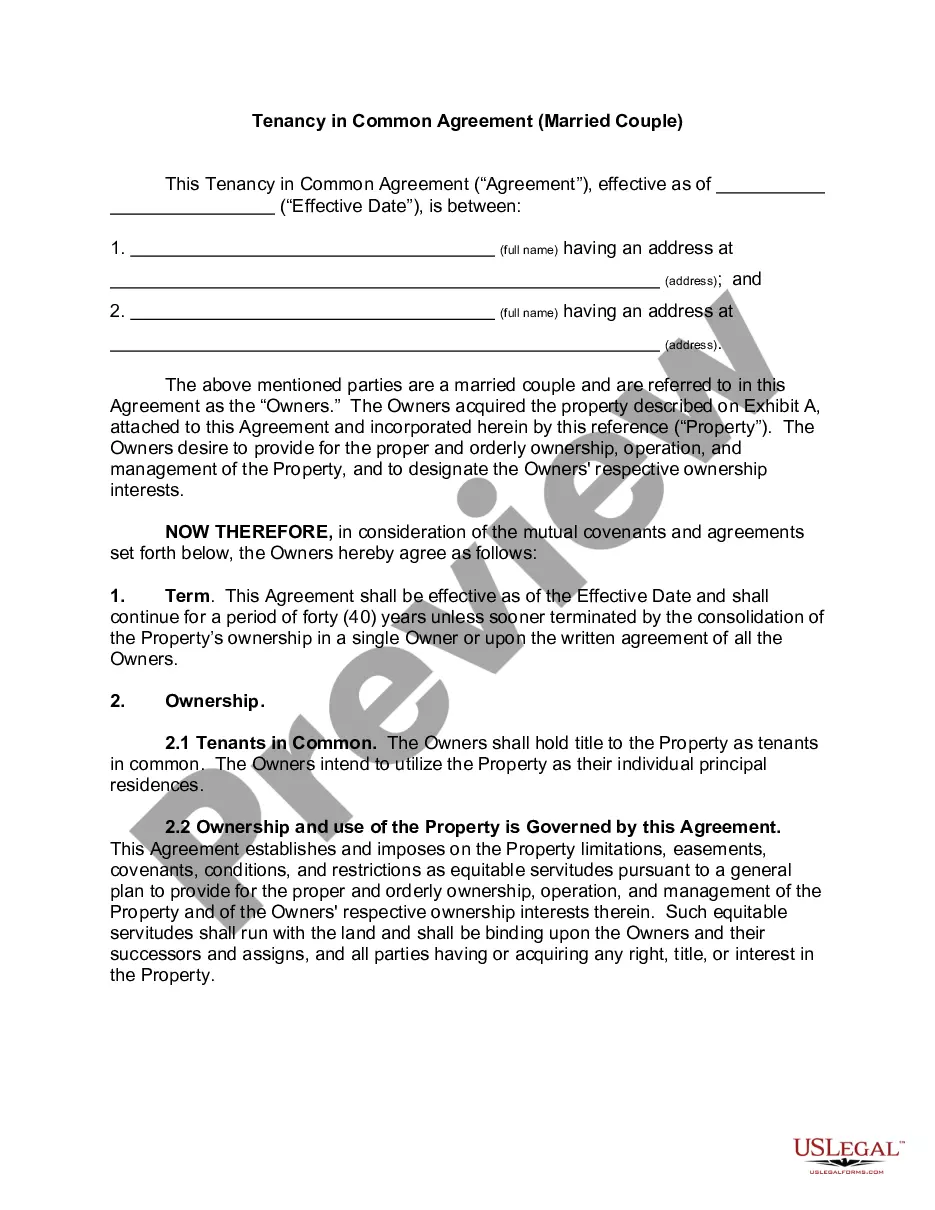
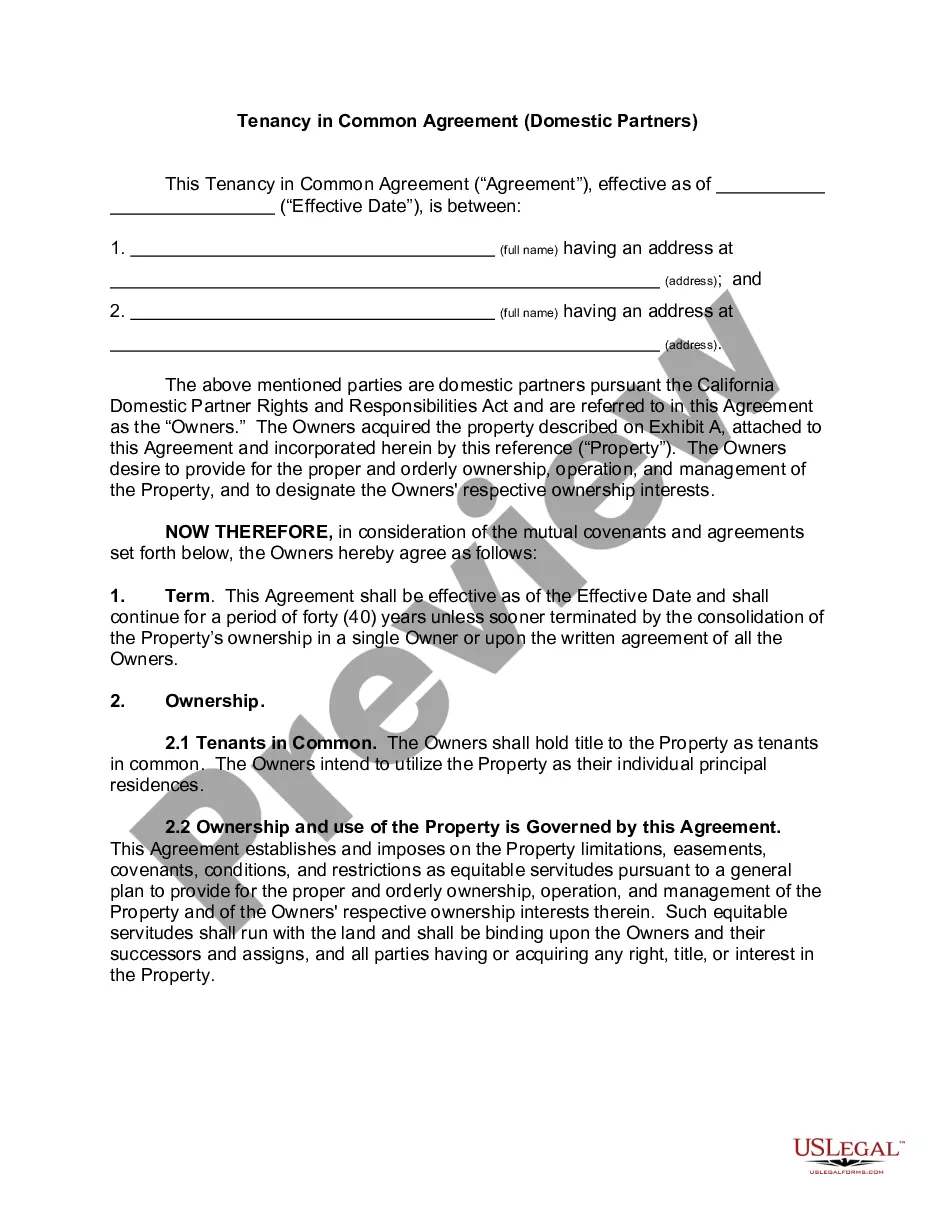
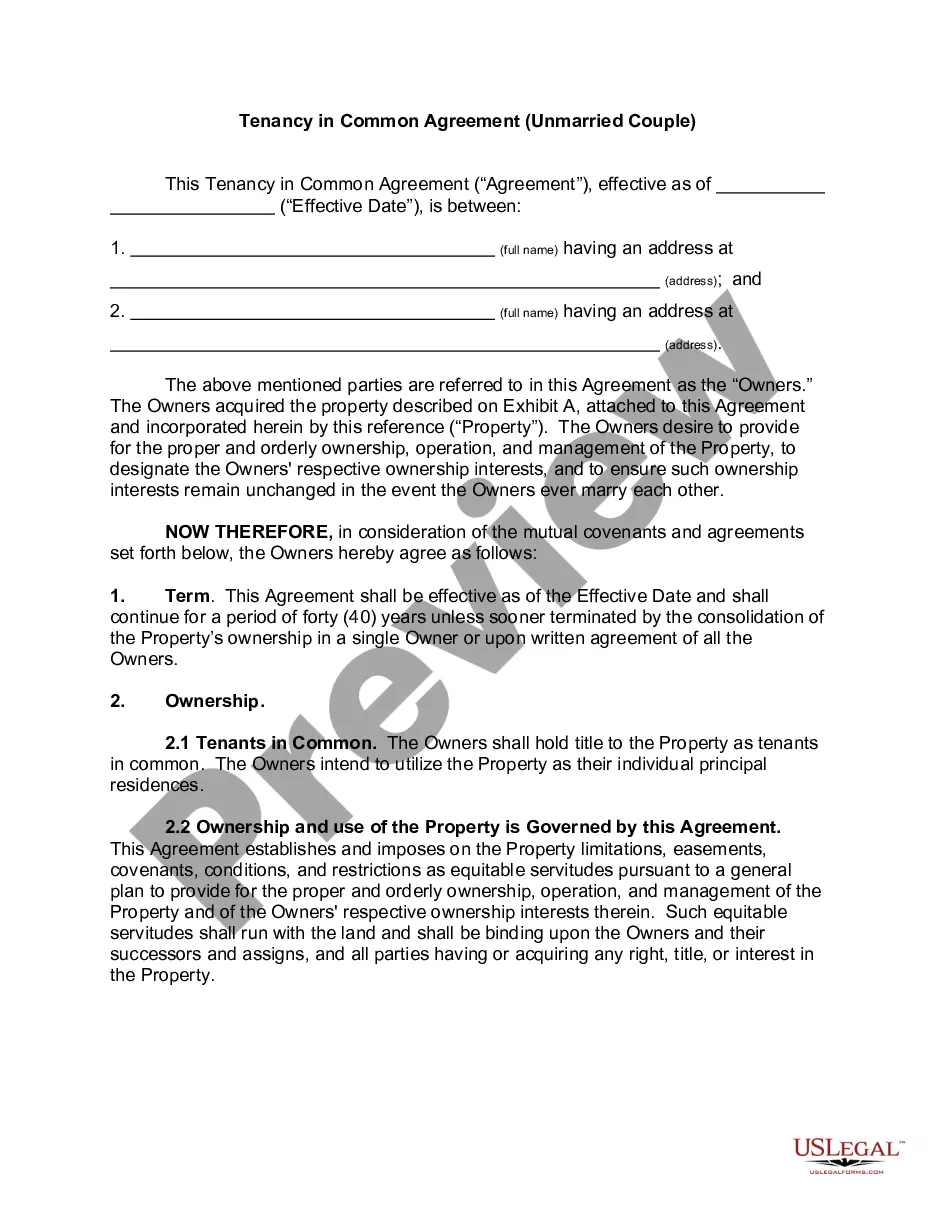
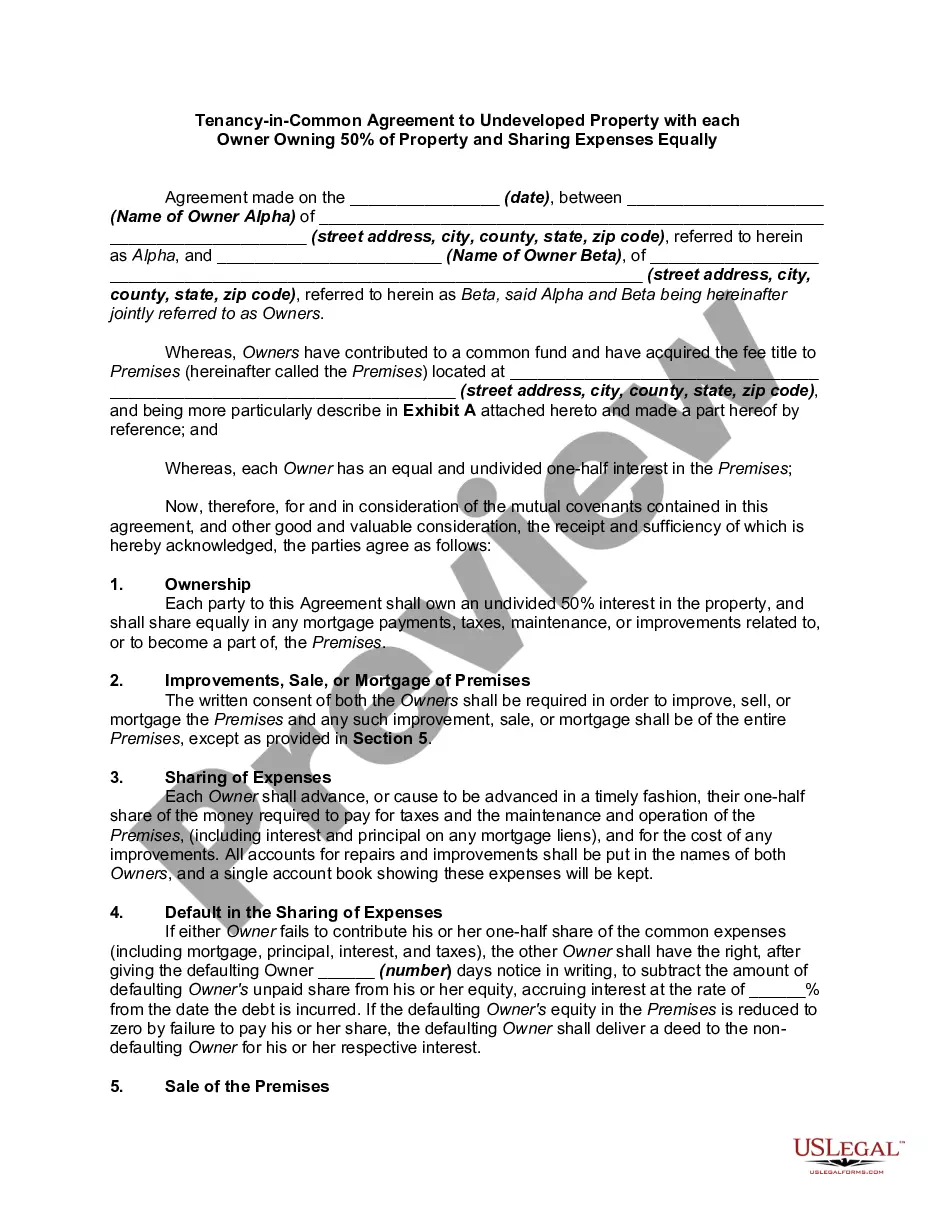
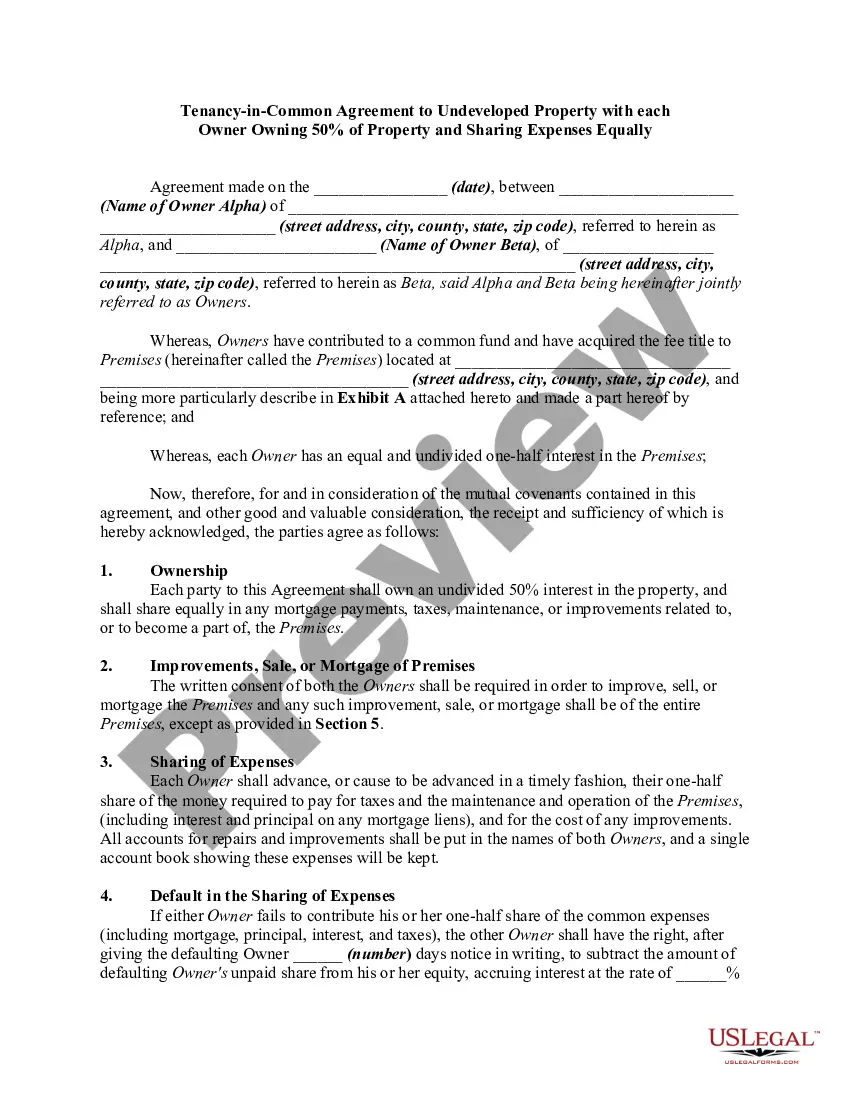
How to fill out California Tenancy In Common Agreement - Single Dwelling - Up To 4 Owners?
- Log in to your account if you’re a returning user, ensuring your subscription is active to access and download forms via the Download button.
- For first-time users, begin by browsing the extensive library. Use the Preview mode to review form descriptions and confirm they meet your specific needs.
- If necessary, use the Search function to find alternative templates that fit your requirements.
- Select your form and click on the Buy Now button. Choose the subscription plan that suits you best and create an account for resource access.
- Complete your purchase using your credit card or PayPal account to secure your subscription.
- Download the form to your device. You can always access it later through the My Forms section in your profile.
US Legal Forms stands out with its vast library of over 85,000 forms, more than competitors for a similar price. Their platform not only offers user-friendly templates but also allows access to premium experts who can assist in ensuring your documents are legally compliant.
Get started today with US Legal Forms and make legal documentation easy and efficient. Explore the extensive library now!
Form popularity
FAQ
To find your Teams tenant ID, you need to open the Teams admin center. Once there, click on 'Settings', then 'Org-wide settings', and finally 'Teams settings'. The tenant ID will be visible here, and integrating this with Tenantid advpl enhances your organizational collaboration features.
To retrieve both the Azure Active Directory domain name and tenant ID, log into the Azure portal, and select Azure Active Directory. Navigate to 'Properties', where you will see the domain name, and the tenant ID can be found in the overview section. This dual functionality is where Tenantid advpl comes in handy, helping streamline your configuration processes.
To obtain your tenant ID, access the Azure portal and navigate to Azure Active Directory. Under the 'Overview' section, you will find your tenant ID displayed. Ensure you note this down as it is also essential when working with the Tenantid advpl features to enhance your management capabilities.
Yes, the Azure tenant ID and directory ID refer to the same unique identifier associated with your Azure Active Directory. Having this clarity helps simplify user management and security settings. Utilizing Tenantid advpl can assist you in tracking and utilizing this ID across integrations.
You can locate your Azure DevOps tenant ID by signing into the Azure DevOps portal. After logging in, click on your organization name in the top right corner, then select 'Organization settings'. The tenant ID will be displayed on the page. This information is crucial for managing your projects effectively using Tenantid advpl.
To find your Azure Active Directory domain name, log in to the Azure portal. Navigate to Azure Active Directory, then select 'Custom domain names'. Here, you will see your domain name listed. Using the Tenantid advpl feature can help you streamline this process and gather other relevant information quickly.
Creating a tenant ID involves setting up a new Azure Active Directory. You can initiate this process through the Azure portal by selecting 'Create a directory.' Follow the prompts to establish your new tenant, which will be assigned a unique tenant ID. This ID will be key to utilizing services like Tenantid advpl effectively.
To find both your tenant ID and domain, access the Azure Active Directory section in your Microsoft admin portal. Your domain name will appear alongside your tenant ID in the properties section. This dual information is important for effective management of your connections to Tenantid advpl.
You can locate your tenant ID directory within your Azure portal. Once logged in, navigate to 'Azure Active Directory', and then select 'Properties' to view your directory ID. This information is particularly useful when engaging with services like Tenantid advpl.
Obtaining the subscription ID in Office 365 can be easily done through the Admin Center. Log in, click on 'Billing', and then select 'Your Products'. Here, you will see details about your subscription, including the subscription ID, which is essential for any third-party integrations with Tenantid advpl.