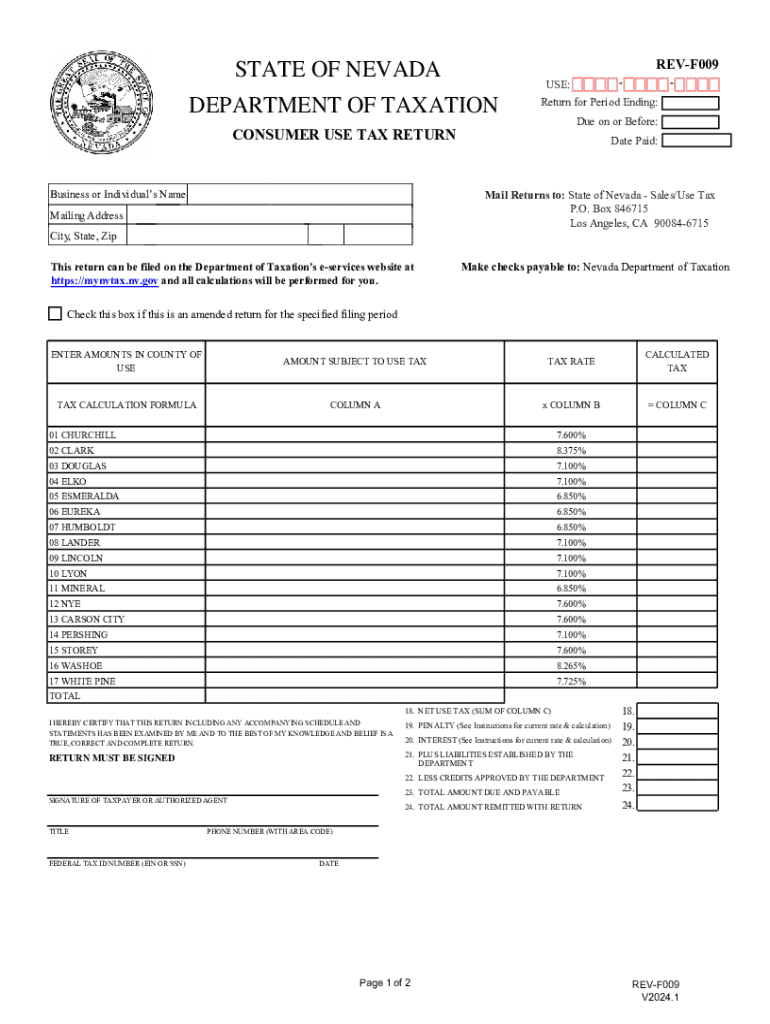
REV-F009 STATE OF NEVADA USE: DEPARTMENT OF TAXATION - Return for Period Ending: Due on or Before: CONSUMER USE TAX RETURN Business or Individual s Name - Date Paid: Mail Returns to: State of Nevada.

Open form follow the instructions

Easily sign the form with your finger

Send filled & signed form or save
How to fill out the REV-F009 Consumer Use Tax Return online
Filling out the REV-F009 Consumer Use Tax Return can seem daunting, but with the right guidance, you can complete it easily online. This guide will provide you with step-by-step instructions to ensure your form is filled out accurately and efficiently.
Follow the steps to successfully complete the tax return online.
- Click ‘Get Form’ button to obtain the form and open it in the editor. This will allow you to access the necessary fields for completing your tax return.
- Enter the name of the business or individual in the designated field. This information must reflect the name associated with the tax ID.
- Input the date paid in the correct section, ensuring that it corresponds with when the payment was submitted.
- Fill in the mailing address, including city, state, and zip code. This is where the completed return will be sent.
- If this is an amended return, check the box provided. This notifies the Department of Taxation that changes have been made.
- For lines 1 through 17, enter the amount subject to use tax in Column A for the corresponding county. This is the purchase price of any tangible personal property that was acquired without Nevada sales tax.
- In Column B, reference the appropriate tax rate for the county selected. This rate will be used to calculate your tax obligation.
- Calculate the tax owed by multiplying the amount in Column A by the tax rate in Column B. Enter this calculated tax in Column C.
- Summarize the total of Column C amounts in Line 18 to get your net use tax.
- For Line 19, determine the penalty if applicable, based on how late the payment is. Use the provided penalty rates according to the table.
- For Line 20, calculate interest for each month late by multiplying Line 18 by 0.75%.
- In Line 21, include any liabilities from prior periods that the Department of Taxation has billed you.
- In Line 22, specify any credits approved by the Department from previous periods.
- Add Lines 18, 19, 20, and 21, then subtract Line 22 to find the total amount due, which should be entered in Line 23.
- For Line 24, indicate the total amount being remitted with this tax return.
- Make sure to complete the signature portion by typing in the name of the individual who is signing the return.
- Finally, review all information for accuracy and proceed to save your changes, download the completed form, and print or share it as necessary.
Complete your tax return online today to ensure compliance and avoid penalties.
Experience a faster way to fill out and sign forms on the web. Access the most extensive library of templates available.
Use professional pre-built templates to fill in and sign documents online faster. Get access to thousands of forms.
If you believe that this page should be taken down, please follow our DMCA take down process here.