Loading
Get Job Aid Template
How it works
-

Open form follow the instructions
-

Easily sign the form with your finger
-

Send filled & signed form or save
How to fill out the Job Aid Template online
Filling out the Job Aid Template online can streamline your documentation process. This guide provides clear, step-by-step instructions to help users effectively complete the template with confidence.
Follow the steps to complete the Job Aid Template accurately.
- Press the ‘Get Form’ button to obtain the Job Aid Template and open it in the editor.
- Begin by locating the specific sections of the form to fill out. Each section corresponds to a critical component of the job aid.
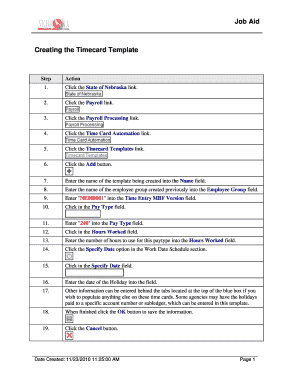
- Enter the name of the template being created into the 'Name' field. This should reflect the specific purpose or function of the template.
- In the 'Employee Group' field, insert the name of the previously established employee group associated with this timecard.
- Type 'NE000001' into the 'Time Entry MBF Version' field as required.
- Click in the 'Pay Type' field and enter '240' to specify the pay type related to this timecard.
- In the 'Hours Worked' field, input the total number of hours applicable for this pay type.
- Choose the 'Specify Date' option in the 'Work Date Schedule' section to indicate the specific date associated with this entry.
- Click in the 'Specify Date' field and enter the date of the holiday.
- If additional information is necessary, use the tabs at the top of the blue box to access further fields for completion.
- Once all information is inputted, click the 'OK' button to save your entries.
- If you need to cancel the process at any point, press the 'Cancel' button.
- To submit the completed template for processing, select the radio button next to the name of the timecard template you have created.
- Click the 'Select' button to proceed with your submission.
- Next, click the 'Form' button.
- Select the 'Submit' menu.
- Finally, click the 'OK' button to complete the submission process.
- Note that the system will assign a batch number, and the initial status of the submission will be 'Pending Approval.'
- You can review or revise the timecard if the status remains pending.
- To conclude your session, press the 'Close' button when you are finished.
- After submitting, you can view the report via the relevant section.
- Upon review, either approve the batch to create timecards for the employees or cancel if errors are identified.
Complete your Job Aid Template online today for a streamlined documentation process.
Related links form
6 Examples of Job Aids Formats Step-by-step guides and process documentation. Step-by-step instructions are best suited for documenting routine tasks and workflows. ... Flowcharts. ... Checklists. ... Knowledge bases. ... Video and screen recordings.
Industry-leading security and compliance
US Legal Forms protects your data by complying with industry-specific security standards.
-
In businnes since 199725+ years providing professional legal documents.
-
Accredited businessGuarantees that a business meets BBB accreditation standards in the US and Canada.
-
Secured by BraintreeValidated Level 1 PCI DSS compliant payment gateway that accepts most major credit and debit card brands from across the globe.