Loading
Get Nz Gst101a 2017-2026
How it works
-

Open form follow the instructions
-

Easily sign the form with your finger
-

Send filled & signed form or save
How to fill out the NZ GST101A online
The NZ GST101A is a crucial document for businesses registered for goods and services tax in New Zealand. This guide provides step-by-step instructions to help users efficiently complete the form online, ensuring compliance and accurate reporting.
Follow the steps to complete the NZ GST101A form online.
- Use the ‘Get Form’ button to access and open the NZ GST101A form in your preferred online editor.
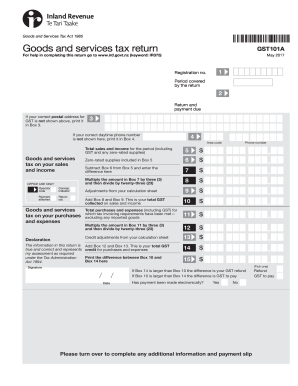
- In Box 1, enter your registration number as issued by the Inland Revenue Department. This number is unique to your business.
- In Box 2, specify the period covered by your return. This is the timeframe for which you are reporting your GST.
- If your correct postal address for GST is not provided, write it in Box 3 to ensure you receive all correspondence.
- Include your correct daytime phone number in Box 4, as this will help facilitate communication regarding your return.
- Complete Box 5 with the total sales and income for the reporting period, ensuring to include any GST and zero-rated supplies.
- If you have any zero-rated supplies, list the total amount in Box 6.
- Subtract the amount in Box 6 from Box 5 and record the result in Box 7.
- Multiply the amount in Box 7 by three (3) and divide by twenty-three (23) to determine the GST collected on sales and income, entering it in Box 8.
- Report any adjustments from your calculation sheet in Box 9, which will also factor into your total GST collected.
- Add the amounts in Box 8 and Box 9 to calculate your total GST collected on sales and income; write the result in Box 10.
- Fill in Box 11 with the total purchases and expenses, including GST, for which tax invoicing requirements have been met, without including imported goods.
- Multiply the amount in Box 11 by three (3) and divide by twenty-three (23) to calculate the GST credit, entering it in Box 12.
- Include any credit adjustments from your calculation sheet in Box 13.
- Add the values in Box 12 and Box 13 to establish your total GST credit for purchases and expenses, which you will record in Box 14.
- In Box 15, calculate the difference between Box 10 and Box 14. If Box 14 is greater than Box 10, you will receive a GST refund; otherwise, you owe GST.
- Indicate whether payment has been made electronically by ticking the appropriate box for 'Yes' or 'No.'
- Complete the signature section with your signature, date, and phone number to validate your submission.
- If applicable, provide your bank account number for faster processing of refunds, and check the box if you request an amendment to a previously filed return, selecting the reason for the amendment.
- Finally, ensure you save changes, download the completed form, and print it if necessary for your records or submission purposes.
Complete your NZ GST101A form online today and ensure accurate and timely reporting!
In New Zealand, the GST number is not the same as the IRD number. The IRD number is your personal or business tax identifier, while your GST number is specific to your GST registration. For clarity on distinctions and related processes, look into NZ GST101A, which elaborates on New Zealand's tax identification systems.