Loading
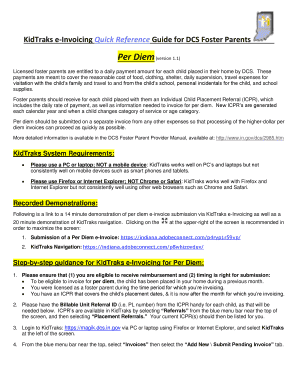
Get Kidtraks
How it works
-

Open form follow the instructions
-

Easily sign the form with your finger
-

Send filled & signed form or save
How to fill out the Kidtraks online
Filling out the Kidtraks form online is a crucial process for licensed foster parents to manage their per diem payments effectively. This guide provides step-by-step instructions to help users navigate the invoicing process with clarity and confidence.
Follow the steps to complete your Kidtraks e-Invoicing successfully.
- Click the ‘Get Form’ button to access the Kidtraks form and open it for editing.
- Ensure eligibility for reimbursement: Confirm that the child has been placed in your home during the previous month, that you were licensed as a foster parent during that time, and that you possess an Individual Child Placement Referral (ICPR) covering the applicable dates.
- Have the Billable Unit Referral ID (PL number) from the ICPR available for each child, as this will be necessary in subsequent fields.
- Log in to Kidtraks via a PC or laptop using Firefox or Internet Explorer. Once logged in, select Kidtraks from the options on the left side of the screen.
- From the blue menu bar, select 'Invoices' and then click on the 'Add New / Submit Pending Invoice' tab.
- Fill out the fields on the 'Enter Invoice On-line' tab: Select 'Family Foster Home' for Voucher Type, usually 'First Bill' for Bill Type, and 'Foster Parent' for Invoice Service Type. Enter a unique Invoice Number, specify the Period Start and Period End dates, and ensure your Email Address & Phone Number are correctly auto-filled. Leave the Comments section blank.
- Click the gray 'Add' button located at the lower-left of the screen.
- On the next screen, click the gray 'Add Invoice Line' button found on the far right.
- In the Invoice Details tab, input the Referral ID (PL number) from the ICPR. Click the icon next to the Referral ID field to auto-fill the Service, Component, Person ID, Case ID, Rate, and County. Ensure not to alter this information without reason.
- Enter the Start Date and End Date according to the child's placement period, input the number of days in Billed Units, and select 'Day' from the drop-down menu. The Billed Rate should auto-fill based on the ICPR.
- Click 'Calc Amount' to calculate the total amount, then check that the County auto-fills, and leave Place of Service & Comments blank unless necessary.
- Choose 'Save' if you have no other expenses for this invoice or 'Save/Add' to include additional invoice lines for multiple children.
- Review the Status indicators to ensure all are green. If any indicators are yellow or red, address errors indicated under 'Invoice Errors' and rectify accordingly.
- From the Action drop-down menu, select 'Submit Invoice' and click 'Go.' Ensure the invoice information is correct before clicking the checkbox to agree to the terms of use and submit.
- Check the Status indicator on the right; it should indicate 'Submitted' confirming your invoice was successfully sent to DCS.
- Optionally, review your submitted invoice by selecting 'Invoices' from the menu, then under 'Invoice Inquiry,' choose 'All Transactions' to view your submission status.
Ready to manage your invoices? Complete your Kidtraks documents online with confidence today!
The department permits an annual personal allowance for every child regardless of age once the child has been in placement for at least 8 days. DCS will reimburse up to $300 annually for each child in placement.
Industry-leading security and compliance
US Legal Forms protects your data by complying with industry-specific security standards.
-
In businnes since 199725+ years providing professional legal documents.
-
Accredited businessGuarantees that a business meets BBB accreditation standards in the US and Canada.
-
Secured by BraintreeValidated Level 1 PCI DSS compliant payment gateway that accepts most major credit and debit card brands from across the globe.