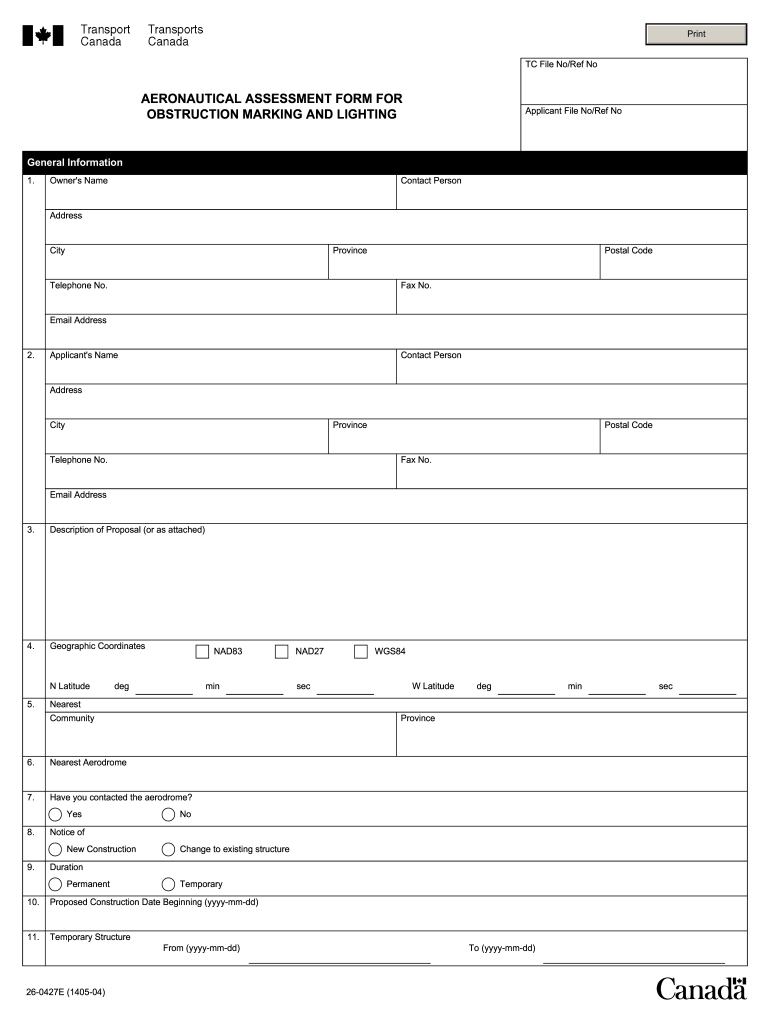
Telephone No. Postal Code Fax No. Email Address 2. Applicant's Name Contact Person Address City Province Telephone No. Postal Code Fax No. Email Address 3. Description of Proposal (or as attached) 4. Geographic Coordinates N Latitude 5. NAD83 deg min NAD27 sec WGS84 W Latitude deg Nearest Community Province 6. Nearest Aerodrome 7. Have you contacted the aerodrome? 8. Notice of Yes New Construction No Change to existing structure 9. Duration 10. Proposed.
Loading

Open form follow the instructions

Easily sign the form with your finger

Send filled & signed form or save
How to fill out the Transport Canada Aeronautical Assessment Form online
This guide provides clear and detailed instructions on how to complete the Transport Canada Aeronautical Assessment Form online, ensuring that users understand each section and its requirements. By following these steps, users can efficiently fill out the form to address marking and lighting for structures that may pose a hazard to aviation.
Follow the steps to complete the form accurately.
- Press the ‘Get Form’ button to access the document and open it in your preferred editor.
- Fill out the general information section, starting with the owner's name, contact person, address, city, province, telephone number, postal code, fax number, and email address.
- Complete the applicant's information similarly, ensuring to include the name of the person responsible for making the application.
- In the description of the proposal field, provide a comprehensive narrative outlining the specifics of the structure, its purpose, and any alterations if applicable.
- Input the geographic coordinates in the designated fields, ensuring accuracy in latitude and longitude, and include the nearest community and province.
- Identify the nearest aerodrome and indicate whether you have contacted them regarding the proposal.
- Select if the proposal involves new construction or a change to an existing structure.
- Provide the intended start date for construction, specifying whether the structure is temporary or permanent.
- Detail the proposed marking and lighting options according to the guidelines provided in Standard 621.
- Indicate the necessary monitoring of the lighting as per the requirements set out in the form.
- Enter relevant height measurements, including ground elevation, the height of the object, and the overall structure height in both feet and metres.
- Certify that the information provided is true and complete, and include the date and your signature.
- Once all sections are complete, save the changes. You can then download, print, or share the form as required.
Complete your Transport Canada Aeronautical Assessment Form online today to ensure timely processing of your application.
Experience a faster way to fill out and sign forms on the web. Access the most extensive library of templates available.
Related content
Nov 10, 2016 — Aviation Administration (FAA) and Transport Canada Civil Aviation (TCCA)...
TRANSPORT CANADA AERONAUTICAL INFORMATION MANUAL (TC AIM). EXPLANATION ... Editorial and...
North American Aviation (NAA) was a major American aerospace manufacturer, responsible for...
Get answers to your most pressing questions about US Legal Forms API.
How do I edit a fillable field in Adobe PDF?
To edit a single form field, double-click it or right-click it and choose Properties. To edit multiple form fields, select the fields that you want to edit, right-click one of the selected fields, and choose Properties.
Can you change the color of fillable fields in PDF?
0:55 3:27 Change Color of a Text Field in PDF Using Adobe Acrobat PRO DC ... YouTube Start of suggested clip End of suggested clip Form fillable. So to change the color you want to double click on the text field the text fieldMoreForm fillable. So to change the color you want to double click on the text field the text field properties is going to come up go to appearance. And then you want to go to fill color.
How do I change the highlight format in PDF?
Select the highlighter tool icon and it will automatically highlight your selected text. To modify, click on the highlighted area, and a new toolbox will appear. This toolbox allows you to add a note to the highlighted text, change the highlight's color, or remove the highlight.
Why can't I select text in PDF?
Make sure you've selected the Text tool by choosing Tools > Text. If you still cannot select text, the PDF is probably a scanned PDF, which does not contain any text but rather an image that may look like text.
How do I highlight fillable fields in PDF?
For help you may press the F1 key while viewing a form. button in the upper right hand corner of the menu bar of the PDF form. After clicking this button the Fillable Fields within the form will be highlighted in a light blue color which will allow you to enter your information within these fields.
How do I change the default highlight color in PDF?
Click the color box under the “Appearance” tab In the “Highlight Properties” dialog box, click the color box under the “Appearance” tab to open the color palette. Select a new color for all the selected highlighted comments.
How do I change highlight type in Adobe?
You can change the highlight color using the Highlight Text tool, which is available from the (rather hard to find) Comment Toolbar like this: Go to View > Tools > Comment > Open to enable the Comment Toolbar. Click on the Highlight Text tool button.
How do I change the highlight style in PDF?
Click the color box under the “Appearance” tab In the “Highlight Properties” dialog box, click the color box under the “Appearance” tab to open the color palette. Select a new color for all the selected highlighted comments. You'll see that the highlighted comments are now the color you selected.
How do I highlight a fillable field in PDF?
For help you may press the F1 key while viewing a form. button in the upper right hand corner of the menu bar of the PDF form. After clicking this button the Fillable Fields within the form will be highlighted in a light blue color which will allow you to enter your information within these fields.
How do I enable highlighting in PDF?
In order to enable the feature, please perform these steps. Open Microsoft Edge. Search for Enable Text Highlights for PDF flag. Change it to Enable. Restart Edge and open a PDF document in Edge. Select the text and right click to select Highlights. Choose the color that you prefer.
Use professional pre-built templates to fill in and sign documents online faster. Get access to thousands of forms.
If you believe that this page should be taken down, please follow our DMCA take down process here.