Loading
Get Plumas Bank Form
How it works
-

Open form follow the instructions
-

Easily sign the form with your finger
-

Send filled & signed form or save
How to fill out the Plumas Bank form online
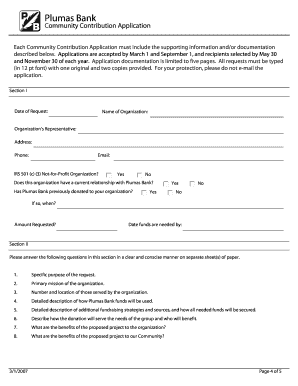
The Plumas Bank form is an integral part of the Community Contributions Program, designed to support local community-based organizations. This guide will provide you with clear instructions on how to effectively complete the form online, ensuring your application is thorough and compliant.
Follow the steps to complete the Plumas Bank form online.
- Click ‘Get Form’ button to obtain the form and open it in your online editor.
- Begin by filling in Section I, starting with the date of your request, followed by your organization's name and representative details including address, phone number, and email.
- Indicate whether your organization is a recognized IRS 501(c)(3) not-for-profit. Provide responses regarding your current relationship with Plumas Bank and any previous donations received.
- In Section II, provide clear and concise answers to the specified questions about the purpose of your request, the organization’s mission, and the demographic served.
- Detail in this section how the funds will be utilized, additional fundraising strategies, and the benefits of the proposed project to both your organization and the community.
- Attach the required documentation as outlined in Section III, including your total operating budget, timeline for project completion, current financial statements, IRS qualification letter, and a list of your board of directors.
- After ensuring all information is complete and accurate, print the application and sign it. Make sure to have one original and two copies ready for submission.
- Submit the completed form and all accompanying documents to your local Plumas Bank office or mail them to the Compliance/CRA Officer at the address provided.
- Take a moment to review all entries before finalizing your submission. Remember that incomplete applications will not be considered.
Begin your application process today by filling out the Plumas Bank form online!
To show the bookmarks in your document, follow these steps. Click File > Options > Advanced. Under Show document content select Show bookmarks and click OK. Notes: If you add a bookmark to a block of text or an image (or any other item), the bookmark appears in brackets: