Loading
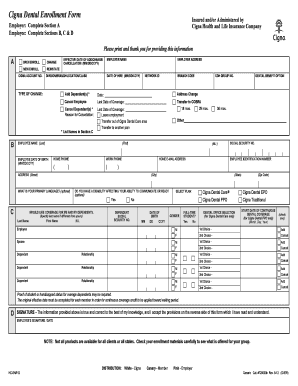
Get Dental Enrollment Forms - Mville
How it works
-

Open form follow the instructions
-

Easily sign the form with your finger
-

Send filled & signed form or save
How to fill out the Dental Enrollment Forms - Mville online
Filling out the Dental Enrollment Forms - Mville is an essential step for users seeking dental coverage. This guide provides a clear, step-by-step approach to ensure that all necessary information is filled out correctly and efficiently.
Follow the steps to complete your dental enrollment form with ease.
- Click ‘Get Form’ button to obtain the Dental Enrollment Forms - Mville and open it in your preferred editor.
- In Section A, employers must complete the relevant fields, including the type of change you are selecting (e.g., open enrollment, change, new enroll, or reinstate). Enter the effective date for any add/change/cancellation in the MM/DD/CCYY format.
- For Section B, employees should fill in their details, including personal information like name, address, and contact numbers, as well as the employee identification number.
- Proceed to Section C, where you will include information about dependents if applicable. Be sure to specify last names and relationships, alongside the date of birth and social security numbers for each dependent.
- Choose your preferred plan (e.g., Cigna Dental Care, Cigna Dental PPO) in this section, ensuring that all selections reflect your desired coverage accurately.
- In Section D, sign and date the form, confirming that all provided information is accurate to the best of your knowledge. Make sure to check any additional provisions detailed on the form.
- Once all sections are completed, you can save changes to your form, download a copy for your records, print it out, or share it with the relevant parties as needed.
Ready to get started? Complete your Dental Enrollment Forms - Mville online today.