Get Word Form
How it works
-

Open form follow the instructions
-

Easily sign the form with your finger
-

Send filled & signed form or save
How to fill out the Word Form online
This guide provides clear and detailed instructions on how to fill out the Word Form online. Designed for users of all experience levels, it aims to make the process straightforward and efficient.
Follow the steps to fill out the Word Form correctly.
- Click the ‘Get Form’ button to obtain the form and open it in your preferred online editor.
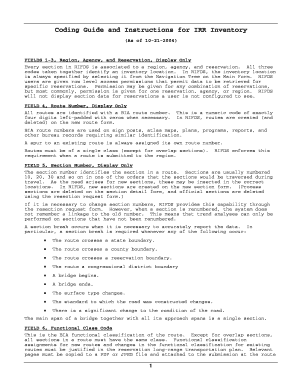
- Review sections 1-3 which display the region, agency, and reservation associated with the inventory location. Ensure that these codes correctly identify your desired location.
- In field 4, verify the route number, which is a four-digit numeric code. Ensure it is properly formatted with leading zeros if necessary.
- Field 5 identifies the section number of the route. Confirm that the sequence of section numbers corresponds accurately to the travel order.
- Enter the BIA Functional Class Code in field 6 according to the road classification. Make sure to select the correct category based on the nature of the road.
- Enter the length of the section in field 7, rounding to the nearest tenth of a mile. This applies to both existing and proposed road sections.
- For field 8, input the bridge number using the correct BIA identifier format without padding. Ensure it's unique, and adhere to formatting guidelines for proposed and existing bridges.
- In field 9, report the bridge condition based on the defined inventory codes. This provides an assessment of bridge requirements.
- Complete fields 10 through 59 by entering the relevant data for county, congressional district, state, and additional necessary details about the road section and its condition.
- After filling out all fields, make sure to review the information entered for accuracy. Save any changes, and proceed to download, print, or share the completed form as needed.
Complete your documents online to ensure efficiency and accuracy.
To create a fillable Word Form, start by launching Microsoft Word and opening a new or existing document. Next, enable the Developer tab in the ribbon if it's not already visible, then use the controls available to add text boxes, checkboxes, and dropdown lists to your form. By configuring each element’s properties, you can customize how users will interact with your Word Form. Finally, save your document as a Word template or in a compatible format, allowing users to fill it out easily.
Industry-leading security and compliance
-
In businnes since 199725+ years providing professional legal documents.
-
Accredited businessGuarantees that a business meets BBB accreditation standards in the US and Canada.
-
Secured by BraintreeValidated Level 1 PCI DSS compliant payment gateway that accepts most major credit and debit card brands from across the globe.