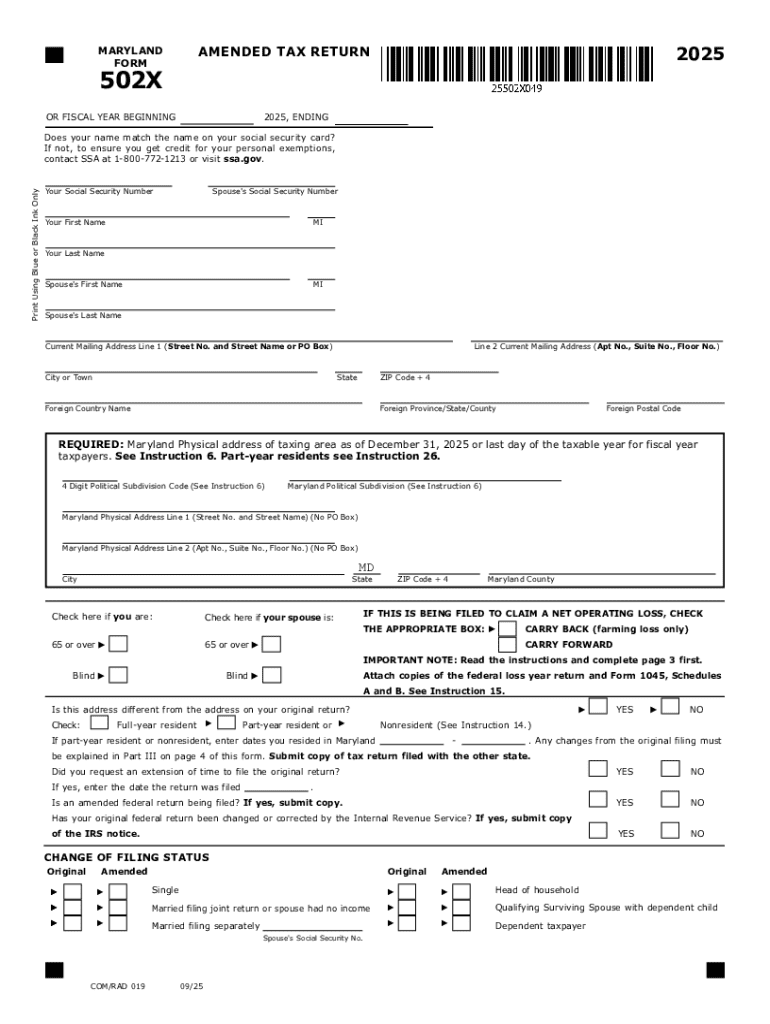
MARYLAND FORM2025AMENDED TAX RETURN502XOR FISCAL YEAR BEGINNING2025, ENDINGPrint Using Blue or Black Ink OnlyDoes your name match the name on your social security card? If not, to ensure you get credit.

Open form follow the instructions

Easily sign the form with your finger

Send filled & signed form or save
Tips on how to fill out, edit and sign SSN And Name On Tax Form Does Not Match Warning While ... online
How to edit SSN And Name On Tax Form Does Not Match Warning While ...
Remove the mess from your paperwork routine. Discover the simplest way to find and edit, and file a SSN And Name On Tax Form Does Not Match Warning While ...
The process of preparing SSN And Name On Tax Form Does Not Match Warning While ... needs precision and attention, especially from those who are not well familiar with such a job. It is important to find a suitable template and fill it in with the correct information. With the proper solution for processing documents, you can get all the tools at hand. It is simple to simplify your editing process without learning new skills. Find the right sample of SSN And Name On Tax Form Does Not Match Warning While ... and fill it out instantly without switching between your browser tabs. Discover more instruments to customize your SSN And Name On Tax Form Does Not Match Warning While ... form in the modifying mode.
While on the SSN And Name On Tax Form Does Not Match Warning While ... page, just click the Get form button to start modifying it. Add your details to the form on the spot, as all the necessary tools are at hand right here. The sample is pre-designed, so the effort required from the user is minimal. Simply use the interactive fillable fields in the editor to easily complete your paperwork. Simply click on the form and proceed to the editor mode immediately. Complete the interactive field, and your document is all set.
Try out more instruments to customize your form:
- Place more text around the document if needed. Use the Text and Text Box instruments to insert text in a separate box.
- Add pre-designed graphic components like Circle, Cross, and Check with respective instruments.
- If needed, capture or upload images to the document with the Image tool.
- If you need to draw something in the document, use Line, Arrow, and Draw instruments.
- Try the Highlight, Erase, and Blackout tools to change the text in the document.
- If you need to add comments to specific document parts, click the Sticky tool and place a note where you want.
Often, a small error can wreck the whole form when someone fills it by hand. Forget about inaccuracies in your paperwork. Find the templates you need in moments and finish them electronically using a smart modifying solution.
How to sign the PA BCO-10 form electronically
airSlate SignNow makes it easy to add a legally-binding electronic signature to your PA BCO-10 form from any device.
- Open the completed PA BCO-10 form in the editor.
- Click My Signature and choose your preferred signature type.
- Place the signature in the designated field and click Done.
- Download or send the signed document directly from the platform.
How to edit SSN And Name On Tax Form Does Not Match Warning While ...
Remove the mess from your paperwork routine. Discover the simplest way to find and edit, and file a SSN And Name On Tax Form Does Not Match Warning While ...
The process of preparing SSN And Name On Tax Form Does Not Match Warning While ... needs precision and attention, especially from those who are not well familiar with such a job. It is important to find a suitable template and fill it in with the correct information. With the proper solution for processing documents, you can get all the tools at hand. It is simple to simplify your editing process without learning new skills. Find the right sample of SSN And Name On Tax Form Does Not Match Warning While ... and fill it out instantly without switching between your browser tabs. Discover more instruments to customize your SSN And Name On Tax Form Does Not Match Warning While ... form in the modifying mode.
While on the SSN And Name On Tax Form Does Not Match Warning While ... page, just click the Get form button to start modifying it. Add your details to the form on the spot, as all the necessary tools are at hand right here. The sample is pre-designed, so the effort required from the user is minimal. Simply use the interactive fillable fields in the editor to easily complete your paperwork. Simply click on the form and proceed to the editor mode immediately. Complete the interactive field, and your document is all set.
Try out more instruments to customize your form:
- Place more text around the document if needed. Use the Text and Text Box instruments to insert text in a separate box.
- Add pre-designed graphic components like Circle, Cross, and Check with respective instruments.
- If needed, capture or upload images to the document with the Image tool.
- If you need to draw something in the document, use Line, Arrow, and Draw instruments.
- Try the Highlight, Erase, and Blackout tools to change the text in the document.
- If you need to add comments to specific document parts, click the Sticky tool and place a note where you want.
Often, a small error can wreck the whole form when someone fills it by hand. Forget about inaccuracies in your paperwork. Find the templates you need in moments and finish them electronically using a smart modifying solution.
Experience a faster way to fill out and sign forms on the web. Access the most extensive library of templates available.
Related content
Dec 4, 2025 — Make sure that the name shown on your Social Security card matches the...
Occasionally, an SSN is entered incorrectly, or the name on file is a nickname rather than...
Apr 27, 2011 — The Paperwork Reduction Act (PRA) of 1995 gives the Office of Management...
Use professional pre-built templates to fill in and sign documents online faster. Get access to thousands of forms.
If you believe that this page should be taken down, please follow our DMCA take down process here.