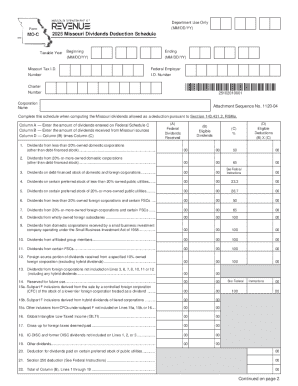
Get Form Mo-c - 2022 Missouri Dividends Deduction Schedule
How it works
-

Open form follow the instructions
-

Easily sign the form with your finger
-

Send filled & signed form or save
How to fill out and sign Form MO-C - 2022 Missouri Dividends Deduction Schedule online?
Get your online template and fill it in using progressive features. Enjoy smart fillable fields and interactivity.Follow the simple instructions below:Tips on how to fill out, edit and sign Form MO-C - 2022 Missouri Dividends Deduction Schedule online
How to edit Form MO-C - 2022 Missouri Dividends Deduction Schedule: customize forms online
Eliminate the mess from your paperwork routine. Discover the easiest way to find and edit, and file a Form MO-C - 2022 Missouri Dividends Deduction Schedule
The process of preparing Form MO-C - 2022 Missouri Dividends Deduction Schedule needs precision and attention, especially from those who are not well familiar with this type of job. It is essential to get a suitable template and fill it in with the correct information. With the right solution for handling paperwork, you can get all the instruments at hand. It is simple to simplify your editing process without learning new skills. Find the right sample of Form MO-C - 2022 Missouri Dividends Deduction Schedule and fill it out instantly without switching between your browser tabs. Discover more instruments to customize your Form MO-C - 2022 Missouri Dividends Deduction Schedule form in the modifying mode.
While on the Form MO-C - 2022 Missouri Dividends Deduction Schedule page, click on the Get form button to start modifying it. Add your data to the form on the spot, as all the necessary instruments are at hand right here. The sample is pre-designed, so the work required from the user is minimal. Just use the interactive fillable fields in the editor to easily complete your paperwork. Simply click on the form and proceed to the editor mode straight away. Fill in the interactive field, and your document is all set.
Try more instruments to customize your form:
- Place more text around the document if needed. Use the Text and Text Box instruments to insert text in a separate box.
- Add pre-designed visual components like Circle, Cross, and Check with respective instruments.
- If needed, capture or upload images to the document with the Image tool.
- If you need to draw something in the document, use Line, Arrow, and Draw instruments.
- Try the Highlight, Erase, and Blackout tools to change the text in the document.
- If you need to add comments to specific document sections, click on the Sticky tool and place a note where you want.
Often, a small error can wreck the whole form when someone fills it manually. Forget about inaccuracies in your paperwork. Find the samples you need in moments and complete them electronically using a smart modifying solution.