Loading
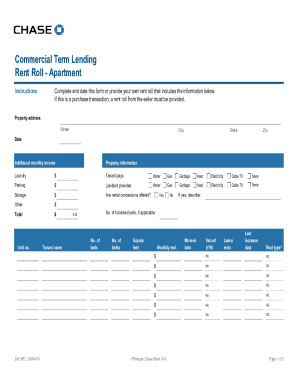
Get Jpmorgan Chase Bank 242 Mfl 2018-2026
How it works
-

Open form follow the instructions
-

Easily sign the form with your finger
-

Send filled & signed form or save
How to fill out the JPMorgan Chase Bank 242 MFL online
Filling out the JPMorgan Chase Bank 242 MFL form online can streamline the process of submitting your rent roll information. This guide will provide clear, step-by-step instructions tailored to help users of all experience levels complete the form accurately.
Follow the steps to complete your rent roll form effectively.
- Click ‘Get Form’ button to obtain the form and open it in the editor.
- Begin filling out the property address section. Include the street, city, state, and zip code. Make sure to complete all required fields.
- Enter the date of completion at the designated field.
- Provide any additional monthly income information as applicable.
- Detail the property information, including shared amenities like laundry and parking, specifying whether the tenant or landlord provides these services.
- State whether rental concessions are offered and provide additional information as necessary.
- For each tenant, fill in the unit number, tenant name, number of beds and baths, square footage, monthly rent, move-in date, vacancy status (Yes/No), lease end date, last increase date, and rent type (choose from the provided options).
- Review the total rent and any additional terms at the end of the form.
- Once all relevant information is filled out, save any changes made to the document. You can then download, print, or share the completed form as needed.
Complete your documents online today to ensure a smooth process.
You can find your bank code for JPMorgan Chase Bank 242 MFL by logging into your online banking account. Look in the account details or security settings section. If you have trouble finding it, contacting customer support can clarify and help resolve your issue.