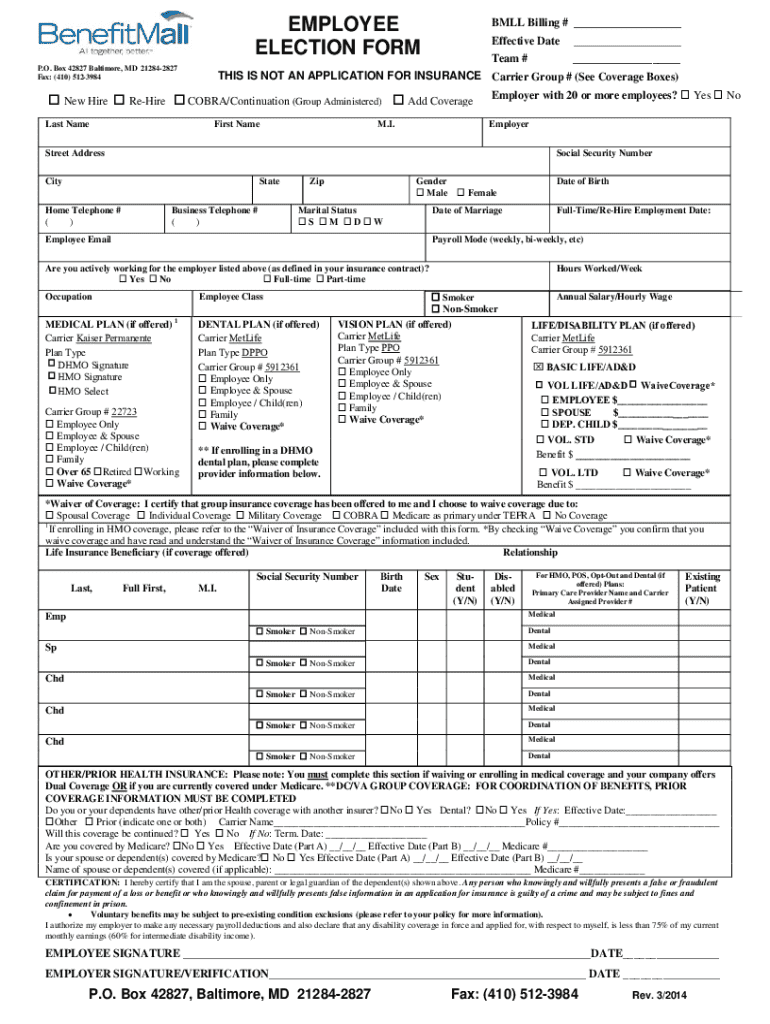
EMPLOYEE ELECTION FORM New Hire Re-Hire BMLL Billing Effective Date Team THIS IS NOT AN APPLICATION FOR INSURANCE Carrier Group See Coverage Boxes COBRA/Continuation Group Administered Add Coverage Employer with 20 or more employees Last Name First Name M. I. Yes Employer Street Address Social Security Number City State Zip Gender Male Female Date of Marriage Home Telephone Business Telephone Marital Status S M D W Are you actively working for the employer listed above as defined in your insurance contract No Full-time Part-time Occupation Employee Class MEDICAL PLAN if offered 1 Carrier Plan Type Carrier Group Employee Only DENTAL PLAN if offered Date of Birth Date Full-Time Employment Hours Worked/Week Annual Salary VISION PLAN if offered LIFE AND AD D if offered Waive Coverage VOL LIFE SPOUSE Employee Spouse Employee / Child ren Family DEP. CHILD Over 65 Retired Working Medicare or Complimentary to Medicare CareFirst-Individual only and benefit coverage only. Not eligible for HSA Pr....

Open form follow the instructions

Easily sign the form with your finger

Send filled & signed form or save
How to fill out the BenefitMall Employee Election Form online
Filling out the BenefitMall Employee Election Form online is an essential step for employees selecting their benefits. This guide will provide you with a clear, step-by-step process to ensure you complete the form accurately and efficiently.
Follow the steps to complete your benefit election form online.
- Click ‘Get Form’ button to obtain the BenefitMall Employee Election Form and open it in the designated editor.
- Begin by entering the 'Billing Number' and 'Effective Date' at the top of the form. These details help identify your coverages and the applicable time frame.
- Fill in your 'Team Number' if applicable, and check the appropriate status box indicating whether you are a 'New Hire,' 'Re-Hire,' or in a 'COBRA/Continuation' status.
- Provide your personal information: 'Last Name,' 'First Name,' 'Middle Initial,' 'Street Address,' 'City,' 'State,' and 'Zip Code.' Ensure that all your details are correct to avoid any processing issues.
- Complete the 'Social Security Number' field and your contact information, including 'Home Telephone Number' and 'Business Telephone Number.'
- Indicate your gender and marital status by selecting the appropriate options provided.
- Enter your 'Date of Birth' and, if applicable, 'Date of Marriage' in the specified format.
- Provide your email address and select your employment status by checking the correct box for 'Full-Time' or 'Part-Time.'
- Select your 'Payroll Mode,' and confirm if you are actively working for the employer listed.
- Fill in 'Occupation' and 'Employee Class' to categorize your position correctly.
- Choose your desired medical, dental, and vision plans if they are offered. Fill in the necessary carrier and plan type information as required. Also, confirm your choices by checking the appropriate boxes.
- Complete other sections as needed, including the 'Other/Prior Health Insurance' section if you are waiving or enrolling in medical coverage.
- For life and disability plans, indicate your coverage selections and assign a beneficiary by providing the necessary information.
- Complete the certification section, confirming the information you have provided is accurate.
- Once all sections are filled out, review your information carefully for accuracy before submitting. Then, save your changes, and choose to download, print, or share the completed form as necessary.
Complete your BenefitMall Employee Election Form online today to ensure your benefit selections are processed on time.
Experience a faster way to fill out and sign forms on the web. Access the most extensive library of templates available.
Related content
Oct 4, 2018 - ___ Maryland SHOP Direct Enrollment SHOP Plans Employee Eligibility and...
Get answers to your most pressing questions about US Legal Forms API.
What is an example of age discrimination?
Examples of age discrimination could include: not employing certain people because they won't 'fit in' with other employees because of their age. not employing younger workers because of assumptions that they will quickly move on to another job.
Do all employees have to be offered the same benefits UK?
Whilst each company will have different policies on the benefits they cover, all UK workers are entitled to the following: This involves an employer helping to set up and contribute to funding their employee's retirement, usually in the form of a workplace pension. Income protection.
What does the Equality Act 2010 say about age?
What the Equality Act says about age discrimination. The Equality Act 2010 says that you must not be discriminated against because: you are (or are not) a certain age or in a certain age group. someone thinks you are (or are not) a specific age or age group, this is known as discrimination by perception.
Who owns BenefitMall?
2022. Truist/CRC Group, the leading wholesale and specialty insurance distributor in North America, acquires BenefitMall.
Can an employer cut benefits to older employees to equal the cost of benefits to younger employees?
The law only allows an employer to reduce benefits based on age only if the cost of providing the reduced benefits to older workers is the same as the cost of providing benefits to younger workers.
What is the 5 year rule for age discrimination?
Also, an employer should tell an agency it prefers applicants of a range of ages where possible. A firm advertises for graduates who have achieved their degree in the last five years. This is likely to be discriminatory, as proving the business need for such a condition is likely to be difficult in most cases.
Use professional pre-built templates to fill in and sign documents online faster. Get access to thousands of forms.
If you believe that this page should be taken down, please follow our DMCA take down process here.