Loading
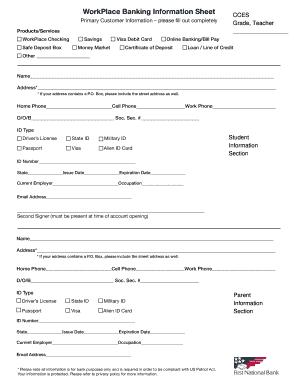
Get First National Bank Workplace Banking Information Sheet 2016-2026
How it works
-

Open form follow the instructions
-

Easily sign the form with your finger
-

Send filled & signed form or save
How to fill out the First National Bank WorkPlace Banking Information Sheet online
Filling out the First National Bank WorkPlace Banking Information Sheet online is a straightforward process designed to gather essential information for your banking needs. This guide will provide you with step-by-step instructions to ensure you complete the form accurately and efficiently.
Follow the steps to complete the WorkPlace Banking Information Sheet online.
- Click the ‘Get Form’ button to obtain the WorkPlace Banking Information Sheet and open it in your preferred online editor.
- In the 'Primary Customer Information' section, provide your full name, address (including street address if a P.O. Box is used), and contact numbers—home, cell, and work. Ensure that all fields are filled in completely.
- Enter your date of birth and social security number in the provided fields.
- Select the 'ID Type' that applies to you from the provided options, which include Driver’s License, State ID, Military ID, Passport, Visa, Alien ID Card, or Student ID. Fill in your ID number and issue details as required.
- Under the 'Current Employer' section, include your employment details, occupation, and email address.
- If applicable, fill out the 'Second Signer' section with the same information: full name, address, contact numbers, date of birth, social security number, and ID details. Make sure that the second signer is present at account opening.
- Complete the 'Parent Information' section, if necessary.
- Once you have filled out all sections of the form, review your information for accuracy. Save your changes, and then choose to download, print, or share the filled-out form as required.
Finalize your documentation today by filling out the WorkPlace Banking Information Sheet online.
The Recipient Name serves as a reference only and is not validated against the account number when the payment takes place. In this field list the recipient account numbers. If a Public Recipient needs to be imported, then enter the account number of the Public Recipient. Note: This entry is limited to 20 characters.