Loading
Get Fl Temporary Certificate Of Occupancy (tco) Application - City Of Cape Coral 2020-2026
How it works
-
Open form follow the instructions
-
Easily sign the form with your finger
-
Send filled & signed form or save
How to fill out the FL Temporary Certificate Of Occupancy (TCO) Application - City Of Cape Coral online
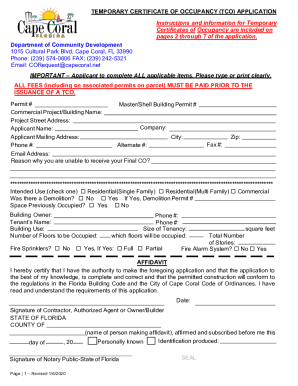
Filling out the FL Temporary Certificate of Occupancy (TCO) Application is an essential step for individuals and businesses seeking temporary occupancy in Cape Coral. This guide will provide clear instructions on how to complete the application online, ensuring you understand each section and field.
Follow the steps to successfully complete your application.
- Click ‘Get Form’ button to obtain the form and open it for editing.
- Begin by filling in the 'Permit #' field with the relevant permit number for your project.
- In the 'Commercial Project/Building Name' section, type the name of your project or building.
- Enter the 'Project Street Address' where the construction is located.
- Complete the 'Applicant Name' with your full name as the applicant.
- Fill in your 'Applicant Mailing Address' where correspondence should be sent.
- Include your 'Phone #' for contact purposes.
- If applicable, write your 'Master/Shell Building Permit #' in the designated area.
- Provide the 'Company' name involved in the application process, if relevant.
- Complete the 'City' field to identify the city of the company.
- Fill in your 'Alternate #' phone number if necessary.
- Provide your 'Fax #' number if you have one.
- Indicate your 'Zip' code.
- Write your 'Email Address' for communication regarding the application.
- Clarify the 'Reason why you are unable to receive your Final CO?' if applicable.
- Select the intended use by checking one of the options: Residential (Single Family), Residential (Multi Family), or Commercial.
- If there was a demolition, specify 'Yes' or 'No', and include the 'Demolition Permit #' if applicable.
- Indicate whether the space was previously occupied by checking 'Yes' or 'No'.
- Provide the 'Building Owner' name and the 'Tenant’s Name' if applicable.
- Specify the 'Building Use' intended for the structure.
- Fill in the 'Number of Floors to be Occupied' during the temporary occupancy.
- Include the size of tenancy in 'square feet' under the corresponding section.
- Indicate which floors will be occupied by writing them in the designated area.
- Answer whether there are fire sprinklers installed by selecting 'Yes' or 'No' and provide details if applicable.
- Indicate if a fire alarm system is in place by selecting 'Yes' or 'No'.
- Complete the Affidavit section by certifying your authority to make the application, signing it, and including the date.
- After completing all fields and sections, review your application for accuracy.
- Save changes, download, print, or share your form as necessary.
Complete your FL Temporary Certificate Of Occupancy Application online for a smoother process.
Related links form
How do I obtain a CO/CC? Once your final inspection has been approved and the applicable completion holds satisfied, you may apply, print or view certificates online at Certificate of Occupancy/Completion. Check applicable inspections and completion holds using your Permit Card and/or the Building permit records menu.
Industry-leading security and compliance
US Legal Forms protects your data by complying with industry-specific security standards.
-
In businnes since 199725+ years providing professional legal documents.
-
Accredited businessGuarantees that a business meets BBB accreditation standards in the US and Canada.
-
Secured by BraintreeValidated Level 1 PCI DSS compliant payment gateway that accepts most major credit and debit card brands from across the globe.