Loading
Get Valueoptions Outpatient Registration Form (orf 1) 2008-2026
How it works
-

Open form follow the instructions
-

Easily sign the form with your finger
-

Send filled & signed form or save
How to use or fill out the ValueOptions Outpatient Registration Form (ORF 1) online
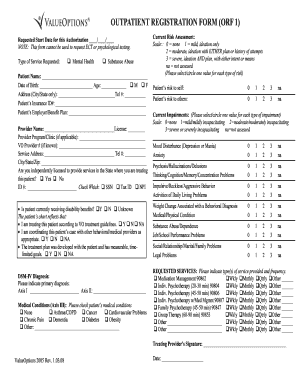
Filling out the ValueOptions Outpatient Registration Form (ORF 1) online is essential for effectively initiating outpatient services. This guide provides you with clear, step-by-step instructions to complete the form accurately and efficiently.
Follow the steps to complete the outpatient registration form online.
- Click ‘Get Form’ button to obtain the form and open it in the editor.
- Enter the requested start date for the authorization in the designated field, using the format dd/mm/yyyy.
- Select the type of service requested by checking either 'Mental Health' or 'Substance Abuse'.
- Fill in the patient's name, date of birth, and age in the required fields.
- Provide the patient's address (city/state only) and telephone number.
- Input the patient's insurance ID number and details regarding their employer or benefit plan.
- Enter the provider's name along with their license number.
- If applicable, specify the provider program or clinic and the VO provider number.
- Provide the service address and telephone number, including city, state, and zip code.
- Indicate whether the provider is independently licensed to offer services in the state of treatment and fill in the ID number as necessary.
- Respond to the questions regarding the patient’s disability benefits and the treatment strategy based on the provided options.
- In the diagnosis section, indicate the primary diagnosis by filling out the Axis I and Axis II information.
- Check the relevant medical conditions from the provided list under Axis III.
- Complete the current risk assessment by selecting a value for the patient's risk to self and others.
- Select a value for each type of impairment assessment.
- Indicate the requested services and frequency by checking the appropriate boxes for each service offered.
- Once all fields are completed, review the information for accuracy.
- Save changes to the form, download, print, or share it as necessary.
Complete your ValueOptions Outpatient Registration Form (ORF 1) online to ensure a smooth registration process.