Loading
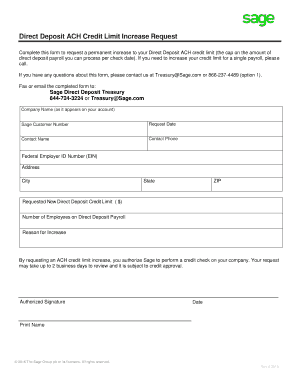
Get Sage Direct Deposit Credit Limit Request Form
How it works
-

Open form follow the instructions
-

Easily sign the form with your finger
-

Send filled & signed form or save
How to fill out the Sage Direct Deposit Credit Limit Request Form online
Completing the Sage Direct Deposit Credit Limit Request Form online is a straightforward process that allows you to request an increase in your direct deposit payroll credit limit. This guide provides clear, step-by-step instructions to assist you in filling out the form accurately.
Follow the steps to complete the form effectively.
- Click ‘Get Form’ button to obtain the form and access it in the online editor.
- Enter your company name as it appears on your account in the designated field. This ensures proper identification of your business.
- Provide your Sage customer number, which helps to link your request to your existing account.
- Fill in the request date to indicate when you are submitting the request.
- Input the contact name of the individual responsible for this request. This person will be the point of communication.
- Enter the contact phone number to ensure Sage can reach out if further information is needed.
- Include your Federal Employer ID Number (EIN) to verify your business’s tax identification.
- Complete the address fields, including street address, city, state, and ZIP code, to identify your business's location.
- Specify the requested new direct deposit credit limit in dollars. This should reflect the amount you wish to increase.
- Indicate the number of employees on direct deposit payroll to provide context for your request.
- Provide a brief reason for the increase to clarify the necessity of the change.
- Authorize Sage to perform a credit check on your company by signing in the designated area and entering the date.
- Print your name in the appropriate field to confirm your authorization.
- Once you have filled out all sections of the form, you can save changes, download, print, or share the completed form as needed.
Take the next step in managing your payroll efficiently by completing the Sage Direct Deposit Credit Limit Request Form online.
Enable Direct Deposit within Sage 50 Go to Maintain, Company Information. For the Payroll selection, select Sage 50 Accounting Payroll Module with Direct Deposit. Click Direct Deposit Settings. Enter your company's Routing/Transit Number and Bank Account Number, and select a Cash Account and a Fee Expense Account.
Industry-leading security and compliance
US Legal Forms protects your data by complying with industry-specific security standards.
-
In businnes since 199725+ years providing professional legal documents.
-
Accredited businessGuarantees that a business meets BBB accreditation standards in the US and Canada.
-
Secured by BraintreeValidated Level 1 PCI DSS compliant payment gateway that accepts most major credit and debit card brands from across the globe.