Loading
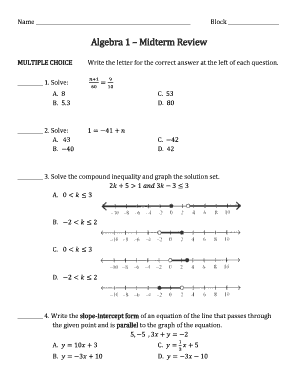
Get Algebra 1 Midterm Review
How it works
-

Open form follow the instructions
-

Easily sign the form with your finger
-

Send filled & signed form or save
How to fill out the Algebra 1 Midterm Review online
The Algebra 1 Midterm Review is an essential tool for assessing your understanding of key mathematical concepts. This guide will provide you with clear, step-by-step instructions on how to successfully complete the review form online.
Follow the steps to complete the Algebra 1 Midterm Review form.
- Press the ‘Get Form’ button to access the review form and open it in your preferred editor.
- Begin by entering your name in the designated field at the top of the form. This is important for identification purposes.
- Next, locate the 'Block' section and fill in the appropriate block number, if required.
- Proceed to the multiple-choice section. For each question, carefully read the prompts and circle the letter corresponding to the correct answer.
- For the short answer problems, ensure to circle key information. Write your solution in the provided space and show all your work to receive full credit.
- Continue to the open-ended section, where you will provide detailed explanations for the essay-type questions. Remember to circle key information and outline your thought process clearly.
- Finally, review your answers for accuracy. When satisfied, you can save your changes, download the form, print a copy, or share it as needed.
Complete your Algebra 1 Midterm Review online to ensure you are prepared for your exam!
To turn on Track Changes in Word for the web, in the window at the top of the page, select Reviewing. Word for the web, has three modes for sharing and tracking changes: When set to Editing , changes to the document won't appear as tracked changes. When set to Reviewing , changes appear as tracked changes.