Loading
Get Installing And Registering Mobileiron App- Ios
How it works
-

Open form follow the instructions
-

Easily sign the form with your finger
-

Send filled & signed form or save
How to fill out the Installing And Registering MobileIron App- IOS online
This guide provides clear instructions on how to complete the Installing And Registering MobileIron App- IOS form online. Following these steps will help you successfully install and register the app on your iOS device.
Follow the steps to complete the form efficiently.
- Click the ‘Get Form’ button to access the form and open it in the editor.
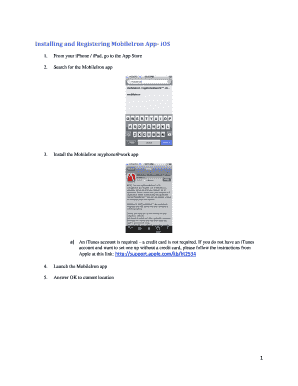
- From your iPhone or iPad, visit the App Store to begin the installation process.
- Search for the MobileIron app and select it for installation.
- Install the MobileIron myphone@work app. Note that an iTunes account is necessary, but a credit card is not required. If you lack an iTunes account and want to create one without a credit card, refer to Apple’s guidelines at the provided link.
- Once the app is installed, launch the MobileIron app on your device.
- When prompted, allow the app to access your current location by answering OK.
- Accept the request for push notifications by responding OK.
- Enter the server address as mobileiron.sunnybrook.ca.
- Input your Windows username and password.
- Click Register to proceed with the registration process.
- Accept the new configuration by clicking OK.
- Follow the prompts to install the required profile.
- As required, confirm the installation of an unverified profile.
- Wait for the profile to finish installing. This may take a few repetitions during the configuration.
- Acknowledge the warning regarding Mobile Device Management and click Install as per Sunnybrook policy.
- Allow the key generation process to complete.
- Wait for the certificate to be enrolled.
- Once the profile has fully installed, click Install again on the warning page.
- Confirm the successful installation of the profile. The app should then redirect to Safari with either bookmarks or a blank page.
- If prompted, set up a passcode. Ensure the passcode meets the minimum requirements.
- Re-enter the passcode to confirm your selection.
- Review the profile to ensure the list of elements aligns with the provided visual guide.
- If prompted, enter your Windows password to finalize your Sunnybrook email configuration.
- Press the Home button on your iPhone or iPad.
- Navigate to Settings on your device.
- Select Mail, Contacts, Calendars to verify the accounts setup.
- Open the Mail, Calendar, and Contacts apps on your iPhone or iPad and follow any provided instructions for synchronization.
- For updating the MobileIron configuration, tap Check for Updates in subsequent app launches, and proceed with the update as instructed.
- Install any new profiles as required and complete the steps for email synchronization.
- Finalize the setup by clicking Done and ensuring that all configurations are complete.
Complete the process of filling out documents online today.
Your first step to register your Android device in MobileIron is to obtain a PIN from the user portal. 1. From a desktop computer, access the portal at https://mdmcore.iot.in.gov/mifs/user and sign in with your State email address and password. You may also access this portal using the mobile browser on your device.
Industry-leading security and compliance
US Legal Forms protects your data by complying with industry-specific security standards.
-
In businnes since 199725+ years providing professional legal documents.
-
Accredited businessGuarantees that a business meets BBB accreditation standards in the US and Canada.
-
Secured by BraintreeValidated Level 1 PCI DSS compliant payment gateway that accepts most major credit and debit card brands from across the globe.