Loading
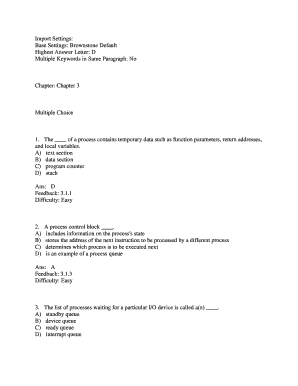
Get Import Settings - Faculty Psau Edu
How it works
-

Open form follow the instructions
-

Easily sign the form with your finger
-

Send filled & signed form or save
How to fill out the Import Settings - Faculty Psau Edu online
This guide provides a detailed walkthrough for filling out the Import Settings - Faculty Psau Edu form. Users can efficiently and accurately complete the form online with step-by-step instructions.
Follow the steps to complete the Import Settings form accurately.
- Click the ‘Get Form’ button to access the Import Settings - Faculty Psau Edu form and open it in your browser.
- Begin with the 'Base Settings' section. Ensure that the default setting is set to 'Brownstone Default' as required.
- Navigate to the 'Highest Answer Letter' field and select 'D' from the options provided.
- Proceed to the 'Multiple Keywords in Same Paragraph' section and ensure 'No' is selected.
- Locate the 'Chapter' section and input 'Chapter 3' in the designated field.
- For the multiple choice questions, read each question carefully and select the appropriate answer based on the given options.
- Continue through the form, filling in short answer and true/false sections as needed, providing clear and concise responses.
- Once all sections have been completed, review the form for accuracy and ensure that no required fields are left blank.
- To finalize, save changes and opt to download, print, or share the completed form as needed.
Complete the Import Settings - Faculty Psau Edu form online to ensure a seamless submission process.
Industry-leading security and compliance
US Legal Forms protects your data by complying with industry-specific security standards.
-
In businnes since 199725+ years providing professional legal documents.
-
Accredited businessGuarantees that a business meets BBB accreditation standards in the US and Canada.
-
Secured by BraintreeValidated Level 1 PCI DSS compliant payment gateway that accepts most major credit and debit card brands from across the globe.