Loading
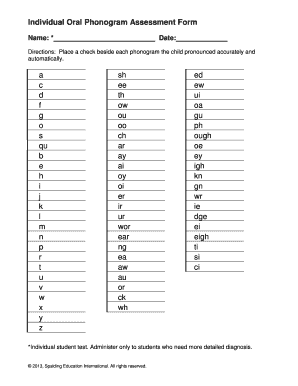
Get Individual Oral Phonogram Assessment Form - Spalding
How it works
-

Open form follow the instructions
-

Easily sign the form with your finger
-

Send filled & signed form or save
How to use or fill out the Individual Oral Phonogram Assessment Form - Spalding online
Filling out the Individual Oral Phonogram Assessment Form - Spalding online can streamline the assessment process for students. This guide provides detailed instructions to help users complete the form accurately and efficiently.
Follow the steps to effectively complete the assessment form.
- Click the ‘Get Form’ button to access the form and open it in the appropriate editor.
- Enter the name of the student in the designated field labeled 'Name.' This identifies the student whose phonogram skills are being assessed.
- Input the date of the assessment in the 'Date' field to keep track of when the assessment was conducted.
- Review the list of phonograms provided. Place a checkmark beside each phonogram that the child pronounced accurately and automatically. Ensure to check all relevant phonograms, which include single letters, blends, and digraphs.
- After completing the assessment, review the checked phonograms to ensure accuracy and completeness.
- Once satisfied with the entries, you can choose to save your changes, download a copy for your records, print the form, or share it as needed.
Complete the assessment today and enhance your documentation process!
Add bates numbering Select Edit > Insert > Bates Numbering and select Add from the drop-down list to open the Add Bates Numbers dialog box. Click Add Files. ... Click Output to display the Add Bates Numbers - Output Rules dialog box. ... Click OK in the Add Bates Numbers dialog box to call the Header and Footer dialog box.