Loading
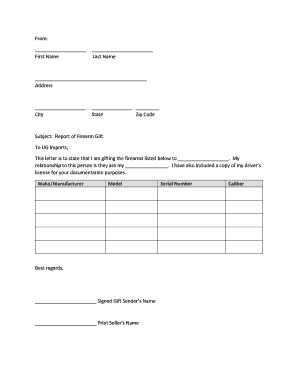
Get Gift Firearm Template Pdf - Ug Imports Llc
How it works
-

Open form follow the instructions
-

Easily sign the form with your finger
-

Send filled & signed form or save
How to fill out the Gift Firearm Template PDF - UG Imports LLC online
The Gift Firearm Template PDF from UG Imports LLC is a crucial document for legally transferring a firearm as a gift. This guide will walk you through filling out the form online to ensure a smooth and accurate submission.
Follow the steps to complete the Gift Firearm Template PDF.
- Click ‘Get Form’ button to obtain the form and open it in the editor.
- Begin by entering your first name in the designated field, as it appears on your identification.
- Next, fill in your last name in the appropriate section below the first name field.
- Provide your complete address, making sure to include street address, apartment number if applicable, and any relevant details.
- Indicate the city in which you reside in the corresponding field.
- Select your state from the dropdown menu and enter your zip code to complete your address section.
- In the section titled 'Subject: Report of Firearm Gift,' clearly state that you are gifting the listed firearms to the recipient.
- Insert the recipient’s name in the blank space provided, affirming the details of the gift.
- Specify your relationship to the recipient in the appropriate field, using neutral descriptors.
- Include a note indicating that you have provided a copy of your driver’s license for documentation purposes.
- List the firearm details including make/manufacturer, model, serial number, and caliber in the new section provided.
- Sign the form in the designated area to confirm your consent and intention of the gift.
- Finally, print your name below your signature to complete the transaction and ensure clarity.
- After finishing, you can save changes, download, print, or share the form as needed.
Complete your Gift Firearm Template online efficiently and ensure all necessary details are accurately recorded.
I cannot see any comments. Step 1: Go to the Review tab and select 'All Markup' in the drop down menu (Word 2019). Step 2: Click on 'Show markup' below 'All Markup' and tick 'Comments' (Word 2019).