Loading
Get Stocking And Training Permit Application - Seminole County - Seminolecountyfl
How it works
-

Open form follow the instructions
-

Easily sign the form with your finger
-

Send filled & signed form or save
How to fill out the Stocking And Training Permit Application - Seminole County - Seminolecountyfl online
Filling out the Stocking And Training Permit Application can be a straightforward process when you have a clear understanding of each section and field. This guide will walk you through the necessary steps to successfully complete this application online.
Follow the steps to complete your application accurately.
- Click the ‘Get Form’ button to obtain the application form and open it in your preferred form editor.
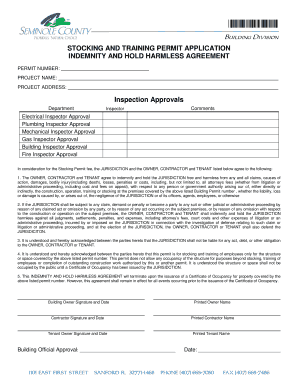
- Begin by entering the permit number, project name, and project address in the designated fields. Make sure to provide accurate information to avoid delays.
- In the 'Inspection Approvals' section, list the inspectors that will be involved in the project. This includes the Electrical, Plumbing, Mechanical, Gas, Building, and Fire Inspectors. Make sure to check if any comments are required for each inspector.
- Review the Indemnity and Hold Harmless Agreement carefully. Ensure that all parties involved—Owner, Contractor, and Tenant—understand their obligations and the liability clauses stated in this section.
- Secure signatures and dates from the Building Owner, Contractor, and Tenant in the provided spaces. Each party must print their name clearly beneath their signature.
- After ensuring that all required fields are filled out correctly and signatures are obtained, you can proceed to save changes. Depending on your needs, you may download the completed form, print it, or share it with appropriate parties.
Complete your Stocking And Training Permit Application online today to ensure a smooth process.
Apply for permits through our online permitting portal, HillsGovHub. Visit HillsGovHub and search for your record to check the status of your permit. You must be logged in to view select details and use the My Records function. View the user guide for assistance.