Loading
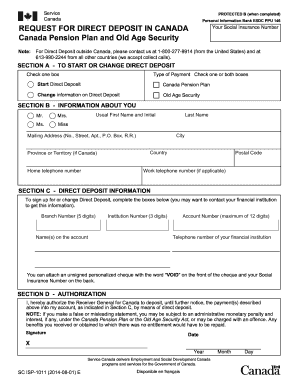
Get Personal Information Bank Esdc Ppu 146 - Servicecanada Gc
How it works
-

Open form follow the instructions
-

Easily sign the form with your finger
-

Send filled & signed form or save
How to use or fill out the Personal Information Bank ESDC PPU 146 - Servicecanada Gc online
Completing the Personal Information Bank ESDC PPU 146 form online is essential for initiating or changing direct deposit for Canada Pension Plan and Old Age Security payments. This guide will provide clear, step-by-step instructions to help you fill out the form accurately and efficiently.
Follow the steps to successfully complete your form.
- Click the ‘Get Form’ button to access the form and open it in your preferred editor.
- In Section A, decide whether you want to start or change your direct deposit. Select the appropriate box for 'Start Direct Deposit' or 'Change information on Direct Deposit' for either the Canada Pension Plan or Old Age Security.
- Proceed to Section B. Enter your personal information. Fill in your usual first name and initial, last name, mailing address (including street, apartment number if applicable, and postal code), city, province or territory (if in Canada), home telephone number, and work telephone number if relevant.
- In Section C, provide your direct deposit information. Include the branch number (5 digits), name(s) on the account, institution number (3 digits), and account number (maximum of 12 digits). You may want to contact your financial institution for accuracy. Additionally, provide the telephone number of your financial institution.
- If needed, attach an unsigned personalized cheque with 'VOID' printed on the front and your Social Insurance Number written on the back.
- Finally, complete Section D by authorizing the Receiver General for Canada to process your payments as specified in Section C. Sign and date the form to confirm your authorization.
- Once you have filled out the form completely, you can save the changes, download a copy for your records, print it out, or share it as required.
Complete your documents online today and ensure your direct deposit is set up correctly.
In Access, you can create column, line, bar, pie, and combo charts. This section explains each chart and its best-use scenarios.