Loading
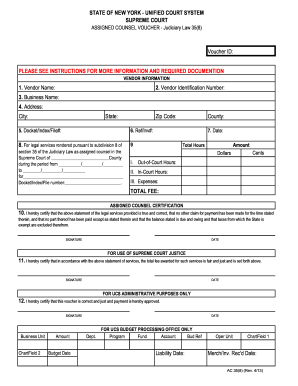
Get Assignedcounselvoucherjudiciarylaw35 8
How it works
-

Open form follow the instructions
-

Easily sign the form with your finger
-

Send filled & signed form or save
How to fill out the Assigned Counsel Voucher - Judiciary Law 35(8) online
This guide provides a detailed overview of how to accurately complete the Assigned Counsel Voucher - Judiciary Law 35(8) online. By following these instructions, users will ensure that their submissions are complete and compliant with the necessary requirements.
Follow the steps to fill out the voucher correctly.
- Click 'Get Form' button to obtain the form and open it in your preferred digital editor.
- Enter the Vendor Name in the first field, ensuring it matches the name registered in the State Financial System (SFS).
- Input the Vendor Identification Number, which is a ten-digit number provided by the Office of the State Comptroller.
- Fill in the Business Name exactly as it appears in the SFS.
- Provide the complete physical address, including City, State, and Zip Code, as recorded in SFS.
- Enter the Docket/Index/File number related to the legal case.
- If applicable, input the Reference/Invoice number or the last name of the client for whom services were provided.
- Select the date when the voucher is being submitted.
- Indicate the court county, the duration of services provided, the client's name, and the relevant court Docket/Index/File number.
- For Total Hours and Amount, document the Out-of-Court hours, In-Court hours, and any additional Expenses, denoting amounts in dollars and cents. Calculate and enter the Total Fee charged to the state.
- Complete the Assigned Counsel Certification section by signing and dating it to confirm the accuracy of the provided information.
- Ensure all required documentation is attached, including a copy of the Court Order if available and the AC 35(8) Worksheet with detailed time spent.
- Users can then save changes, download, print, or share the completed voucher as needed.
Complete your Assigned Counsel Voucher online today to ensure all submissions are processed efficiently.
Word - make headings 1 always show on a new page using Page break before setting Right-click your Heading 1 style and select Modify. Now click on Format then Paragraph. In the Paragraph box, select the line and page breaks tab. Check Page Break Before and click OK twice.