Loading
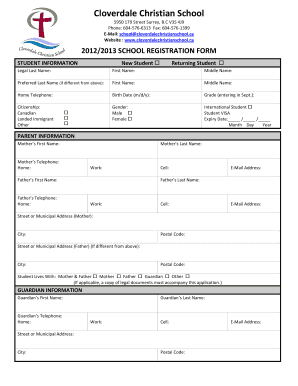
Get Student Registration Form - Cloverdale Christian School
How it works
-

Open form follow the instructions
-

Easily sign the form with your finger
-

Send filled & signed form or save
How to fill out the STUDENT REGISTRATION FORM - Cloverdale Christian School online
Completing the student registration form for Cloverdale Christian School is an important step in ensuring your child's enrollment. This guide provides detailed instructions to help you smoothly navigate each section of the form online.
Follow the steps to complete your form accurately and efficiently.
- Click ‘Get Form’ button to access the STUDENT REGISTRATION FORM and open it in the editor.
- Begin by providing the student information. Indicate whether the student is new or returning by selecting the appropriate box. Fill in the legal last name, first name, middle name, preferred last name if applicable, home telephone, birth date in the format (m/d/y), and the grade entering in September. Specify the student’s gender and, if applicable, indicate if the student is an international student, including the student visa expiry date.
- For citizenship, check the appropriate box that applies: Canadian, landed immigrant, or other.
- Next, complete the parent information section. Enter the first and last names of both the mother and father, along with their home and work telephone numbers, and email addresses. If the parents have different addresses, fill in the street or municipal address, city, and postal code for each parent.
- Indicate with whom the student lives by selecting the appropriate option: mother and father, mother, father, guardian, or other. If applicable, ensure to accompany the application with legal documents.
- If there is a guardian, fill out the guardian’s information, including their name, telephone numbers, address, city, postal code, and email address.
- Provide emergency contact details by listing names and phone numbers of individuals who can be reached in case school personnel cannot contact you.
- For new students only, enter the name of the last school attended along with the grade, address, city, province, postal code, and phone number. Also, indicate whether the child has received a special education program.
- In the medical information section, provide the name of the family doctor, their phone number, and the B.C. Care Card number. Indicate if any medications may need administration during school hours and list any relevant health conditions, allergies, or special medications.
- Next, complete the transportation information section, notifying whether you will arrange your own transportation, require a school bus, or are interested in car pooling.
- In the church information section, indicate if your family attends church regularly and provide the baptismal date if applicable.
- In the permissions section, grant permission for the listed activities such as walking trips, sharing contact information, and using child’s photos while providing your signature.
- Finally, review all the information for accuracy. Save your changes, and once confirmed, you can either download, print, or share the completed form as needed.
Begin completing your student registration form online today to secure your child’s place at Cloverdale Christian School!
Form validation can be done simply by using if else logical statements to check whether the data input by the user is valid or invalid. We can use alert statements in our code to notify the user if he/she has entered an invalid input.
Industry-leading security and compliance
US Legal Forms protects your data by complying with industry-specific security standards.
-
In businnes since 199725+ years providing professional legal documents.
-
Accredited businessGuarantees that a business meets BBB accreditation standards in the US and Canada.
-
Secured by BraintreeValidated Level 1 PCI DSS compliant payment gateway that accepts most major credit and debit card brands from across the globe.