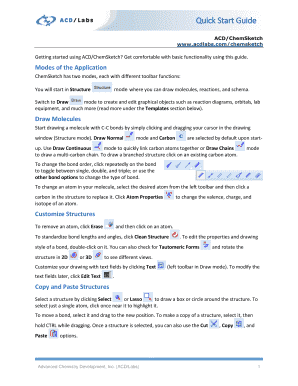
Get Quick Start Guide. Acd/chemsketch Quick Start Guide
How it works
-

Open form follow the instructions
-

Easily sign the form with your finger
-

Send filled & signed form or save
How to use or fill out the Quick Start Guide: ACD/ChemSketch Quick Start Guide online
This guide provides users with detailed instructions for effectively utilizing the ACD/ChemSketch Quick Start Guide. Whether you are a beginner or looking to enhance your skills, this comprehensive guide will help you navigate the various features and functionalities of the software.
Follow the steps to successfully complete the Quick Start Guide
- Click the ‘Get Form’ button to obtain the form and open it in the editor.
- Familiarize yourself with the two modes of the application: Structure mode for drawing molecules and reactions, and Draw mode for creating graphical objects. Make sure to start in Structure mode.
- In Structure mode, begin drawing a molecule by clicking and dragging your cursor to create C-C bonds. Initial selections of Draw Normal mode and Carbon are made by default.
- To draw branched structures, click on an existing carbon atom. Use the Draw Continuous mode for quickly linking carbon atoms and the Draw Chains feature for multi-carbon chains.
- Change the bond order by clicking on the bond repeatedly to toggle between single, double, and triple bonds. Additionally, you can adjust atom properties by selecting the desired atom from the left toolbar and clicking on a carbon in the structure.
- Remove unwanted atoms by selecting the Erase tool and clicking on the respective atom. For standardizing bond lengths and angles, utilize the Clean Structure option.
- To customize your drawing by adding text fields, click on the Text option from the left toolbar in Draw mode. Modify text fields later by selecting the Edit Text option.
- Select and copy structures using the Select or Lasso tools, and use CTRL + drag to duplicate a selected structure. Utilize Cut, Copy, and Paste functions as needed.
- Draw reactions by adding reaction icons from the top toolbar, including plus signs and arrows, to connect structures. Reaction Arrow Labels can also be added for clarity.
- Calculate properties of your structure and view the number of fragments and their combined properties on the status bar. To assess potential fragment losses, select a bond and click MassSpec Scissors.
- Add IUPAC names, SMILES, and InChI codes to your drawing through the Generate Name for Structure option, accessible via the Tools menu.
- Explore the various templates available in the Template Window for pre-drawn molecules and lab equipment. Browse the Dictionary for over 165,000 commercially available structures.
- Finally, search for files on your computer containing your drawn structure by clicking Search for Structure. You can also look for similar structures based on various factors.
- Once all entries are complete, save any changes made, and you can choose to download, print, or share the guide as needed.
Start filling out your documents online now and utilize the features of ACD/ChemSketch with ease.
To start using ChemSketch, download the software from the ACD website and install it on your device. After installation, open the program and explore its user-friendly interface. The Quick Start Guide provides essential instructions and tips, guiding you through drawing structures and generating 2D diagrams. By following this guide, you can quickly become proficient in creating chemical illustrations.
Industry-leading security and compliance
-
In businnes since 199725+ years providing professional legal documents.
-
Accredited businessGuarantees that a business meets BBB accreditation standards in the US and Canada.
-
Secured by BraintreeValidated Level 1 PCI DSS compliant payment gateway that accepts most major credit and debit card brands from across the globe.