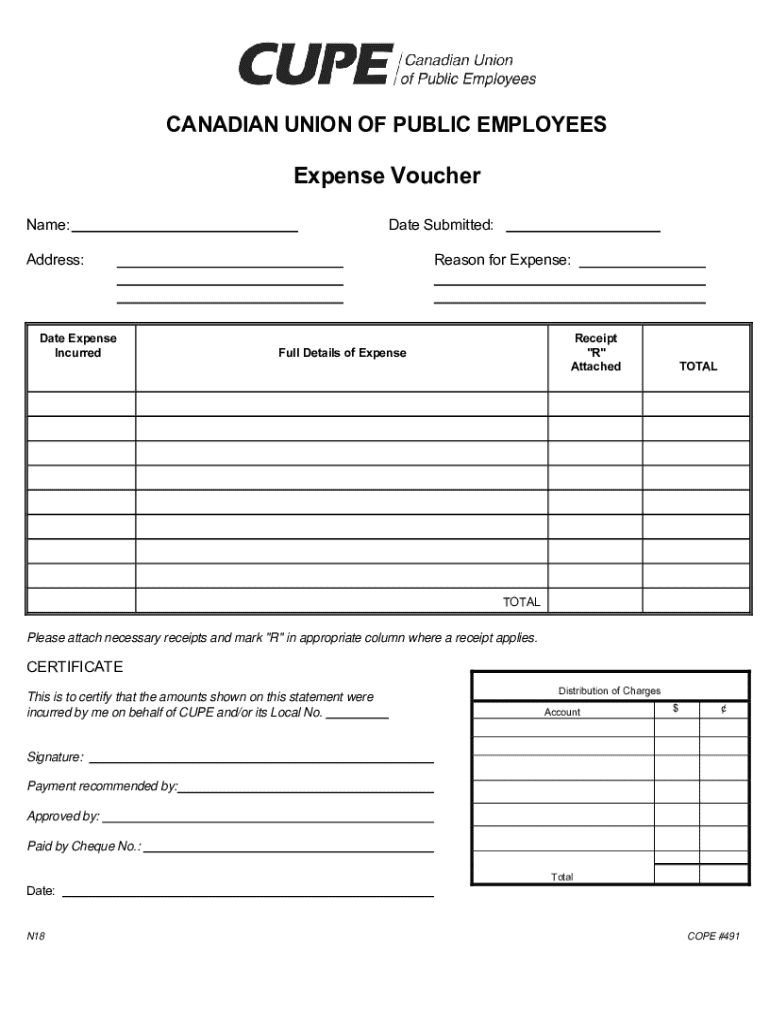
CANADIAN UNION OF PUBLIC EMPLOYEESExpense Voucher Name:Date Submitted:Address:Date Expense IncurredReason for Expense:Receipt R AttachedFull Details of ExpenseTOTALTOTALPlease attach necessary.

Open form follow the instructions

Easily sign the form with your finger

Send filled & signed form or save
How to fill out the Canada CUPE SCFP Expense Voucher online
This guide provides a clear and supportive walkthrough for completing the Canada CUPE SCFP Expense Voucher online. By following these instructions, users can ensure that they accurately document their expenses and submit the necessary information.
Follow the steps to complete your expense voucher accurately
- Press the ‘Get Form’ button to access the Canada CUPE SCFP Expense Voucher. This will open the form in an online editor, allowing you to start filling it out.
- Enter your full name in the 'Name' field to identify who is submitting the expense voucher.
- In the 'Date Submitted' section, input the date when you are completing the form to document the submission time.
- Fill in your current address in the 'Address' field to ensure that you can be contacted regarding the expenses.
- Record the 'Date Expense Incurred' to specify when each expense was made.
- Provide a brief description in the 'Reason for Expense' section, explaining the purpose of each expense claimed.
- Indicate whether a receipt is attached by checking the box marked 'R' in the appropriate column for each expense.
- In the 'Full Details of Expense' section, write a detailed account of each expense, including specifics necessary for review.
- Calculate and enter the total expense amounts in the 'TOTAL' field to summarize the claims.
- Attach all necessary receipts to the form as evidence and ensure that you have marked 'R' where receipts apply.
- Complete the 'CERTIFICATE' section by verifying that the amounts listed are accurate and were incurred on behalf of CUPE or its Local No.
- Fill out the distribution of charges, specifying the relevant account and the exact dollar and cent amounts.
- Sign the voucher at the designated 'Signature' line to authorize the expense claim.
- Provide the name or designation of the person recommending the payment in the 'Payment recommended by' section.
- Have the voucher approved by entering the name of the authorized person in the 'Approved by' line.
- In the 'Paid by Cheque No.' field, enter the cheque number associated with the payment, if applicable.
- Finally, review all entered information for accuracy, then save changes, download, print, or share the form as needed.
Complete your Canada CUPE SCFP Expense Voucher online today to ensure timely reimbursement.
Experience a faster way to fill out and sign forms on the web. Access the most extensive library of templates available.
Related content
Feb 26, 2010 — For more information contact the nearest OLMS field office listed on page...
Fill out this form to be reimbursed for expenses for approved events. Attach all relevant...
This would have enabled the mass production of certain forms. But Moche ceramics vary...
Get answers to your most pressing questions about US Legal Forms API.
What is an expense claim form?
What is an expense claim form? An expense claim form is the same as an expense reimbursement form - it is simply a form that documents business expenses that an employee must be reimbursed for.
What goes on an expense statement?
An expense report contains a categorized and itemized list of expenses that were made on behalf of the organization. This report helps the employer or finance team determine what money was spent, what was purchased, and how much of the expenditure is approved for reimbursement.
How long does it take to fill out an expense report?
It takes 20 minutes on average to complete one expense report. The average cost to process one expense report is $58. On average, 19% of expense reports have errors.
What is Cupe Alberta per capita?
CUPE ALBERTA - AFFILIATION FORM Per Capita Rate as of January 1, 2022 is: ($1.30 per member per month.)
What is meaning expense form?
An expense report is a form that tracks business spending. An expense report form includes any purchases that are necessary to run a business, such as parking, meals, gas or hotels, ing to Entrepreneur.
How do I fill out an expense form?
How to create an expense report Determine what expenses you want to include in your report. List the expenses that meet your criteria, including the details listed above. Total the expenses included in your report. Add notes about expenses incurred or total paid.
What is per diem cupe BC?
PER DIEM a. $43.00 per half day meeting (when no meal provided). b. $86.00 per day for an all day meeting (when no meals are provided).
Use professional pre-built templates to fill in and sign documents online faster. Get access to thousands of forms.
If you believe that this page should be taken down, please follow our DMCA take down process here.
This form is available in several versions. Select the version you need from the drop-down list below.